
Found an organization
Start a free organization from nothing, to hold your teams in any games: 4 on the Organization plan, more when you add them. Already run a team? Upgrade it instead.
For team owners and admins · 7 steps
An organization holds your teams in any games, such as a main team and an academy in Marvel Rivals and a team in Overwatch — up to 10 in each game. On the Organization plan, 4 are included and the person who pays adds more. Each one keeps its own roster, members, recruitment and schedule. The organization's owner and admins run every team.
Already run a team? Upgrade it instead. Founding starts an organization from nothing. If you own a team on Spawnfront, turn it into the organization so you keep its site, address, plan and members — see Upgrade your team to an organization.
What you need first
- Your birth date, country, the languages you speak and your native language on your profile — see Set up your profile.
- No other free organization. An account can own one free organization at a time.
Steps
Step 1: Open My teams
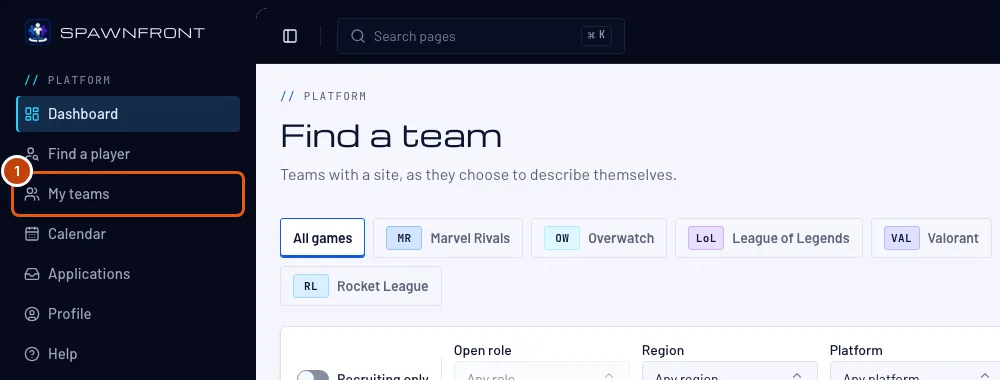
In the menu on the left, press My teams.
You should see: My teams, with the line Starting from nothing? Start an organization under your teams.
Step 2: Press Start an organization
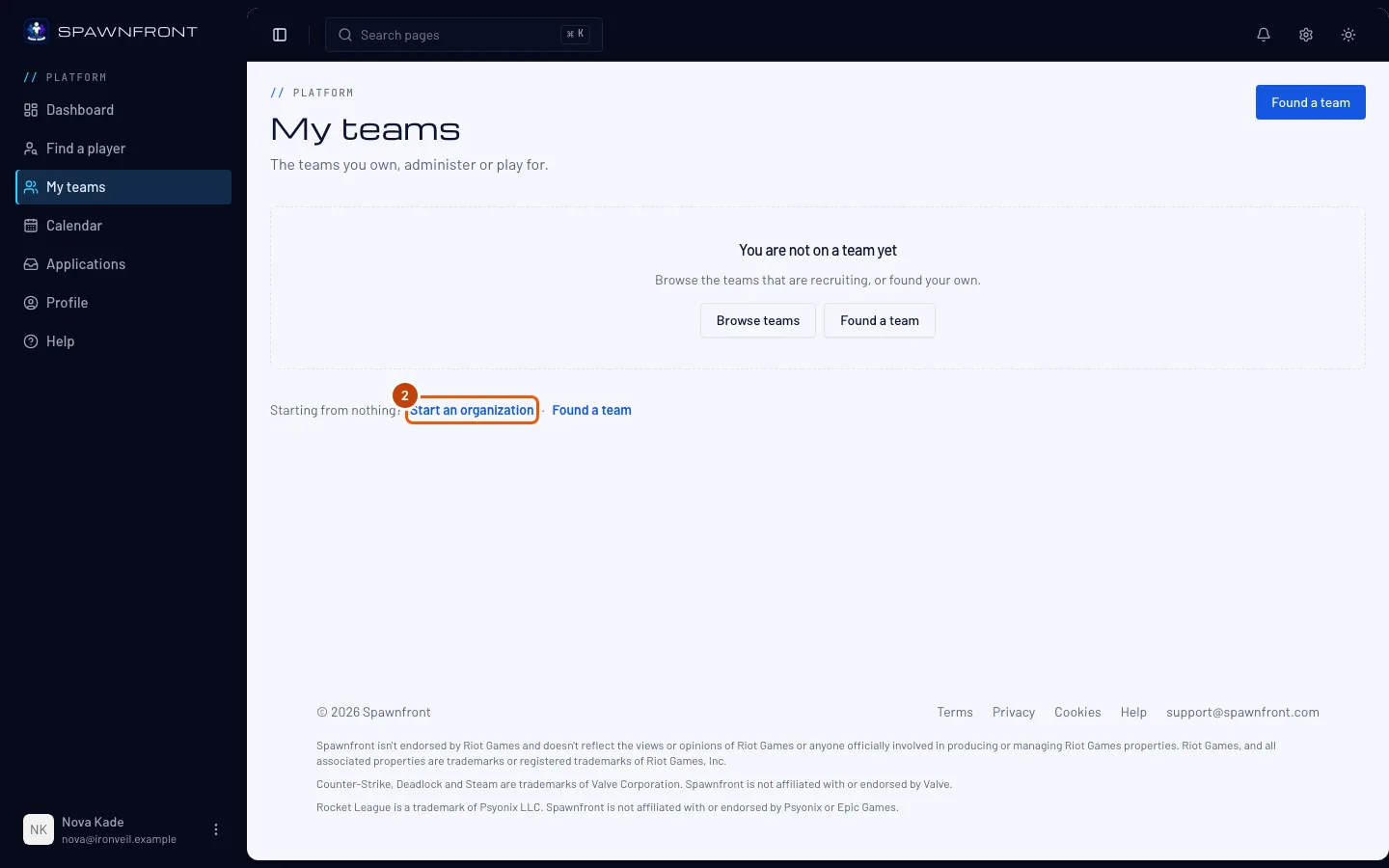
Press Start an organization. (Already in an organization? The button is Found an organization on the Your organizations card.)
If you own a team, the box first asks Do you already run a team? Choose No, start from nothing and press Continue to found a new one, or Yes, upgrade my team to upgrade the team instead.
You should see: the Found an organization box — "Founding it is free."
Step 3: Name your organization
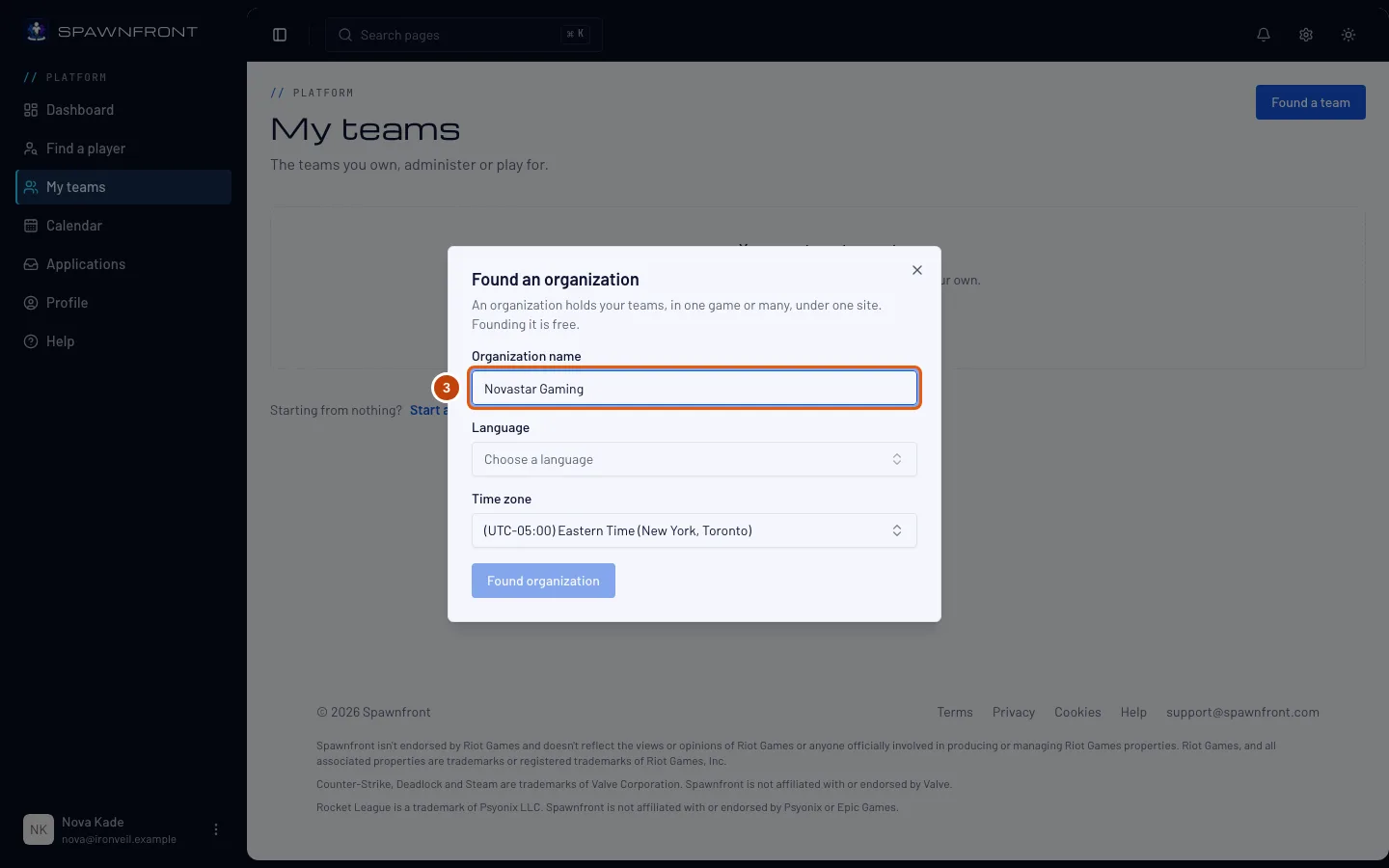
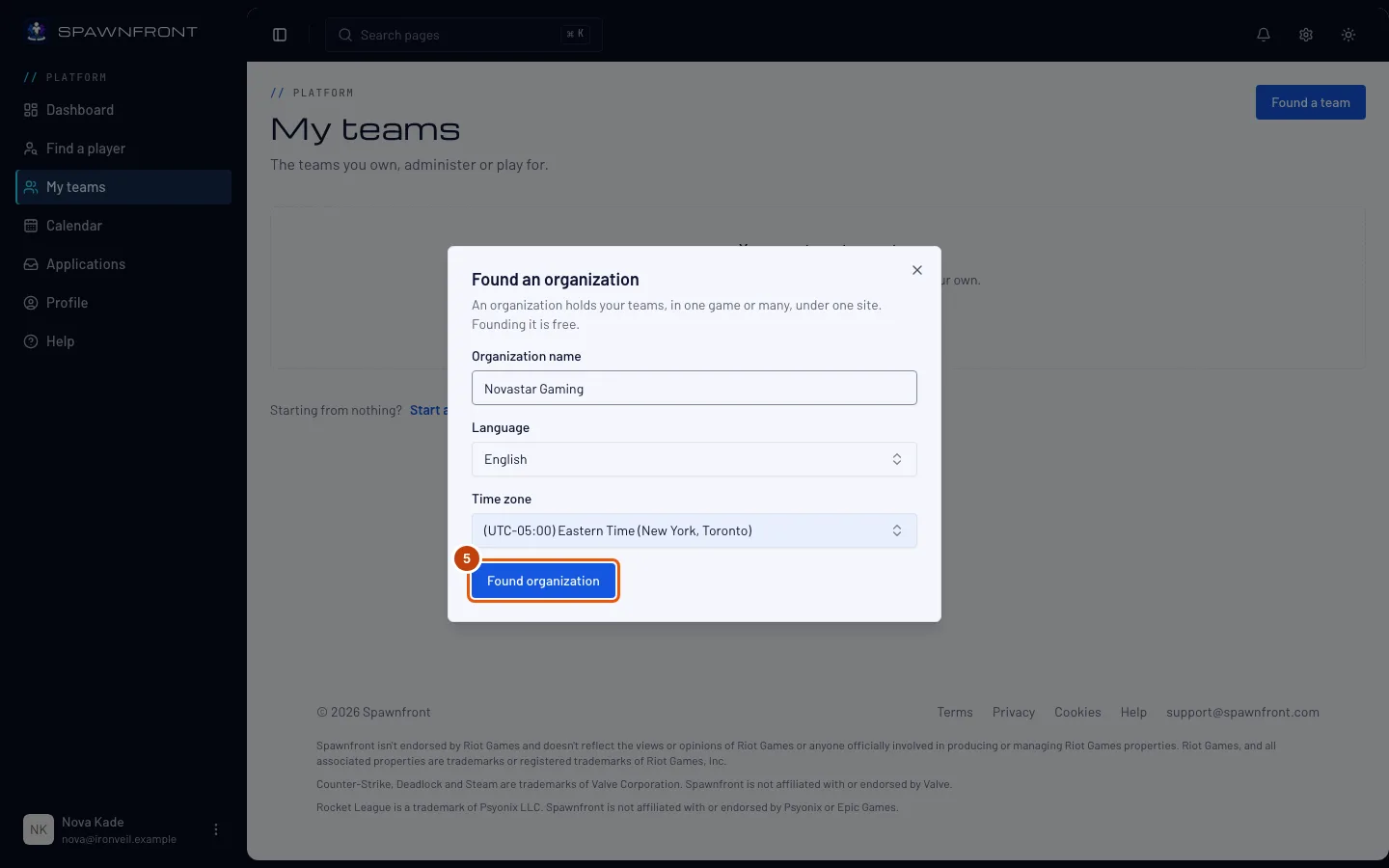
Type your organization's name in Organization name. You can change it later in the organization's Settings.
Step 4: Choose the language and time zone
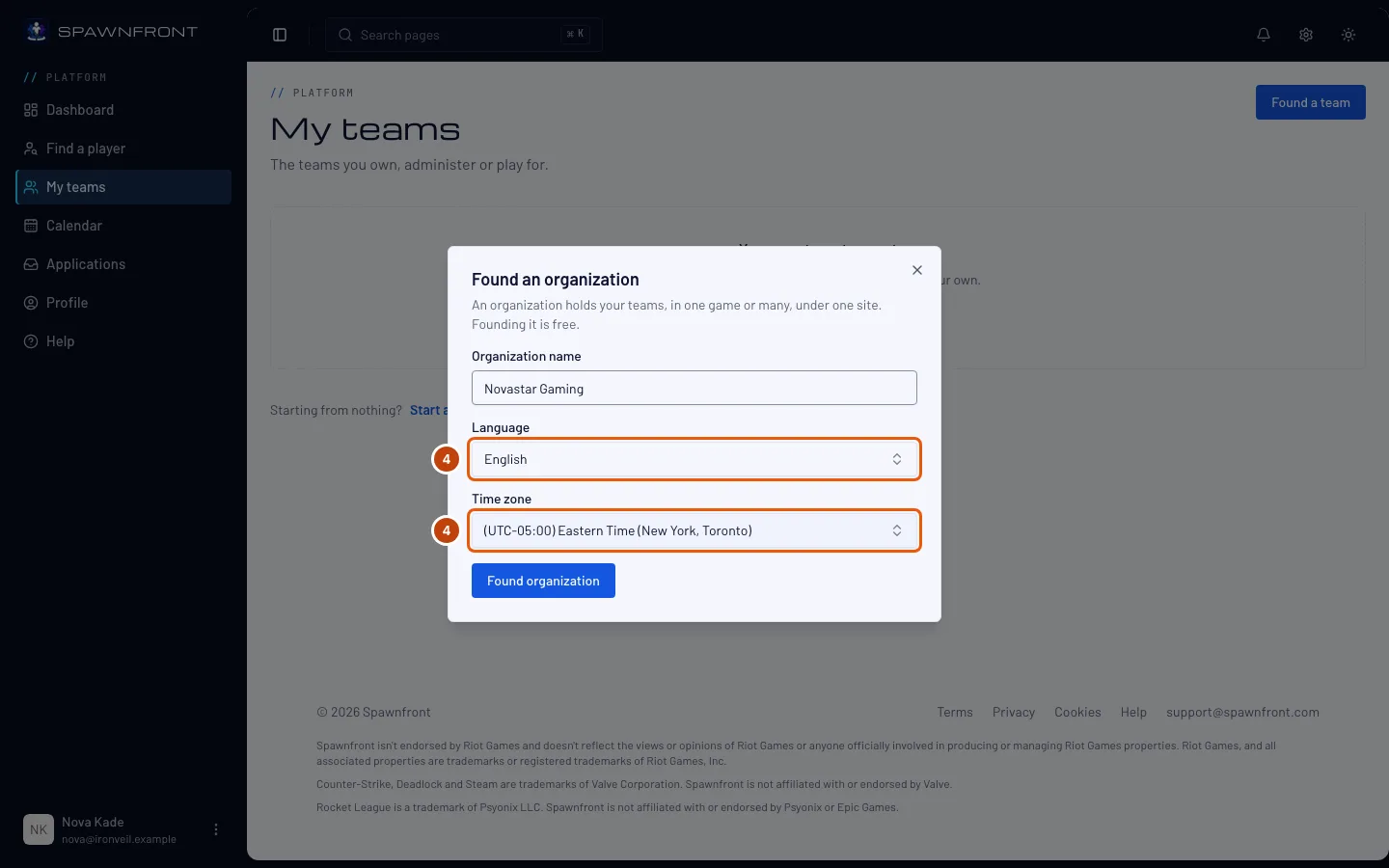
Choose a Language. Time zone starts filled in with your computer's zone — change it if your organization plays in another one.
Step 5: Found the organization
Press Found organization.
You should see: your organization's Overview, with its name as the title and "Organization · 0 teams · Your role: Owner" under it. In the menu on the left, your organization's name heads a group of its own, with Organization in it.
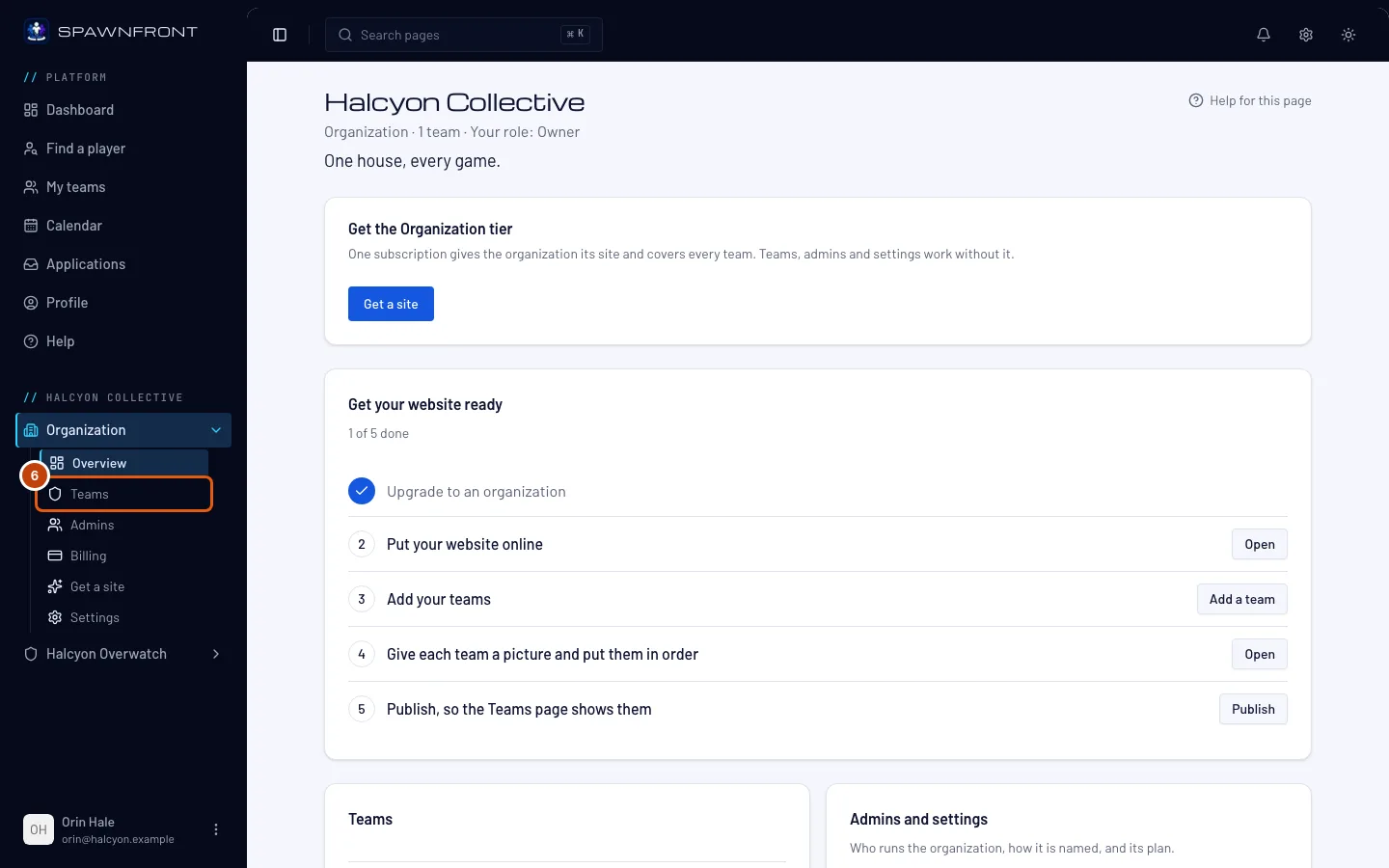
Step 6: Open Teams
In the menu on the left, under your organization's name, press Teams in the Organization list. If the list is closed, press Organization first to open it.
You should see: the Teams page, with Add a team and Invite a team.
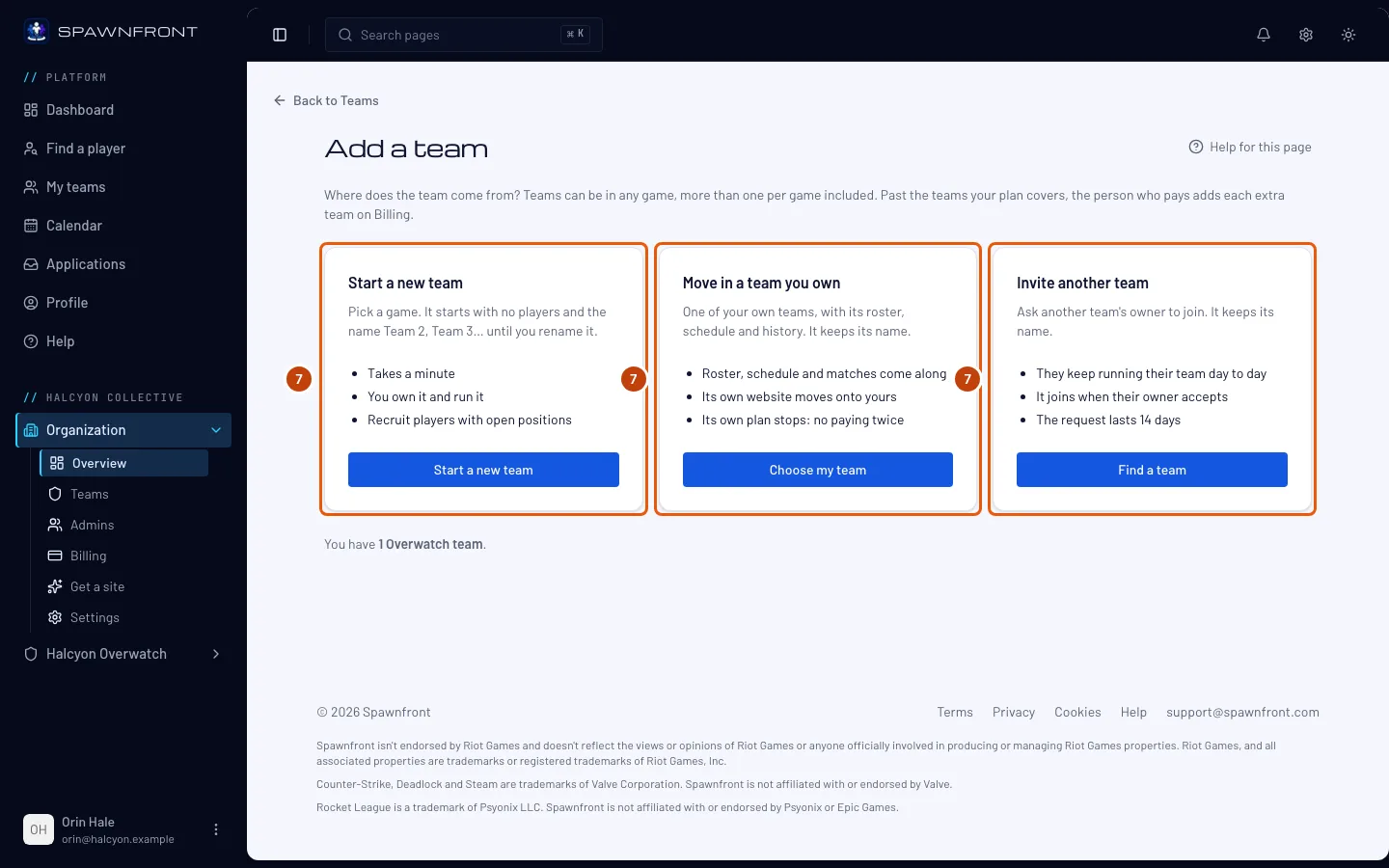
Step 7: Press Add a team
Press Add a team.
You should see: "Where does the team come from?" and three ways to add a team — Start a new team in any game, Move in a team you own, or Invite another team someone else runs. Each is explained step by step in Add a team to your organization.
Up to 10 teams in each game; the Organization plan covers 4, and the person who pays adds more on Billing. A team you start is called Team 2, Team 3 and so on until you rename it; a team you move in or invite keeps its name. No two of your teams in the same game can have the same name.
How to know it worked
- My teams lists your organization under Your organizations, marked Owner, with its number of teams.
- Open organization on that card brings you back to it, and so does Overview under Organization in the menu on the left.
Something doesn't look right?
It says "Complete your profile first"
Founding needs your birth date, country, the languages you speak and your native language. Add them on your profile, then come back to My teams and try again.
It says "You already have a free organization"
An account owns one free organization at a time. Open it from My teams instead.
It says "You have founded enough organizations today"
An account can found three organizations a day. Try again tomorrow.
Found organization stays grayed out
Choose a Language — the button waits for one.
Related articles
Still stuck? Contact support or email support@spawnfront.com — tell us the page you're on and the step number.