
Add a team to your organization
Start a new team, move in a team you own or send another team a request, rename a team, cancel a request or detach a team.
For team owners and admins · 15 steps
Your organization's plan covers 4 teams in any games, and the person who pays adds more on the organization's Billing page ($8 a month each); a game holds up to 10 teams — a main team and an academy in Marvel Rivals and a team in Overwatch, for example. There are three ways to add one: start a new team (steps 3 to 5, or step 13 for another team in a game you already play), move in a team you already own (steps 6 and 7), or invite a team someone else runs (steps 8 to 11). Step 10 is what the invited team's owner sees. Steps 14 and 15 rename a team.
A team you start is called Team 2, Team 3 and so on until you rename it. A team you move in or invite keeps its name. No two of your teams in the same game can have the same name.
What you need first
- An organization you are the owner or an admin of — see Found an organization.
- To move a team in: you are that team's owner, and it is not in an organization yet.
- To invite a team: at least three letters of the team's name, as it shows in Find a team.
- To detach a team: you are the organization's owner.
- To rename a team: you are the organization's owner or an admin. The team's own owner and admins can rename it too, in its Settings — see Edit your team settings.
Steps
Step 1: Open Teams
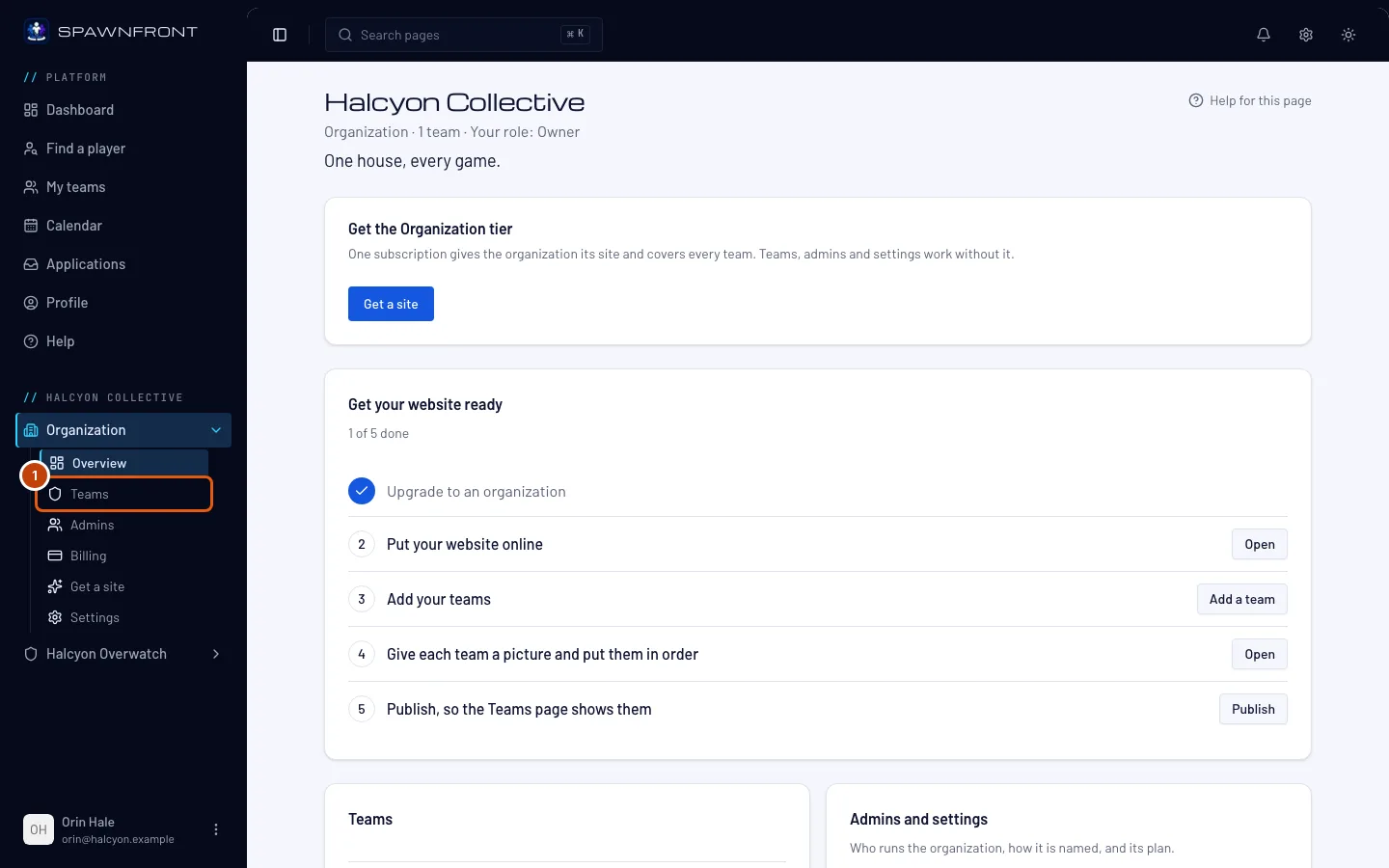
In the menu on the left, under your organization's name, press Teams in the Organization list. If the list is closed, press Organization first to open it. The Manage teams button on the Overview's Teams card opens the same page.
You should see: "Run teams in any game: 4 on your plan, and more whenever you add them.", Add a team and Invite a team, then your teams under each game's name, with how many it has — for example Overwatch and 1 team.
Step 2: Press Add a team
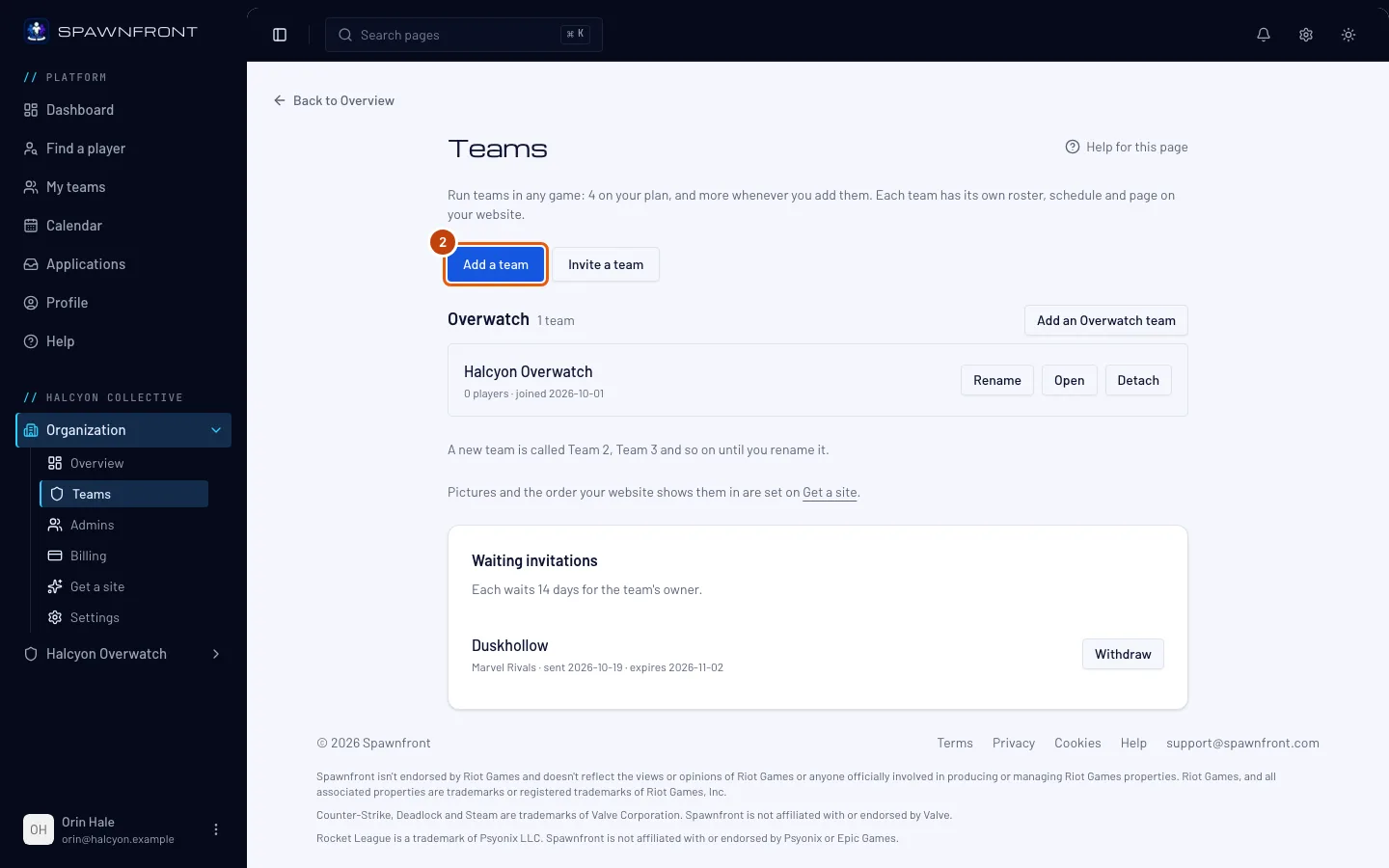
Press Add a team. The organization's Overview has the same button on its Teams card.
You should see: Add a team — "Where does the team come from? Teams can be in any game, more than one per game included. Past the teams your plan covers, the person who pays adds each extra team on Billing." — with three cards, and under them how many teams you have in each game, for example You have 1 Overwatch team.
Step 3: Start a new team
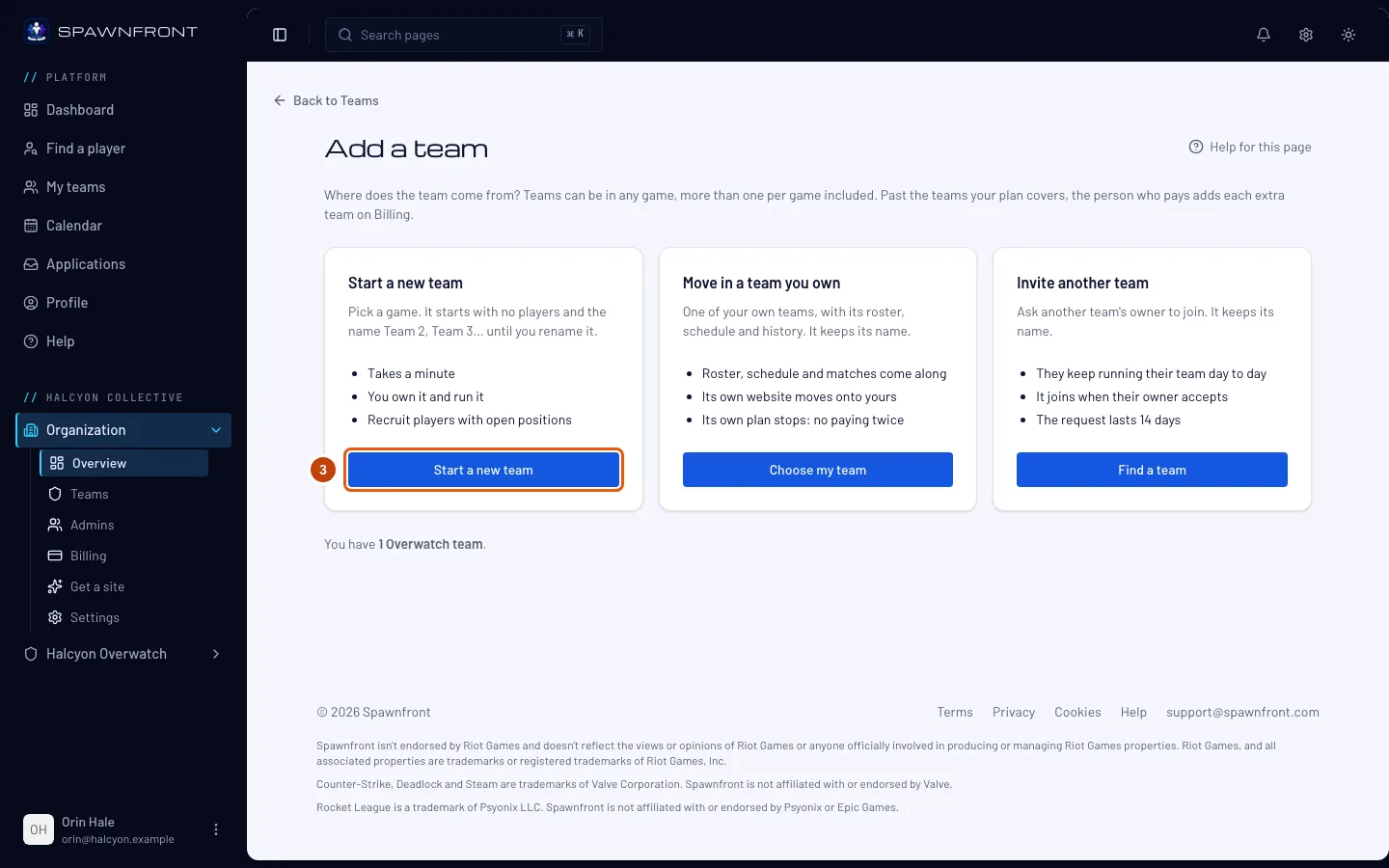
On the Start a new team card, press Start a new team.
You should see: Which game?, with a tile for each game.
Step 4: Choose the game and name the team
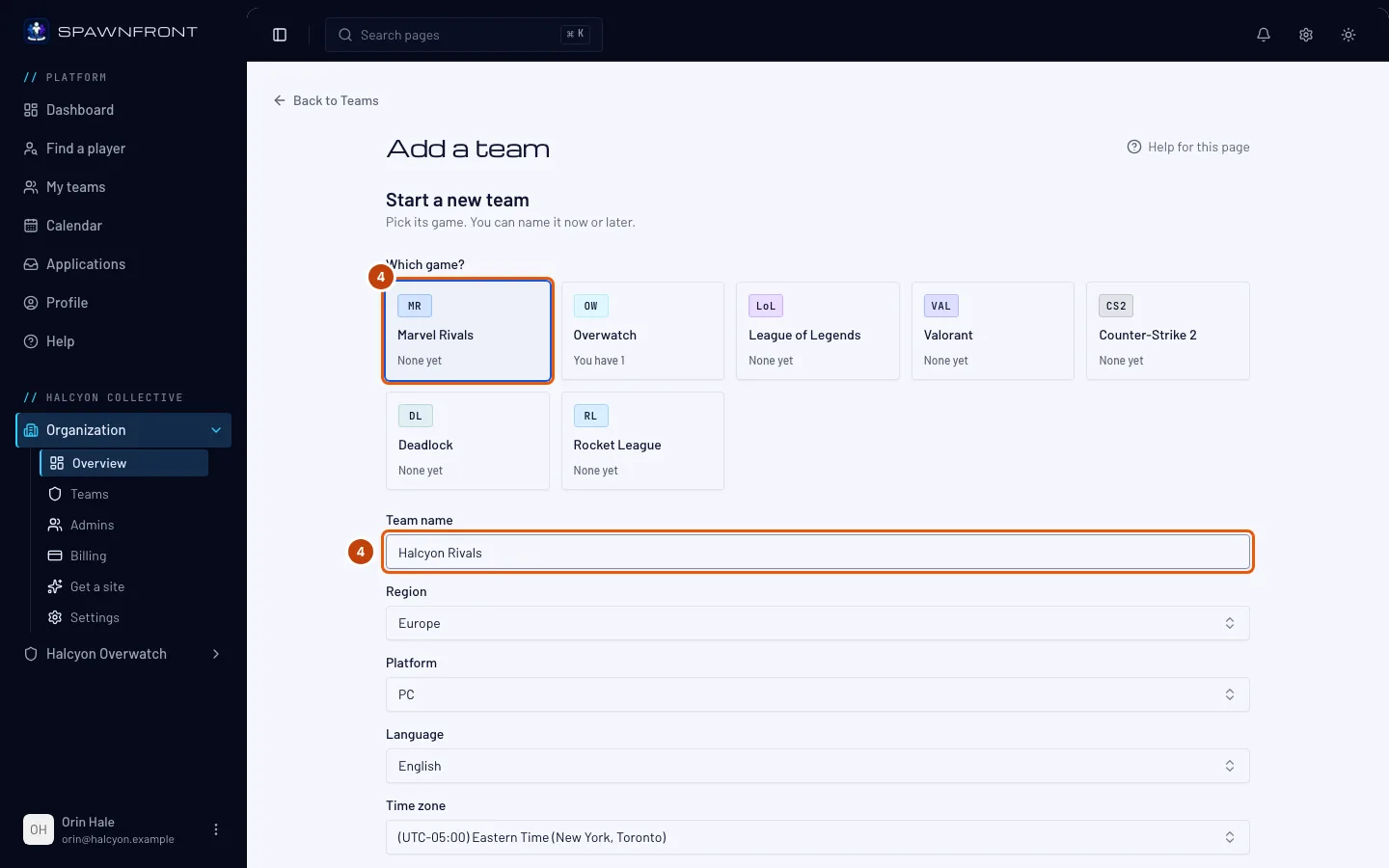
Press the tile of the game. Each tile says how many teams you have in that game — You have 1, or None yet. A game holds up to 10 teams: at ten its tile is grayed out and says You have 10 — the most a game can hold.
Check the Team name. It starts as Team and a number — Team 2 for your second team in that game. Keep it, or type a name; you can rename the team any time. The name can't be one another of your teams in that game already has. Then choose the Region, Platform and Language. Time zone starts filled in with your computer's zone.
Step 5: Create the team
Press Create followed by the team's name — for example Create Halcyon Rivals, or Create Team 2 if you kept the number.
You should see: "… created", and the new team on Teams. The organization's owner owns the new team, whoever created it. Add its players next, for example with open positions.
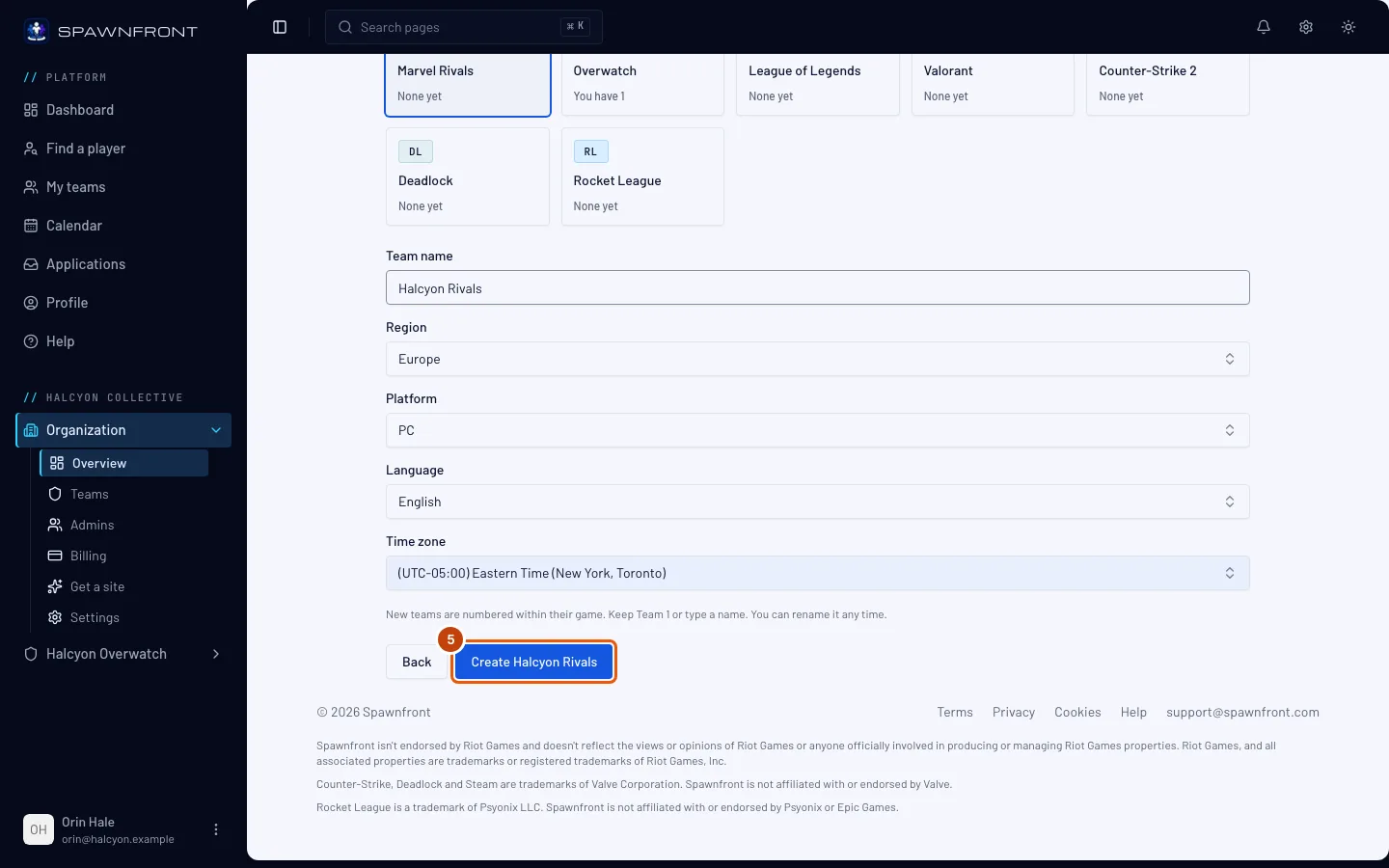
Step 6: Move in a team you own
Back on Add a team, press Choose my team on the Move in a team you own card.
You should see: Move in a team you own, listing the teams you own that are not in an organization yet.
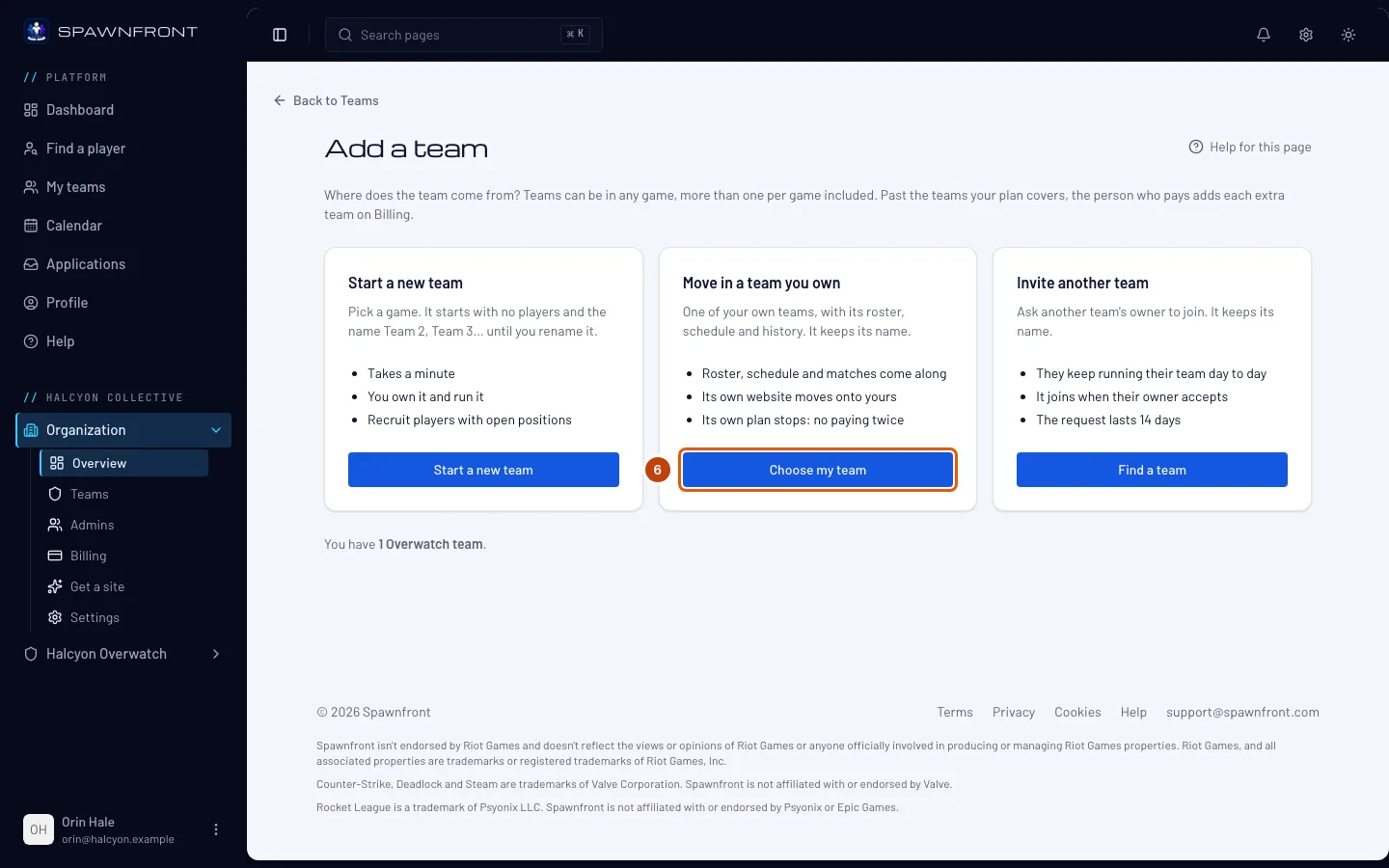
Step 7: Pick the team and move it in
Press your team. Read When … moves in, then press Move followed by the team's name and into your organization's name.
The team keeps its name. A grayed-out team says why it cannot move: your organization already has 10 teams in its game ("You already have 10 … teams. Remove one before adding another."), or it still has its own domain — remove it first with Open domains.
You should see: "… moved into …", and the team on Teams. There is no invitation and no waiting — it moves at once. Its players, admins, schedule and matches come along; its own site goes offline and it shows on the organization's site instead. If it had its own plan, that plan stops renewing at the end of its period — the Organization plan covers it.
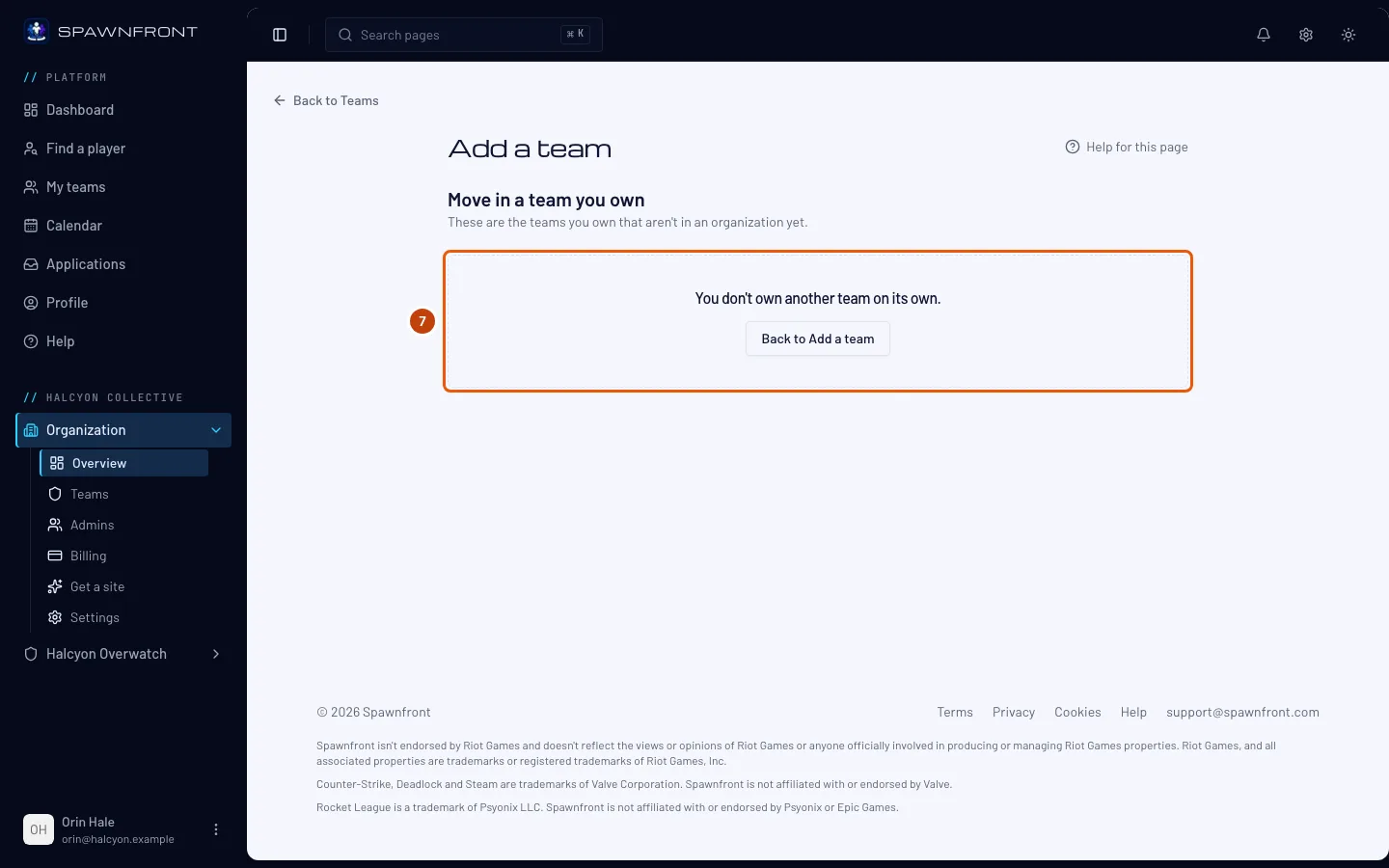
Step 8: Invite another team
Back on Add a team, press Find a team on the Invite another team card. Type at least three letters of the team's name in Team name.
You should see: Invite another team, and under the box the teams whose names match, each with its game. A team in a game where your organization already has 10 teams is grayed out and says "You already have 10 … teams. Remove one before adding another." A team already in an organization is not listed.
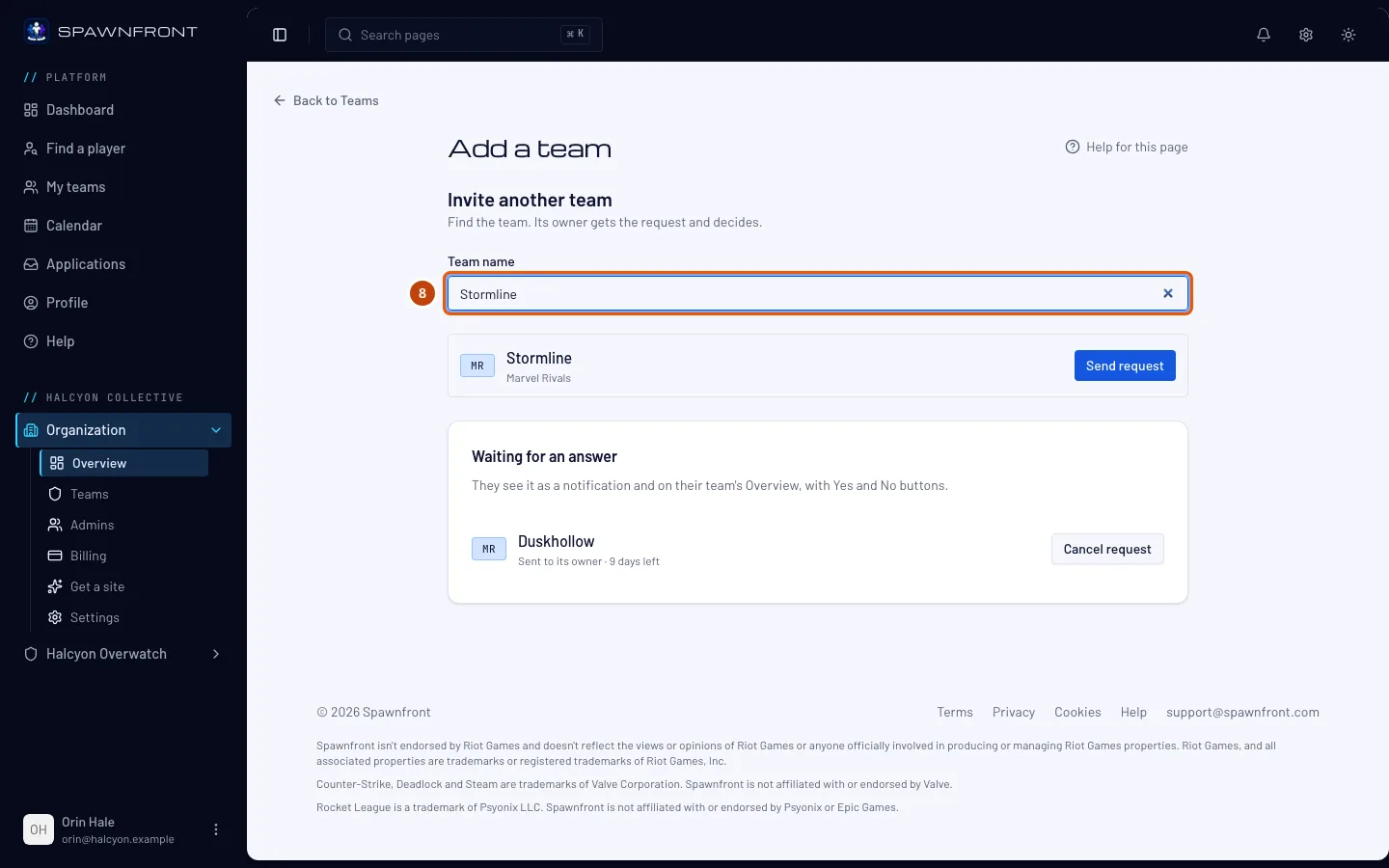
Step 9: Send the request
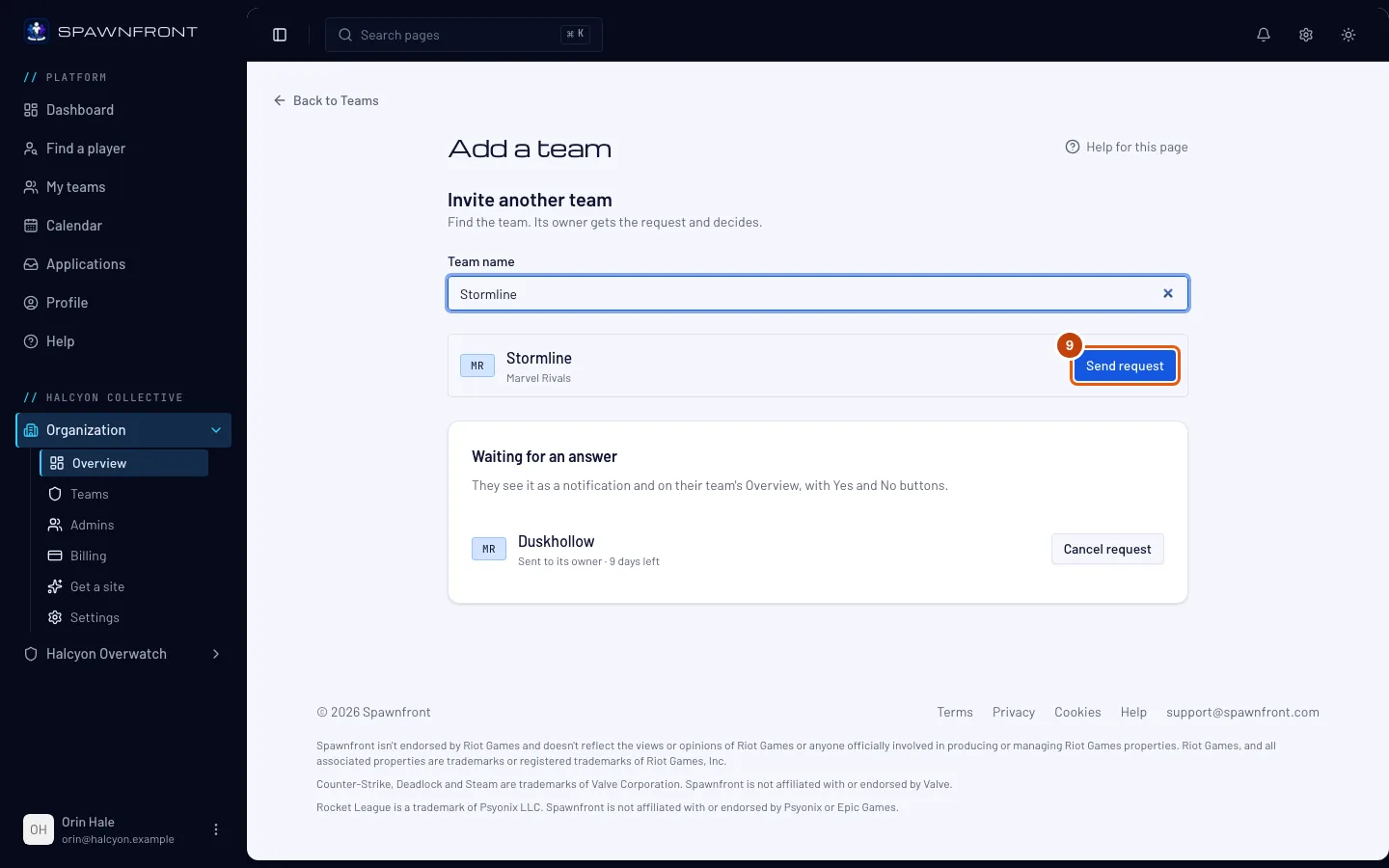
Press Send request on the team's row.
You should see: "Request sent to …". The row says Waiting for an answer, and the team is listed under Waiting for an answer below with the days left. The request waits 14 days for the team's owner — only the owner can answer it.
Step 10: The team's owner answers on its Overview
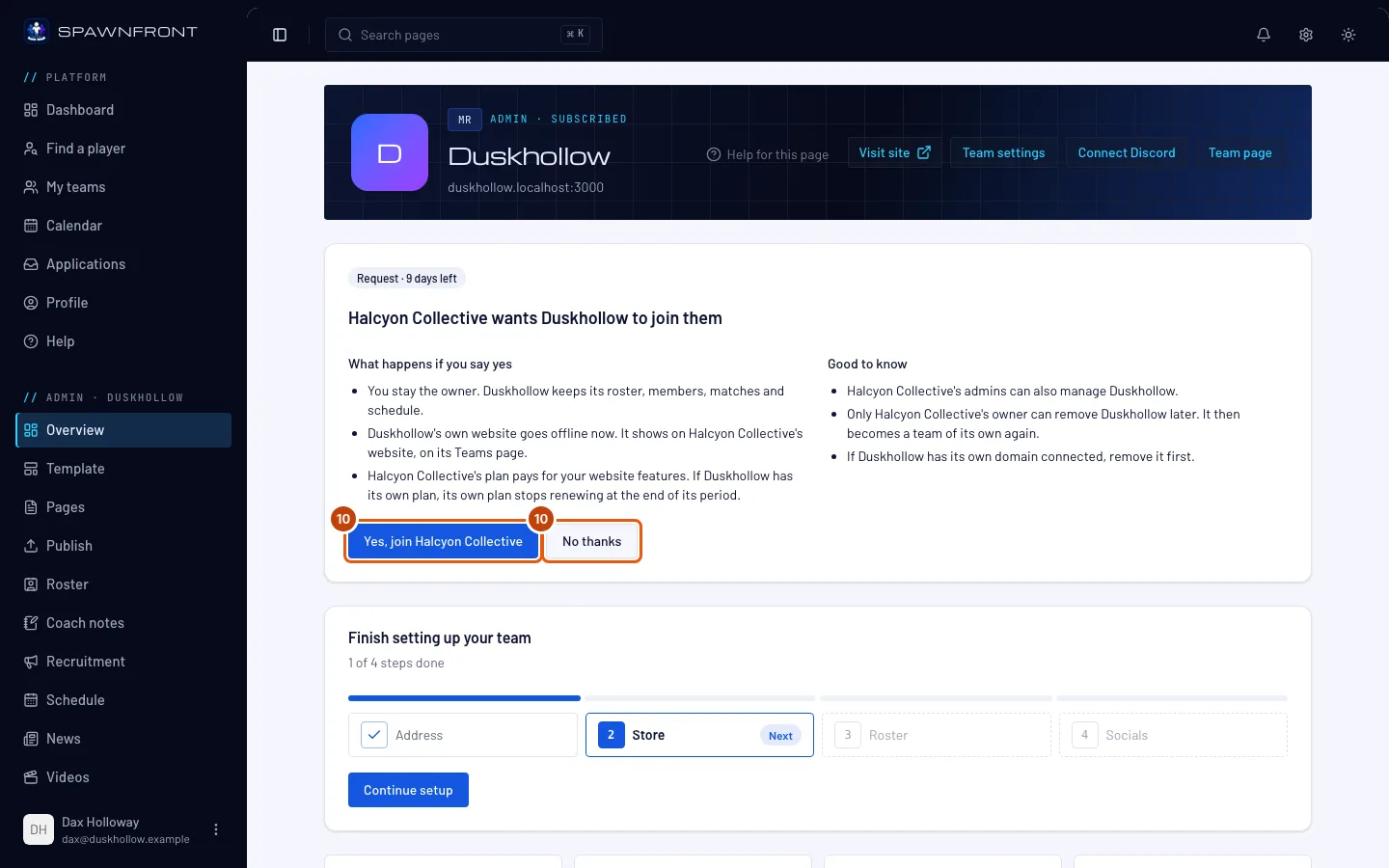
The team's owner gets a notice in the bell and an email, and finds the request at the top of the team's Overview, with Yes, join … and No thanks. What they see and what saying yes does is in Answer a request to join an organization.
When the owner says yes, the team is listed on your organization's Teams, with its own name. Its own site goes offline at once, and your organization's site shows it instead.
Step 11: Cancel a request
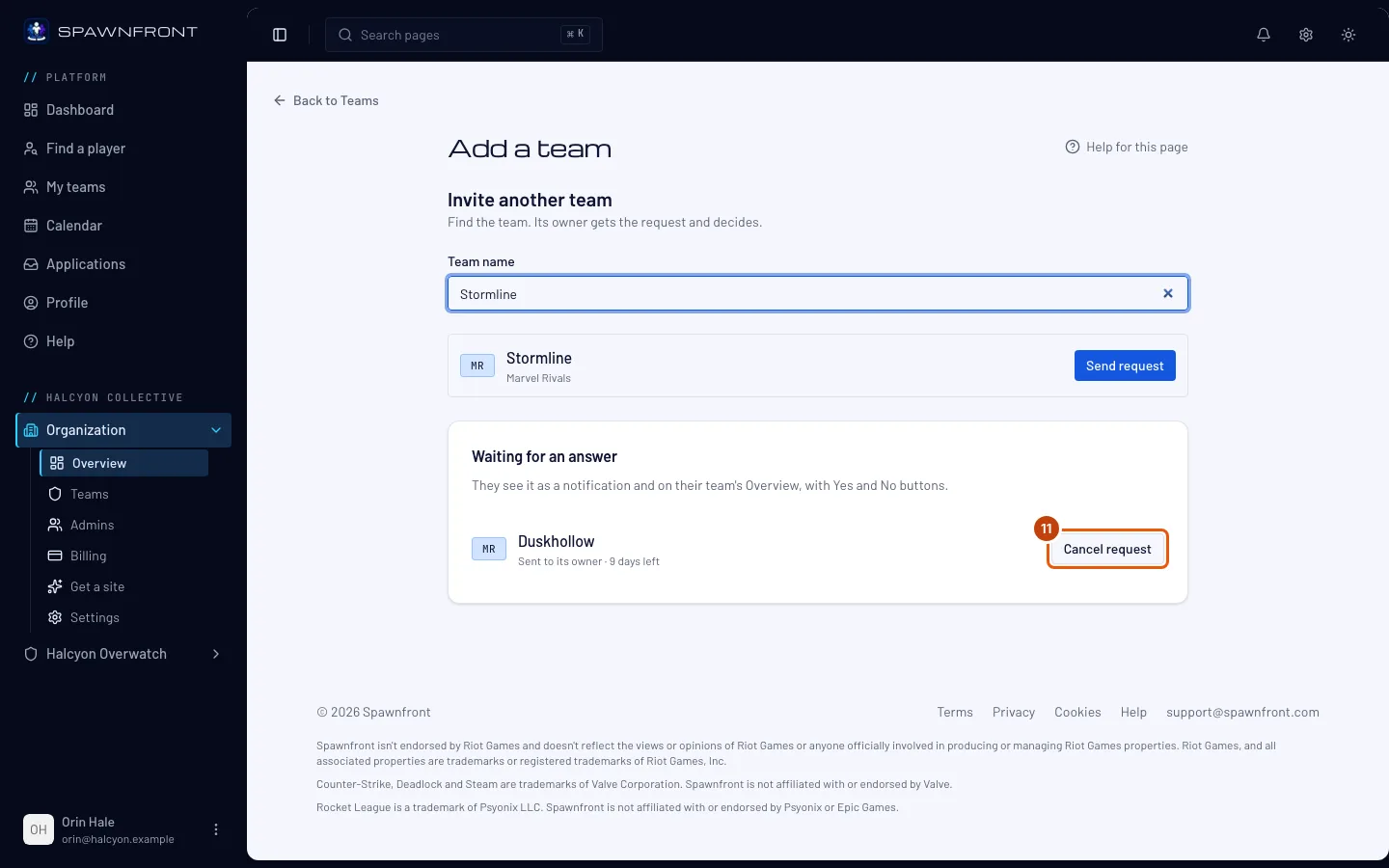
Changed your mind before the team answered? On Invite another team, press Cancel request on the team under Waiting for an answer. It happens at once — there is no confirmation.
You should see: "Request to … cancelled", and the team is gone from Waiting for an answer. Teams lists the same request under Waiting invitations, where Withdraw does the same.
Step 12: Detach a team
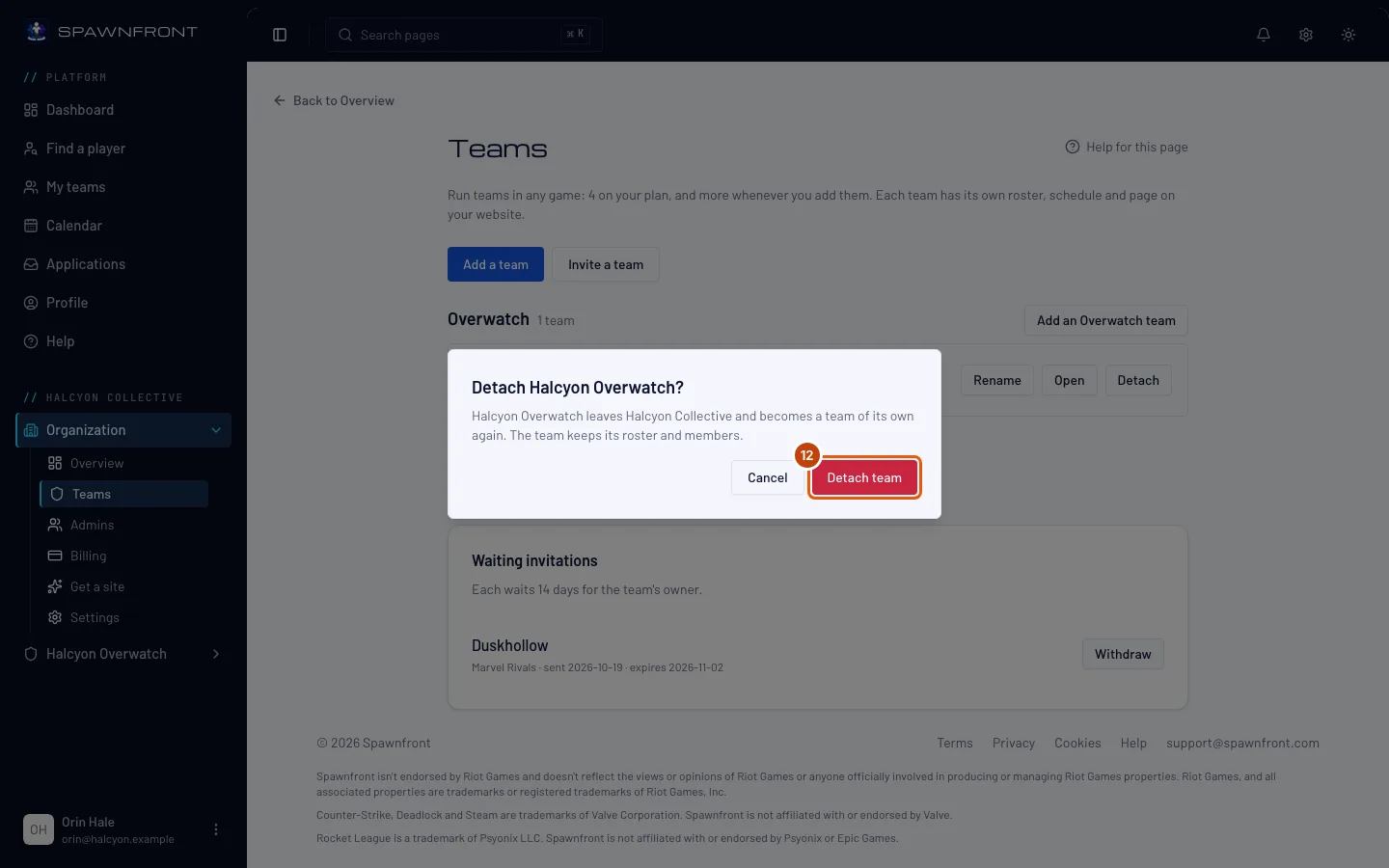
As the organization's owner, press Detach on the team, then Detach team in the box that opens.
You should see: "… detached". The team keeps its roster and members and becomes a team of its own again; its people do not stay with the organization.
Step 13: Add another team in a game you play
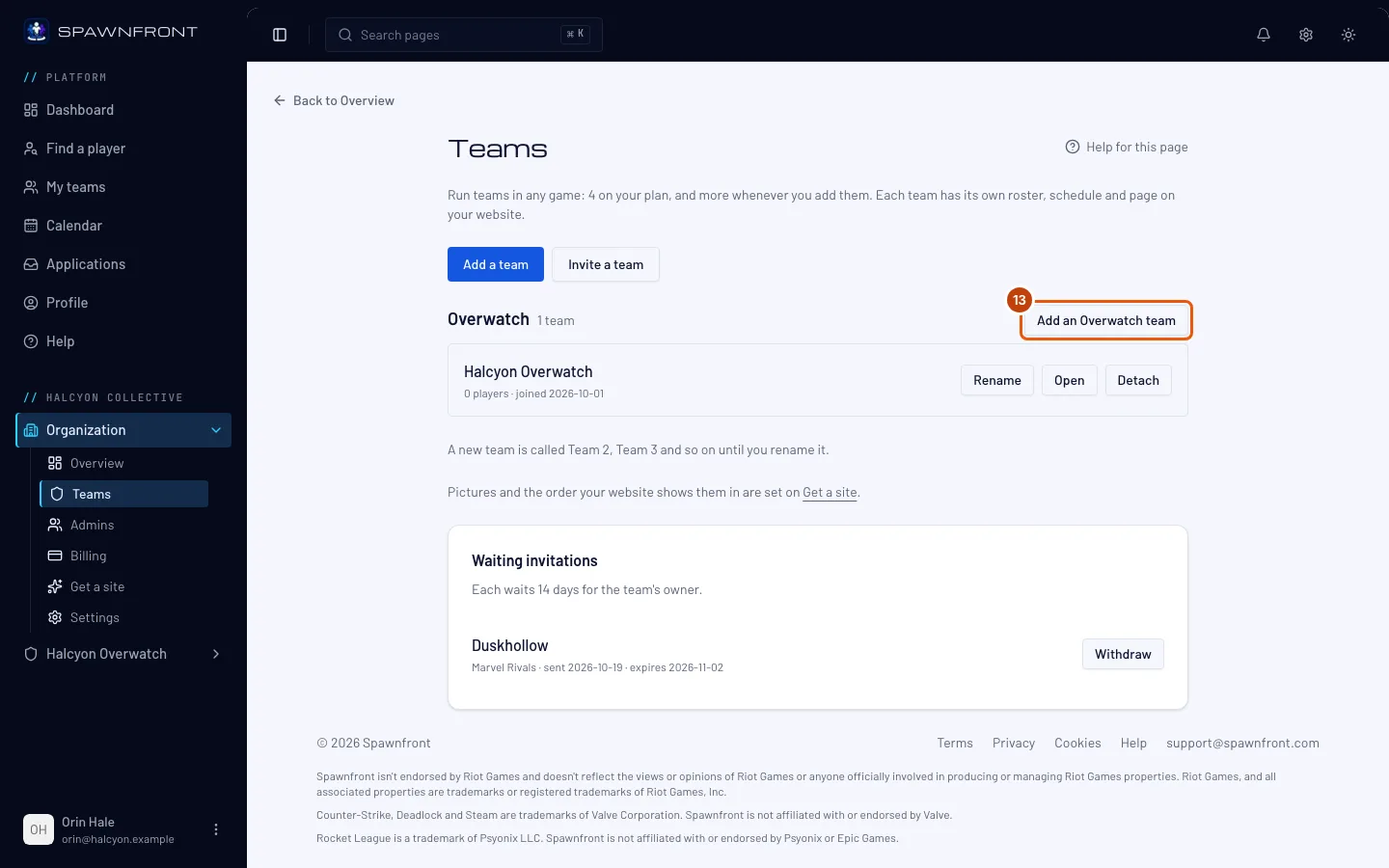
On Teams, press the button beside the game's name: Add a Marvel Rivals team, Add an Overwatch team and so on.
You should see: Start a new team with that game already chosen and the next number in Team name — for example Team 2. Carry on from step 4. When a game holds 10 teams, the button is gone and the game says 10 teams, the most a game can hold.
Step 14: Press Rename
On Teams, press Rename on the team's row. A team still called Team 2, Team 3 and so on has a Default name chip and says "Visitors see “Team 2” until you rename it."
You should see: Rename … with the team's name in Name — "The new name shows in the app, in Discord and in the scrimmage finder right away, and on your website after you publish."
Renaming moves the team's address. Once your organization has a website address, each team's row shows its address, such as
/teams/overwatch/academy, and as you type a new name the box says "Its address becomes …; the old address keeps working." The old address keeps sending visitors to the new one, so links people already shared still work.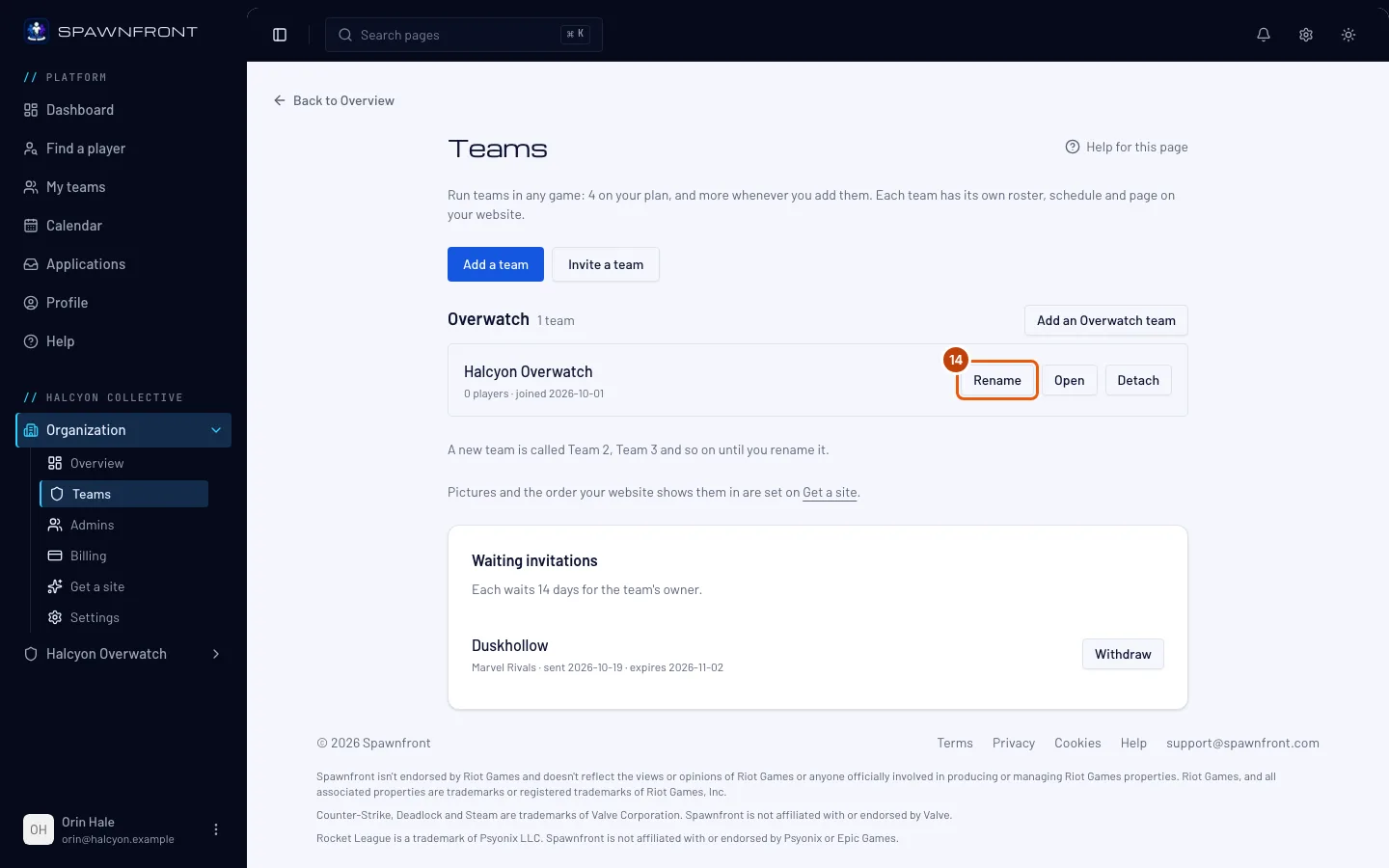
Step 15: Type the new name and save it
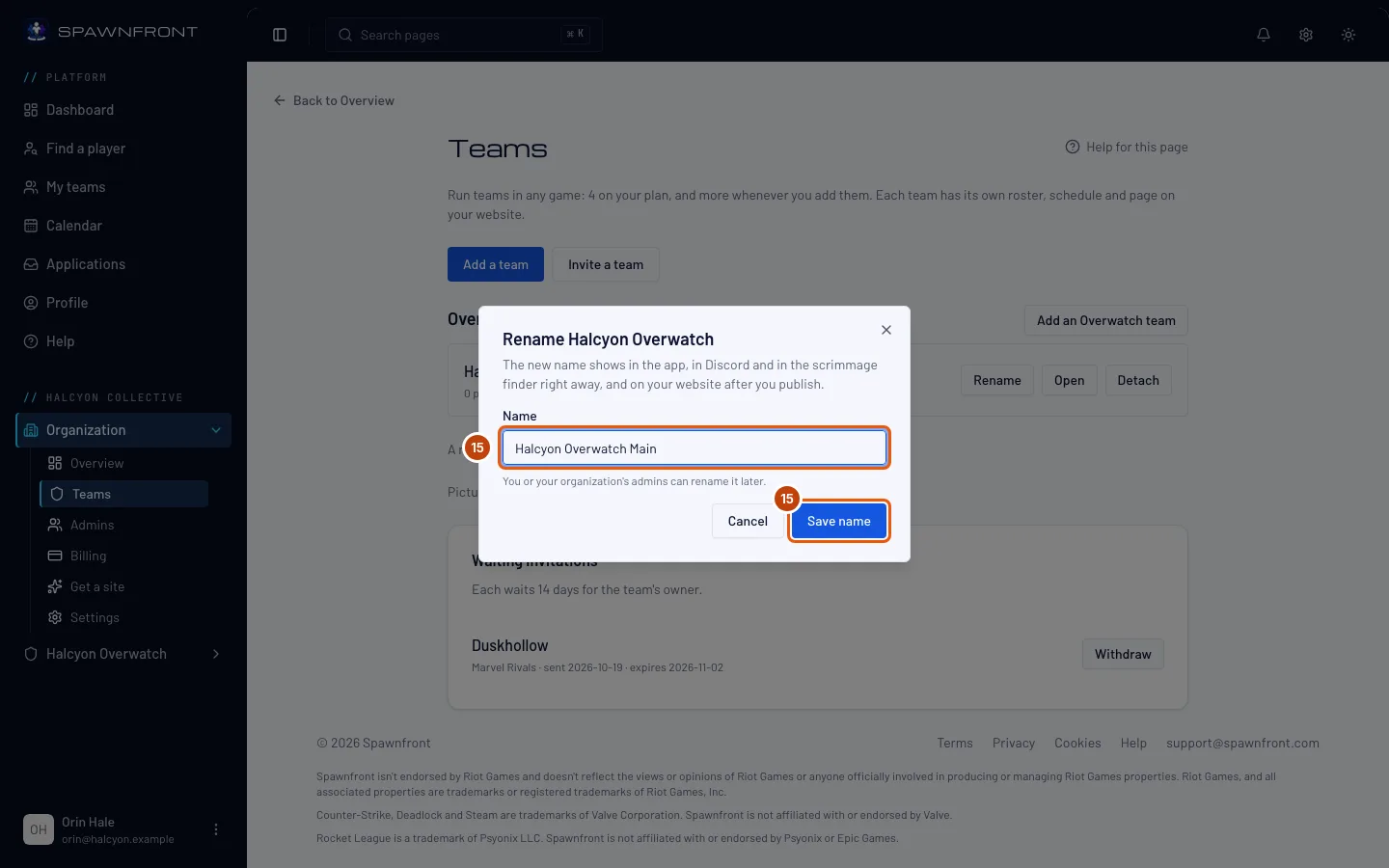
Type the new name in Name, then press Save name. (Cancel closes the box and changes nothing.)
You should see: "Renamed to …", and the new name and its new address on the team's row. Visitors see the new name on your website after you publish; the address moves without a publish, and the old one forwards to the new one. If another of your teams in that game already has the name, in any capitals, the box stays open and says "Another … team in … is called …. Pick a different name."
How to know it worked
- Teams lists every team under its game, with its players and the day it joined, and — once your organization has a website address — the team's address.
- On My teams, the organization's card counts its teams and holds a card for each one.
- In the menu on the left, each team is listed under your organization's name, below Organization.
Something doesn't look right?
Adding a team says your plan covers 4 teams
Your organization's plan covers 4 teams in any games, and you already have them. The person who pays for the organization opens the organization's Billing page and, under Teams, presses Add a team: each extra team is $8 a month on the same bill. The first time, Polar's checkout opens to add the Extra teams charge; after that the change is charged at once. Then add the team again. When you remove a team, the charge goes down at your next renewal. An organization on free access from a code is never limited this way.
A game says "You have 10 — the most a game can hold"
A game holds up to 10 teams, and your organization has 10 in that one. To add another, the organization's owner detaches one of them first.
It says "Another … team in … is called …"
Another of your teams in that game already has that name — capitals don't count. Type a different name. To move in or bring in a team whose name clashes, rename one of the two first: Rename on Teams, or the team's own Settings.
A team says Default name
The team still has the number it started with, such as Team 2, and visitors see that name. Press Rename on its row and give it a name (steps 14 and 15).
Every game is full
Your organization has 10 teams in every game, so Start a new team says "Every game already has 10 teams, the most a game can hold." Detach a team first to make room.
It says “You don't own another team on its own”
You own no team outside an organization, so there is nothing to move in. A team someone else owns joins by request: use Find a team instead.
It says “Only the team's own owner can move it in”
You are not the owner of that team, or it was deleted. Only its owner can move it in — send the team a request instead, and its owner says yes.
It says "Remove the custom domain first"
A team in an organization serves no custom domain of its own. The team's owner removes it in Address & domains, then moves the team in or says yes to the request again.
The team I'm looking for isn't listed
Type more of its name, as it shows on its card in Find a team — the search matches the name, not the address. A team already in an organization is not listed: it cannot join a second one.
The team is grayed out and says "You already have 10 … teams"
Your organization has 10 teams in that game, the most a game can hold. To ask this team, the organization's owner detaches one of them first.
It says “That's a lot of searching”
The search answers 30 times a minute. Wait a minute and type again.
It says "That team cannot be invited"
The team joined an organization or was deleted since you searched, or your organization now has 10 teams in its game. Search again.
It says "An invitation to that team is already waiting"
You already sent the team a request: it is under Waiting for an answer. Wait for its owner, or cancel it first.
It says "Your organization has sent enough invitations today"
An organization can send ten requests a day. Try again tomorrow.
The team's admin says they can't answer
Admins of the team see the request but cannot answer it — only the team's owner can. Ask the owner to say yes.
I don't see Detach
Only the organization's owner detaches teams. Admins see the list without it.
Related articles
Still stuck? Contact support or email support@spawnfront.com — tell us the page you're on and the step number.