
Set when you can scrim
Save the weekly hours your team is open to scrimmage, so the finder can match you with teams that play when you do.
For team owners and admins · 5 steps
What you need first
- Any team can set its hours, free or with a site.
- You are the team's owner or an admin.
- Your team's time zone is right in Settings. Every hour on the Availability page is in that zone.
Steps
Step 1: Open Availability
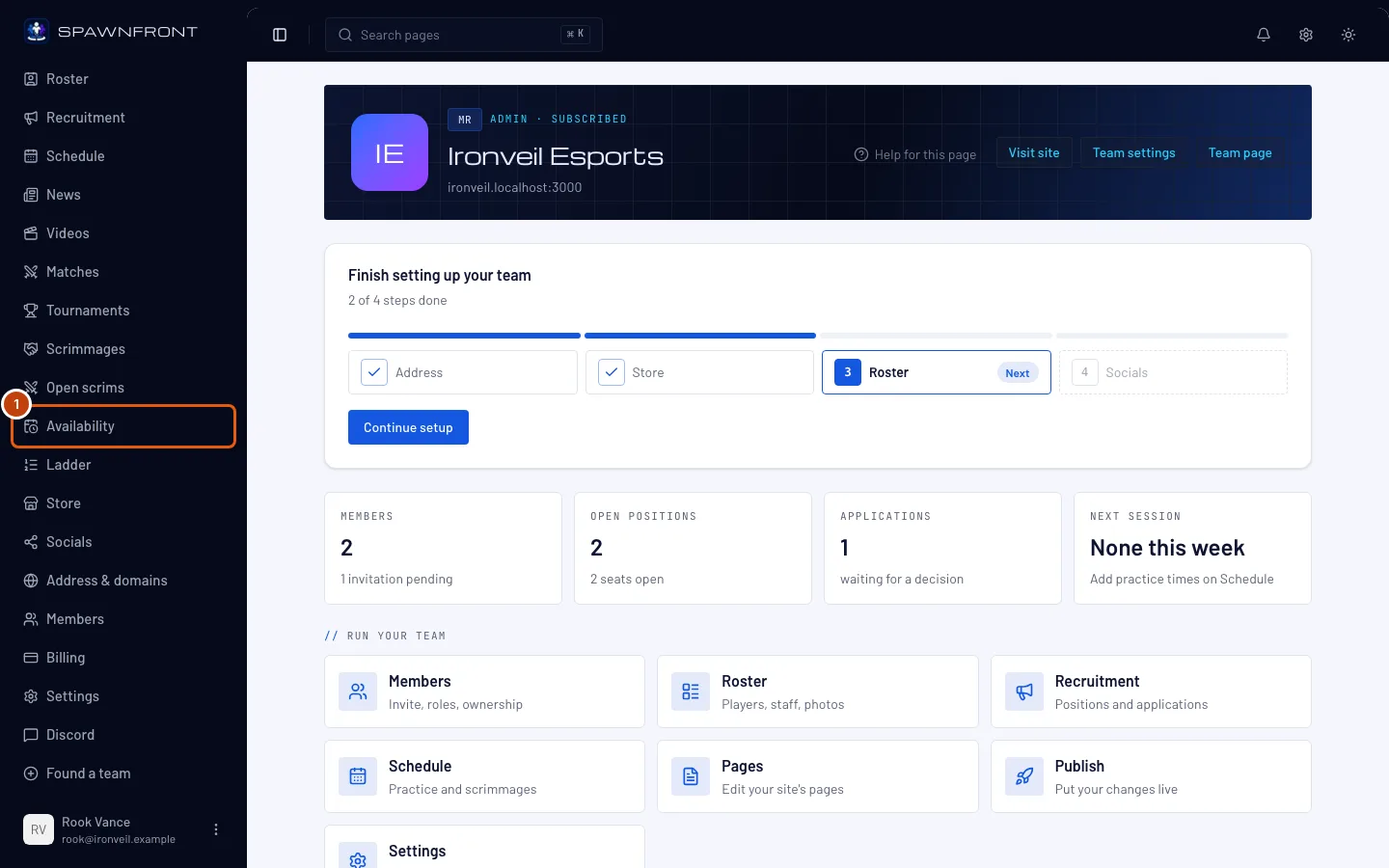
In your team's admin, press Availability in the sidebar.
You should see: a page titled Availability, with a Weekly windows card and an Exceptions card.
Step 2: Check your time zone
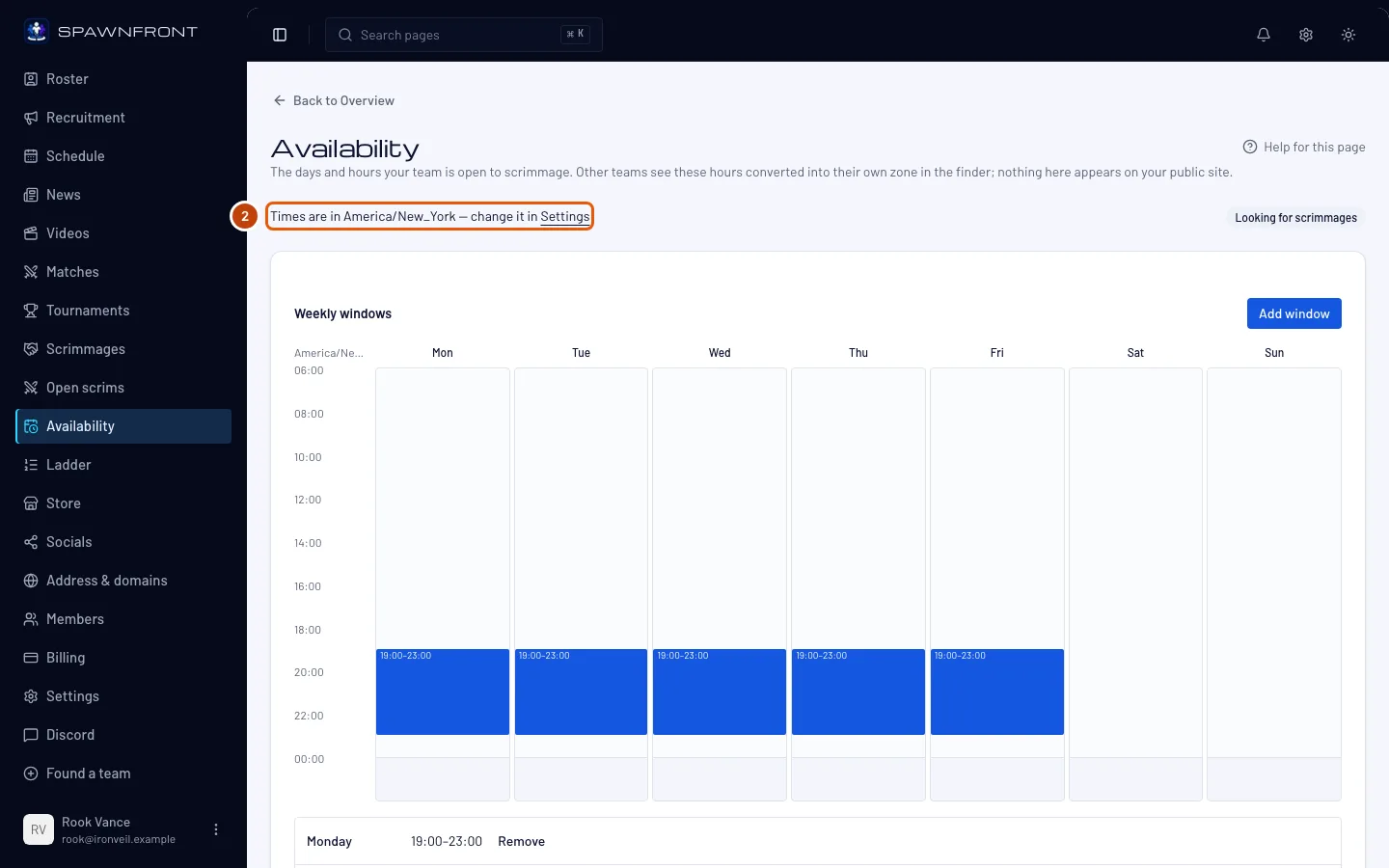
Read the line at the top of the page: "Times are in …". If the zone is wrong, press Settings in that line and change it there first.
You should see: your team's own time zone. Other teams see your hours converted into their own zone — you never do that sum yourself.
Step 3: Add a weekly window
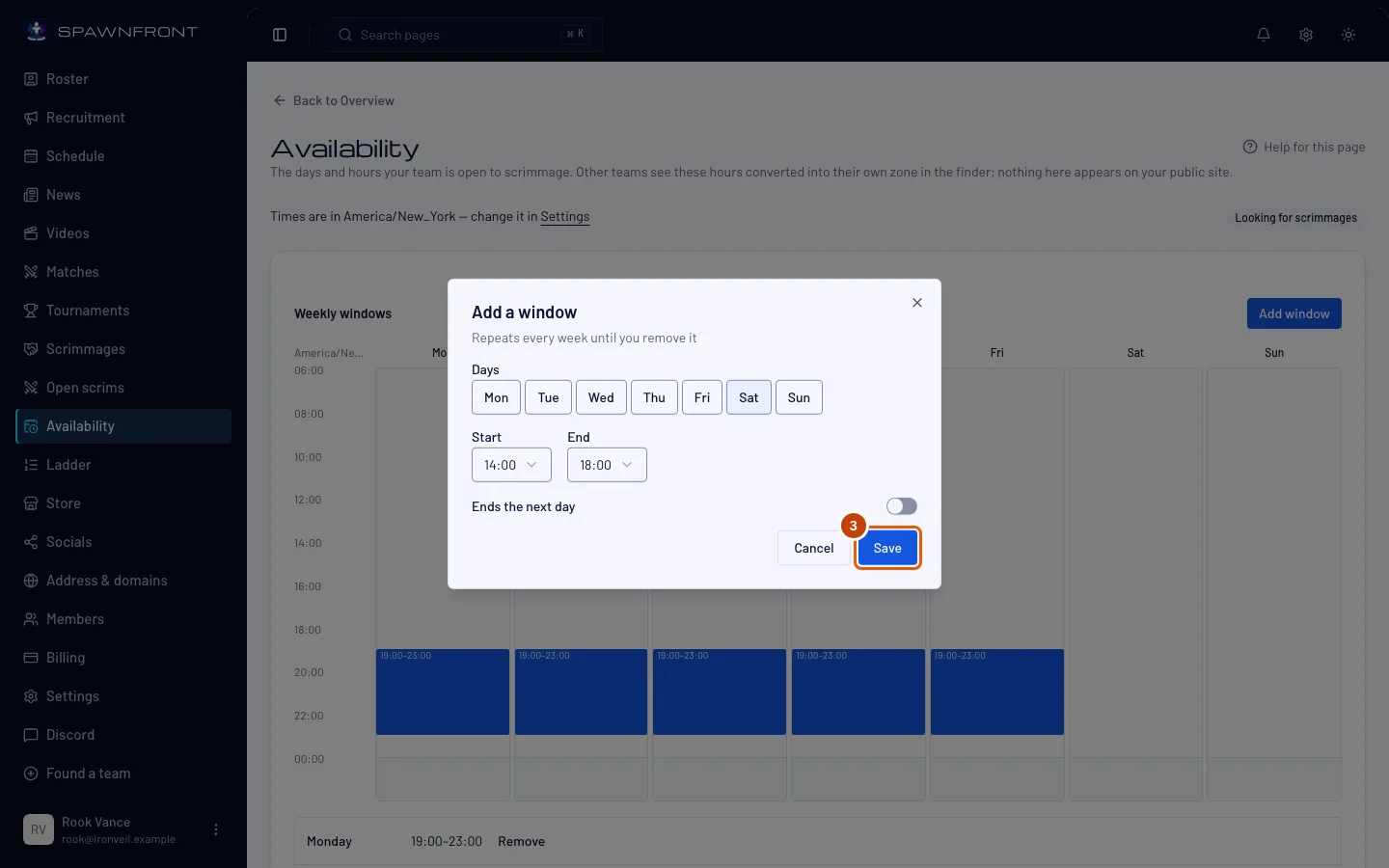
Press Add window. In the box that opens, press each day the window repeats on under Days, choose the Start and the End, and turn on Ends the next day if you play past midnight. Then press Save.
A saved window is live straight away — there is nothing to publish, and it never shows on your public site. If a day already has hours that touch the new ones, the two are joined into one window.
You should see: "Availability saved".
Step 4: Check your week
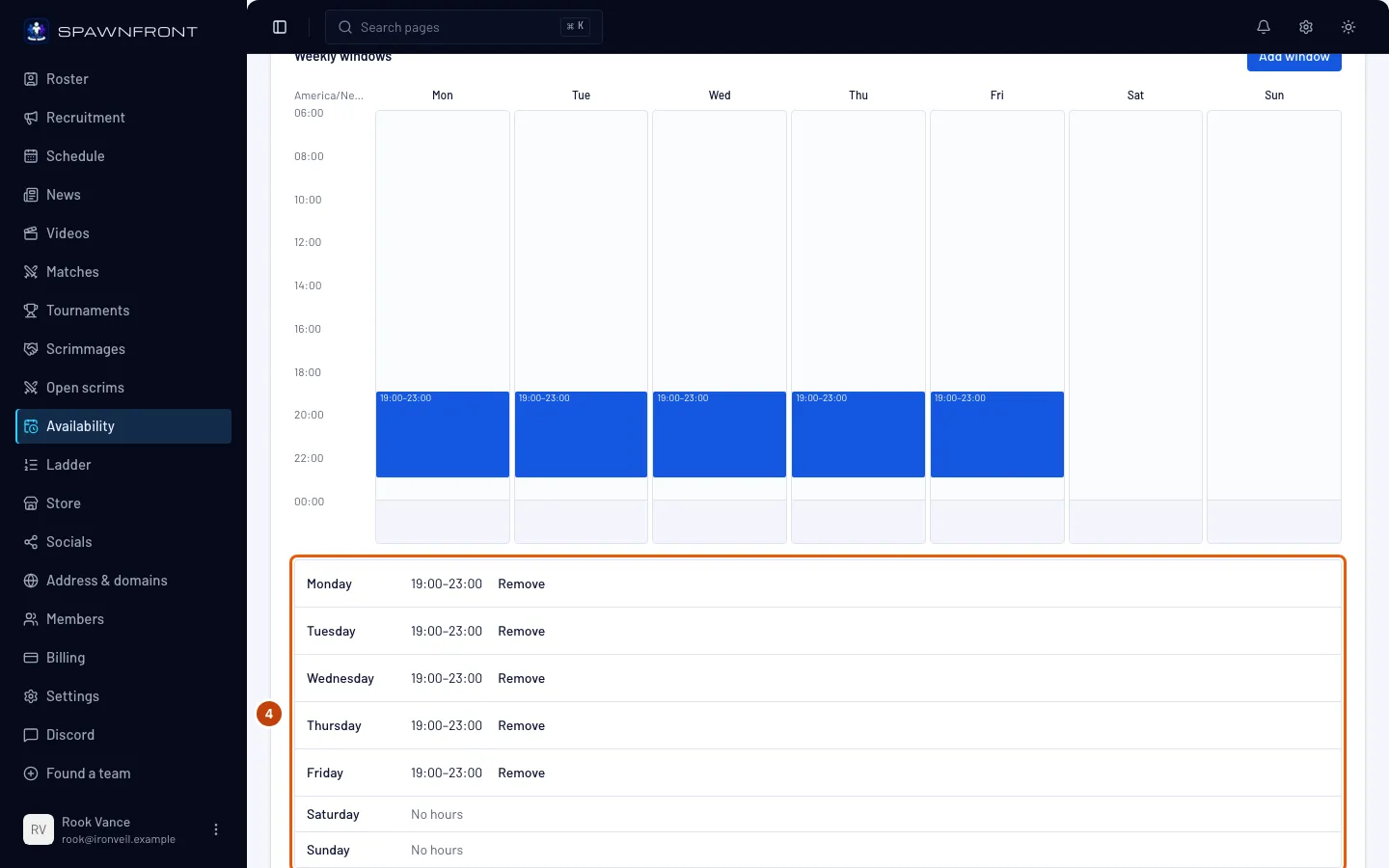
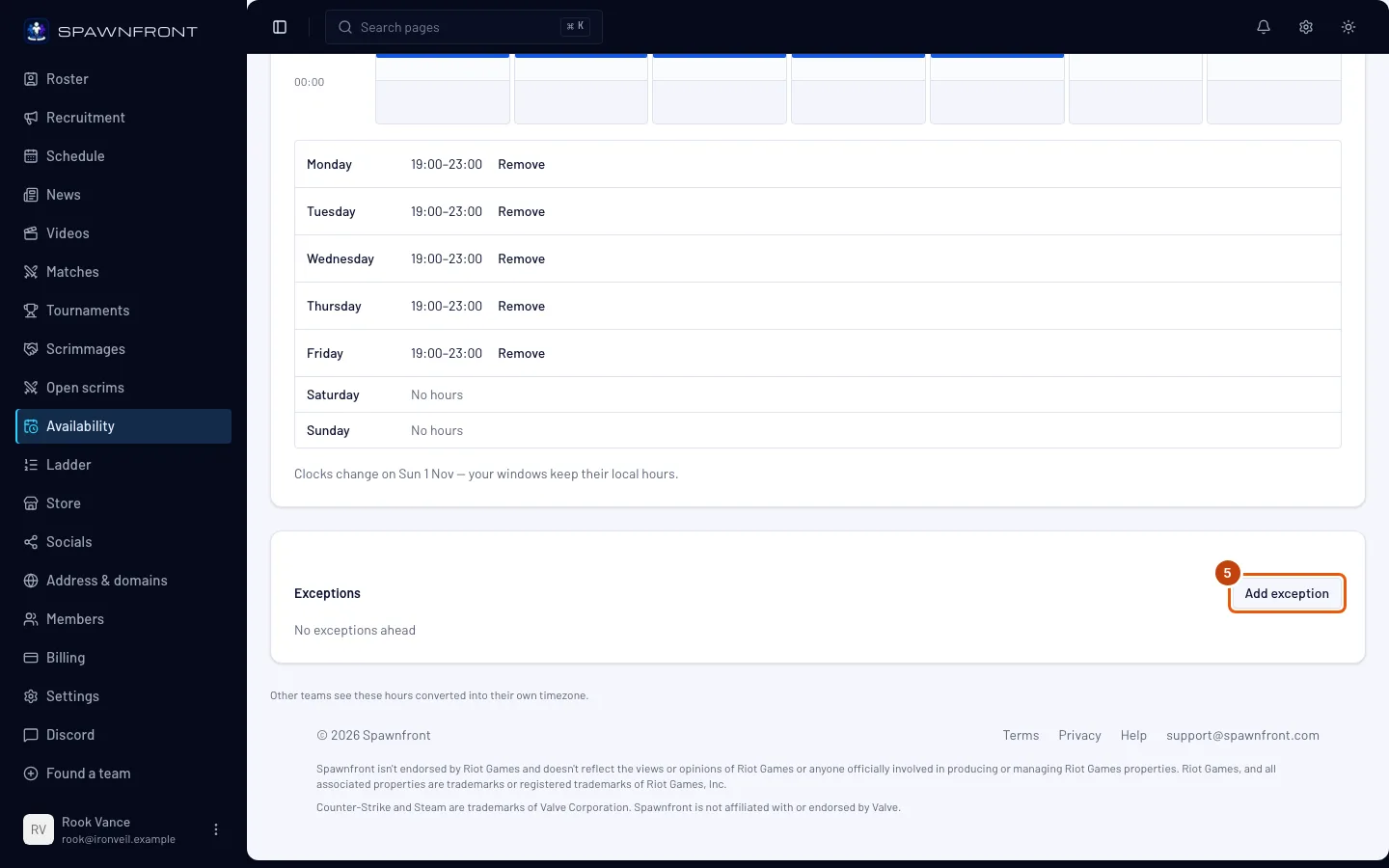
Read the list under the grid: every day of the week, with its windows or No hours. Press Remove beside a window to take it off.
Remove saves at once — there is no confirmation. Add the window again if you pressed it by mistake.
You should see: each window you added under its day, and the same hours drawn on the grid above.
Step 5: Mark a day that's different
For one date that isn't like the usual week, press Add exception. Choose the Date, then Not available that day or Also available with a Start and an End, and press Save.
Not available that day takes that whole date off, whatever your weekly windows say; Also available adds its hours to that date's usual windows. Either applies to that date only.
You should see: the date in the Exceptions card, with a Remove button beside it.
How to know it worked
- The list under the grid shows every window you meant to add, on the right days.
- The top line names your team's own time zone.
- On the Scrimmages page, teams whose hours overlap yours appear when Available when we are is on.
Something doesn't look right?
My late-night window isn't on the grid
The grid draws 06:00 to 02:00. The list under it is the full record — a window outside the grid's hours is still saved and still used by the finder.
Add window is grayed out
Your team has reached the most windows it can keep. The page says so under the button: remove one first.
The box says 'The end must be after the start'
Your window runs past midnight. Turn on Ends the next day and choose the end again (step 3).
My hours show at the wrong time
The page uses your team's time zone, not your computer's. Change the zone in Settings (step 2), then check your windows again.
Related articles
Still stuck? Contact support or email support@spawnfront.com — tell us the page you're on and the step number.