
List yourself as staff
Let teams find you as a coach, manager, analyst or content creator: choose your roles, games and region, write a few lines, and save.
For players · 8 steps
What you need first
- You are logged in.
- You don't need a game account. A staff listing is for coaches, managers, analysts and content creators, and it is apart from your game cards.
Steps
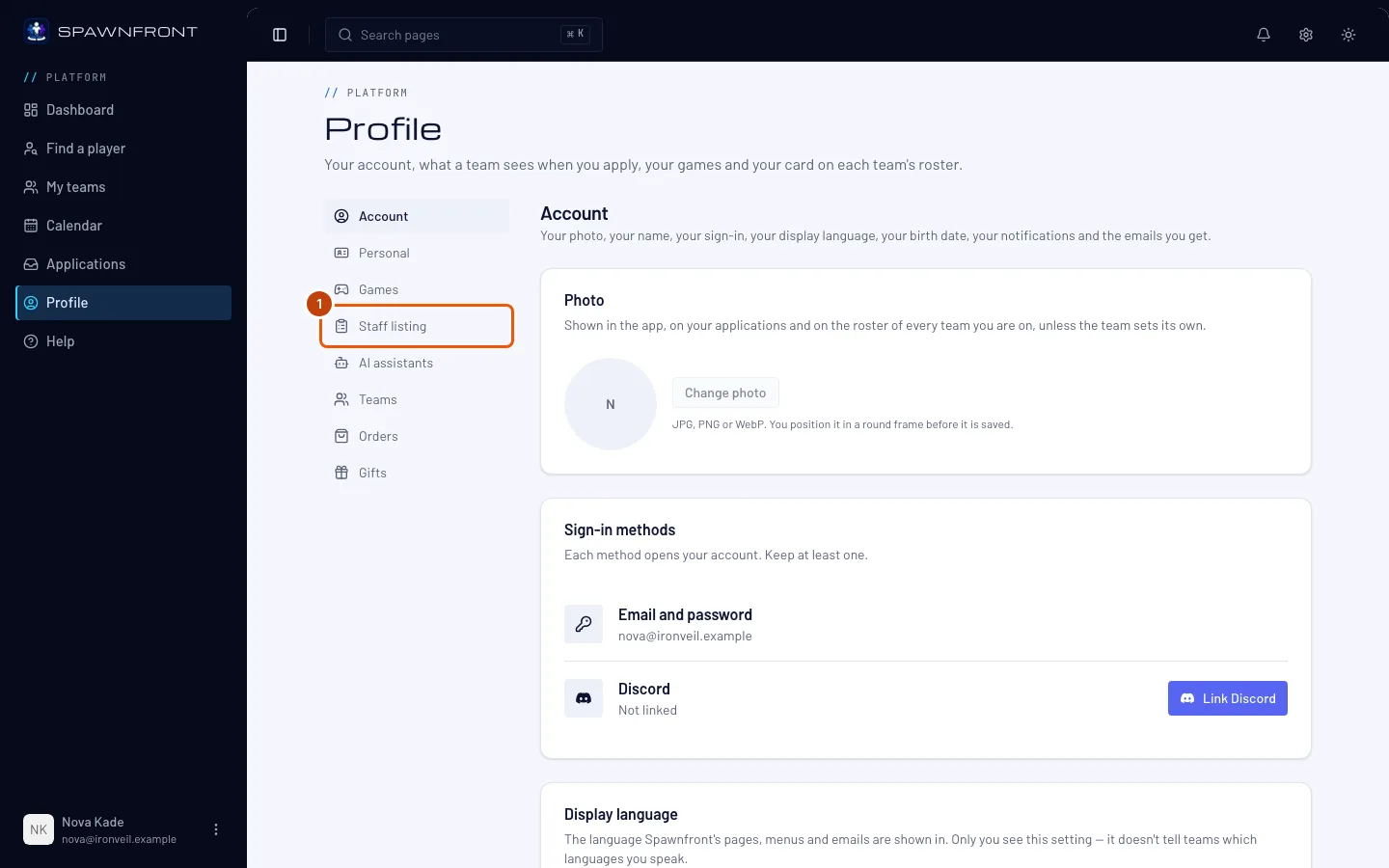
Step 1: Open Profile › Staff listing
In the menu, press Profile, then Staff listing in the section list.
You should see: Staff listing — "Coaches, managers, analysts and content creators: let teams find you. No game account needed." — with List me as staff and the Roles, Games, Region and About fields below it.
Step 2: Turn on List me as staff
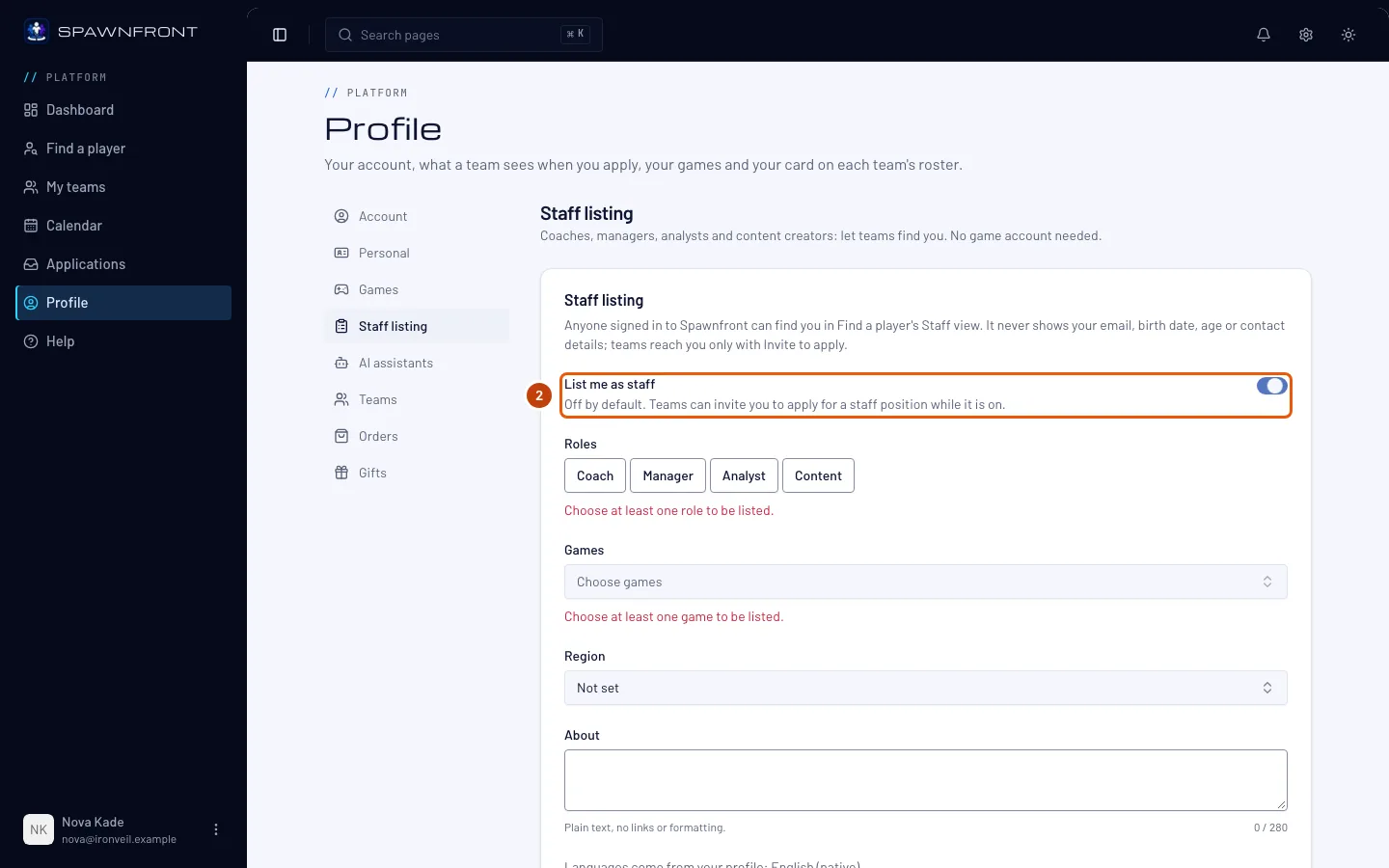
Turn on List me as staff. It is off until you turn it on.
Nothing is saved until you press Save in the last step.
You should see: the switch on.
Step 3: Choose your roles
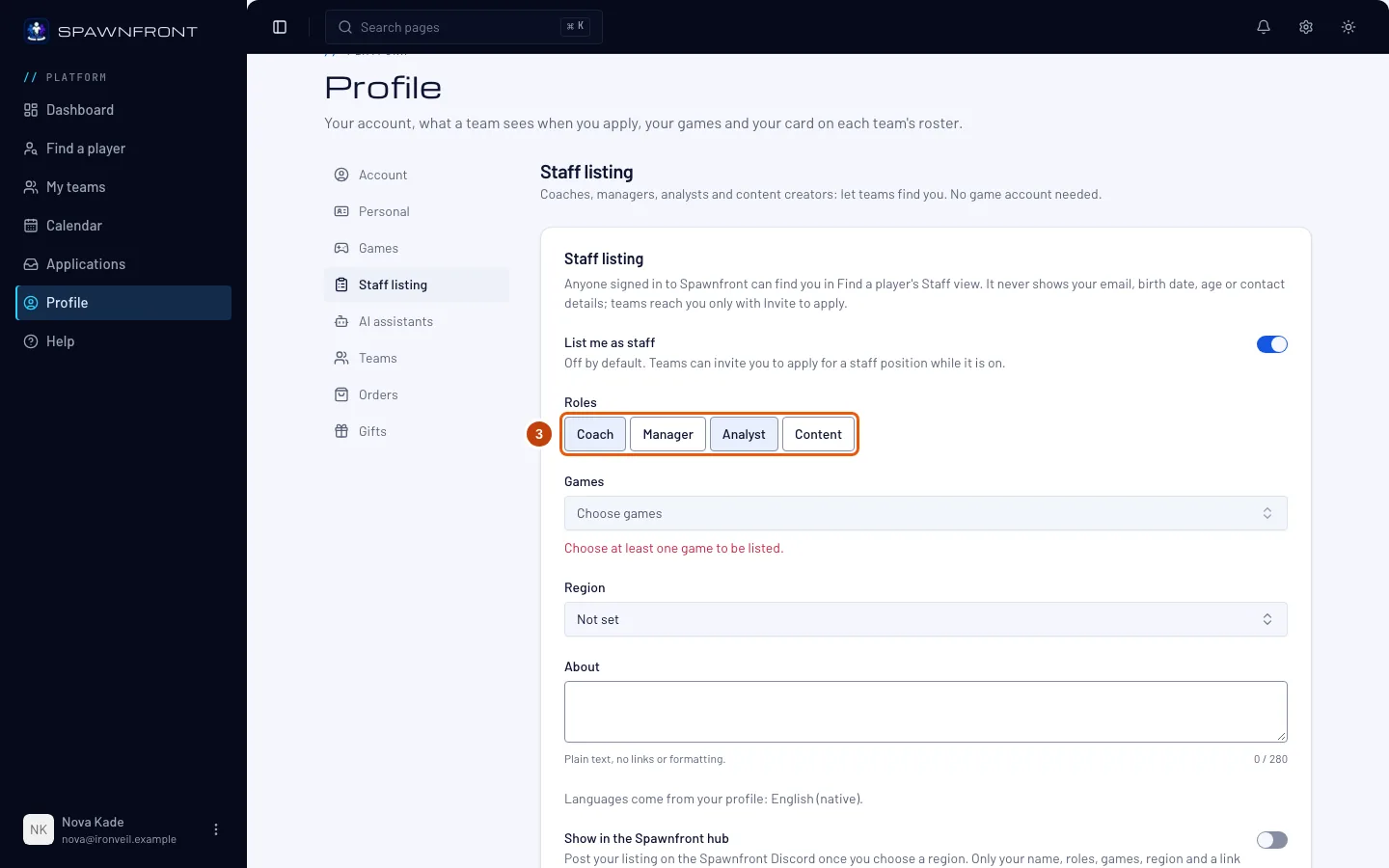
Under Roles, press each role you do: Coach, Manager, Analyst or Content. Press a chosen role again to take it off.
Choose at least one. A team can invite you only to a position for a role you chose.
You should see: the roles you pressed marked as chosen.
Step 4: Choose your games
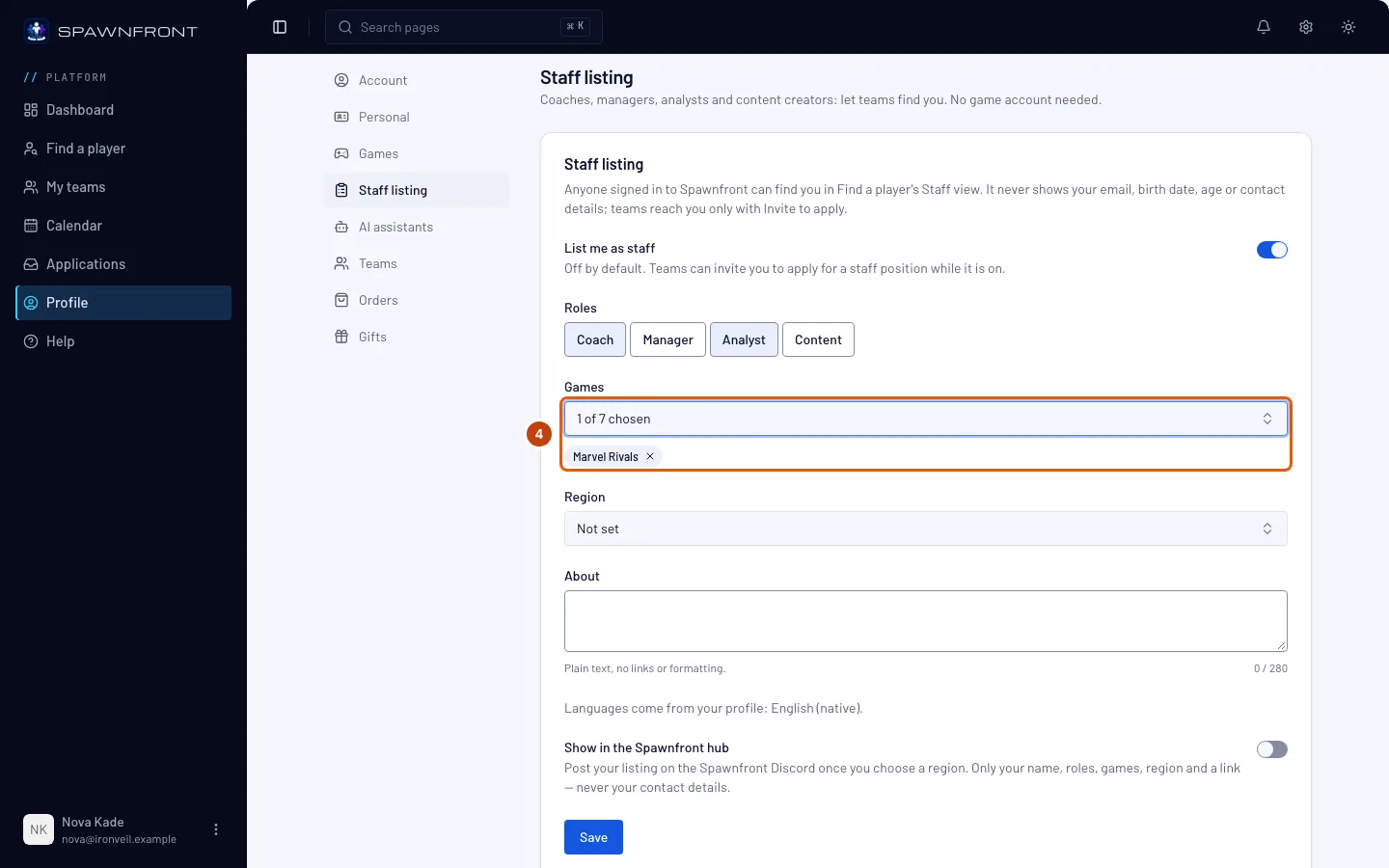
Under Games, press Choose games and pick each game you work in. You can type part of a game's name to find it.
Choose at least one. You show in Find a player for each game you chose, and only teams of those games can invite you.
You should see: the games you picked under Games.
Step 5: Choose your region
If you like, choose where you work in Region. Teams can filter by it; without one you show under every region.
You should see: your region in the box, in place of Not set.
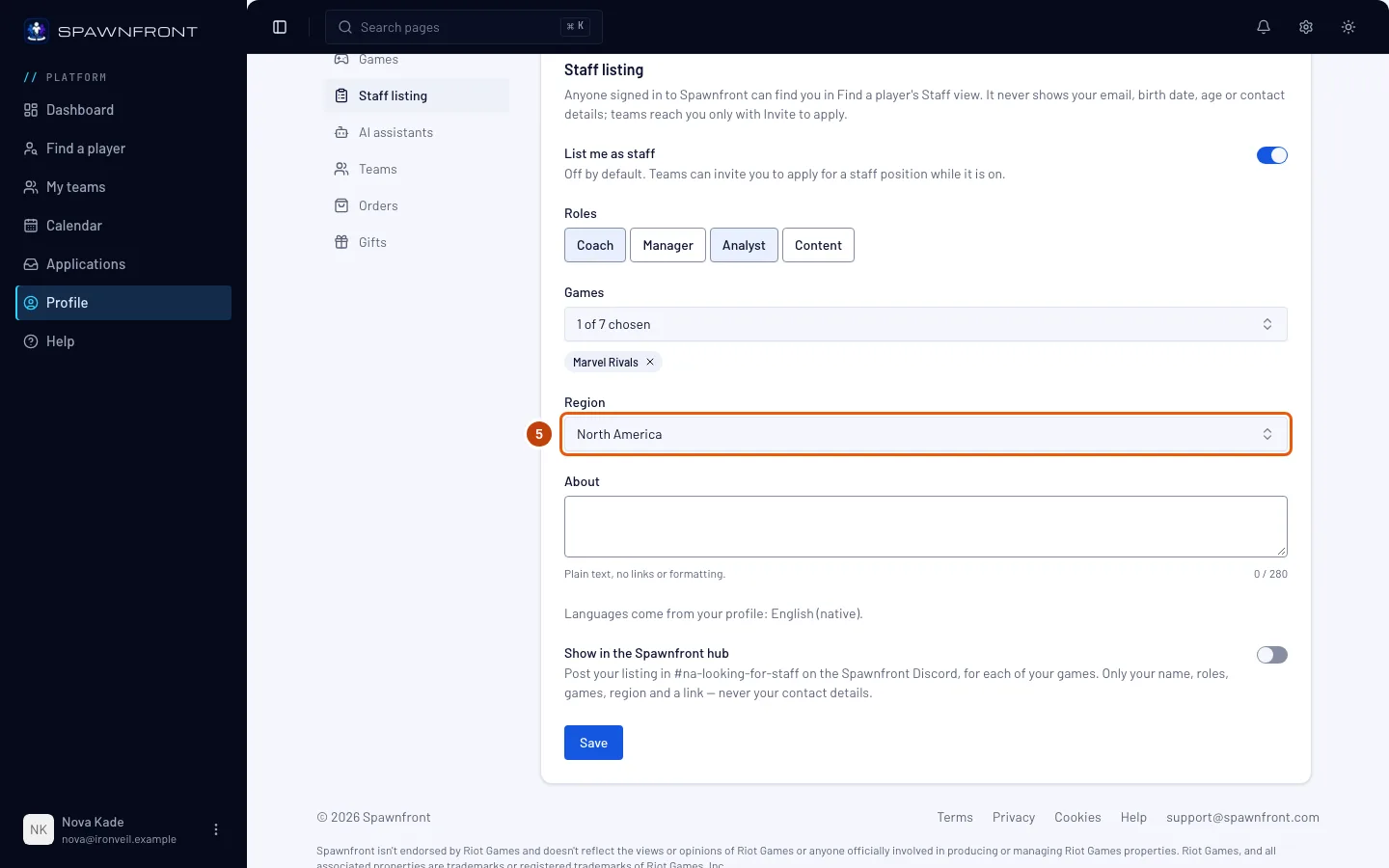
Step 6: Write a few lines about you
Type what teams should know in About — your experience and what you offer — in up to 280 characters. It is plain text: links and formatting are not kept.
The languages beside your listing come from your profile — change them in Profile › Personal.
You should see: your text in the box.
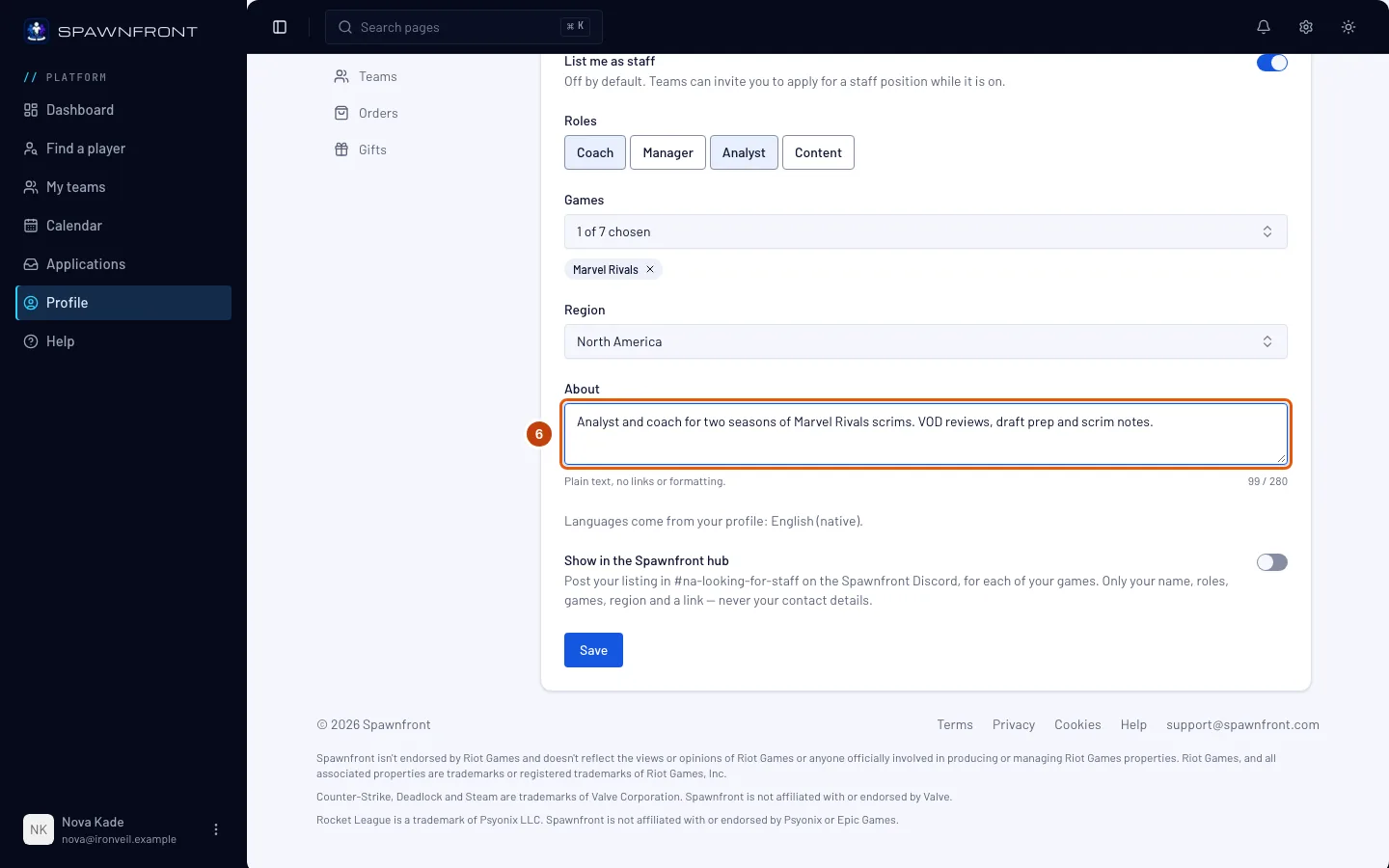
Step 7: Choose whether to show it in the Spawnfront hub
If you like, turn on Show in the Spawnfront hub. Once you save, Spawnfront's bot posts a card for each of your games in that game's looking-for-staff channel for your region on the Spawnfront Discord. The card shows your name, roles, the game and your region, with a link to Find a player — never your contact details. It needs List me as staff on and a region.
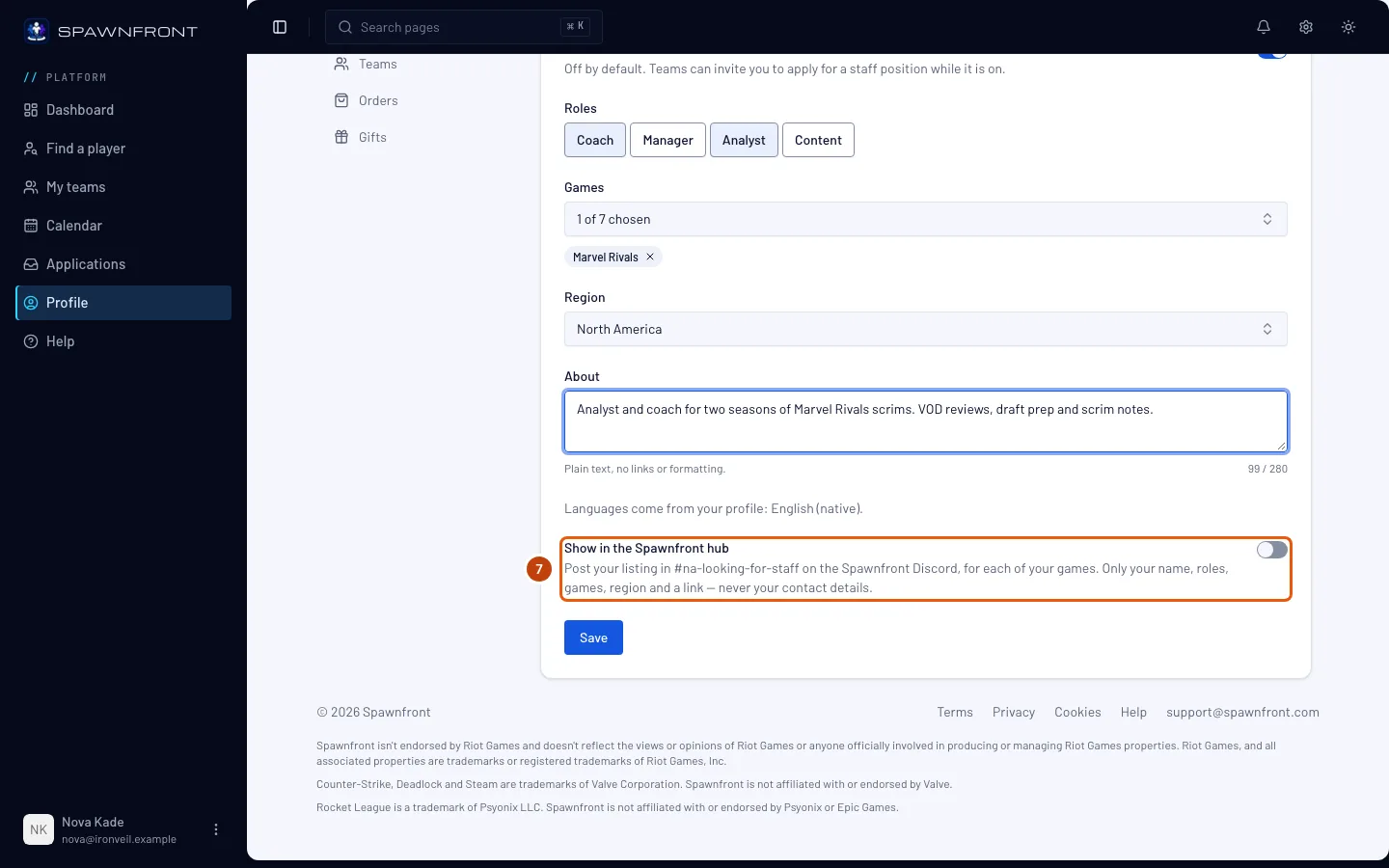
Step 8: Save
Press Save.
You should see: "Staff listing saved", with List me as staff still on. You are in Find a player at once. Turn Show in the Spawnfront hub or the listing off and save, and the hub cards are taken down: each then reads "This listing was taken down." with no name.
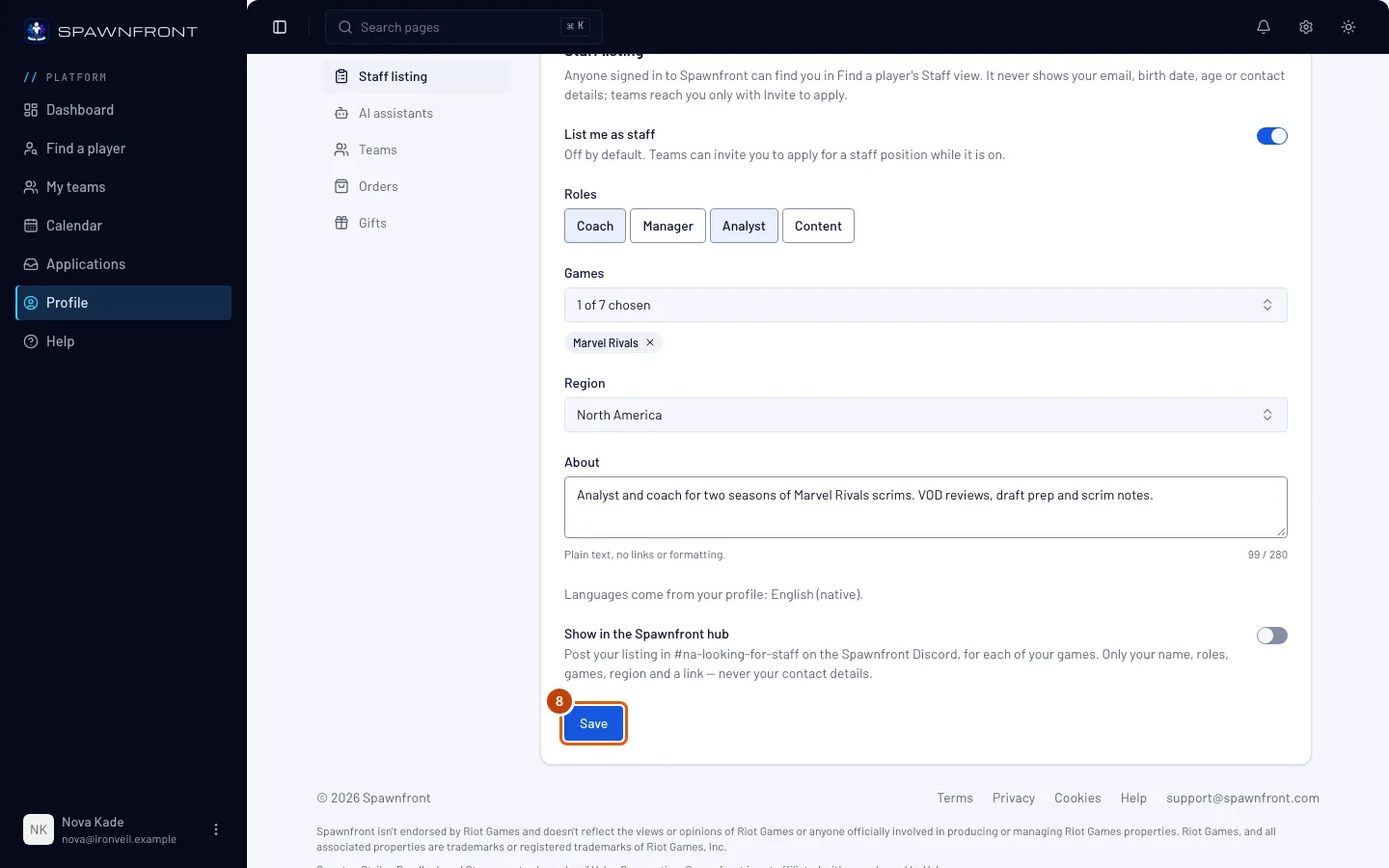
How to know it worked
- In Find a player, choose Staff and one of your games: you are listed, with your roles, games, region and About.
What teams see. Logged-in accounts see your display name, photo, roles, games, region, About and the languages from your profile. Your email, birth date, age, country and contact details are never shown, and a team can reach you only by inviting you to apply to one of its open positions.
When a team invites you, you get a notice in the bell and an email. In the menu, press Applications, and under Invitations press Open it to apply on the team's row — see Apply to a team. A team sees your contact details only when you apply.
To stop being listed, turn off List me as staff and press Save. You leave Find a player at once. Your roles, games, region and About stay, so listing yourself again is one switch.
Something doesn't look right?
It says "Choose at least one role to be listed" or "Choose at least one game to be listed"
A listing needs at least one role and one game. Choose them under Roles and Games, then press Save again.
I'm not showing up in Find a player
Check that List me as staff is on, that you chose at least one role and one game, and that you pressed Save. In Find a player, choose Staff — staff listings are not under Players — and one of the games you chose.
My listing turned itself off
Spawnfront staff can take a listing out of Find a player, for example over About text that breaks the rules. Your other choices stay, and you can list yourself again.
An invitation says "This position is closed"
The team filled or closed that position. There is nothing to apply to; the row stays for your record.
Related articles
Still stuck? Contact support or email support@spawnfront.com — tell us the page you're on and the step number.