
Find a ringer
Need a player for one session? Post a ringer need with its time, invite an available ringer, and name them on the match.
For team owners and admins · 6 steps
What you need first
- You are the team's owner or an admin.
- A ringer fills in for one session. To add a player to your team, post a roster spot instead — see Post an open position.
Steps
Step 1: Open Recruitment
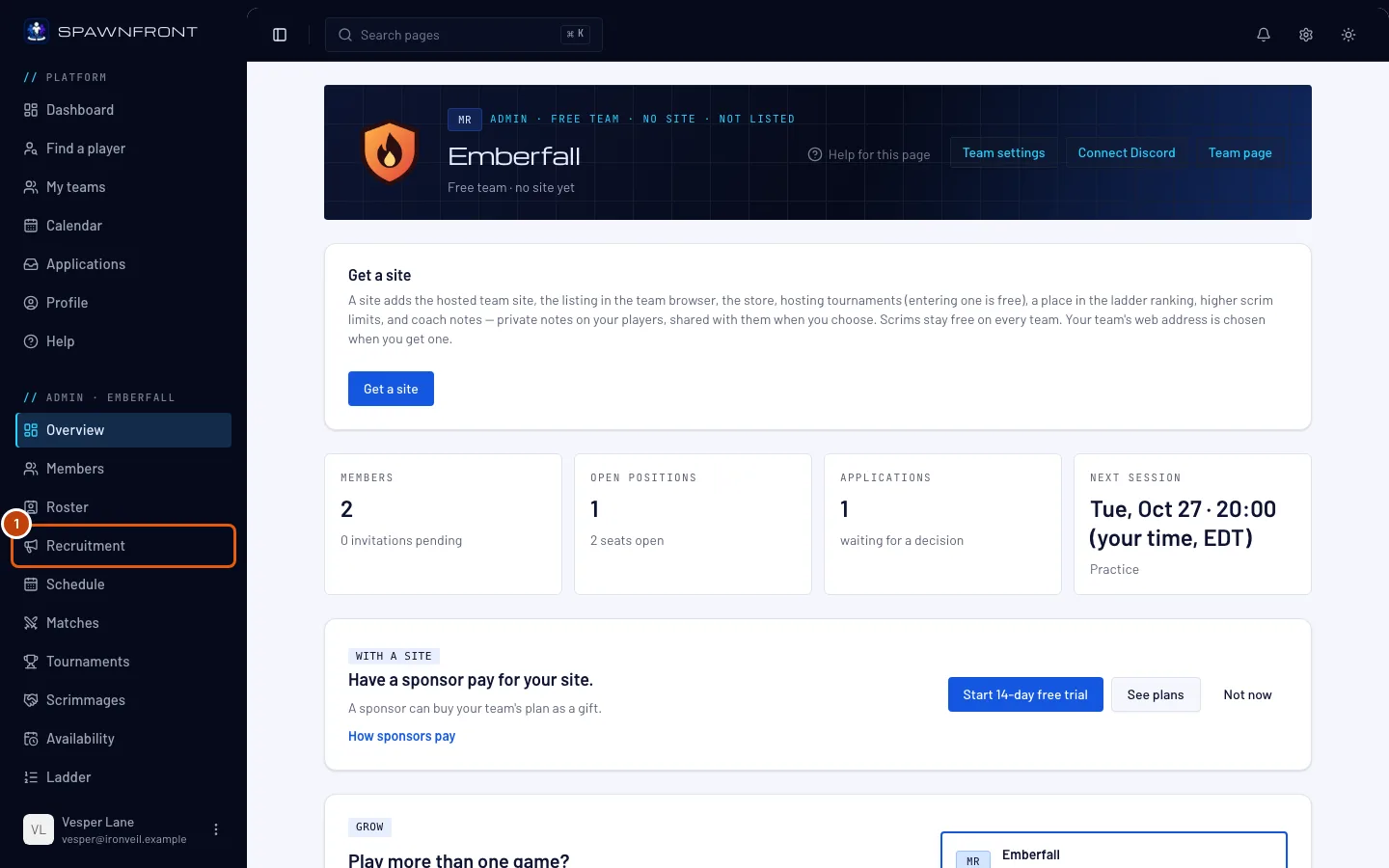
In the menu on the left, under Admin, press Recruitment.
You should see: the Open positions tab, with Applications beside it.
Step 2: Press Post a position
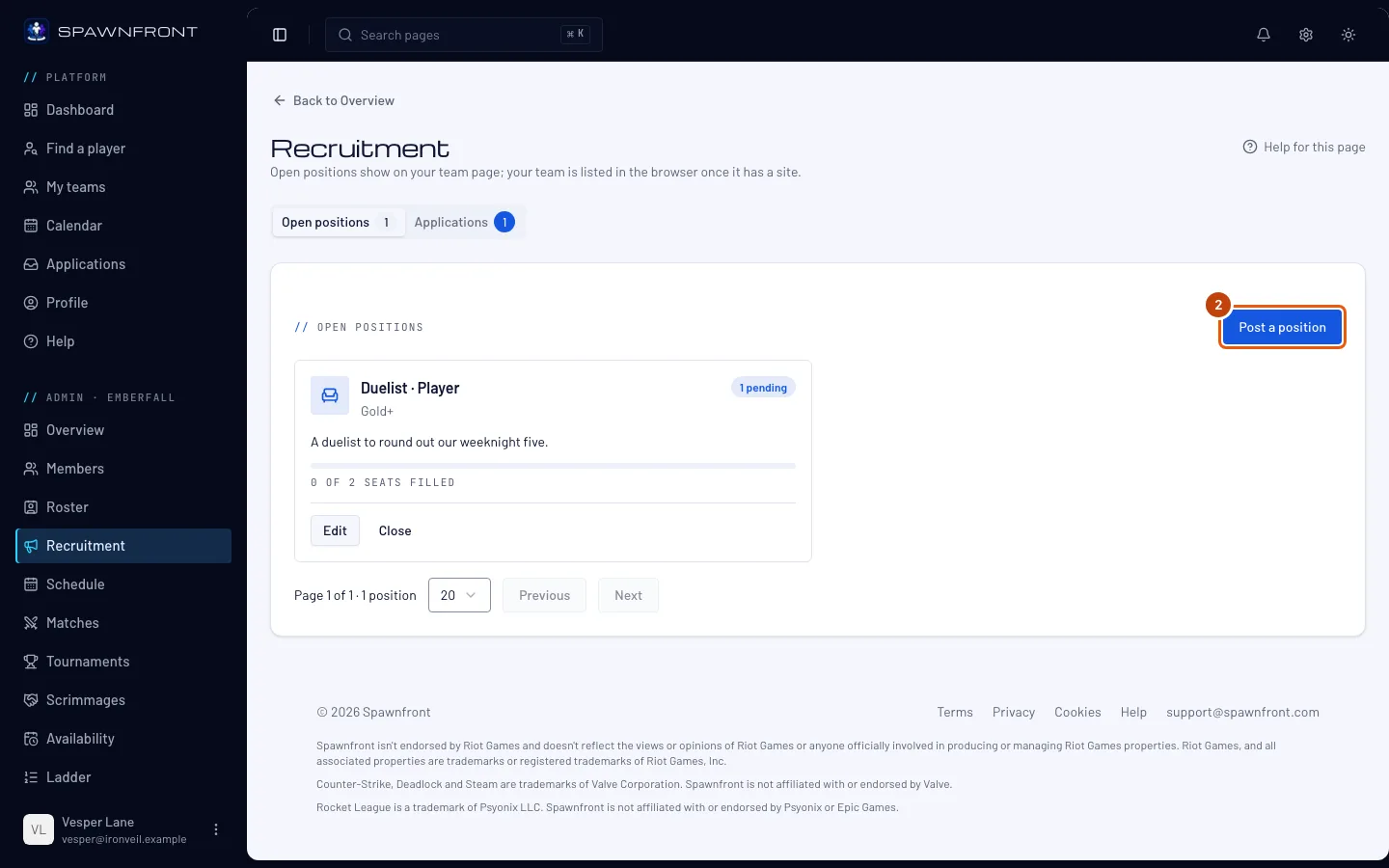
Press Post a position.
You should see: a box titled Post a position, with Kind at the top.
Step 3: Choose Ringer
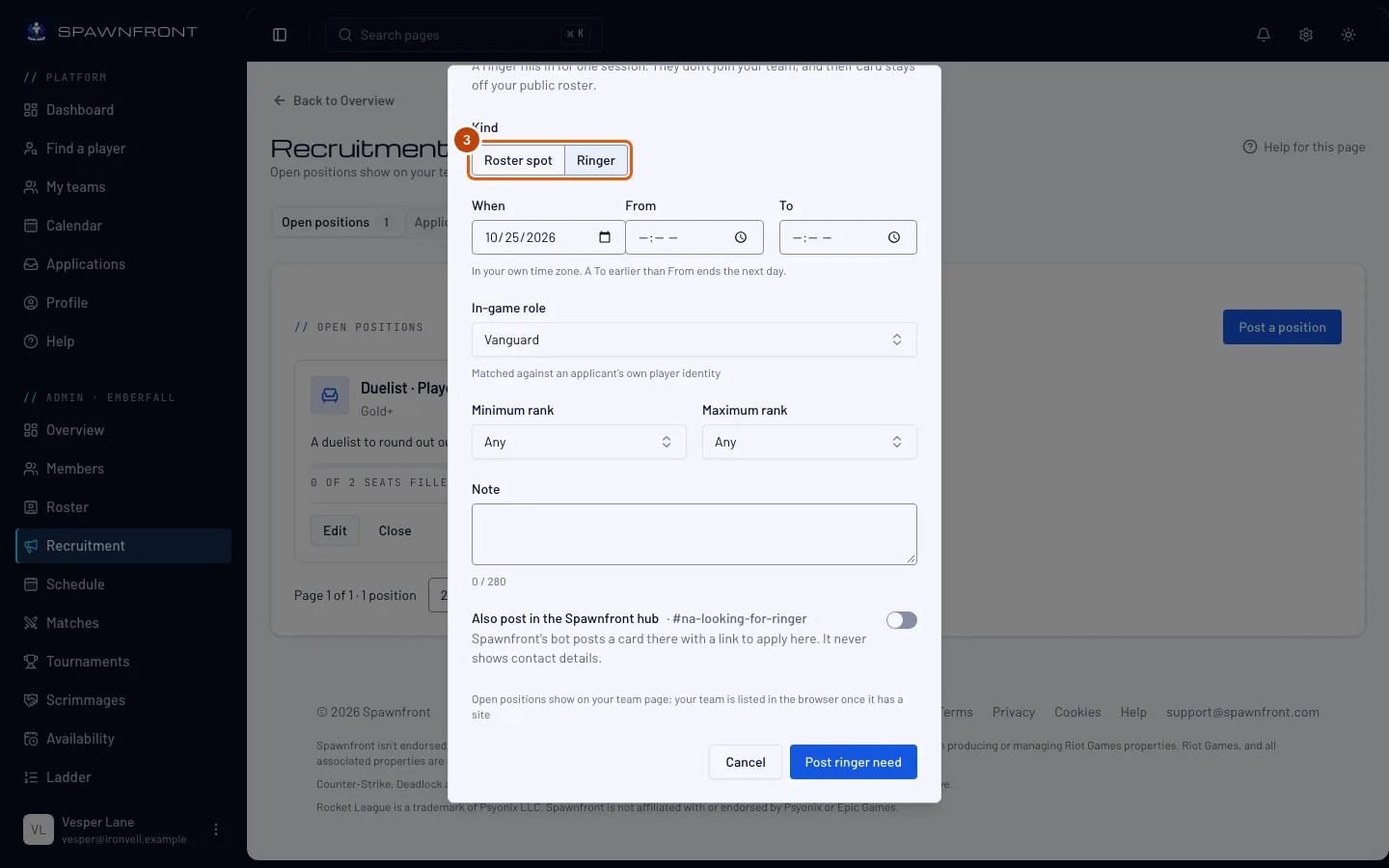
Under Kind, press Ringer.
You should see: the box titled Post a ringer need, and When, From and To in place of the role and seats.
Step 4: Set the session's time
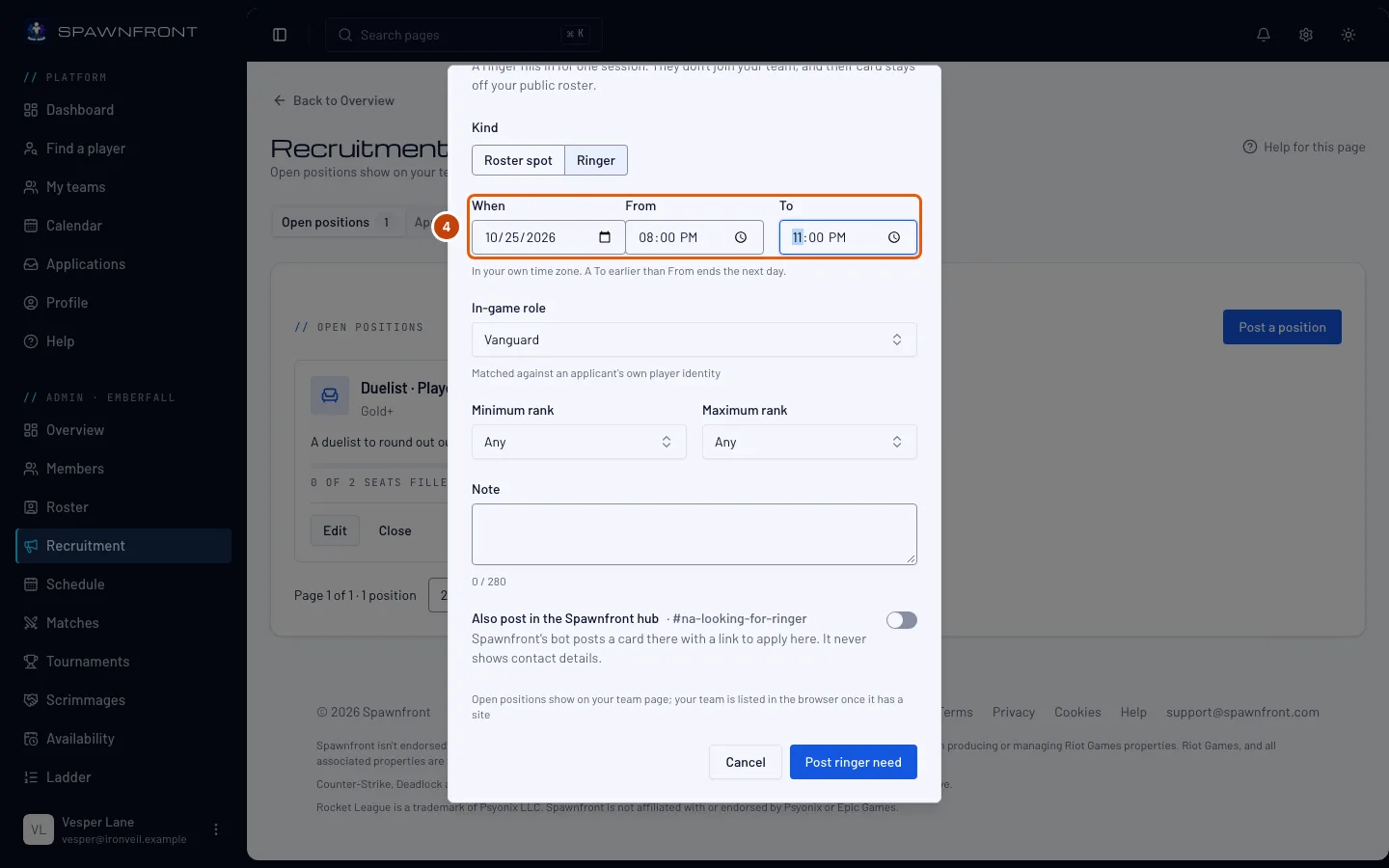
Choose the day in When, and the start and end in From and To. The times are in your own time zone; a To earlier than From ends the next day.
A session is at most 12 hours, and it must start within the next 30 days.
You should see: the day and the two times you chose.
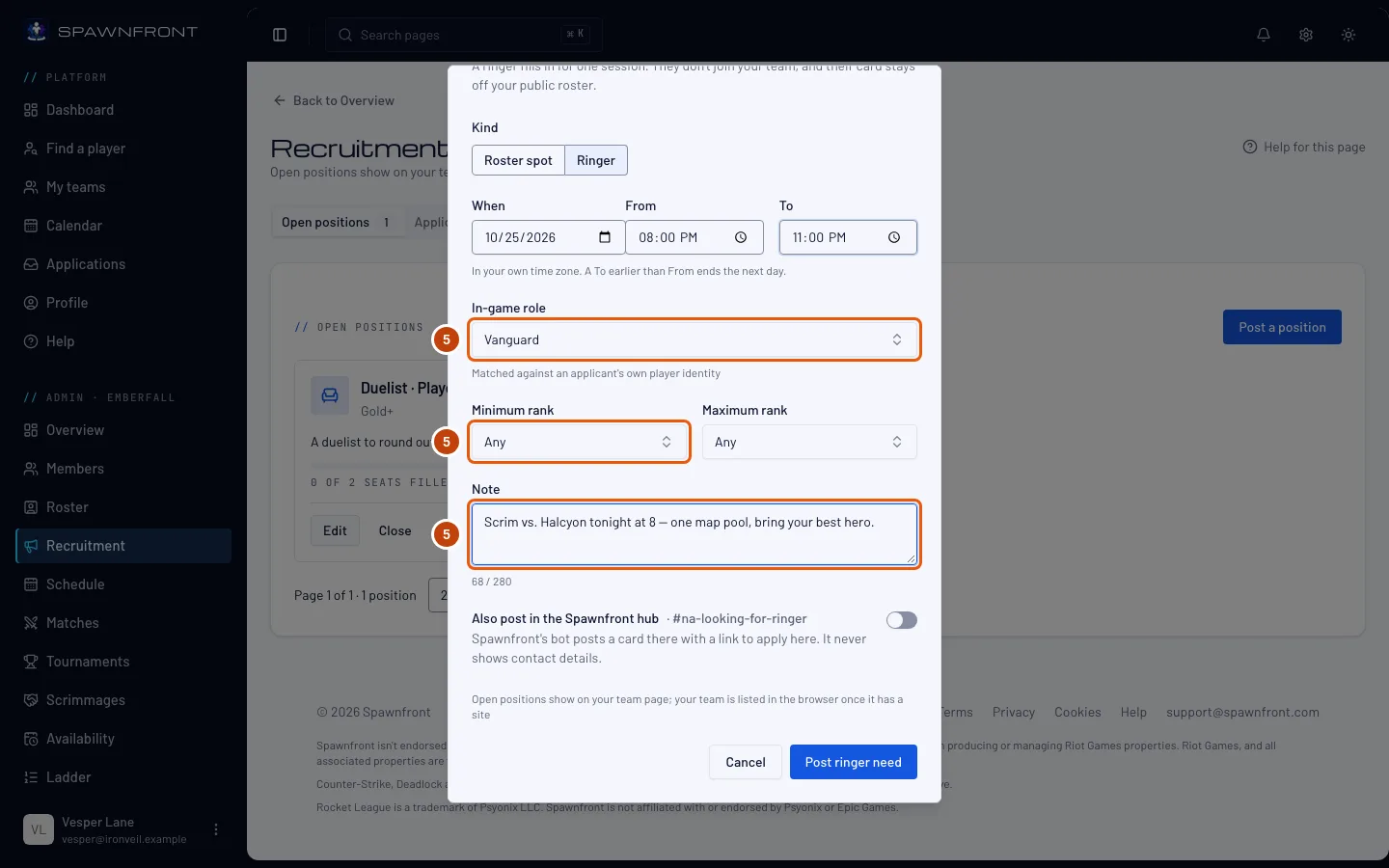
Step 5: Choose the role and a rank range
Choose the In-game role, and if you like a Minimum rank and a Maximum rank. Type a short Note if there is more to say — the opponent, or the cup.
Only players whose game identity plays that role can apply.
Step 6: Post the need
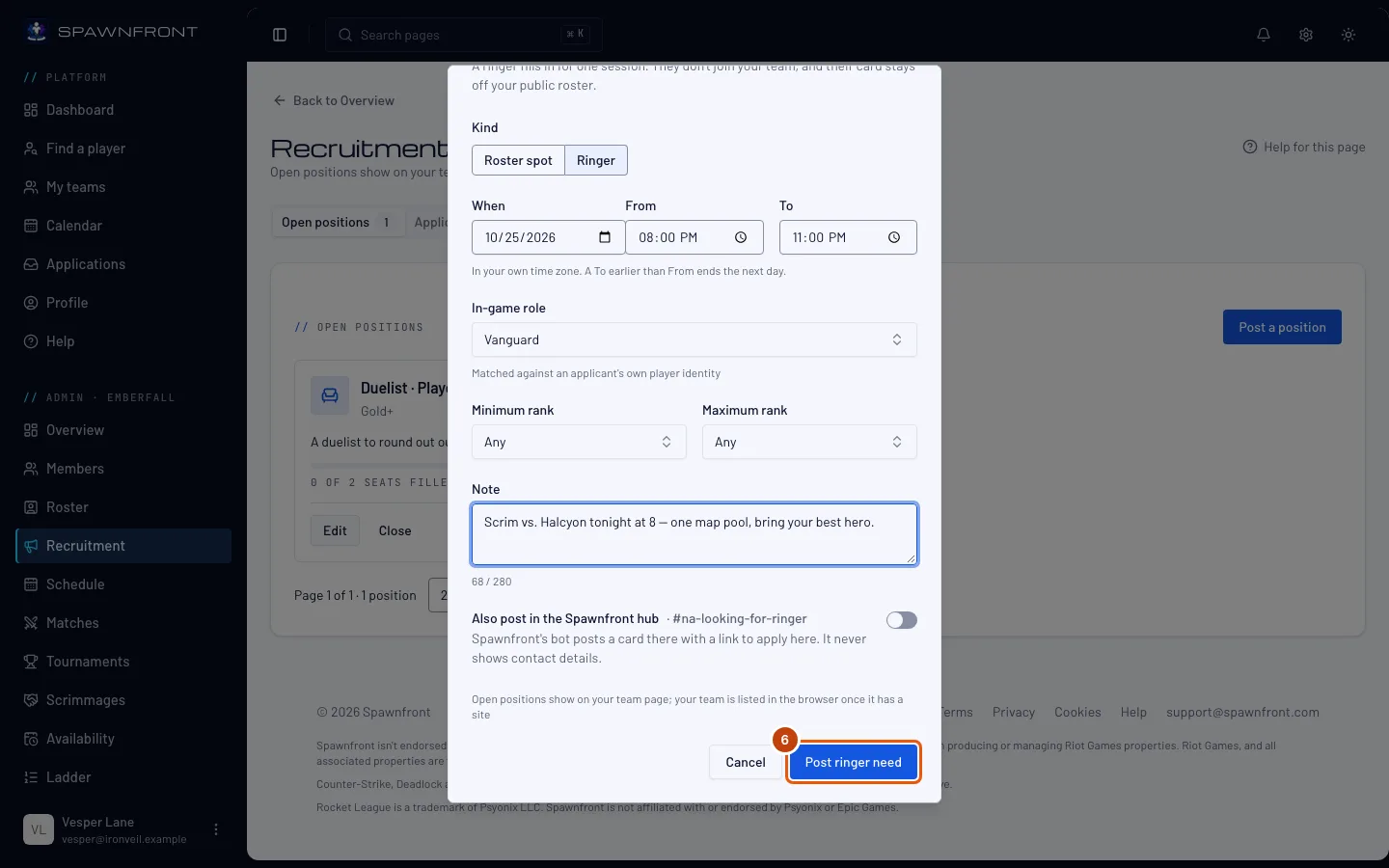
To also post it on the Spawnfront Discord, turn on Also post in the Spawnfront hub first. The card goes to the looking-for-ringer channel for your team's region, or to an Xbox or PlayStation team's console recruitment channel. It shows the session's time, the role, the rank range, the region and the platform, with a button to apply here. Then press Post ringer need.
You should see: "Ringer need posted", and the need under Open positions with a Ringer badge and its time. It shows on your team page with an Apply button. A card in the hub is marked Closed when the session's time ends or you close the need.
How to know it worked
- The need is listed under Open positions with the Ringer badge and the session's time.
Invite a ringer. Under an open ringer need, Available ringers lists listed players of that role who turned on Available as a ringer. Press Invite to apply on one — see Invite a player to apply. Any player of your game who plays the role can also apply on their own, even from another team.
Accept them in Applications like any applicant — see Review applications. A ringer doesn't join your team: they get a card on your Roster marked Ringer, with when the session ends. That card never shows on your site, and it goes away a day after the session.
Name them on the match. Under Name your players on a match that starts during the session, the ringer is offered beside your roster. Their results count on their own player card, not in your team's stats.
It counts toward your open positions while it is open: a free team keeps two open at a time. It closes itself when the session ends.
Something doesn't look right?
My ringer isn't offered when I name my players
A ringer is offered only for a match that starts during their session. Check the match's start time against the time on the ringer need.
It says a ringer is booked, so the window can't move
Once you accept a ringer, the session's time is fixed. To play another time, post a new ringer need.
A player I want isn't under Available ringers
They show there only once they list themselves in Find a player for your game, play the need's role and turn on Available as a ringer. They can still apply to your need from your team page.
Related articles
Still stuck? Contact support or email support@spawnfront.com — tell us the page you're on and the step number.