
Write a news article
Write an article with a title, body, cover and date, save it, and publish it with your site.
For team owners and admins · 7 steps
What you need first
- Your team has a site subscription. A free team's admin shows Get a site instead of News.
- You are the team's owner or an admin.
Steps
Step 1: Open News
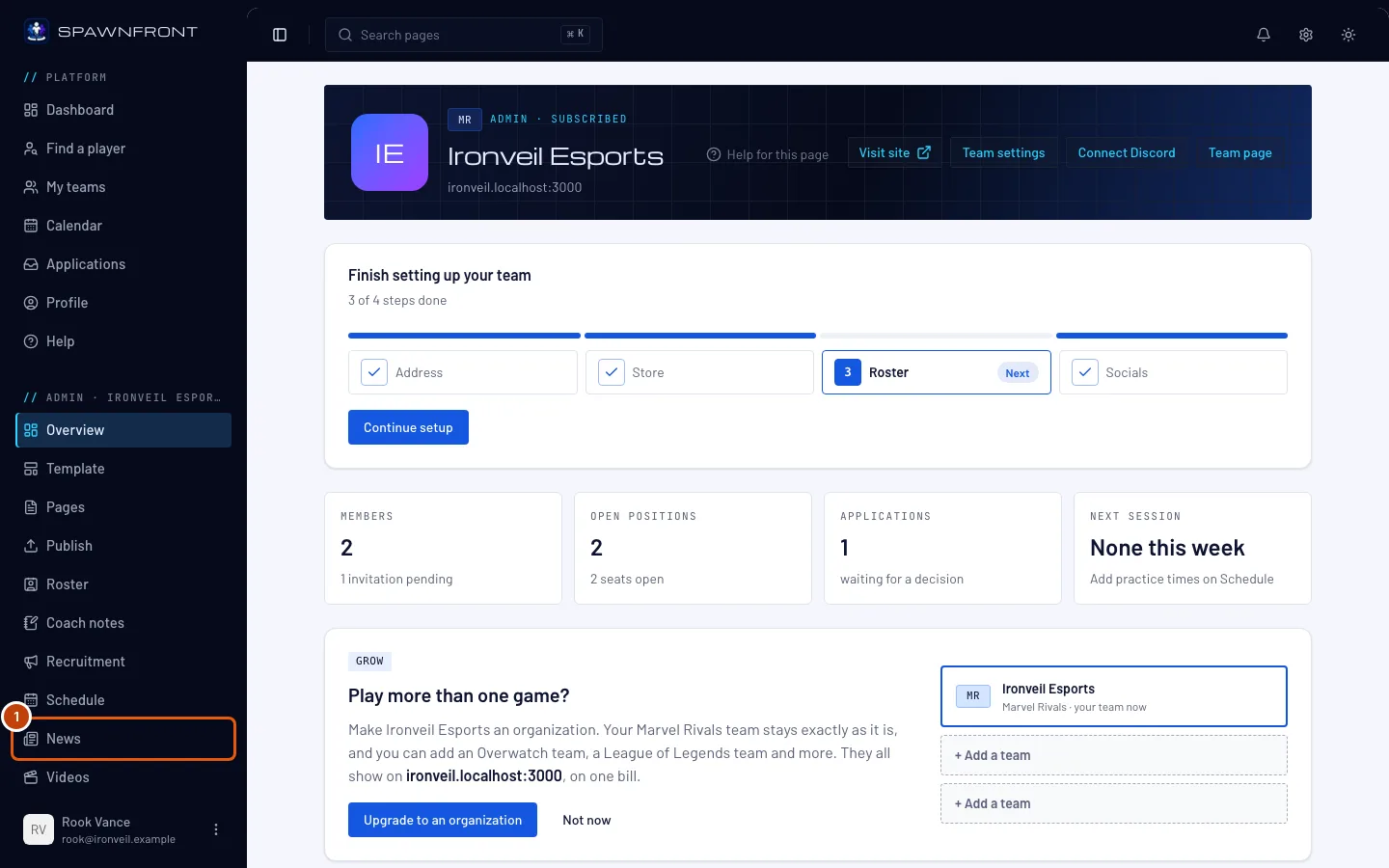
In the menu on the left, press News.
You should see: a page titled News, listing your articles newest first, each with a badge that says where it stands — for example Live.
Step 2: Press New article
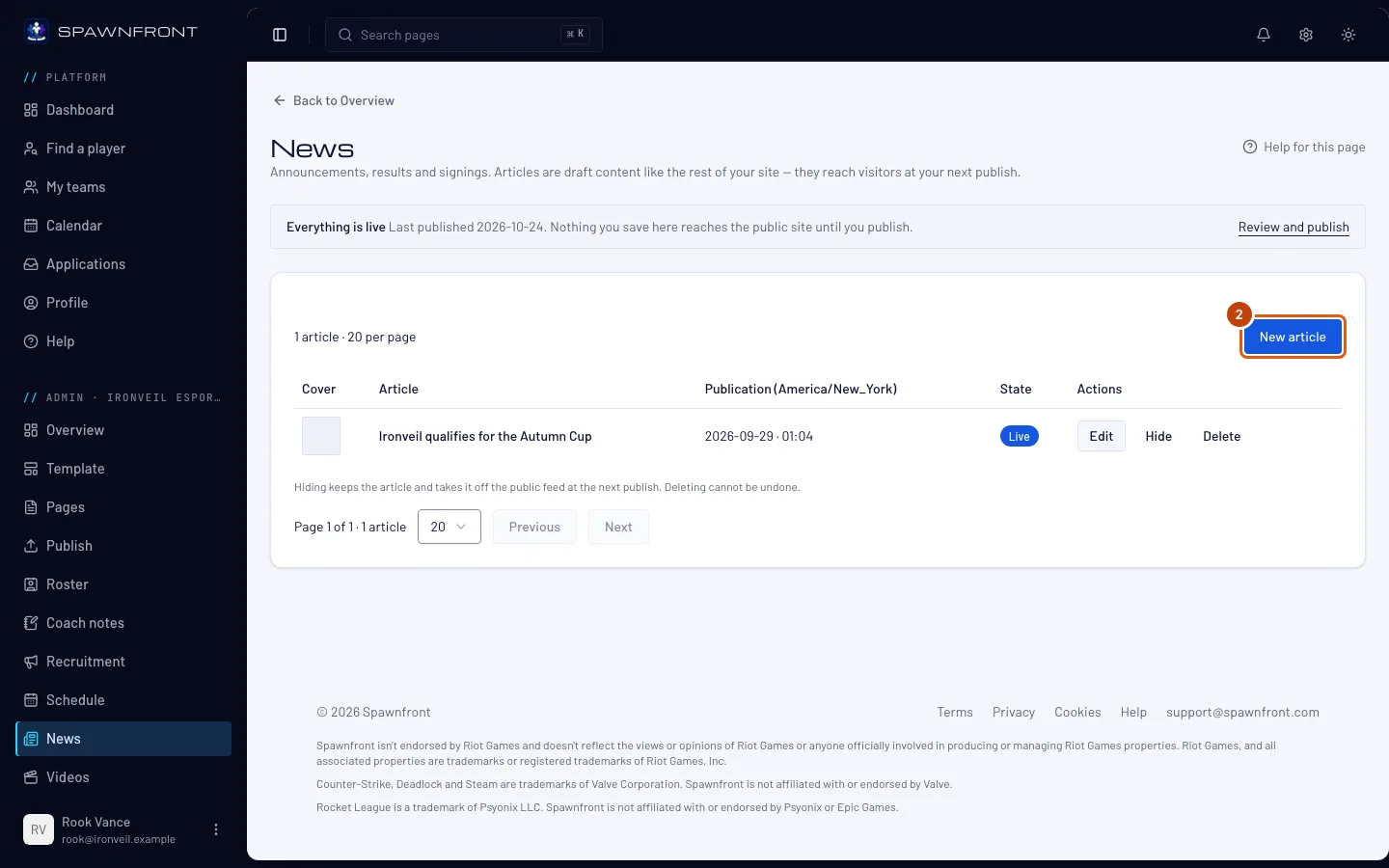
Press New article.
You should see: a page titled New article, with an empty form.
Step 3: Write the title and the article
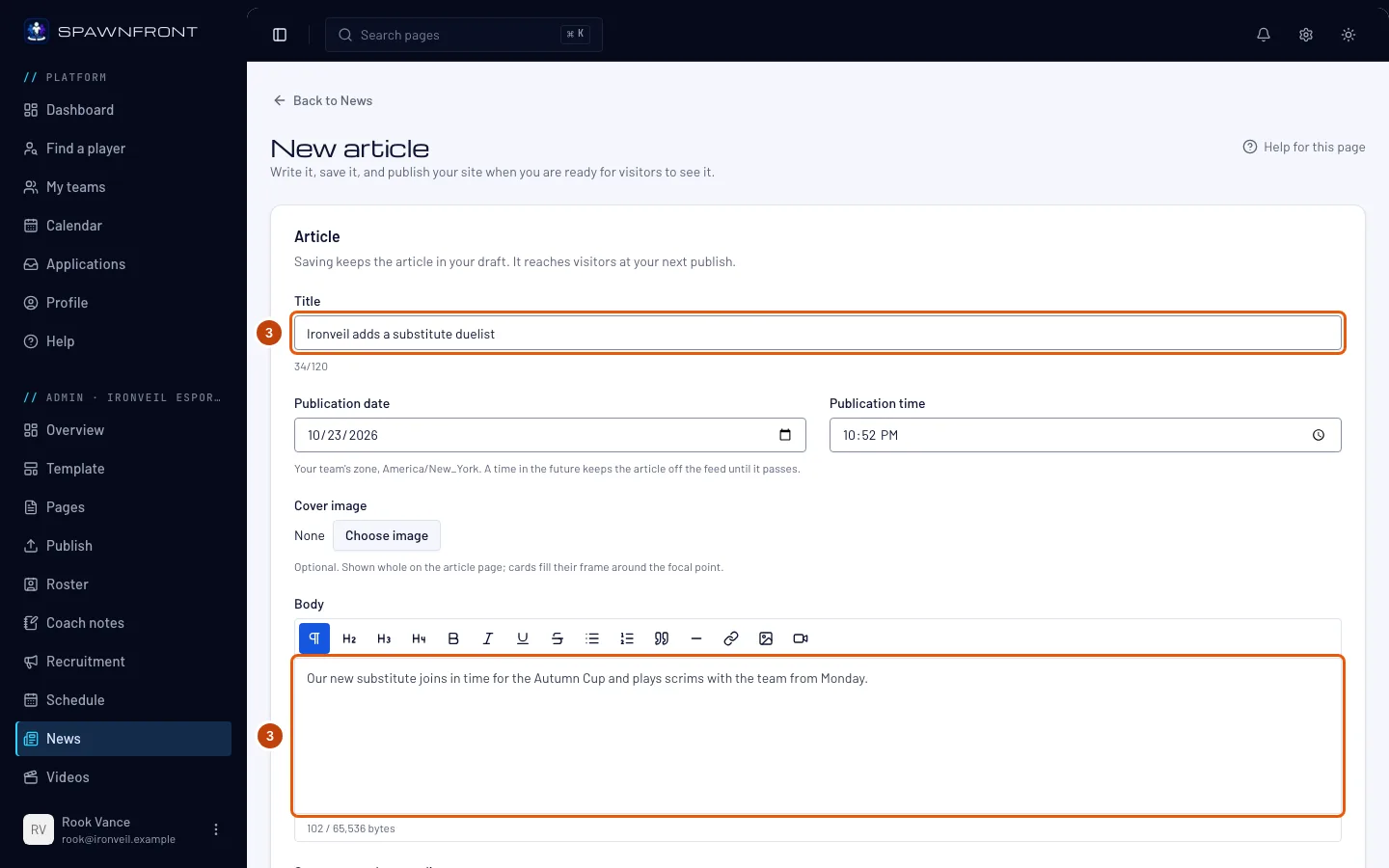
Type the headline in Title (up to 120 characters), then write the article in the Body box below.
You should see: the first lines of your article appear under Summary on the news list — that is what your site's news list shows. It is always taken from the article; you can't type it separately.
Step 4: Add a cover image
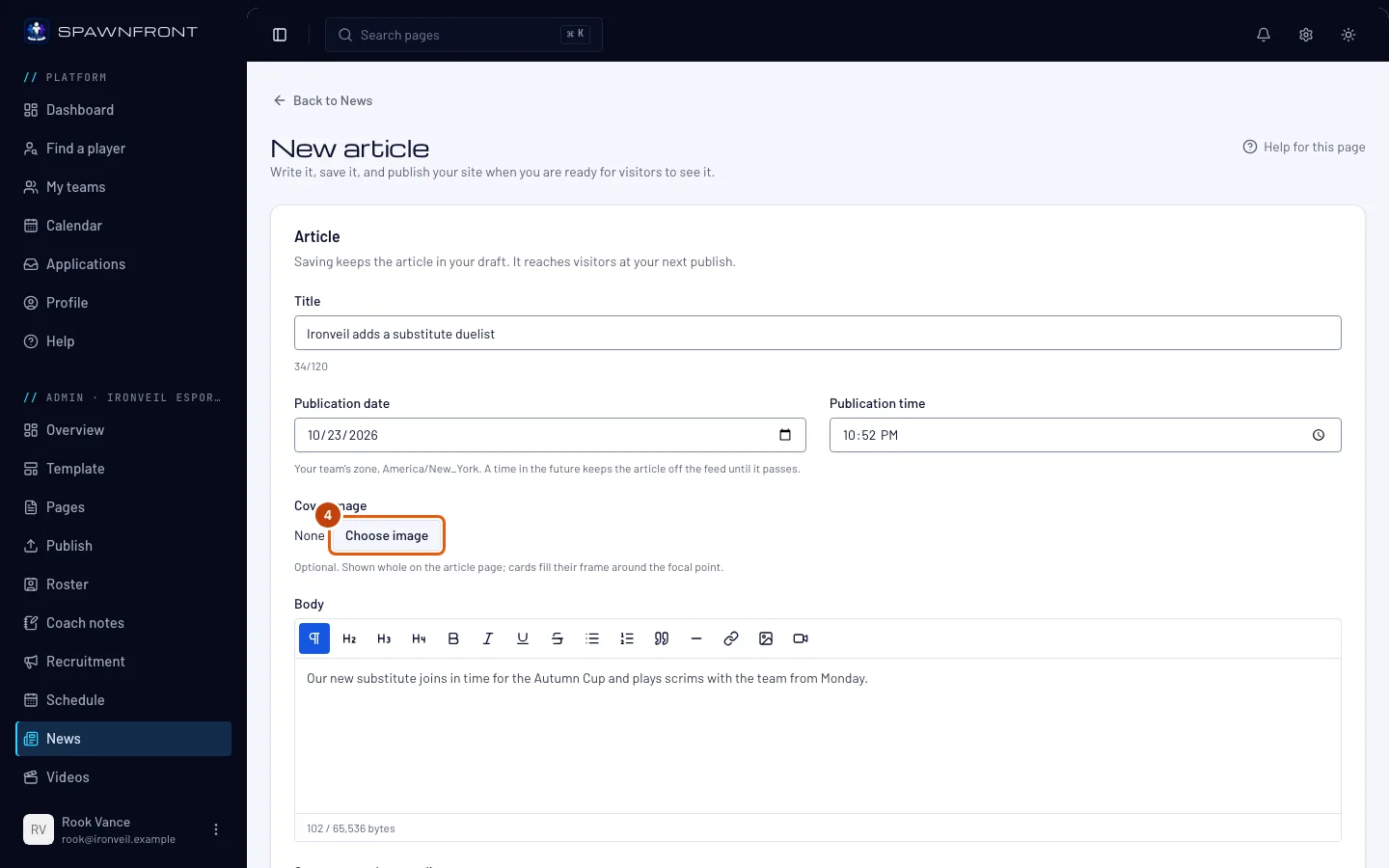
This is optional, and it comes with Team Pro and Organization. On the Team plan the field says Images in news posts come with Team Pro. and stays locked; a cover a post already has stays on it. Press Choose image, pick a picture you uploaded before or upload a new one under Upload, write its Alt text (what the picture shows, for people who can't see it), then press Insert.
Your cover is shown whole on the article's page, with the title over it. News cards have their own shape, so they fill their frame from the cover around a point you choose. Once a cover is set, the form shows that focal point, a Style for the title over the picture and a Card preview — see Style your news covers.
You should see: the picture's name beside Cover image. Articles without a cover keep the usual layout.
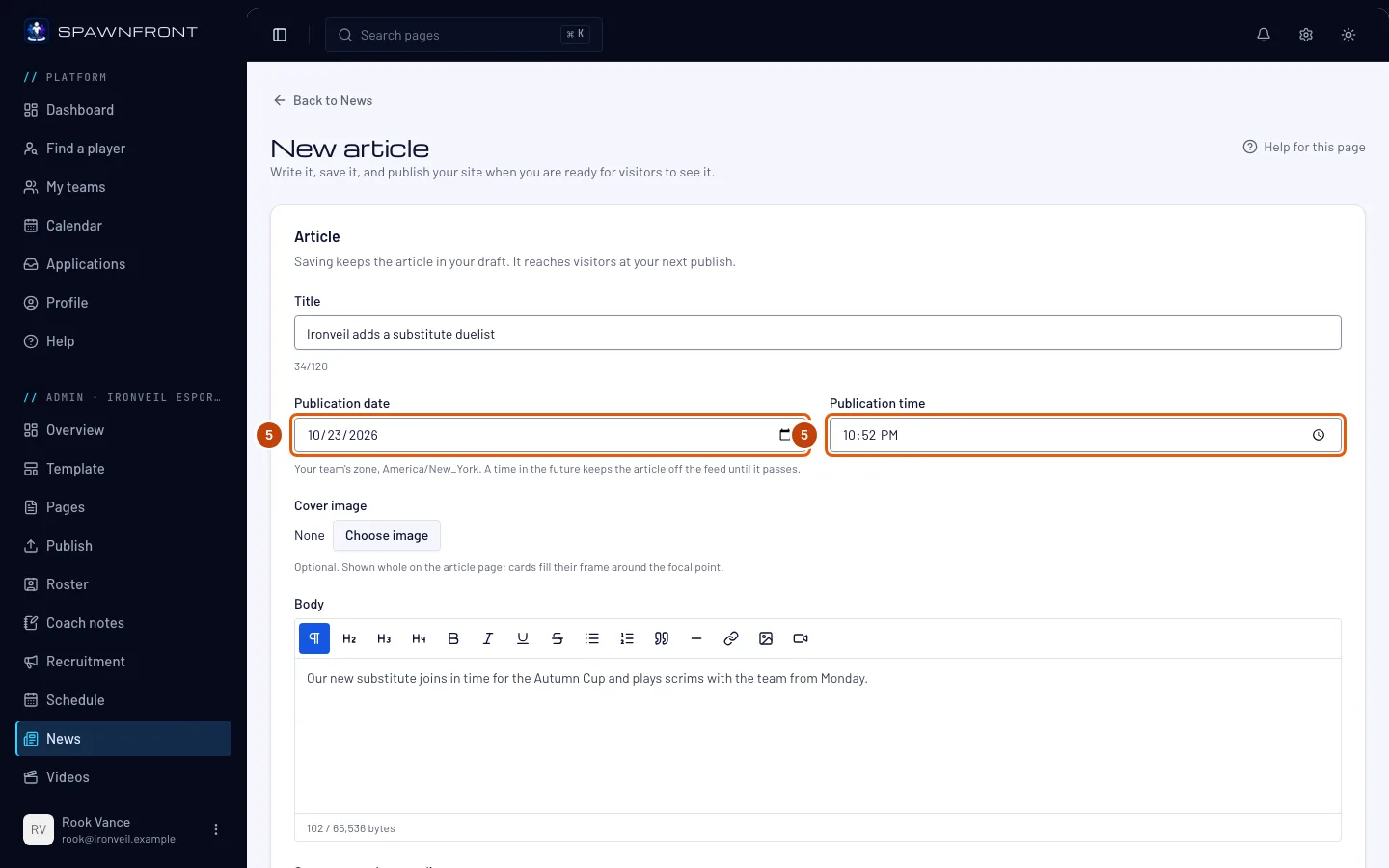
Step 5: Set the publication date
Publication date and Publication time start at right now, in your team's time zone (named under them). Leave them, or choose a later day and time.
A later date schedules the article: after you publish your site, it stays off your news until that moment, then appears on its own — you don't publish again.
Step 6: Save
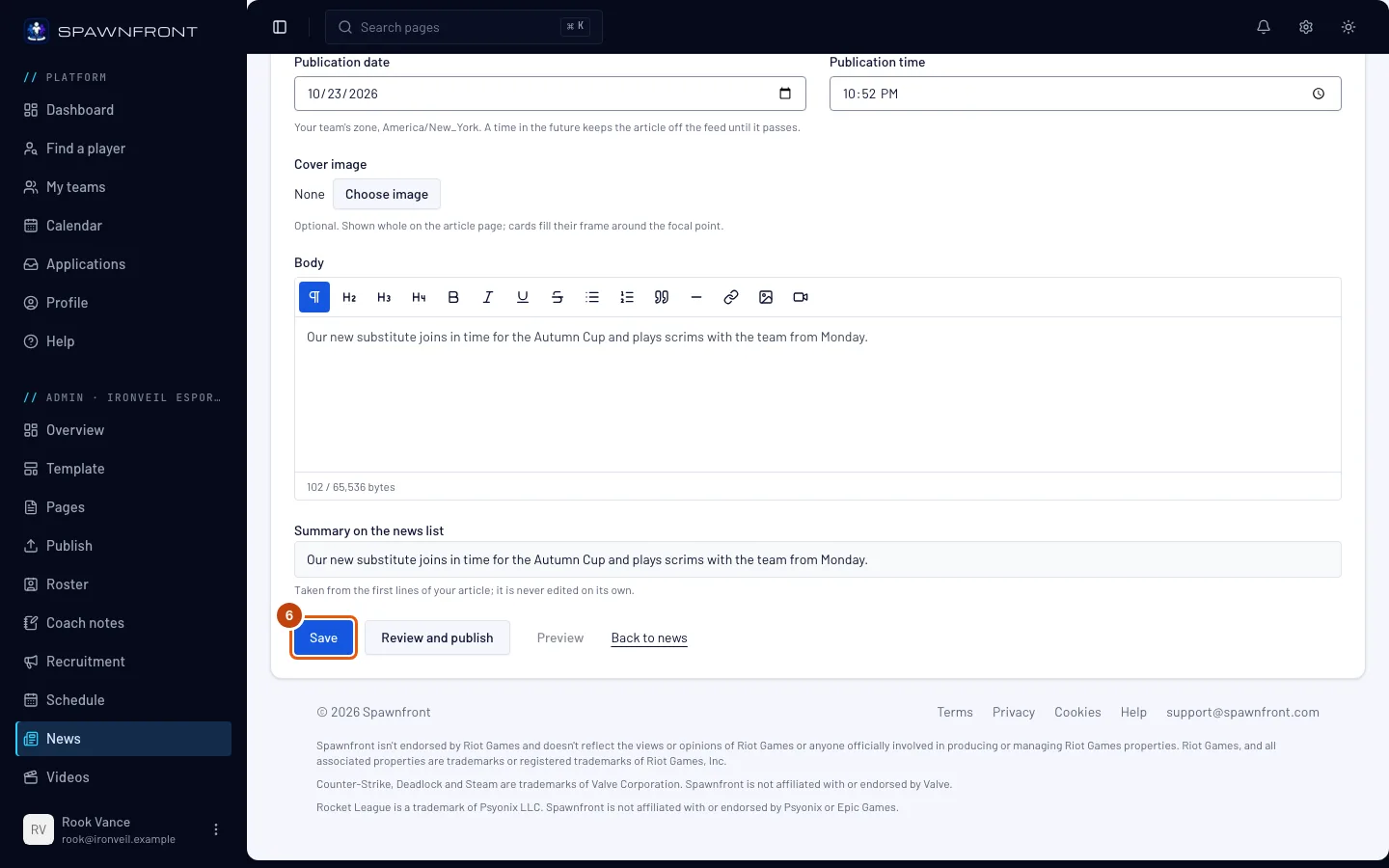
Press Save.
You should see: the article open on its own page, with the badge Not yet published and an Address field — the end of your article's web address, made from its title. You can change the address until the article is first published; after that it stays fixed, so links people shared keep working.
Saving keeps the article in your draft — visitors don't see it yet.
Step 7: Publish your site
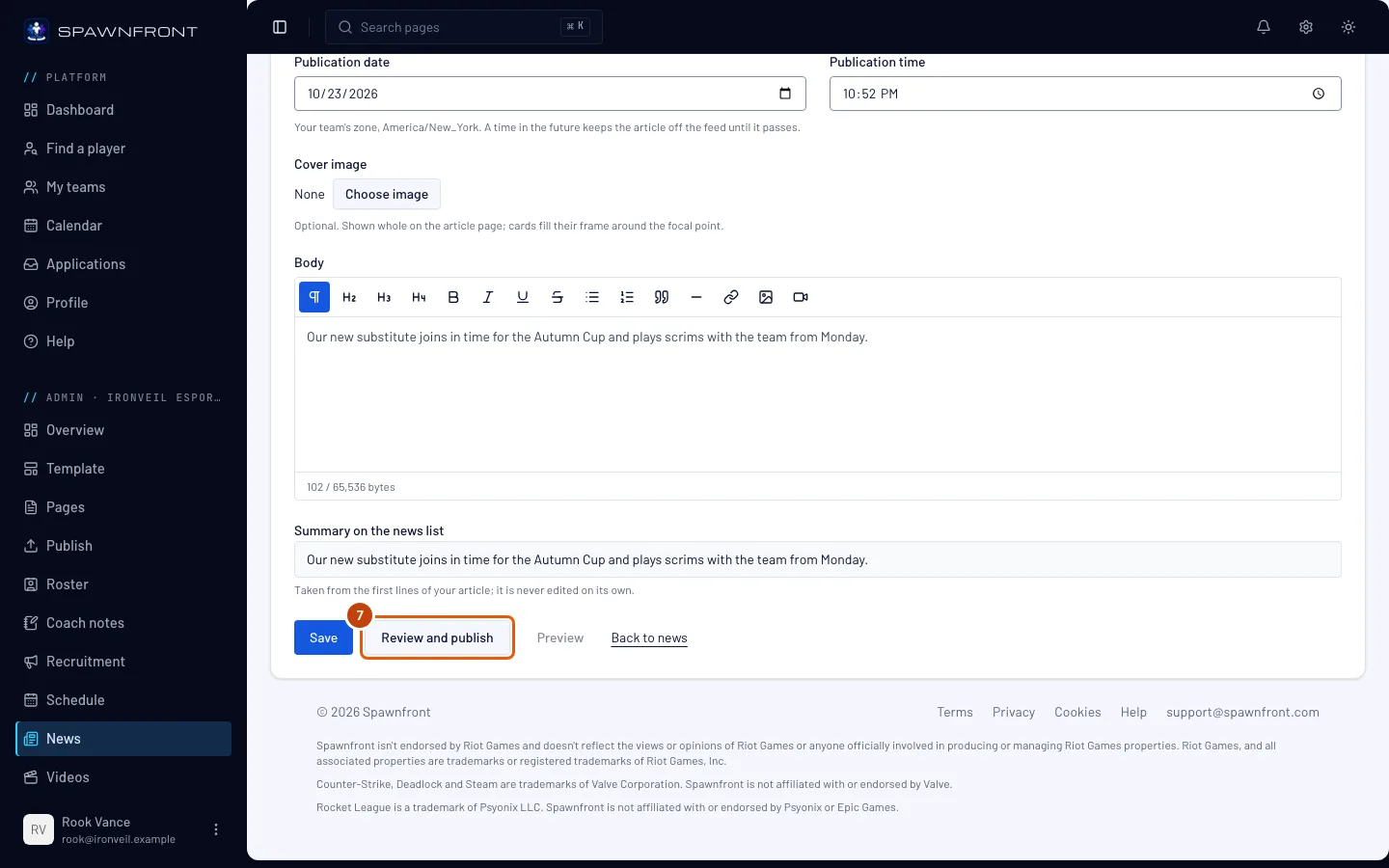
Press Review and publish. It saves the article and opens the Publish page, where you publish your whole site — see Publish your site.
This is the step that puts the article on your site. There is no separate publish for one article: it goes live with your site's next publish.
How to know it worked
- On the News page, your article's badge reads Live — or Scheduled for its date and time, if you chose a later one.
- Your site's news page lists the article.
Something doesn't look right?
I saved my article but it isn't on my site
Saving keeps it in your draft. Open Publish in the menu and publish your site (step 7). Its badge reads Not yet published until you do.
My article says "Changed since publish"
You edited an article that is already on your site. Visitors still see the old version until you publish again.
My article says "Scheduled for …"
Its publication date is still ahead. It is published and waiting: it appears on your site by itself once that time passes.
My cover is cut off on the news list
A news card fills its frame from your cover, keeping the focal point in view. Drag the dot under Cover image onto what matters, save, and publish again — see Style your news covers. The article's own page always shows the whole cover.
I can't change the article's address
The address stays fixed once the article has been published, so links people already shared keep working.
Related articles
Still stuck? Contact support or email support@spawnfront.com — tell us the page you're on and the step number.