
Show your sponsors on your site
List the businesses and people who back your team on a Sponsors page and a home-page strip, approve supporter names and answer sponsors who want to be listed.
For team owners and admins · 10 steps
What you need first
- Your team has a site subscription.
- You are the team's owner or an admin.
- You have each sponsor's name as they want it written, and their logo as a PNG, JPG or WebP if they have one.
Steps
Step 1: Open Sponsors
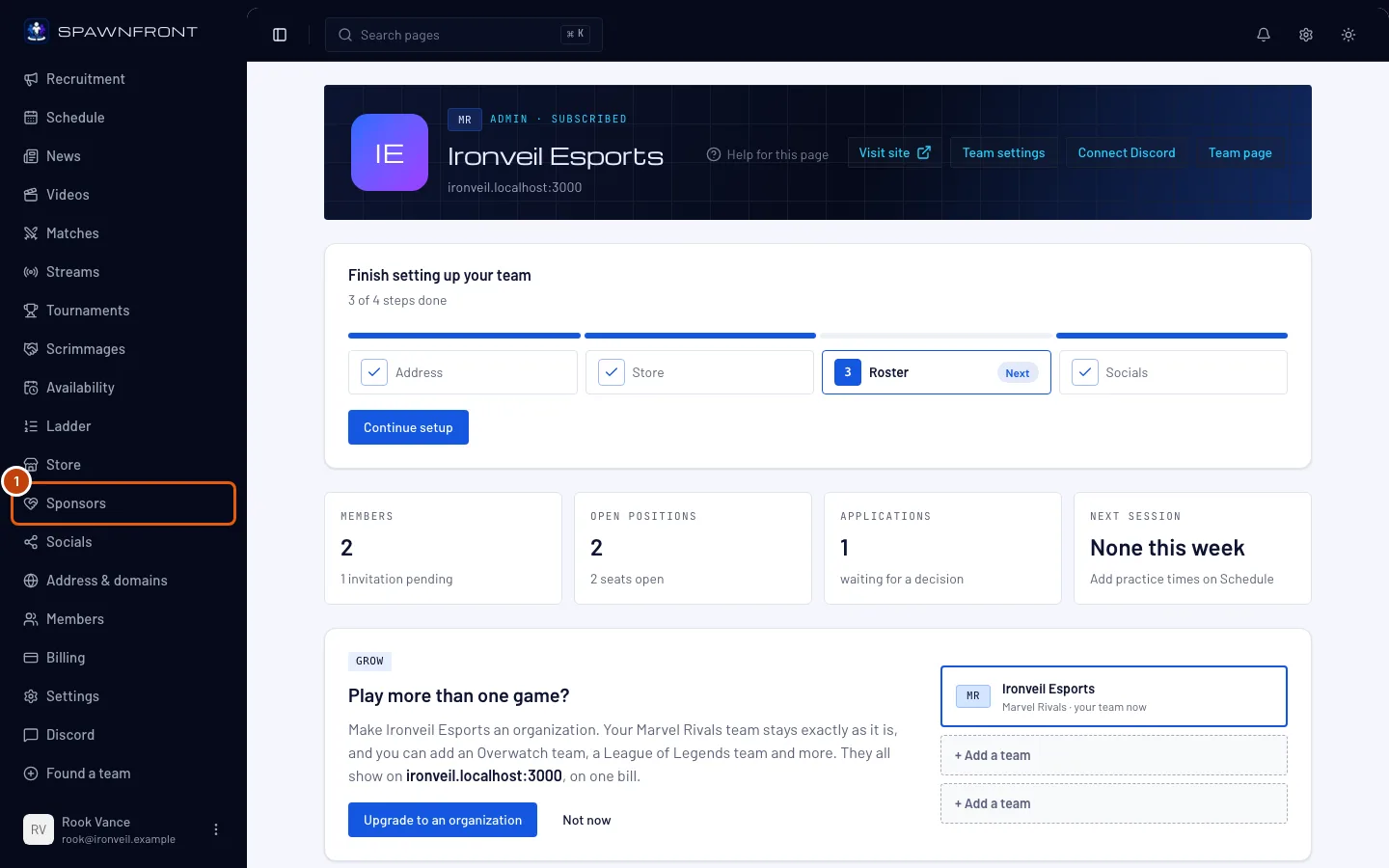
In your team's admin, press Sponsors in the sidebar, under Store.
You should see: the Sponsors page, with Where sponsors show, Page intro and your list of sponsors. If your About page listed partners, they are already here as featured sponsors. A team with nothing listed yet sees Show your sponsors on your site instead — press + Add your first sponsor, which opens the same box as + Add sponsor in the next step.
Step 2: Add a sponsor
Press + Add sponsor, type the sponsor's Name, and if you like choose a Logo (optional) and type a Short line (optional). Then press Save sponsor.
You should see: the sponsor at the bottom of your list. Only fill in Website link (optional) if your sponsor asked for one — it must start with
https://. Leave it empty and your site shows just their name.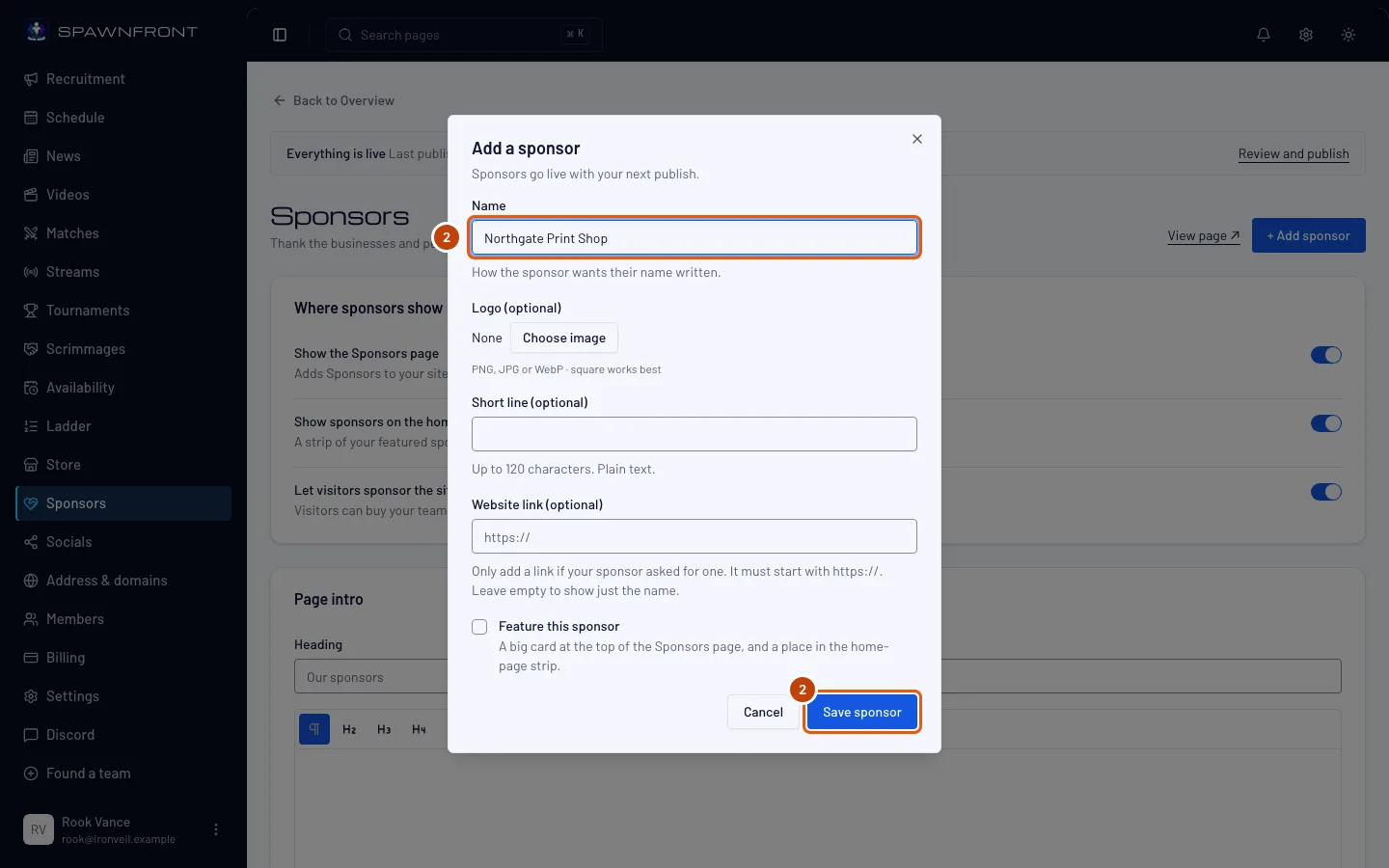
Step 3: Feature your biggest backers
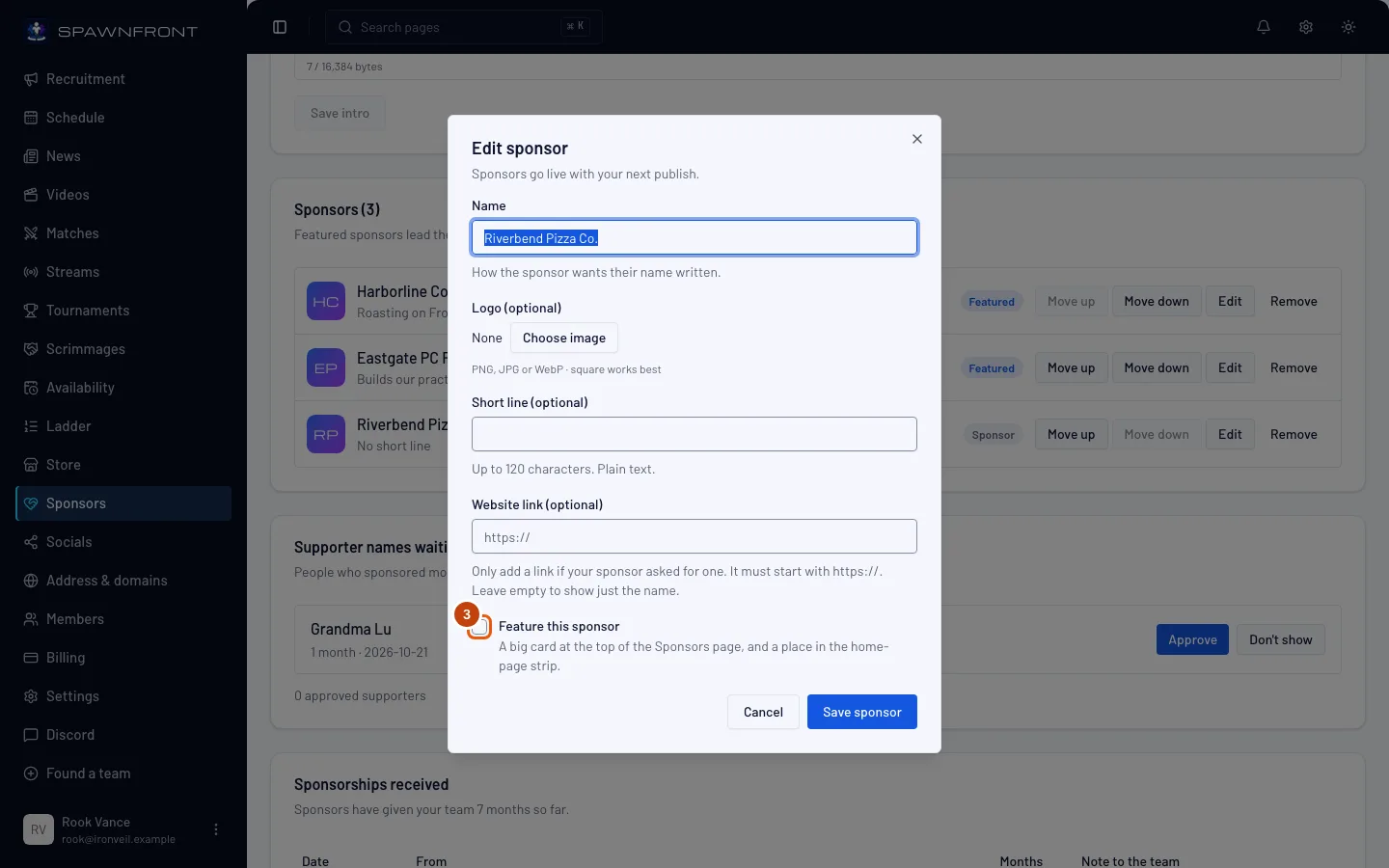
Press Edit beside a sponsor, tick Feature this sponsor, then press Save sponsor.
You should see: the sponsor marked Featured in your list. Featured sponsors get a large card at the top of your Sponsors page, and up to six of them fill the sponsors strip on your home page.
Step 4: Put them in order
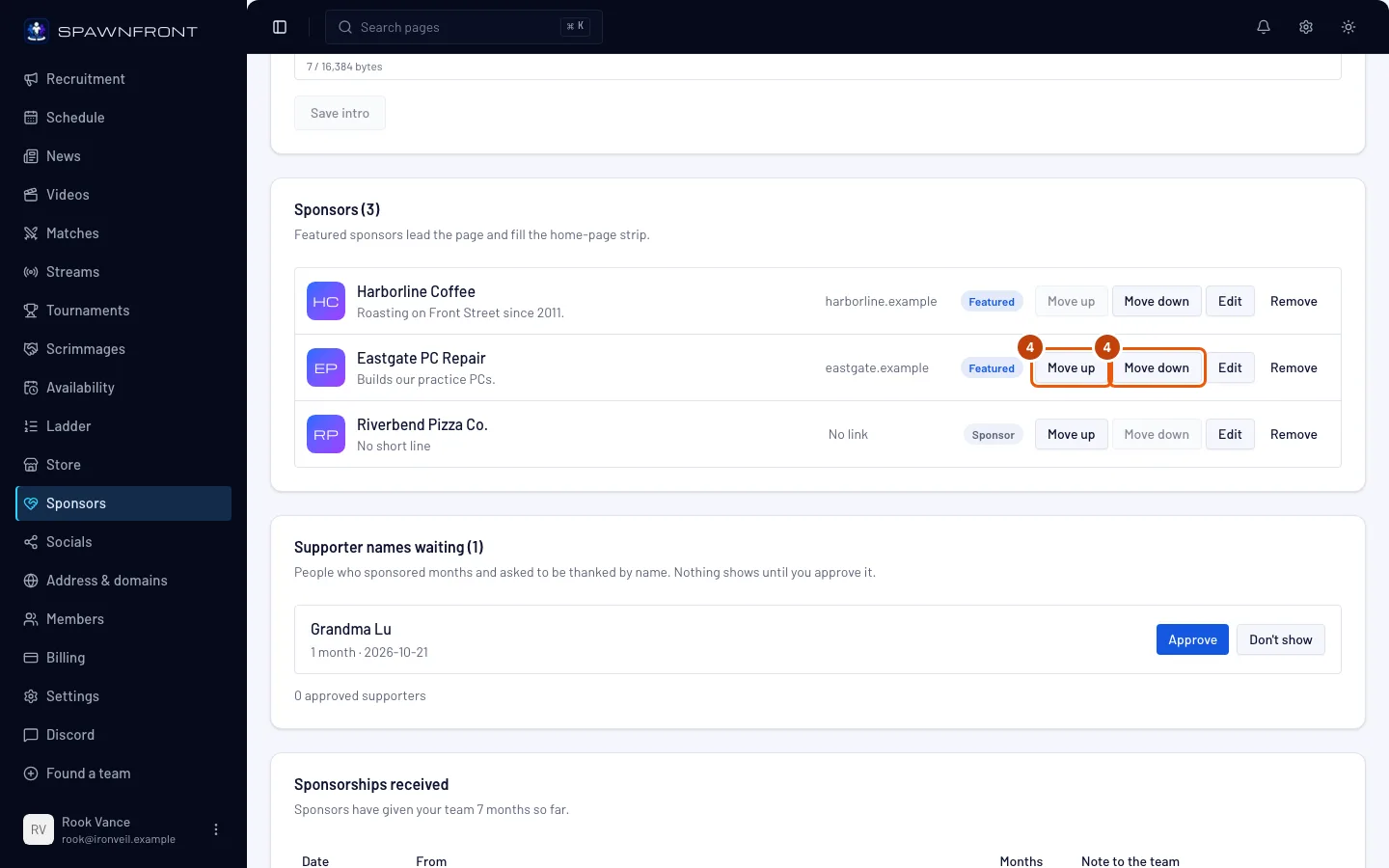
Press Move up or Move down beside a sponsor to move it one place.
You should see: the sponsor swap places with its neighbour. Your site shows your sponsors in this order, and the home strip takes the first six featured ones.
Step 5: Choose where sponsors show
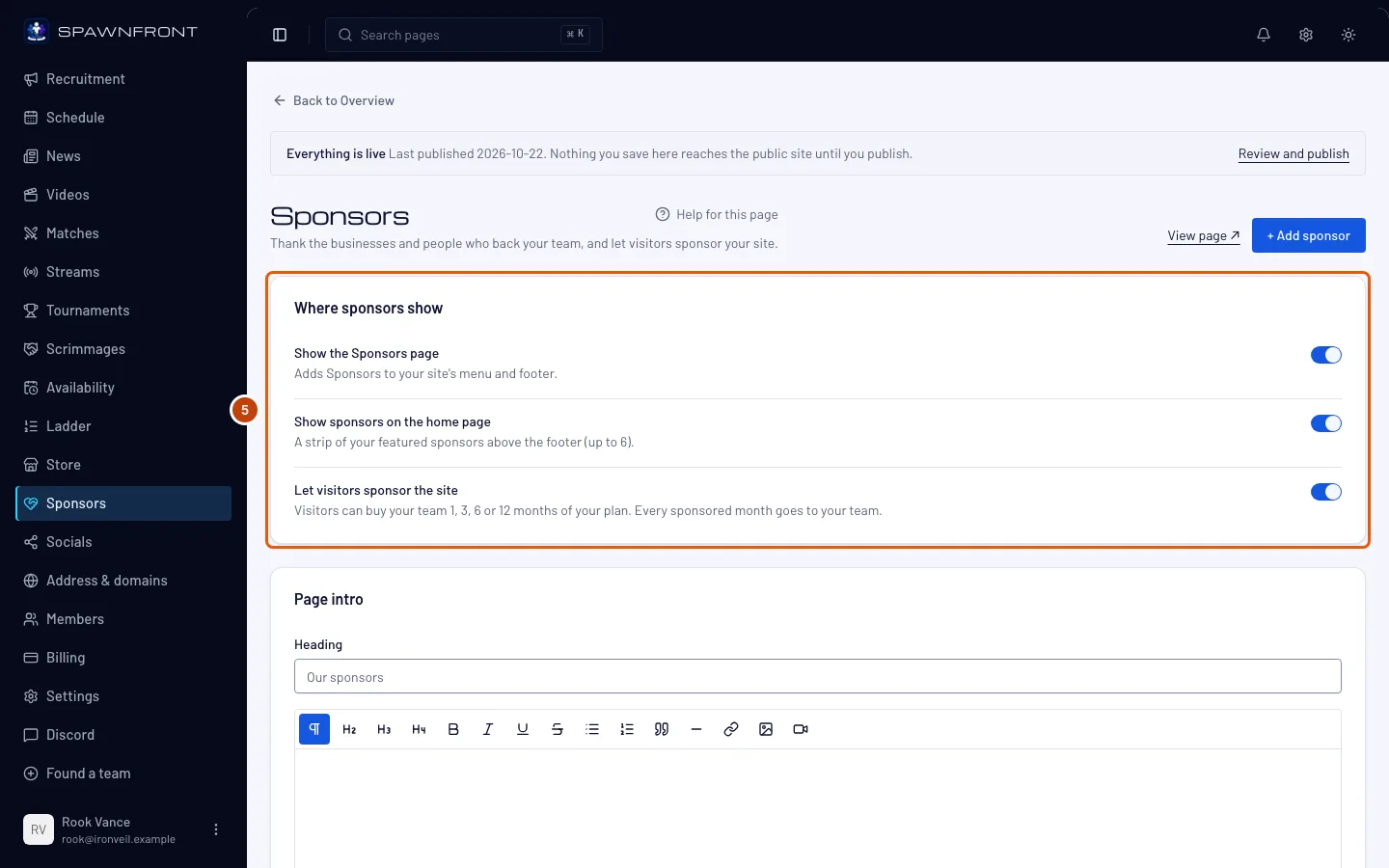
Under Where sponsors show, turn Show the Sponsors page, Show sponsors on the home page and Let visitors sponsor the site on or off.
You should see: the switch move. The Sponsors page joins your site's menu and footer only while it is on and it has a sponsor, a page intro or Let visitors sponsor the site on. With Let visitors sponsor the site on, your Sponsors page shows Become a sponsor, where visitors can buy your team 1, 3, 6 or 12 months of your plan — every sponsored month goes to your team. Sponsor a team's site shows what they see.
Step 6: Write the page intro
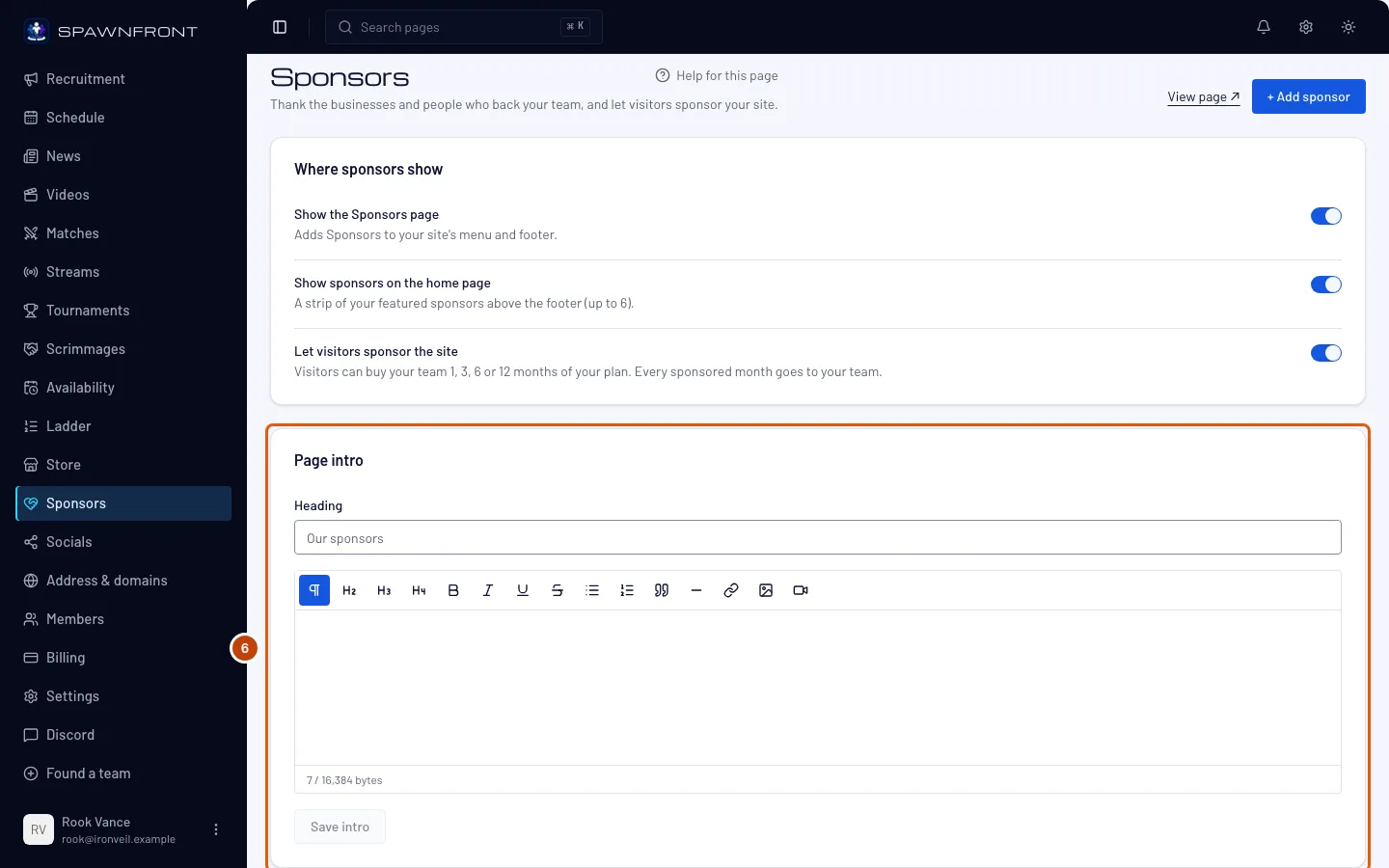
Under Page intro, type a Heading and a few lines about who backs your team, then press Save intro.
You should see: the intro saved. Leave the heading empty and your site uses Our sponsors.
Step 7: Publish your site
Press Publish in the sidebar, then Publish on the page, then Publish now in the box that opens. Publish your site walks through it.
Your sponsors reach visitors only when you publish. Every change above is a draft until then.
You should see: Everything is live.
Step 8: Approve supporter names
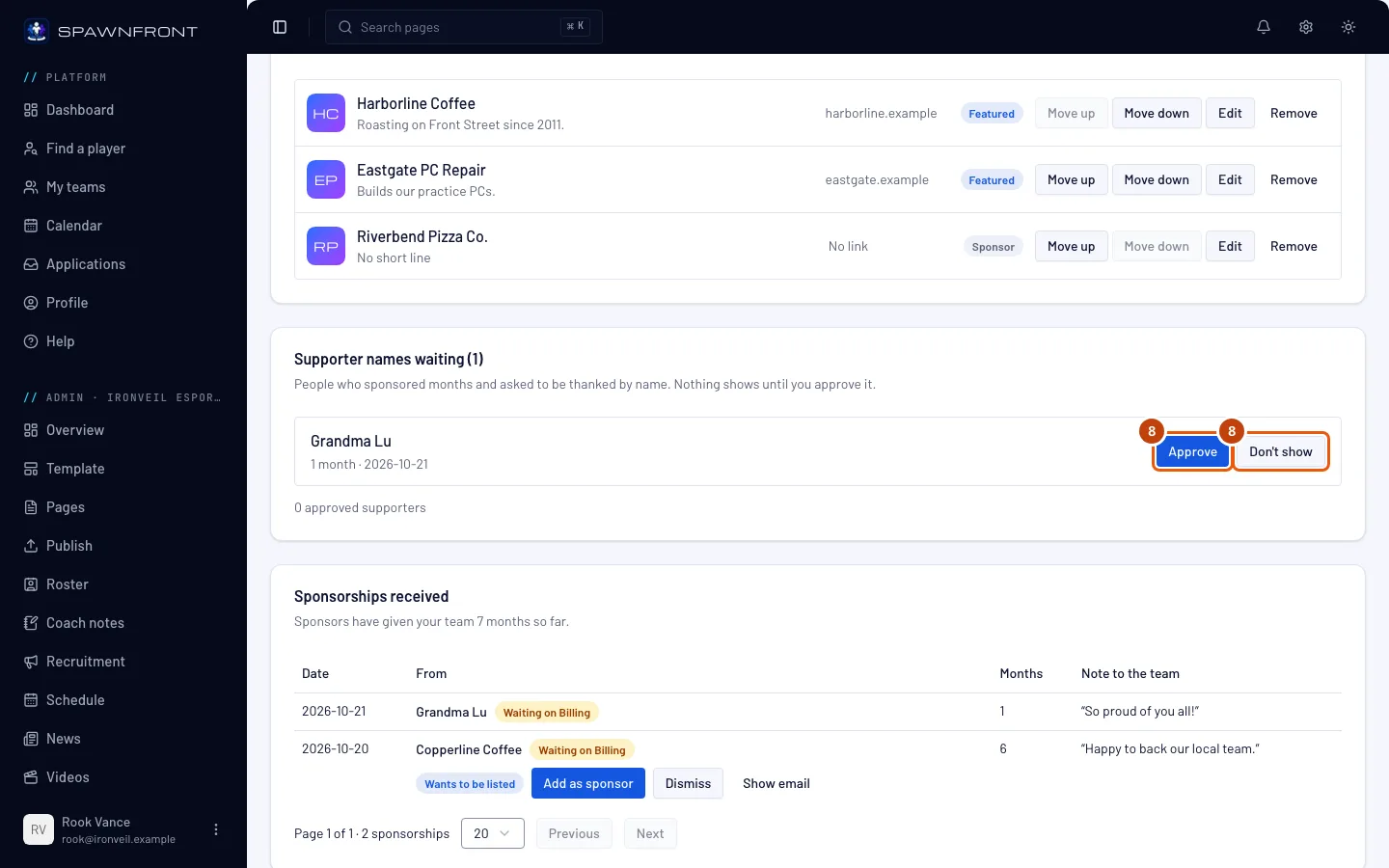
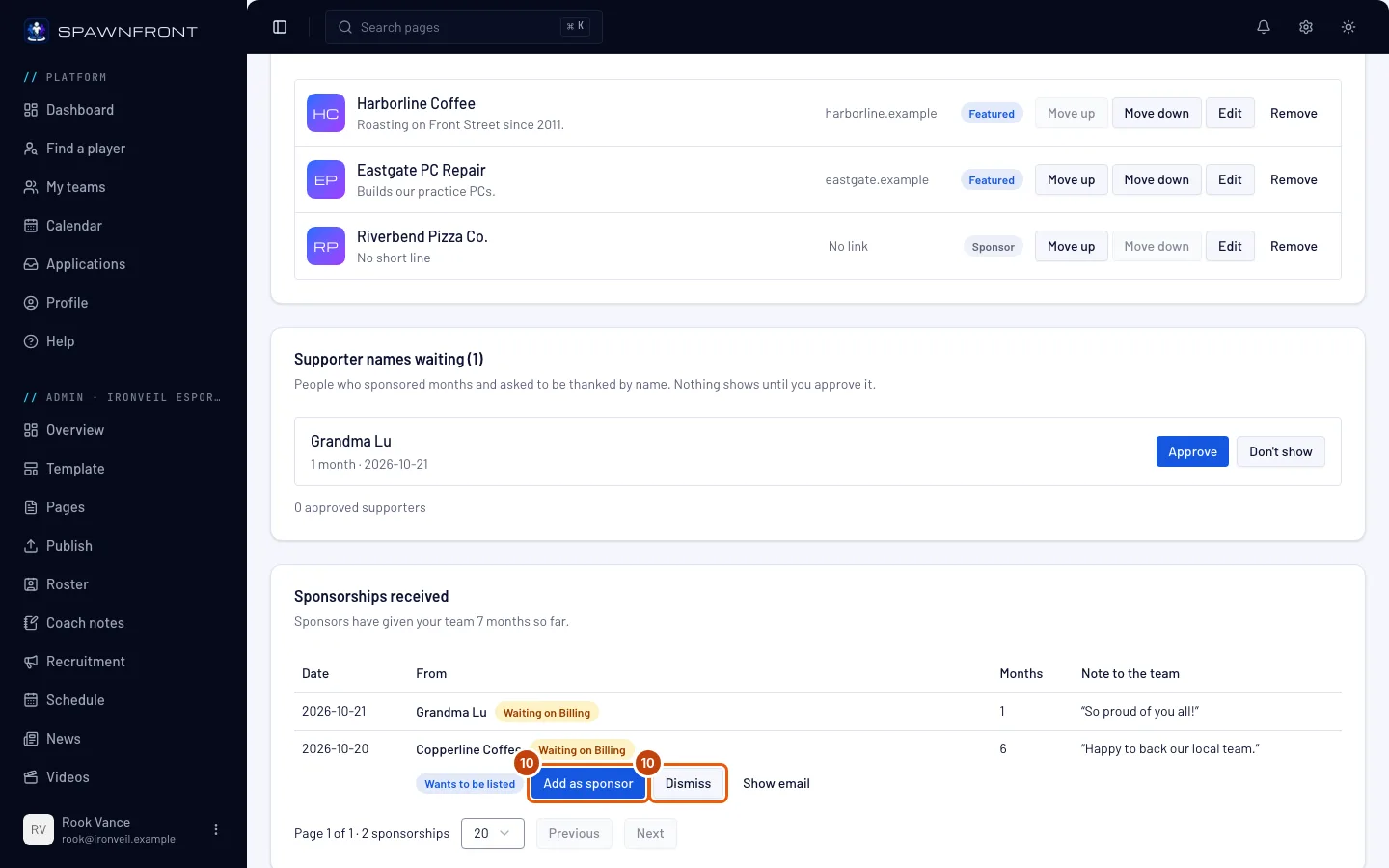
When people who sponsored your site ask to be thanked by name, they wait under Supporter names waiting. Press Approve beside a name to show it, or Don't show to keep it off your site.
Nothing shows until you approve it, and an approved name shows at once — no publish needed. Names appear under Supporters on your Sponsors page, as plain text, never a link.
You should see: the name leave the list. Once no name waits, the card goes away.
Step 9: See a business's email
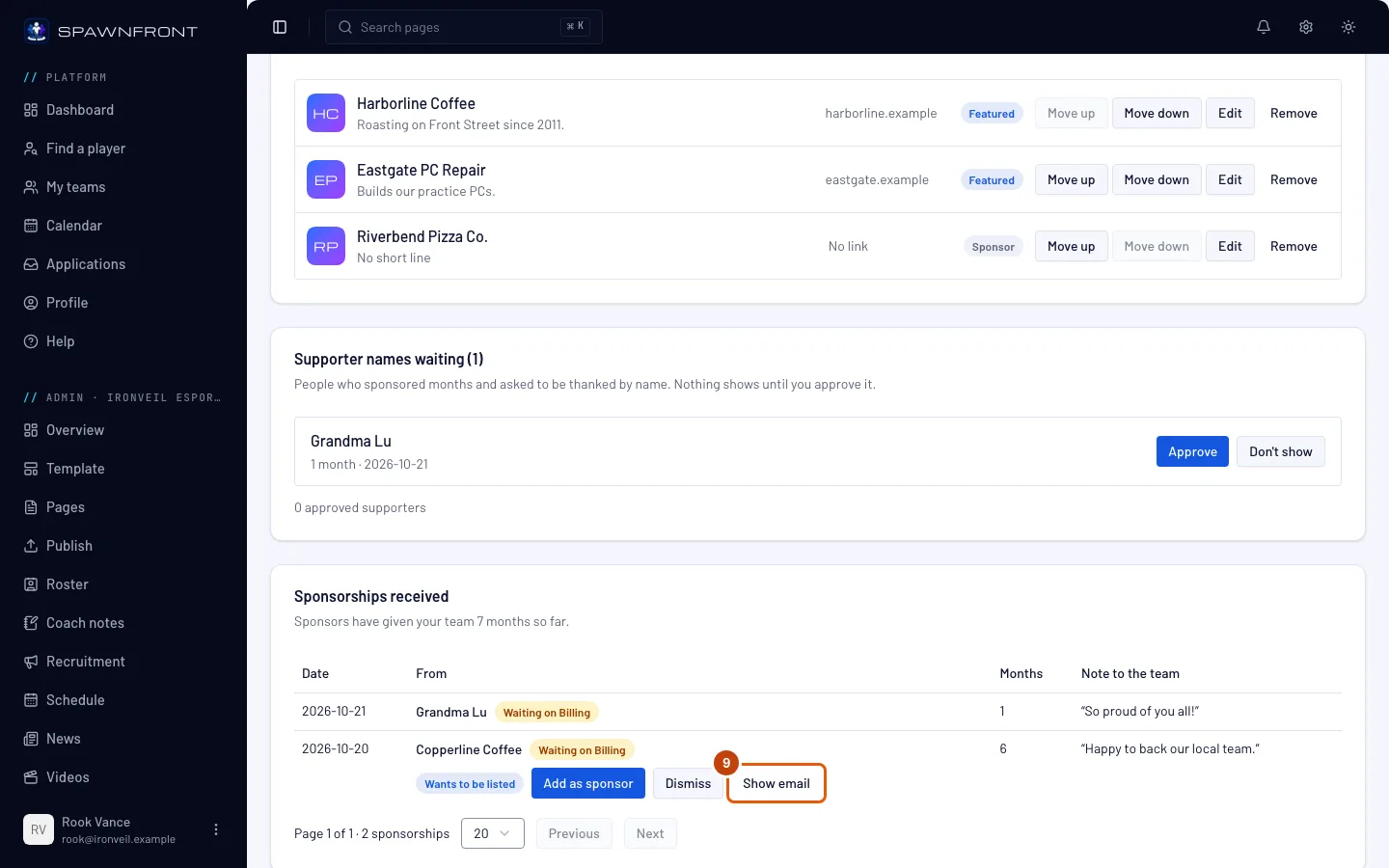
Under Sponsorships received, each sponsorship shows the date, who it was from (A sponsor when they didn't share a name), the months and their note to the team. A business that asked to be listed is marked Wants to be listed. Press Show email on its row to see the address they gave you for adding them.
Their email is kept for 90 days at most, and deleted as soon as you add or dismiss them. Only the owner and admins see Show email.
You should see: their email under the row, as a link that opens your mail app.
Step 10: Add the business or dismiss the request
Press Add as sponsor on the row. The Add a sponsor box opens with their name filled in; add their logo or link if they sent one and press Save sponsor. If you won't list them, press Dismiss instead.
You should see: Wants to be listed gone from the row. A new sponsor still goes live on your next publish.
How to know it worked
- Your site's menu has Sponsors, and the page shows your featured sponsors first, then the rest.
- A sponsor with a link opens their website in a new tab; one without shows just their name.
- Your home page shows Our sponsors with up to six featured sponsors.
Something doesn't look right?
Sponsors isn't in my site's menu
Either Show the Sponsors page is off, the page has no sponsor, no intro and sponsoring off, or you haven't published since. Check step 5, add a sponsor (step 2), then publish (step 7).
My home page doesn't show my sponsors
The strip shows only featured sponsors, and only while Show sponsors on the home page is on. Feature at least one sponsor (step 3), check the switch (step 5), and publish.
It says "Links must start with https://"
Your sponsor's address starts with http:// or has no https:// at the front. Copy the address from their website's address bar, or leave the link empty to show just their name.
Visitors can't sponsor my site
Check three things. Let visitors sponsor the site must be on (step 5) and published (step 7). Your site must be live — sponsoring closes while your subscription has lapsed, while your site is offline, and when your team's site is free for good. If the page says Sponsoring isn't available for a moment, the prices couldn't be read just then; nothing is wrong on your side, and it comes back by itself.
A supporter's name isn't on my Sponsors page
Only names you approved show (step 8), and only while your Sponsors page is shown. A sponsor who didn't ask to be named never appears by name; they count in "and N more supporters". If you approved the name a moment ago, reload the page.
It says "… email is no longer kept"
A business's email is deleted 90 days after they sponsored you, and its row says so where Show email was. You can still press Add as sponsor and type their details yourself, or Dismiss the request.
My About page's partners are gone
They moved here, to Sponsors, as featured sponsors with their logos and links. Nothing was deleted. Open Sponsors to see them.
+ Add sponsor is grayed out
You've listed 40 sponsors, the most a page holds — remove one first. If every control on the page is grayed out, your site subscription has lapsed and the page is read-only — see Manage your billing.
Related articles
Still stuck? Contact support or email support@spawnfront.com — tell us the page you're on and the step number.