
Use your team calendar
See every session of every team you're on, by week or by month, and who is coming to each one.
For team members · 5 steps
What you need first
- You're a member of a team. The Calendar shows the teams you're on and nothing else.
- Your team has something on its schedule: practice its admins set on Schedule, a booked scrim — every one shows here by itself — or a tournament they chose to show. See Share your practice schedule.
Steps
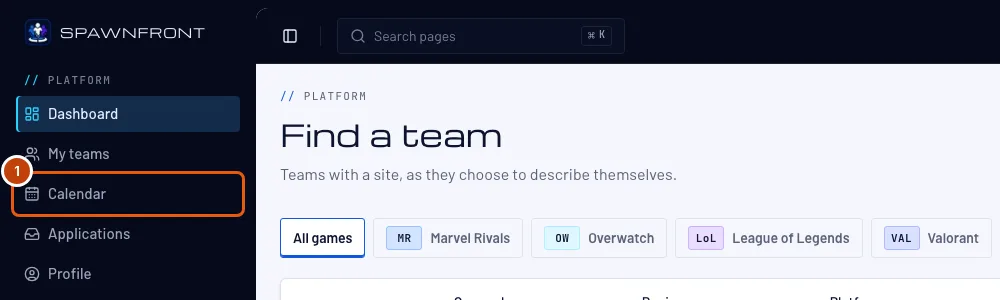
Step 1: Open Calendar
In the menu on the left, press Calendar.
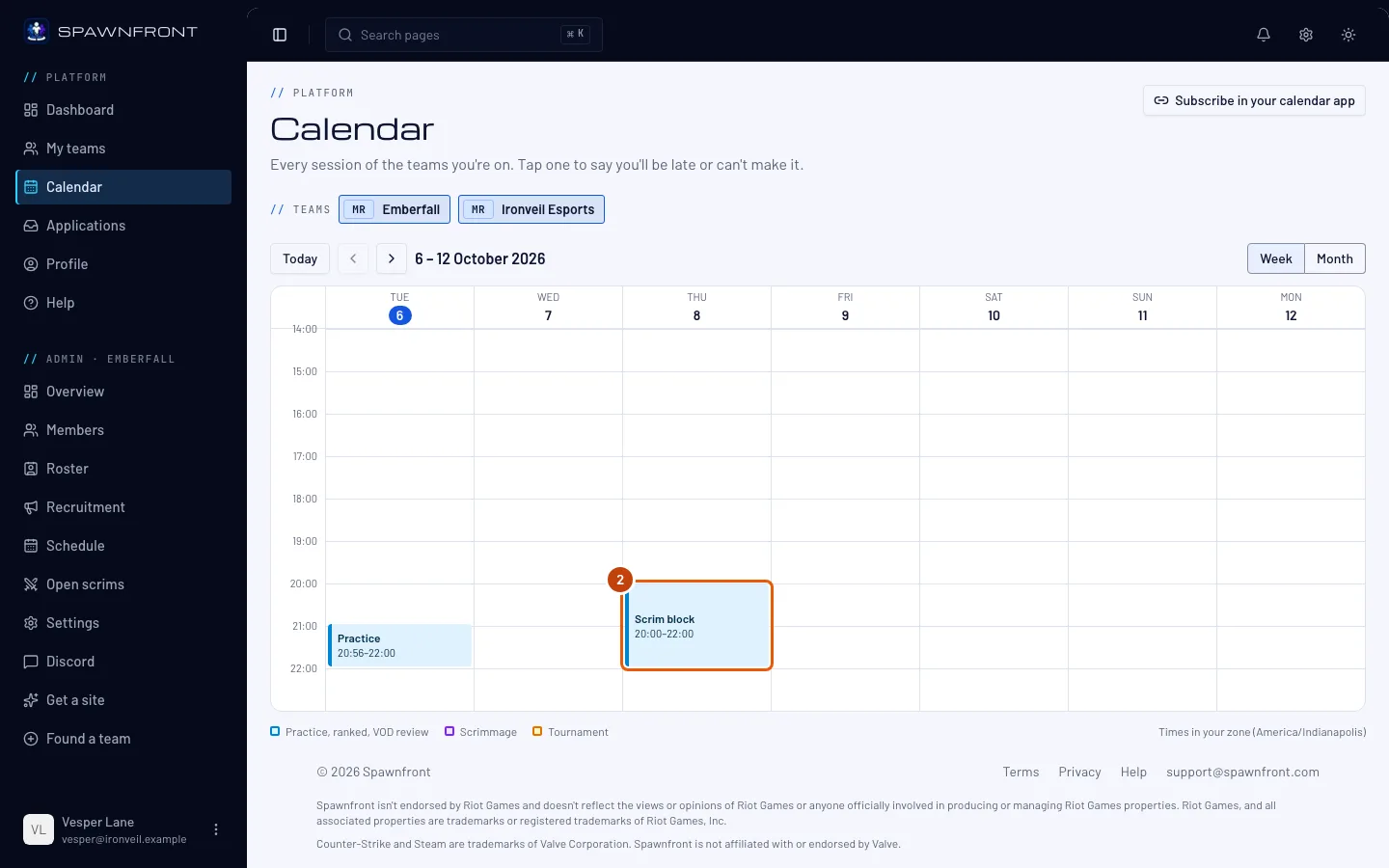
You should see: Calendar, with "Every session of the teams you're on" under it, and this week's sessions.
Step 2: Read the week
The week opens on today and shows the six days after it. Each block is one session: practice in blue, scrims in violet, tournaments in amber. Every time is in your own time zone — the line under the calendar names it.
A block can carry chips: "1 out", "2 late" or "1 covering" tell you who isn't coming, who is late and how many substitutes cover. When you're on more than one team, the team names above the calendar switch each team's sessions on and off.
Press Next (the arrow) to see the next week, and Today to come back. An admin can also jump straight to a booked scrim: on the Scrimmages page, Open in Calendar beside it under Booked opens the Calendar on that scrim's week.
Step 3: Switch to Month
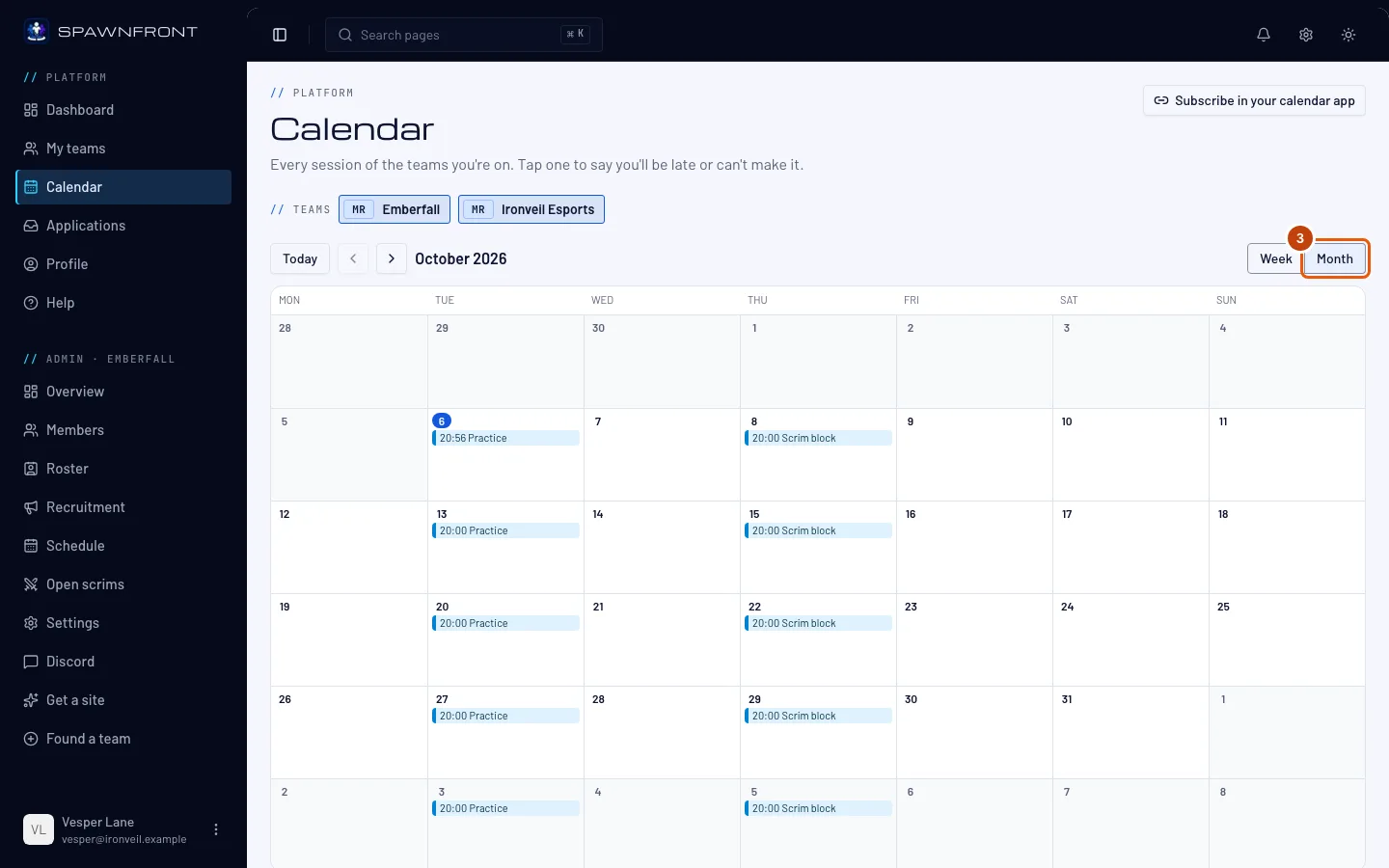
Press Month at the top right of the calendar. Press Week to go back.
You should see: the whole month, one line per session. Days that have passed are grayed out.
Step 4: Open a session
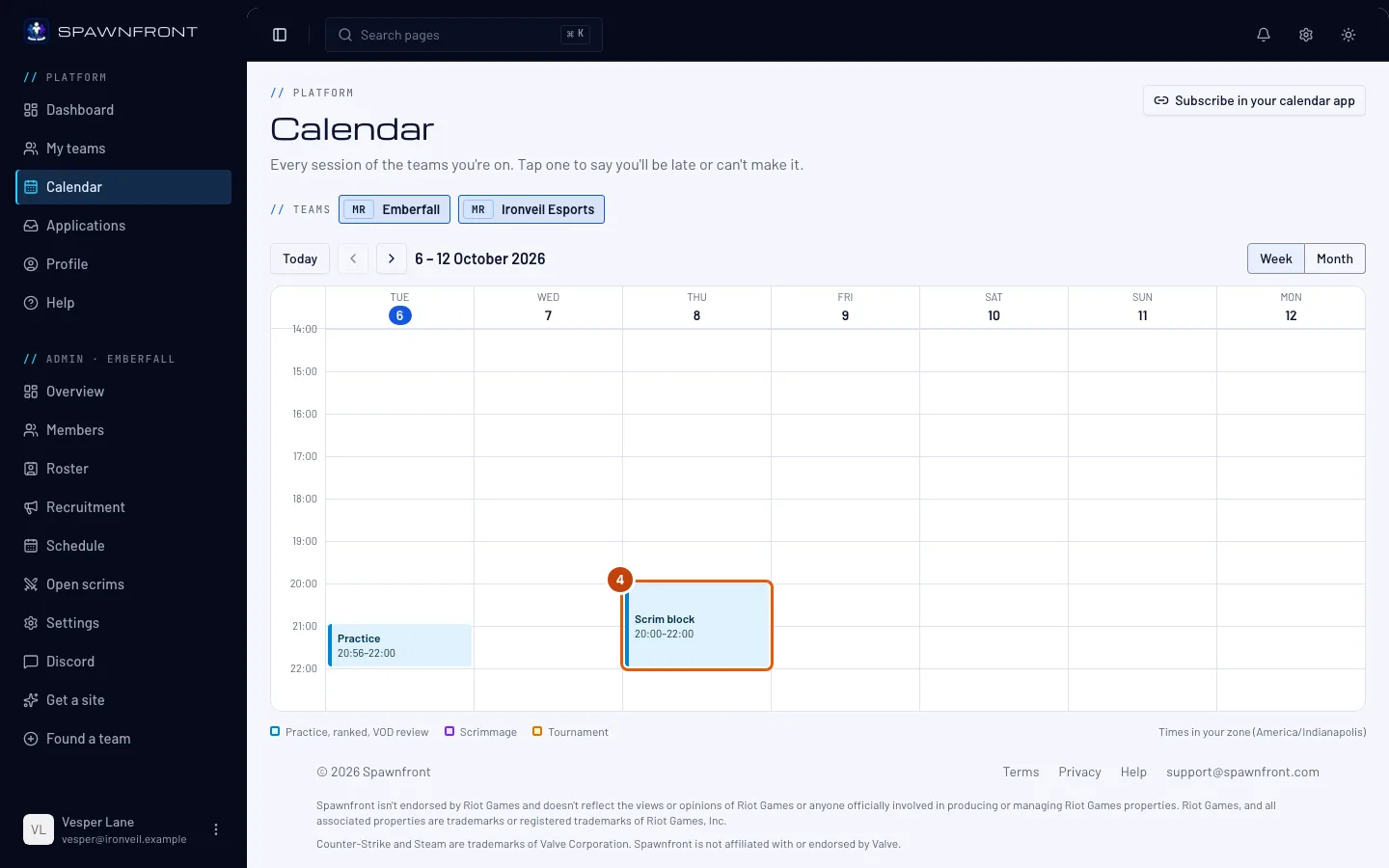
Press a session's block.
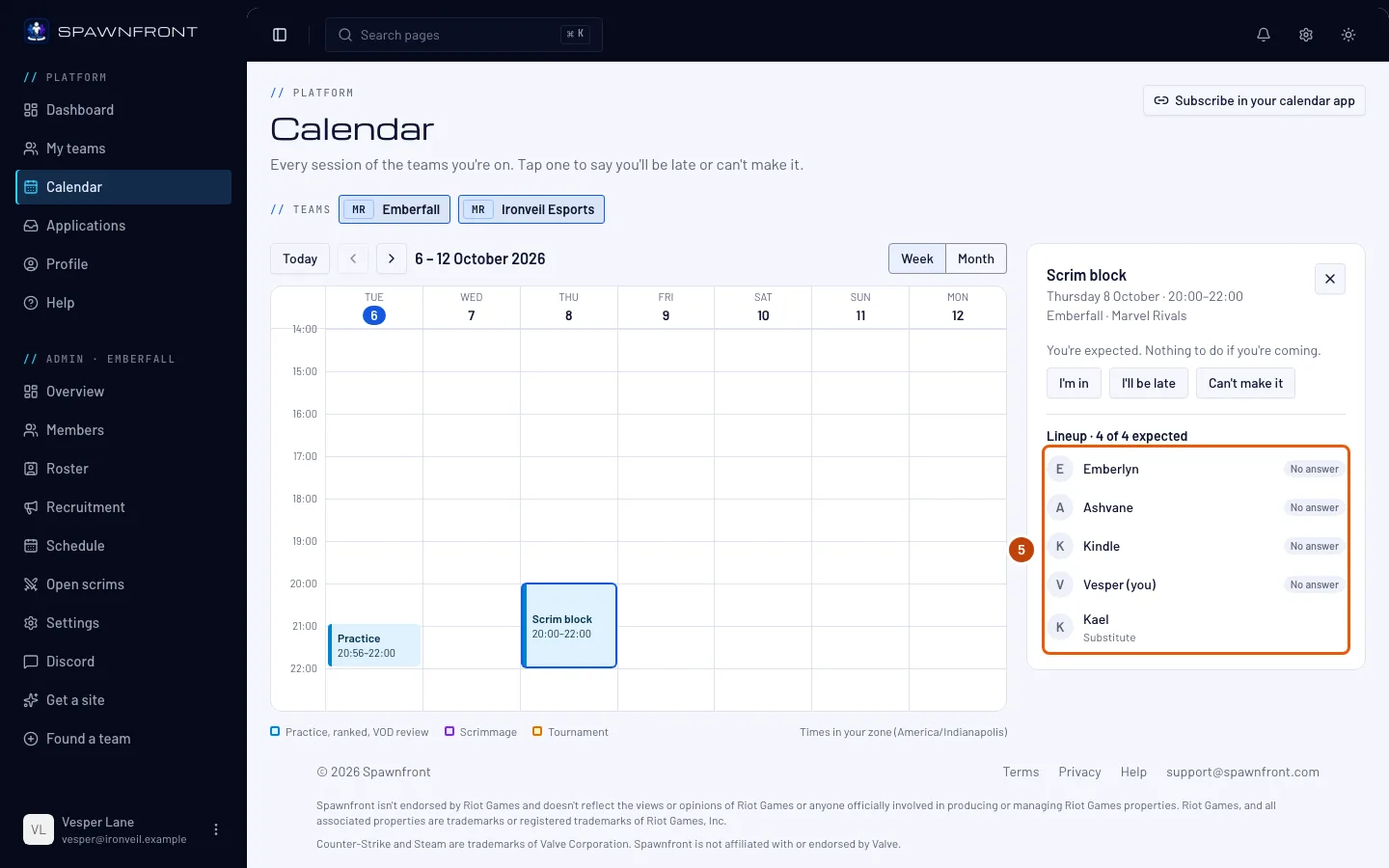
You should see: the session beside the calendar — its name, day and time, and the team. Under it is your own status: "You're expected. Nothing to do if you're coming." with I'll be late and Can't make it.
Step 5: Read the lineup
Under Lineup are the team's players, each Expected, Late with how late and their note, or Out. The substitutes come last, with whom they are covering for.
You should see: a heading such as "Lineup · 4 of 4 expected".
How to know it worked
- Your team's sessions are on the week, at the times you'd expect where you live.
On a phone the week is a list of days. Each session has I'll be late and Can't make it right on it — see Say you'll be late or can't make it.
Scrims your team already played are on your team's page instead, under Recent scrims — only members see it — with each game's result and its replay code beside Copy.
Something doesn't look right?
The Calendar says I'm not on a team yet
The Calendar shows only the teams you're a member of. Join a team first — see Find a team — or accept the invitation a team sent you.
It says "No sessions in this range"
Your teams have nothing scheduled in these days. Press the next arrow to look further ahead, or ask an admin to add practice on Schedule. The calendar shows up to 90 days ahead.
I'm not in the lineup
The lineup lists the team's roster entries that are Player or Substitute. Ask an admin to add you on Roster and link the entry to your account — see Manage your roster.
Can people outside my team see who is coming?
No. The lineup and everyone's late and out are shown only to the team's members. The team page shows the schedule to anyone signed in, never who is coming.
Related articles
Still stuck? Contact support or email support@spawnfront.com — tell us the page you're on and the step number.