
Subscribe to your team calendar
Put every team's sessions in Google Calendar, Apple Calendar or Outlook with one private link.
For team members · 5 steps
What you need first
- You're a member of a team.
- You use Google Calendar, Apple Calendar or Outlook, signed in on the device you're using.
Steps
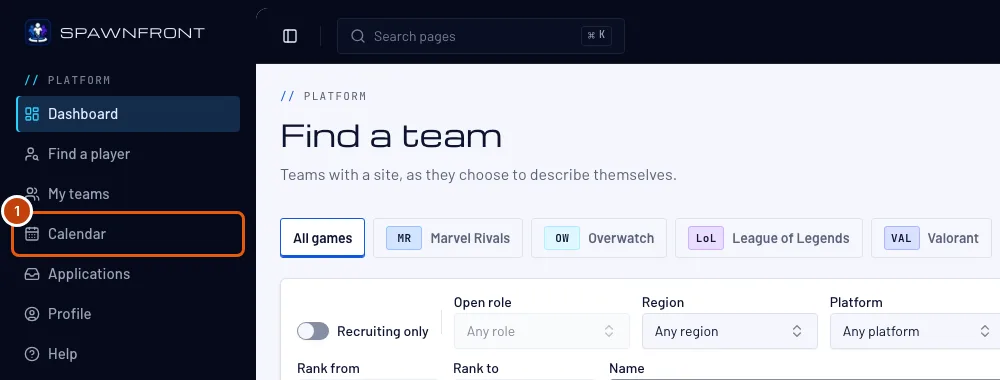
Step 1: Open Calendar
In the menu on the left, press Calendar.
Step 2: Press Subscribe in your calendar app
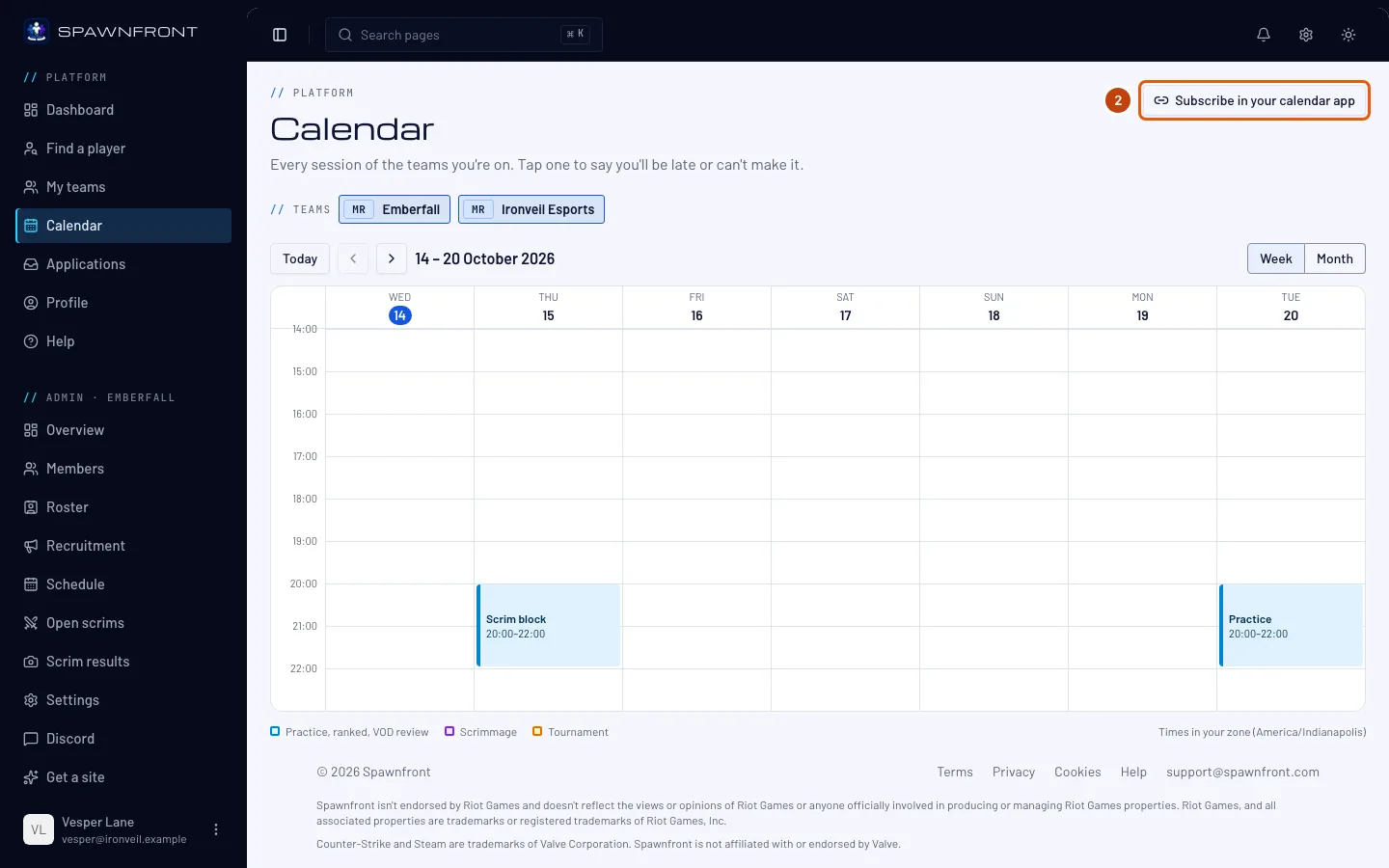
Press Subscribe in your calendar app at the top right.
You should see: a box with the same title.
Step 3: Press Make my link
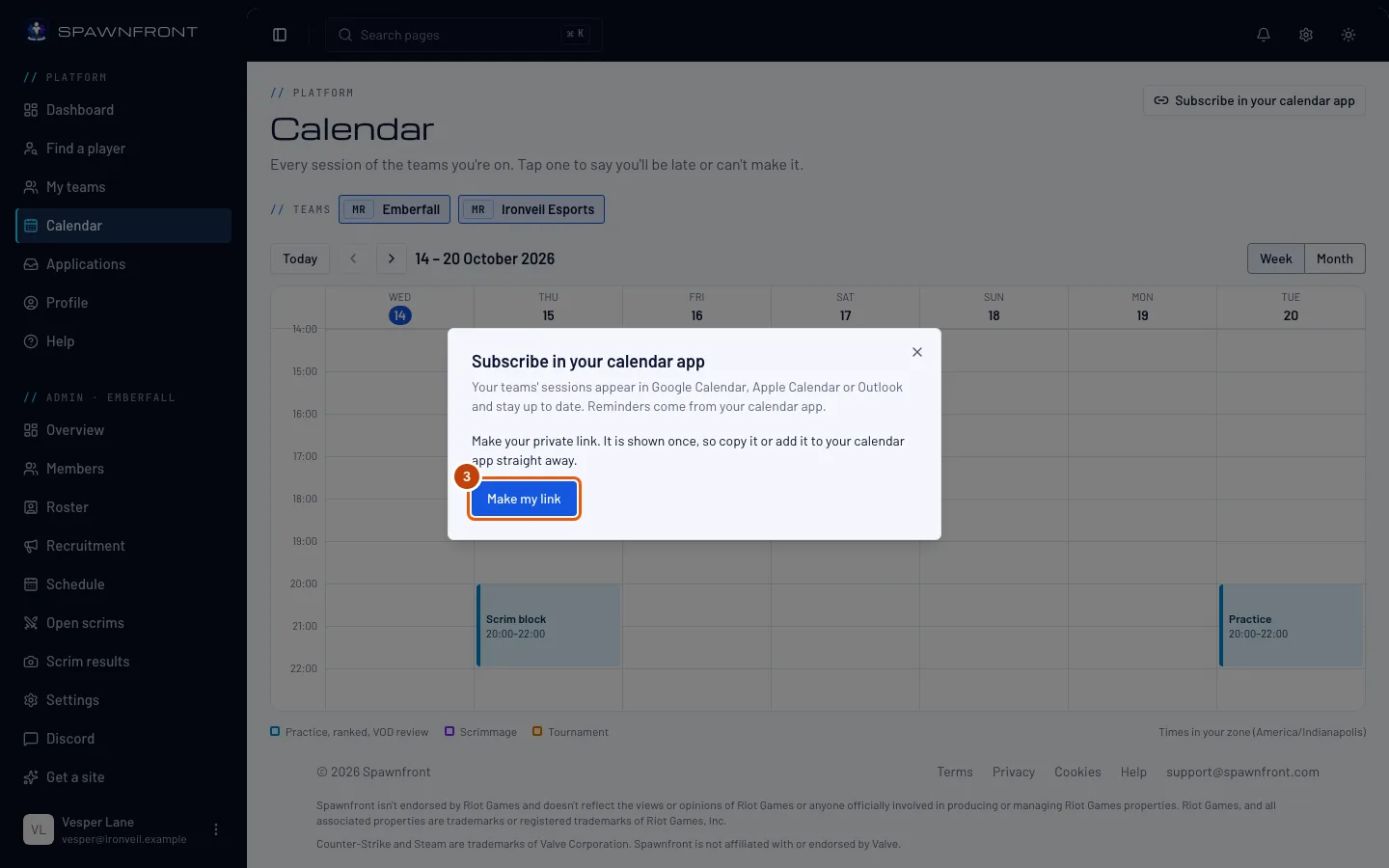
Press Make my link. If you made a link before, the button reads Make a new link.
Your link is shown once. Copy it or add it to your calendar app now — to see it again you make a new one.
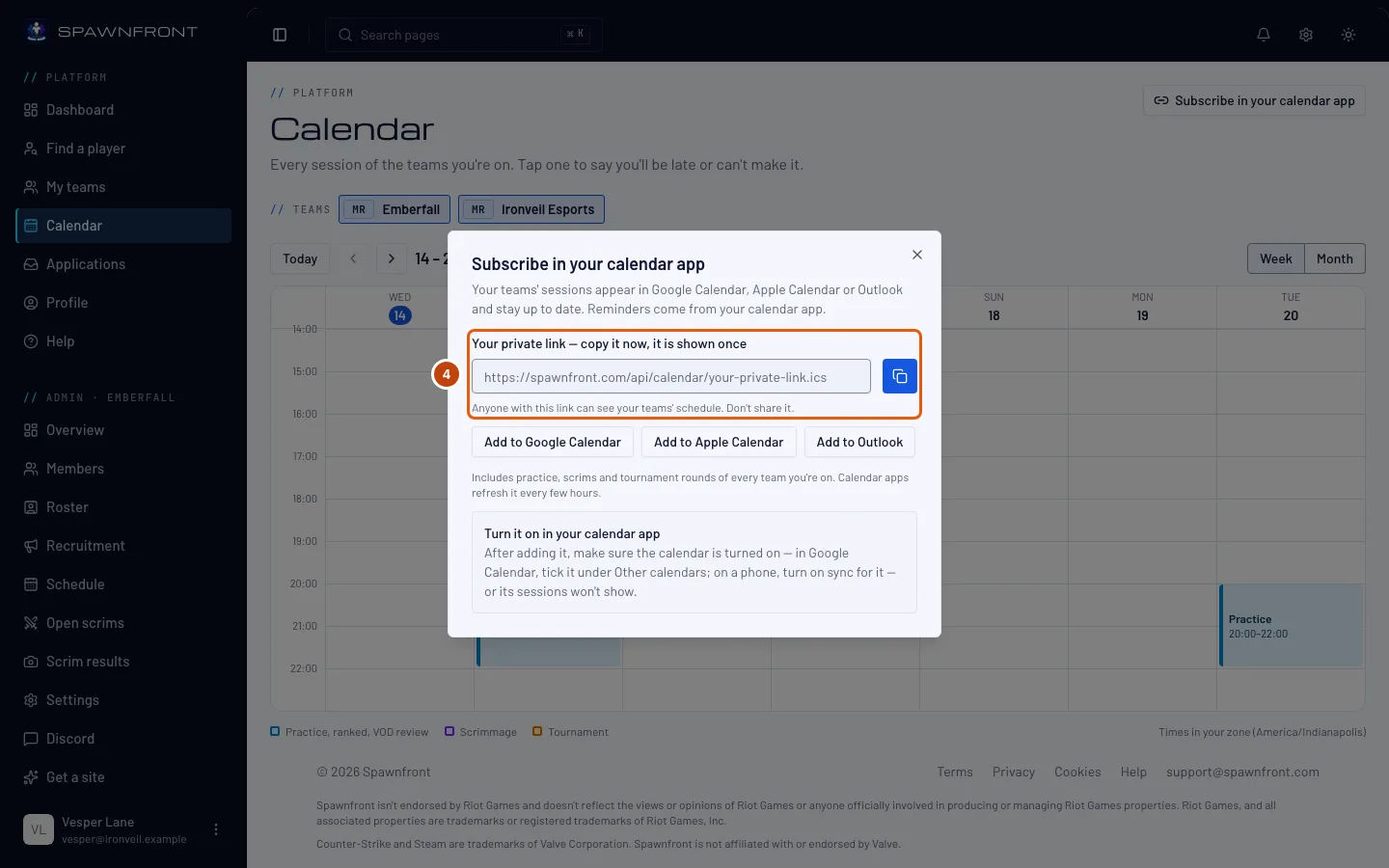
You should see: Your private link — copy it now, it is shown once, with the link under it.
Step 4: Copy your link
Press the copy button beside the link if your calendar app asks you to paste a link — Google Calendar's From URL, for example.
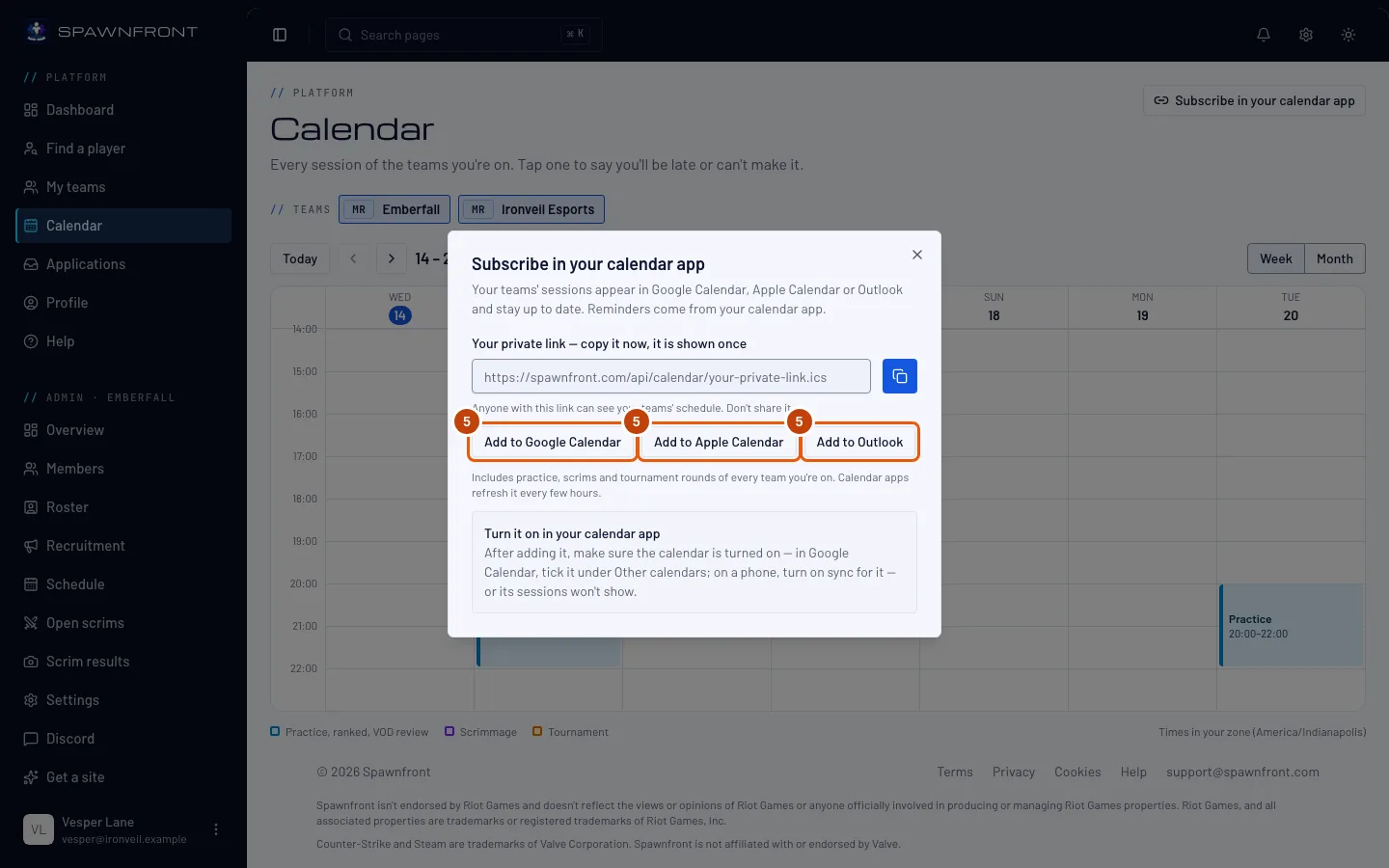
Anyone with this link can see your teams' schedule. Don't share it.
Step 5: Add it to your calendar app
Press Add to Google Calendar, Add to Apple Calendar or Add to Outlook, then confirm in your calendar app.
Make sure the calendar is turned on in your calendar app, or its sessions won't show: in Google Calendar, tick it under Other calendars; on a phone, turn on sync for it.
You should see: your teams' sessions in your calendar app.
How to know it worked
- Your calendar app lists your teams' practice, scrims and tournament rounds.
One link holds every team you're on, for the next 90 days — a team you join later appears by itself, and one you leave disappears. Calendar apps refresh it every few hours, so a change can take a while to show. Reminders come from your calendar app's own settings. The link shows sessions only, never who is coming.
Something doesn't look right?
I shared my link by mistake
Open Subscribe in your calendar app again and press Make a new link. The old link stops working at once; add the new one to your calendar app.
I lost my link
It can't be shown again. Press Make a new link, then add the new one to your calendar app and remove the old calendar there.
I added the link but no sessions show
The calendar is probably turned off in your app. In Google Calendar, tick it under Other calendars on the left. On an iPhone, open Settings › Calendar › Accounts and make sure the subscription is on; on Android, open the Google Calendar app's settings and turn on Sync for it.
A change my admin made isn't in my calendar app yet
Calendar apps fetch the link every few hours, not at once. The Calendar page always shows the schedule as it is now.
Why doesn't my calendar app remind me?
Reminders are your calendar app's: turn on default alerts for the subscribed calendar there.
Related articles
Still stuck? Contact support or email support@spawnfront.com — tell us the page you're on and the step number.