
Share your practice schedule
Add your weekly practice windows so players see when you play, in their own time zone.
For team owners and admins · 6 steps
What you need first
- You are the team's owner or an admin.
- Your team's time zone is right in Settings — the schedule is kept in it.
Steps
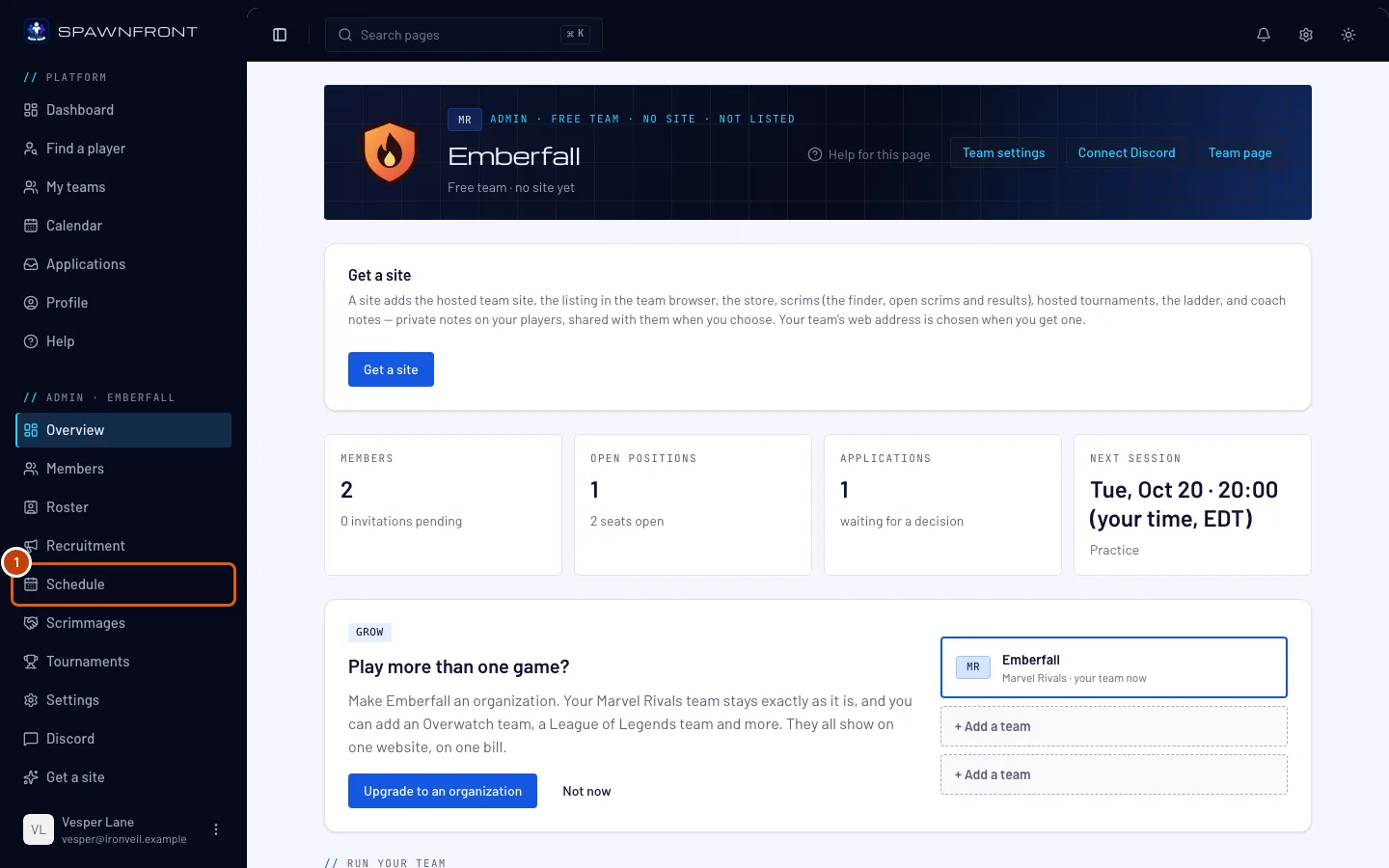
Step 1: Open Schedule
In the menu on the left, under Admin, press Schedule.
You should see: Practice, a week grid, and your windows day by day.
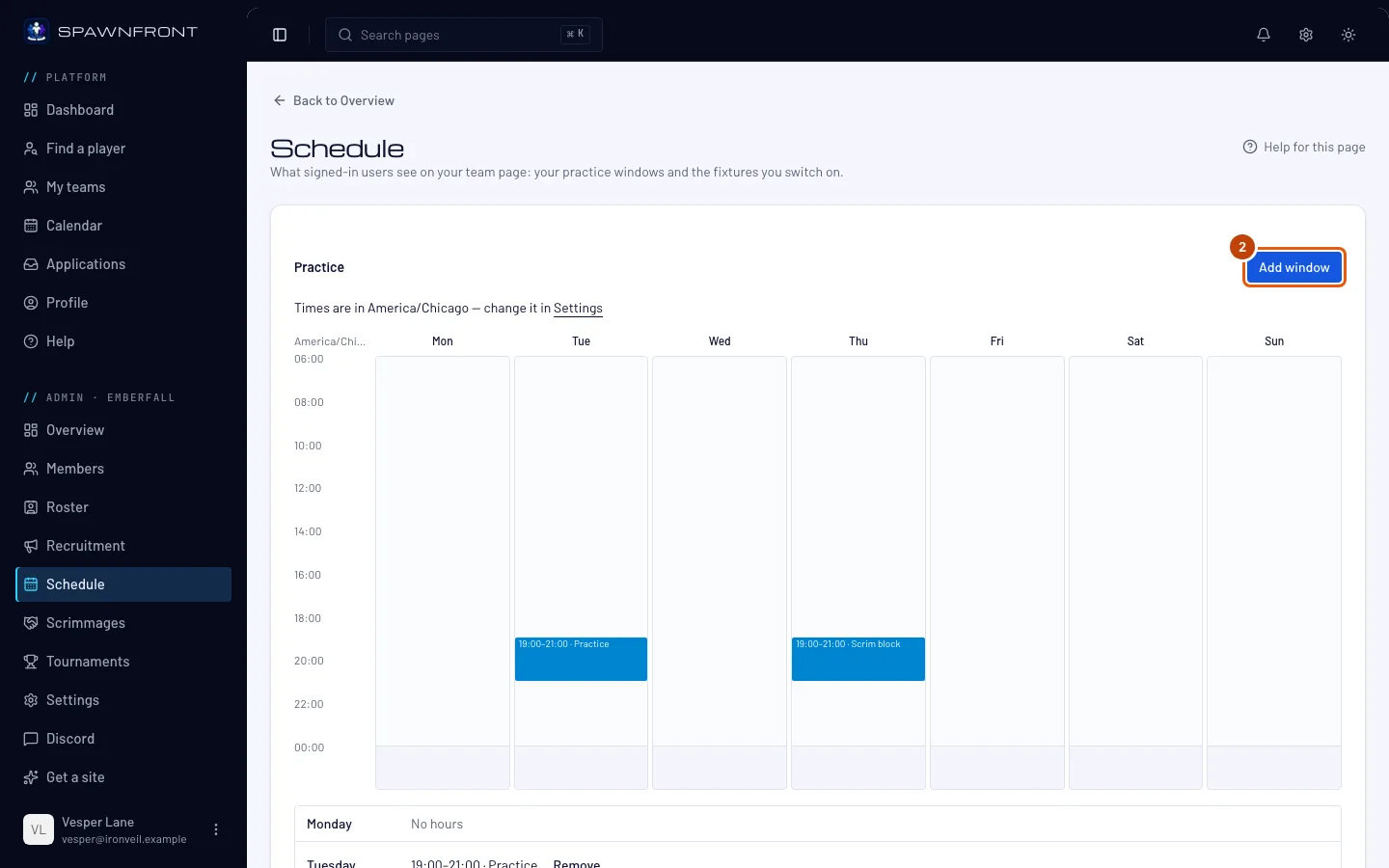
Step 2: Press Add window
Press Add window.
You should see: a box titled Add a window — it repeats every week until you remove it.
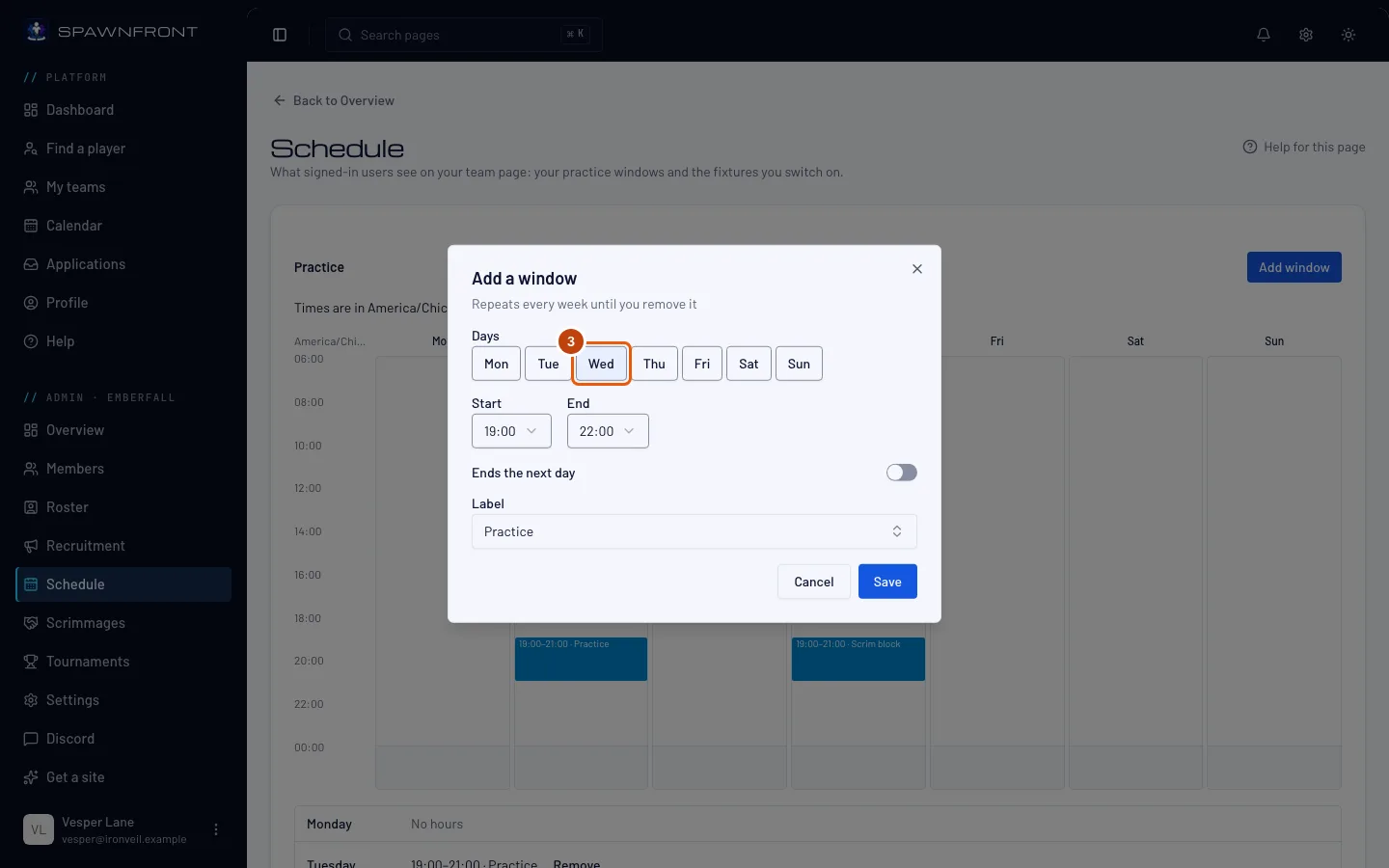
Step 3: Choose the days
Under Days, press each day the window happens.
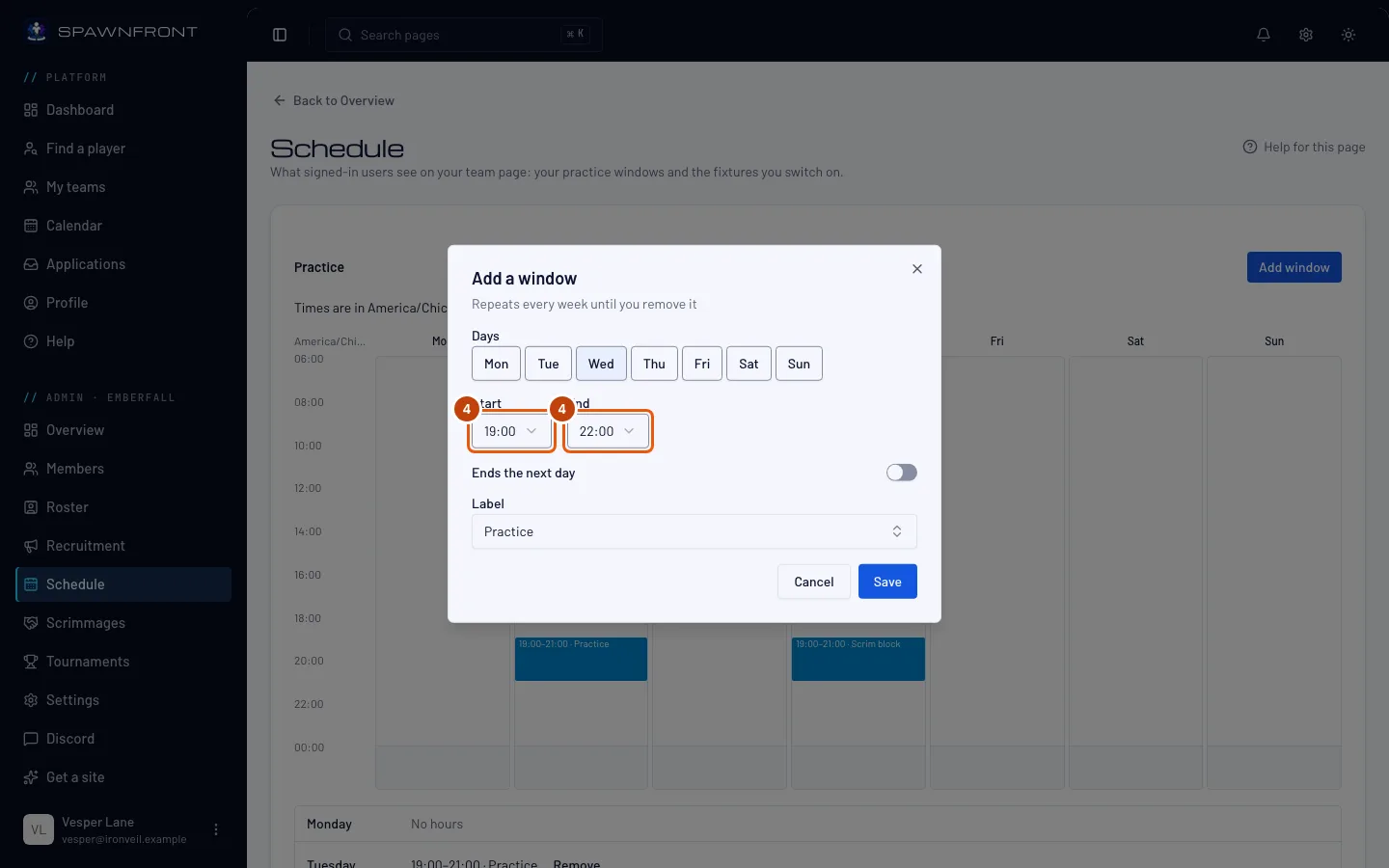
Step 4: Choose the times
Choose the Start and End in your team's time zone. For a window past midnight, turn on Ends the next day.
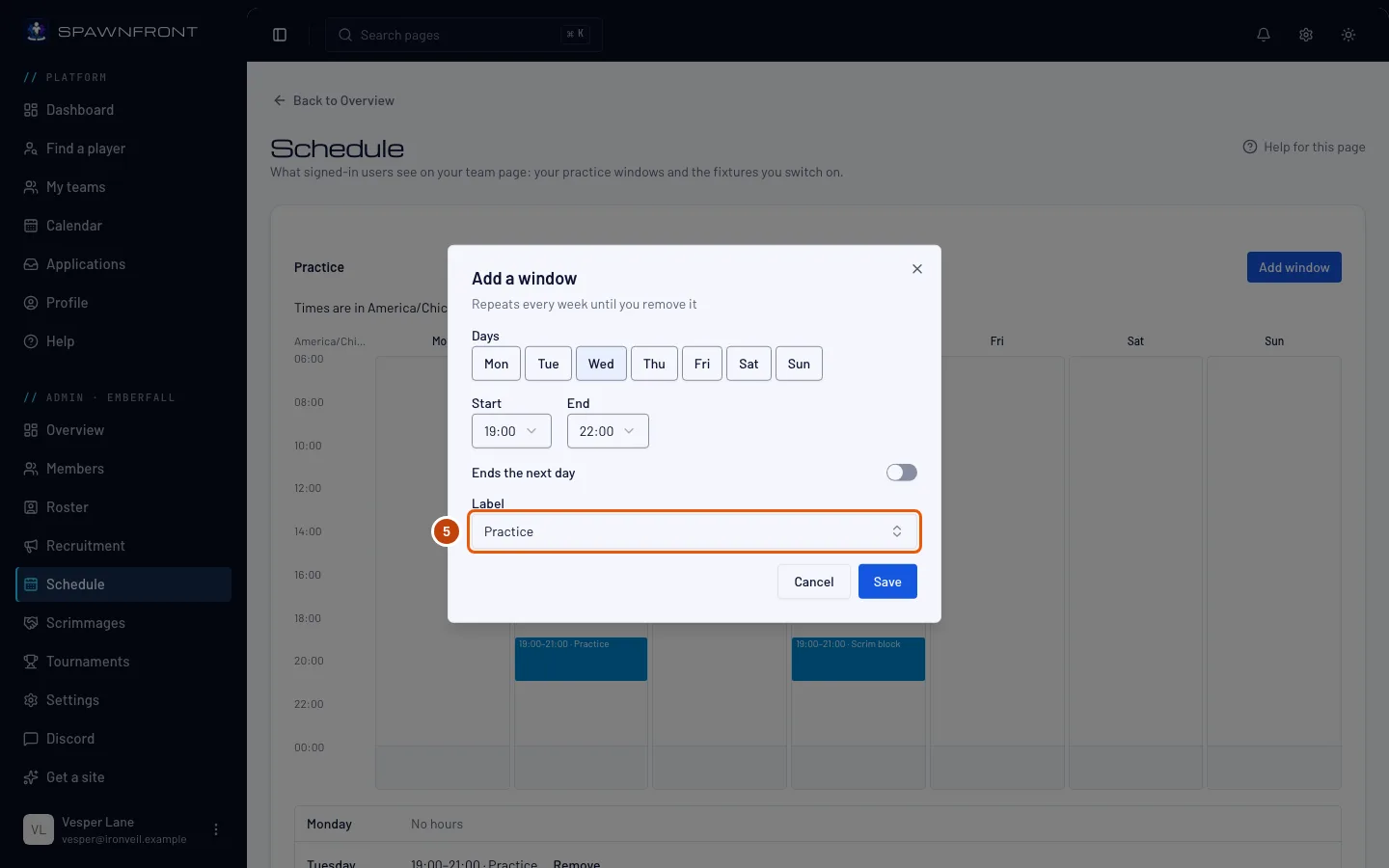
Step 5: Choose a label
Choose a Label: Practice, Ranked, VOD review or Scrim block.
Step 6: Save
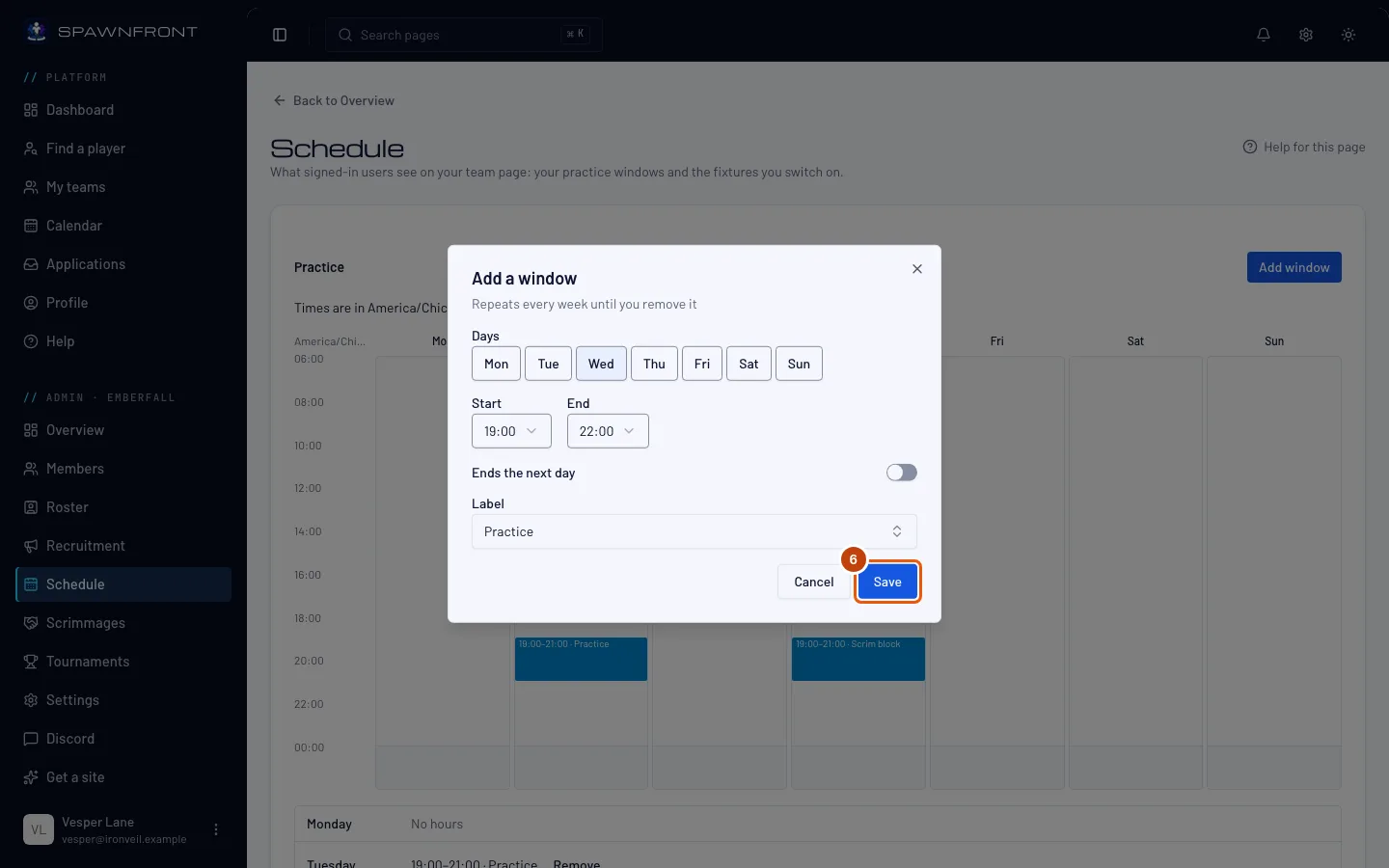
Press Save.
You should see: "Practice saved", and the window on the grid. Touching windows with the same label are joined into one.
How to know it worked
- How your schedule looks lists the next seven days as players see them on your team page — each in their own time zone.
- Your team page's Schedule shows the window on its calendar, in blue, a week at a time with a Month view.
For a one-off change — a night off, an extra session — use Add exception under Exceptions.
Your members plan around it. Each practice is a session on their Calendar, where they say they'll be late or can't make it, and you're told in the bell and by email — see Say you'll be late or can't make it. If you move or remove a window, the late and out said for its old sessions no longer show.
Fixtures on your team page. Under Fixtures on your team page, turn a booked scrim or a tournament on to show it on your team page, which anyone signed in can open. Your members always see your booked scrims on their Calendar, whether it is on or off.
Something doesn't look right?
The times are in the wrong time zone
The schedule uses your team's time zone — change it in Settings. When the clocks change for daylight saving, your windows keep their local hours.
Related articles
Still stuck? Contact support or email support@spawnfront.com — tell us the page you're on and the step number.