
Open your team's store
From a Fourthwall shop to a Store page on your site: connect it, pick products, publish.
For team owners and admins · 7 steps
What you need first
- Your team has a site subscription. A free team's admin shows Get a site instead of Store.
- A Fourthwall shop you own, live on Fourthwall, with at least one product published there. A shop still set to "Coming soon" on Fourthwall, or products left hidden, won't show on your site.
- No shop yet? Make one on Fourthwall first — Spawnfront can't create one for you. Fourthwall's guide Create your Fourthwall account walks you through it.
- You are the team's owner or an admin.
Steps
Step 1: Make your shop live on Fourthwall
On Fourthwall, publish at least one product and set your shop to live. This happens on Fourthwall's own site, not in Spawnfront. New to Fourthwall? Start with Create your Fourthwall account, then Your first week on Fourthwall for adding products and going live.
You should see: your products on your shop's own Fourthwall address.
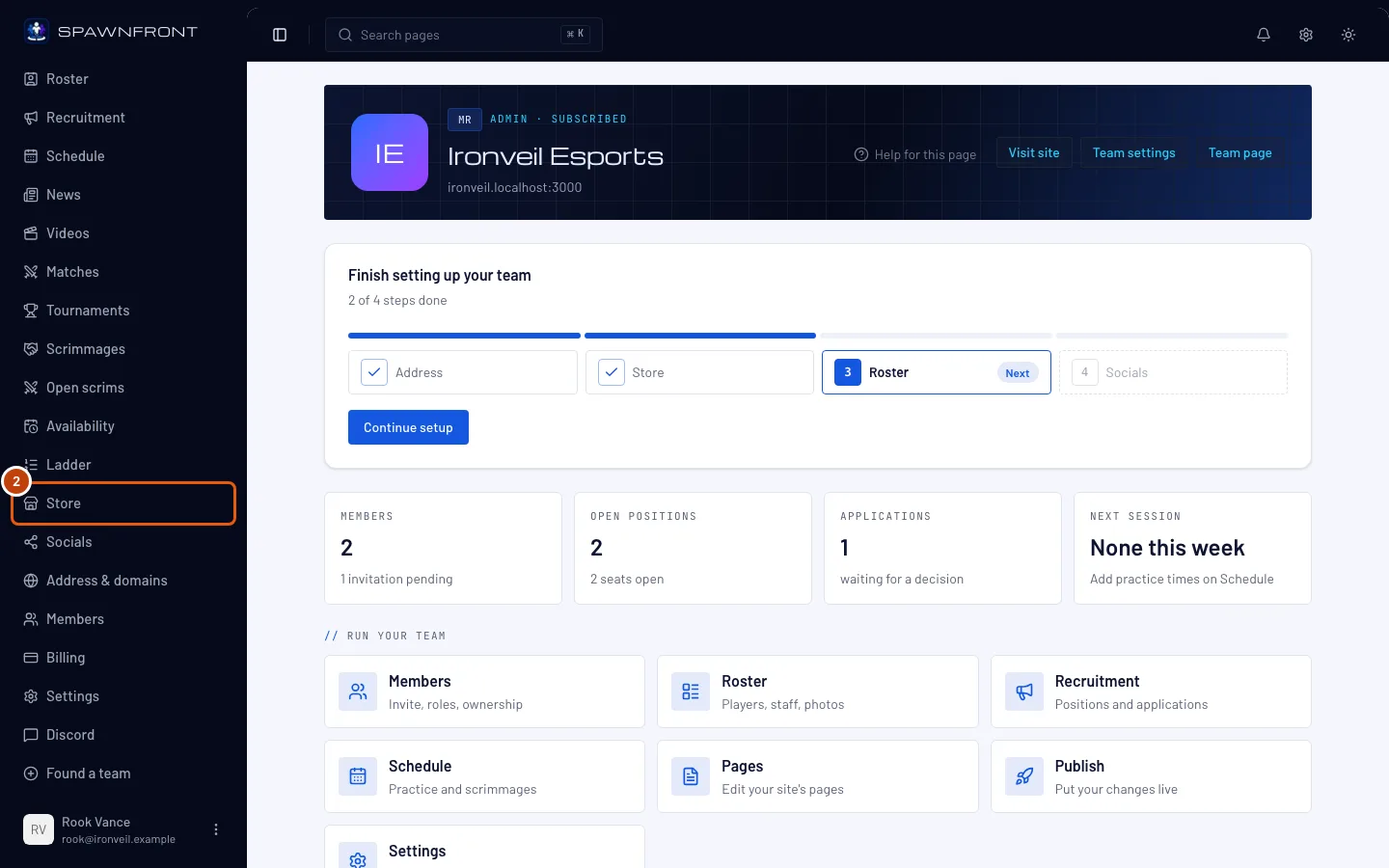
Step 2: Open Store in your team's admin
In Spawnfront, open your team from the sidebar, then press Store.
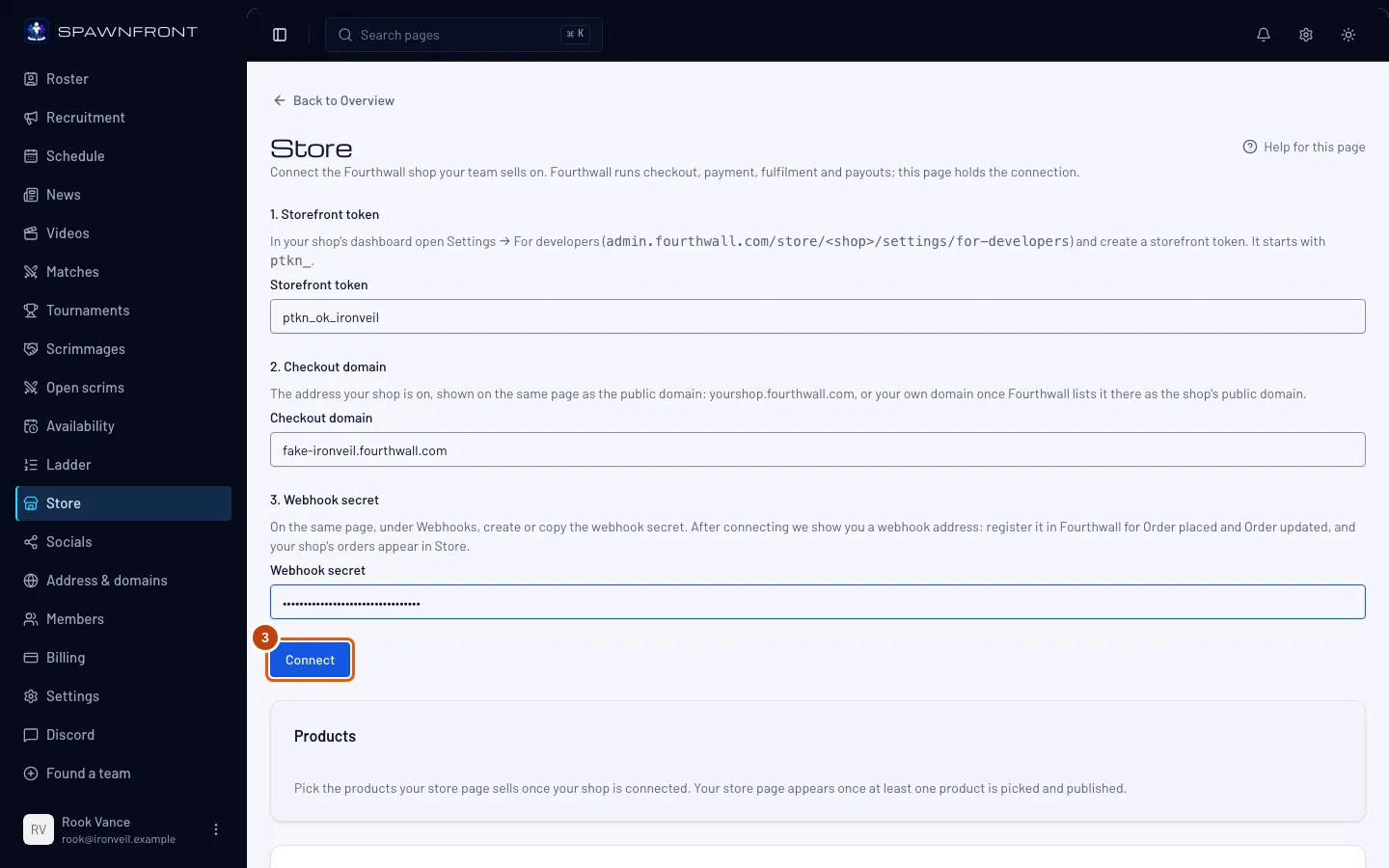
You should see: a page titled Store. If your shop isn't connected yet, it shows three fields: Storefront token, Checkout domain and Webhook secret.
Step 3: Connect your shop
Paste your shop's Storefront token, Checkout domain and Webhook secret from your Fourthwall shop's developer settings, then press Connect.
You should see: a card naming your shop, with its webhook address to copy. If your shop was already connected, skip this step.
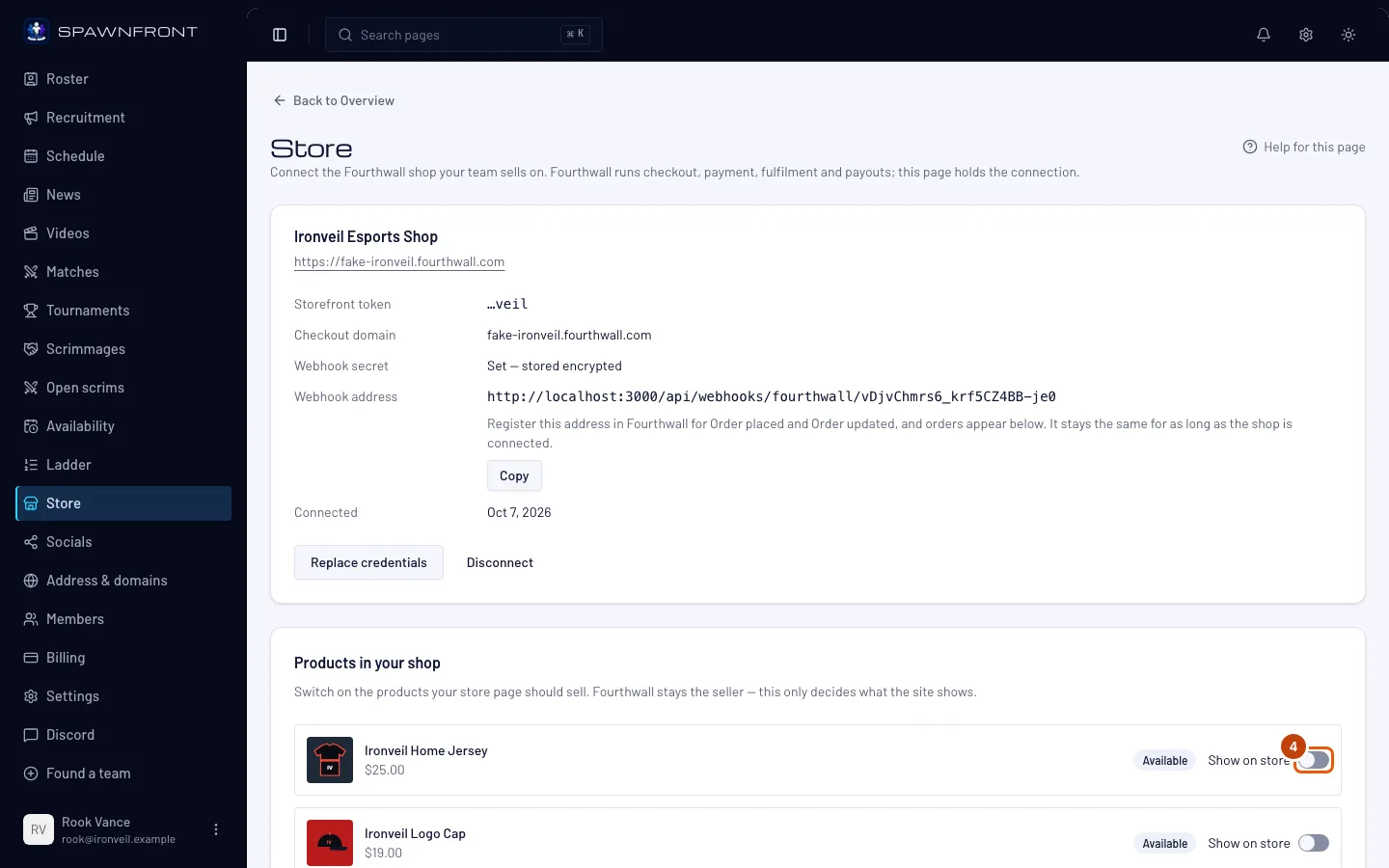
Step 4: Choose the products to sell
In the list of your shop's products, turn on Show on store for each product you want on your site.
You should see: each product you turn on join the list below it, in the order your Store page will show them.
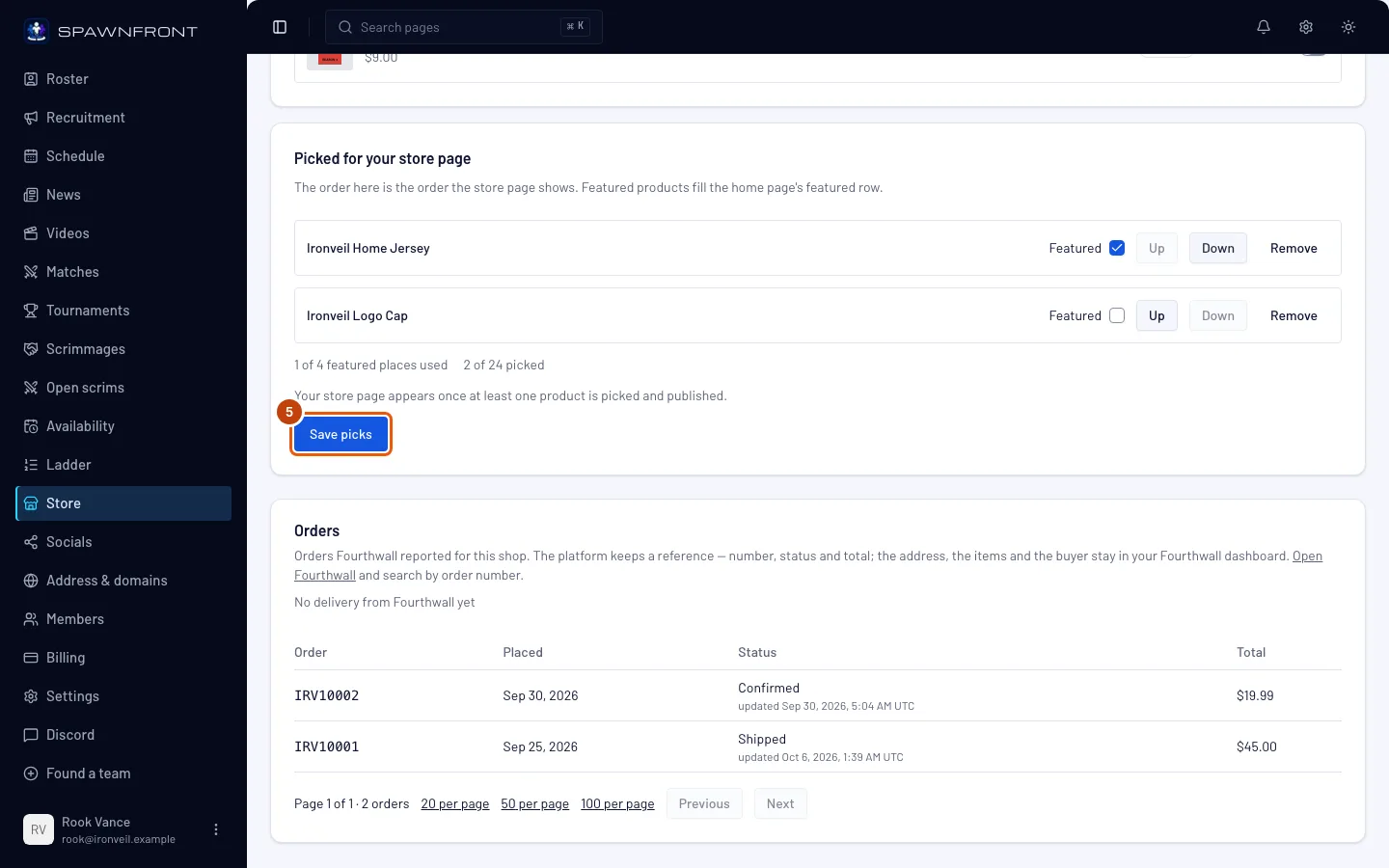
Step 5: Save your picks
Press Up or Down beside a pick to put your picks in the order you want, and tick up to four as Featured to show them on your home page. Then press Save picks.
You should see: "Picks saved". Your picks are saved as a draft — visitors don't see them yet.
Step 6: Publish your site
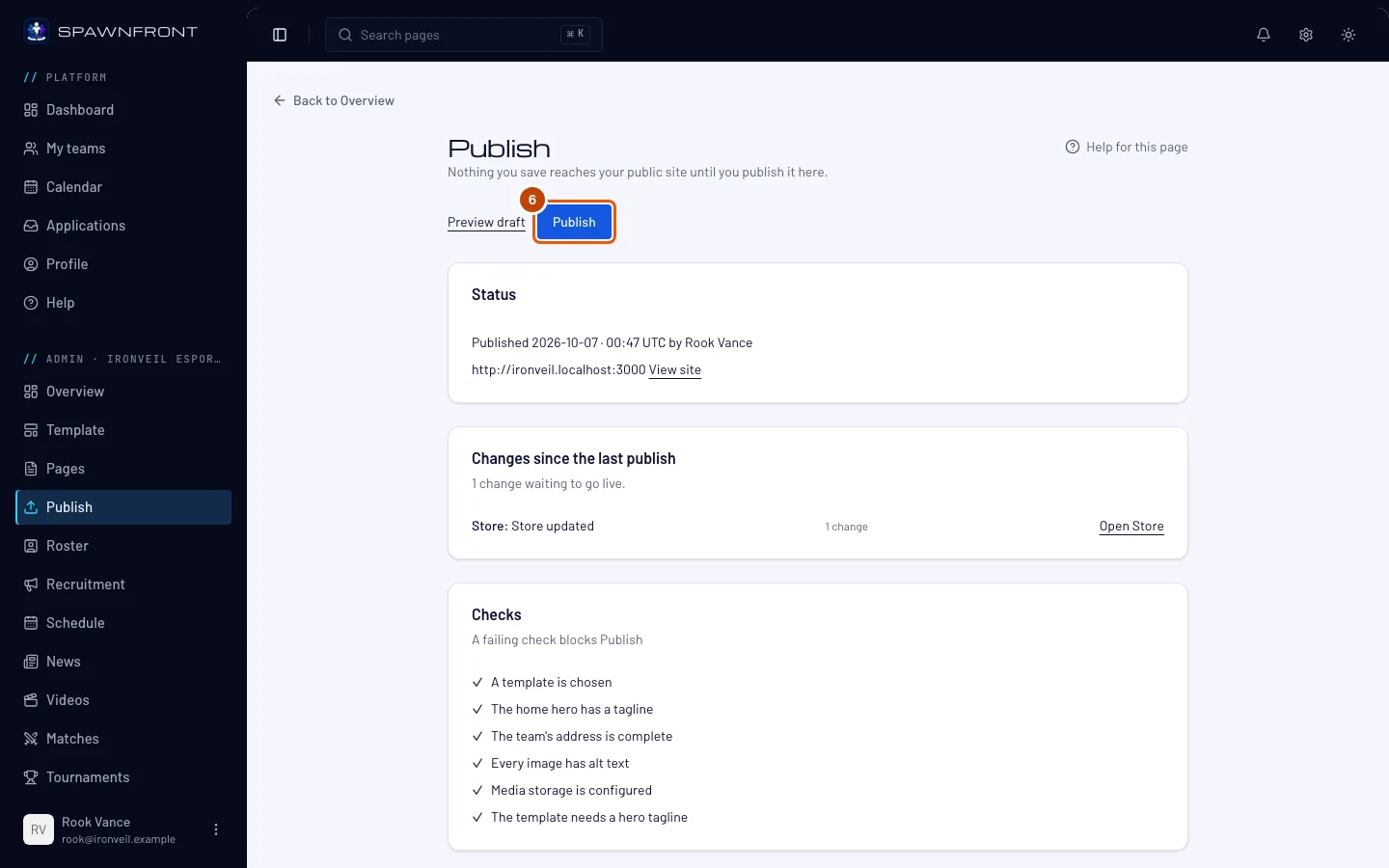
Press Publish in the sidebar. Check the list under Changes since the last publish, press Publish (it reads Publish and go live if you took your site offline), then Publish now in the box that opens.
This is the step that puts your store on your site. Your picks stay a draft until you publish.
You should see: Everything is live.
Step 7: Check your site
Open your site. Store is now in its menu, with a cart beside it.
You should see: the products you picked on the Store page, in your order.

How to know it worked
- Your site's menu shows Store and a cart.
- The Store page lists the products you picked, in your order.
- Add to cart fills the cart, and Checkout opens Fourthwall's payment page. Stop there — an order costs real money.
Something doesn't look right?
My site says "Store coming soon"
Two things turn the store on together: a connected shop, and at least one picked product in your published site. Press Publish after saving your picks (step 6). If you did, check that your shop is live on Fourthwall (step 1).
I don't have a Fourthwall shop yet
Spawnfront doesn't create shops — you make yours on Fourthwall and connect it here. Follow Fourthwall's Create your Fourthwall account, publish a product, set the shop live, then come back to step 2.
The product list in Store is empty
Only products published on Fourthwall appear. Hidden or draft products don't — publish them on Fourthwall, then reload the Store page.
Connect says the token is wrong
Copy the storefront token from your Fourthwall shop's developer settings — not an Open API password — and check that the checkout domain is your own shop's address.
The checkout page is hard to read
Checkout opens Fourthwall's own payment page, on your shop's Fourthwall address. Its colors come from your shop's theme on Fourthwall, not from your Spawnfront site, so change them in your Fourthwall dashboard's shop design settings. Your Spawnfront store and cart follow your site's colors — see Choose a template and its look.
Publish is grayed out
A failing check blocks Publish. The Checks list on the Publish page says which one, and what fixes it.
Still stuck? Contact support or email support@spawnfront.com — tell us the page you're on and the step number.