
Review an unregistered match
A member sent a scrim that wasn't booked on Spawnfront: check its result, then confirm it into Matches, send it back with a note, or turn it down.
For team owners and admins · 6 steps
What you need first
- You are an owner or admin of the team, or of its organization.
- A member sent an unregistered match for review: a scrim your team played that wasn't booked on Spawnfront (see Send an unregistered match). You got a notification naming who sent it and the opponent.
Steps
Step 1: Open Results on Scrimmages
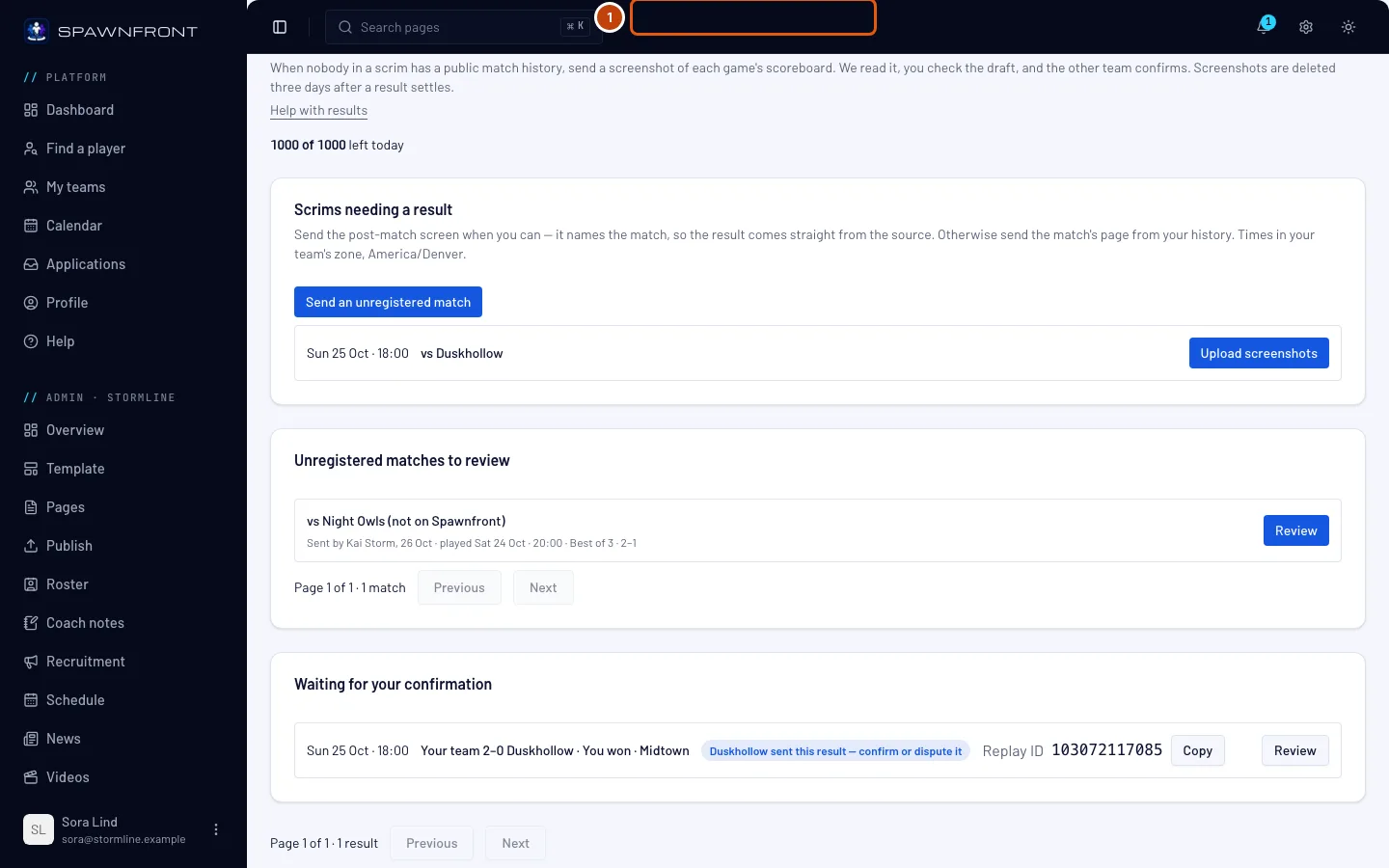
In the menu on the left, under your team's admin menu (Admin · and your team's name), press Scrimmages, then the Results tab. The tab shows how many matches wait, like 1 to review.
You should see: Unregistered matches to review, with who sent each match, when, when it was played, the format, a typed score and how many screenshots.
Step 2: Open the match
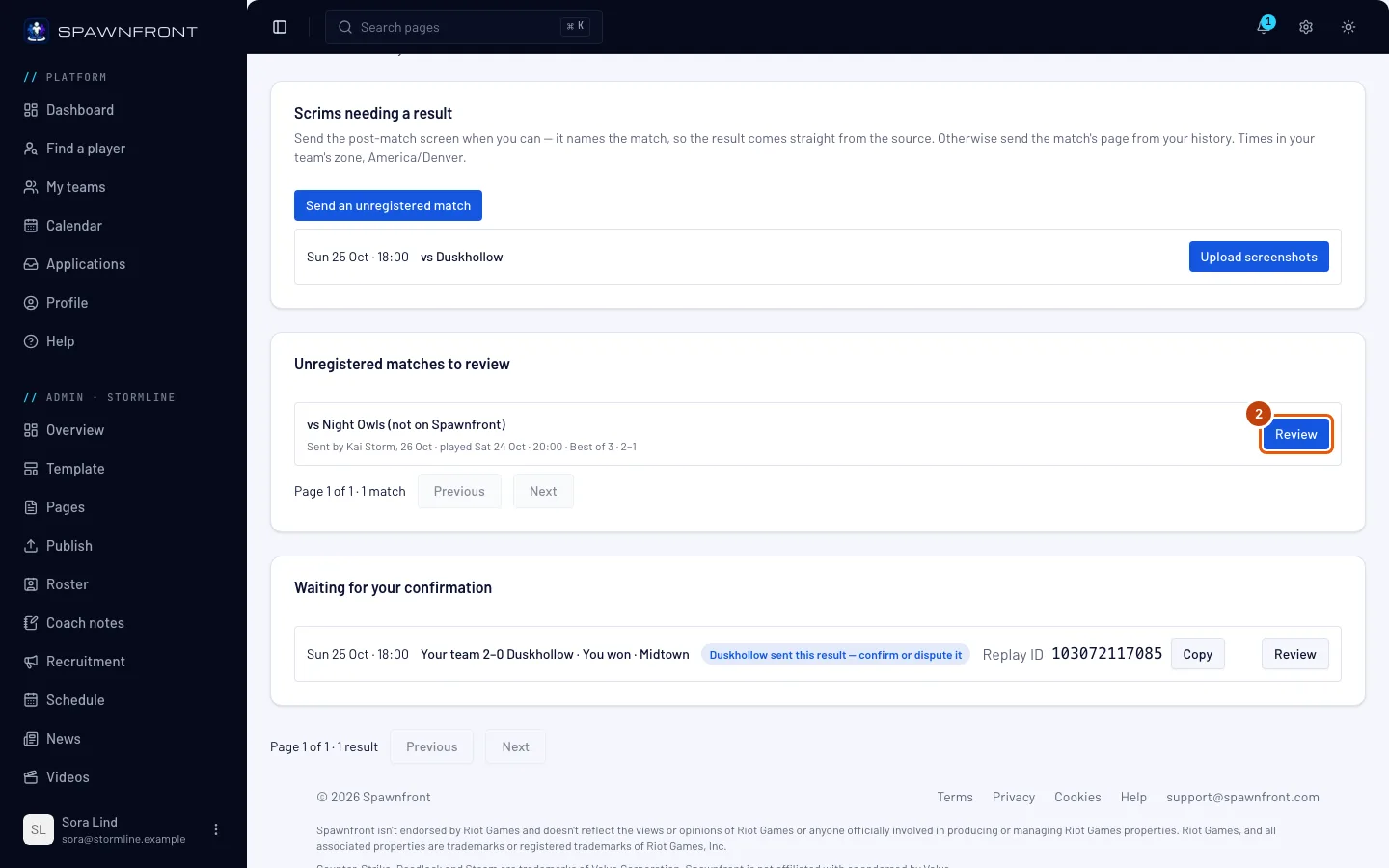
Press Review on the match.
You should see: the match's review, with Sent by and the member's name, its screenshots one per game and its typed result.
Step 3: Check the result
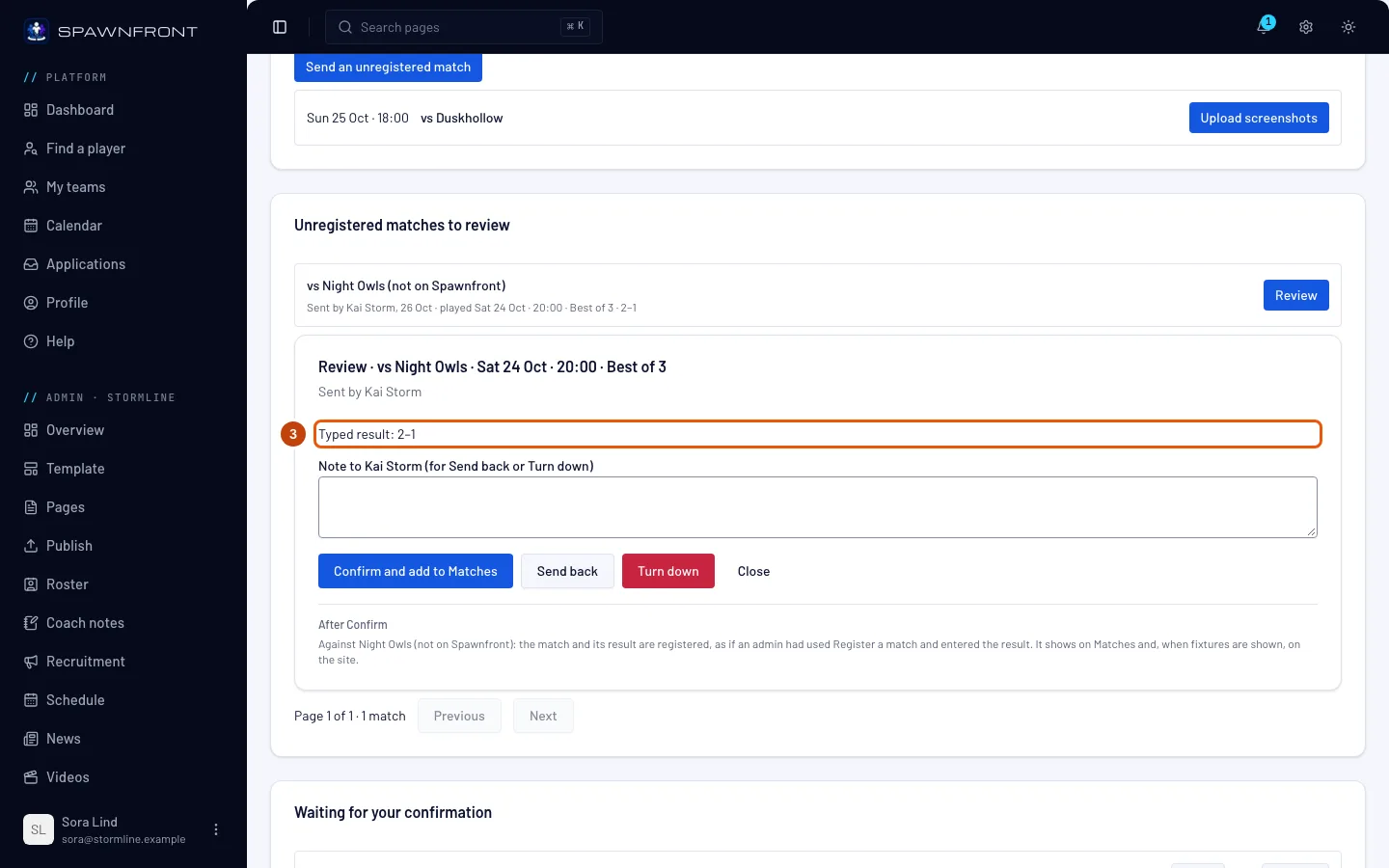
Press Open beside each screenshot to see what Spawnfront read from it, and compare the typed result with what you know of the scrim.
You should see: each game's reading. You can't change it here: if something is wrong, send it back to the member with a note.
Step 4: Confirm it
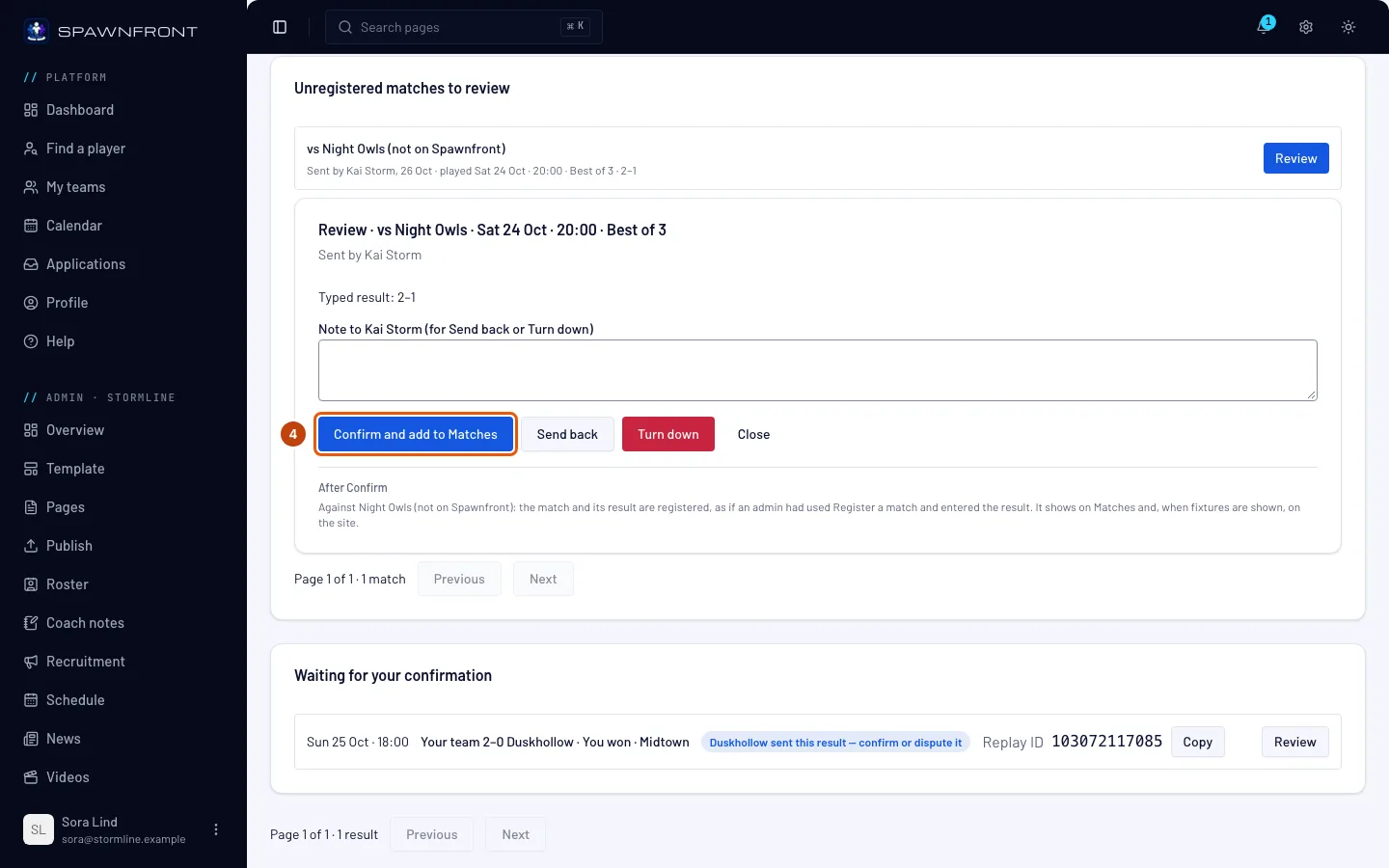
When the result is right, press Confirm and add to Matches.
You should see: Added to Matches. Under the buttons, After Confirm says what happens for this opponent:
- A team that isn't on Spawnfront: the match and its result are registered as if you had registered the match and entered the result yourself. It shows on Matches, and on your site when it shows fixtures.
- A team on Spawnfront: the match is registered on both teams' Matches, and the other team confirms or disputes the result, as for a booked scrim.
An unregistered match never counts on the ladder.
Step 5: Or send it back with a note
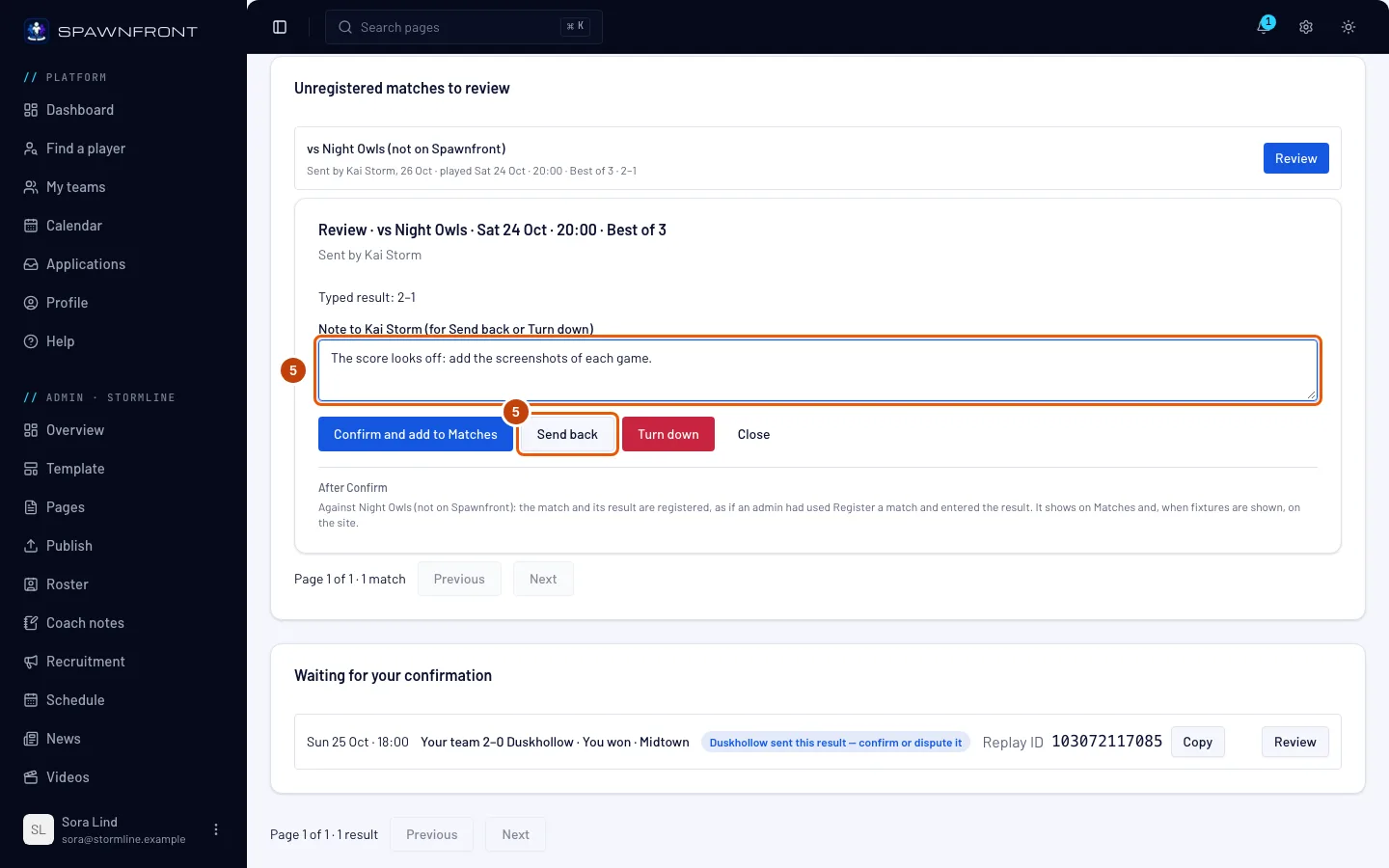
To have the member fix it, type what to change in the note box, then press Send back. The note is required: without it you see Write a note so the member knows what to fix.
You should see: Sent back. The member gets a notification with your note, and the match comes back to you once they send it again.
Step 6: Or turn it down
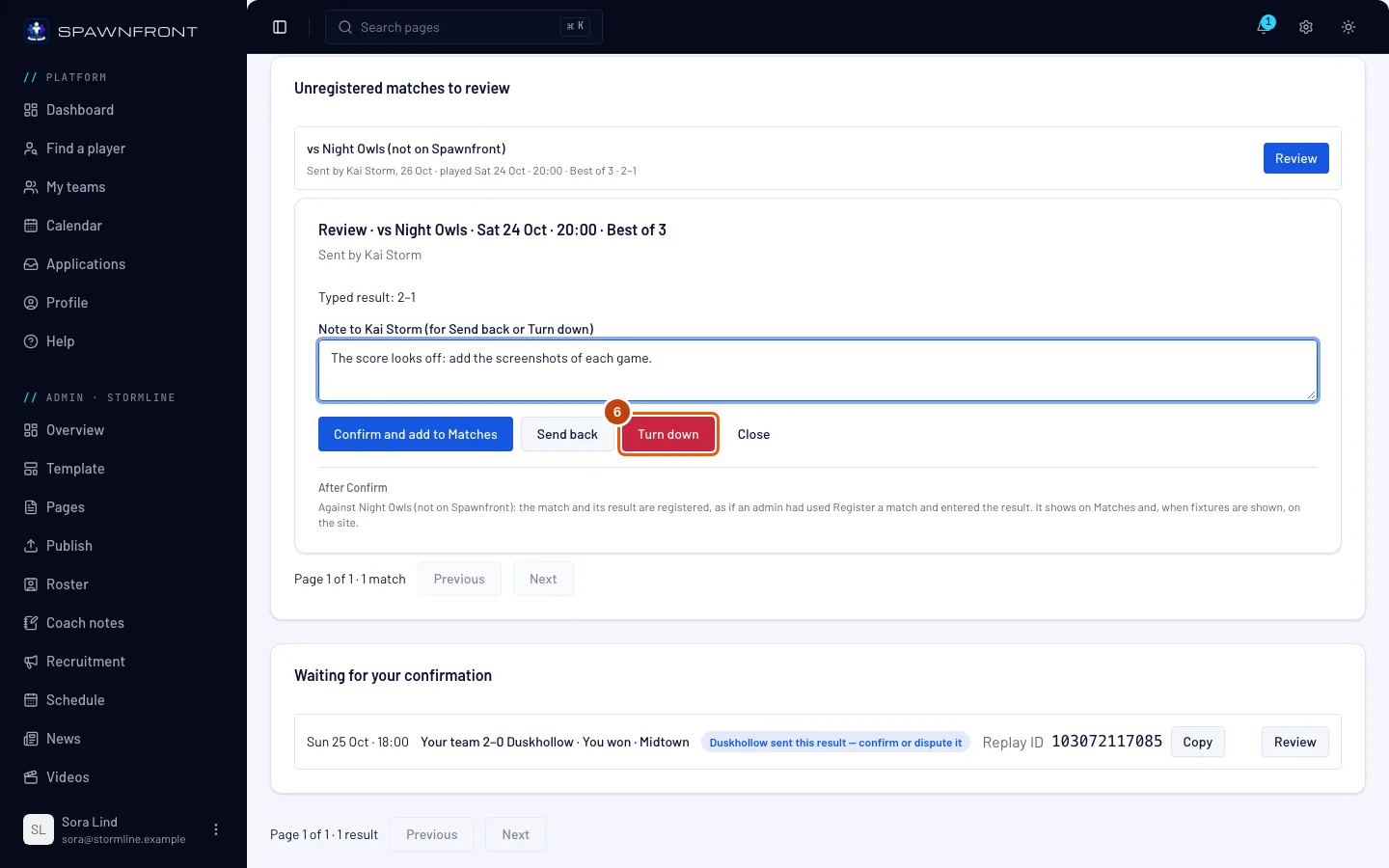
If the match shouldn't count at all, press Turn down. A note is optional; the member sees it if you write one.
You should see: Turned down. Nothing is registered, and its screenshots are deleted.
How to know it worked
- A confirmed match is on your team's Matches, and the member's row reads Confirmed.
A match waits 14 days. One nobody reviews in that time closes as Expired, and its sender is told. A match you send back has another 14 days for its sender to fix it.
Only owners and admins review. Confirming, sending back and turning down are never a member's switch in Set scrim permissions; Send unregistered matches only decides who may send one.
Something doesn't look right?
I don't see Unregistered matches to review
It shows only to the team's owners and admins, and only while a match waits for review. A match its sender withdrew, or one that expired, leaves the list.
It says the match is no longer waiting for this
The answer reads That unregistered match is no longer waiting for this. Another owner or admin already decided, or the sender withdrew it, or it expired. Reload the page to see where it stands.
The other team disputed the result after I confirmed it
Against a team on Spawnfront, a confirmed match is answered like any scrim's result. Talk to the other team, then settle it as in Settle a scrim with a screenshot — or enter the result by hand on your Matches page.
Related articles
Still stuck? Contact support or email support@spawnfront.com — tell us the page you're on and the step number.