
Post an open position
Recruit players: post a position with its role, rank range, note and seats.
For team owners and admins · 6 steps
What you need first
- You are the team's owner or an admin.
Steps
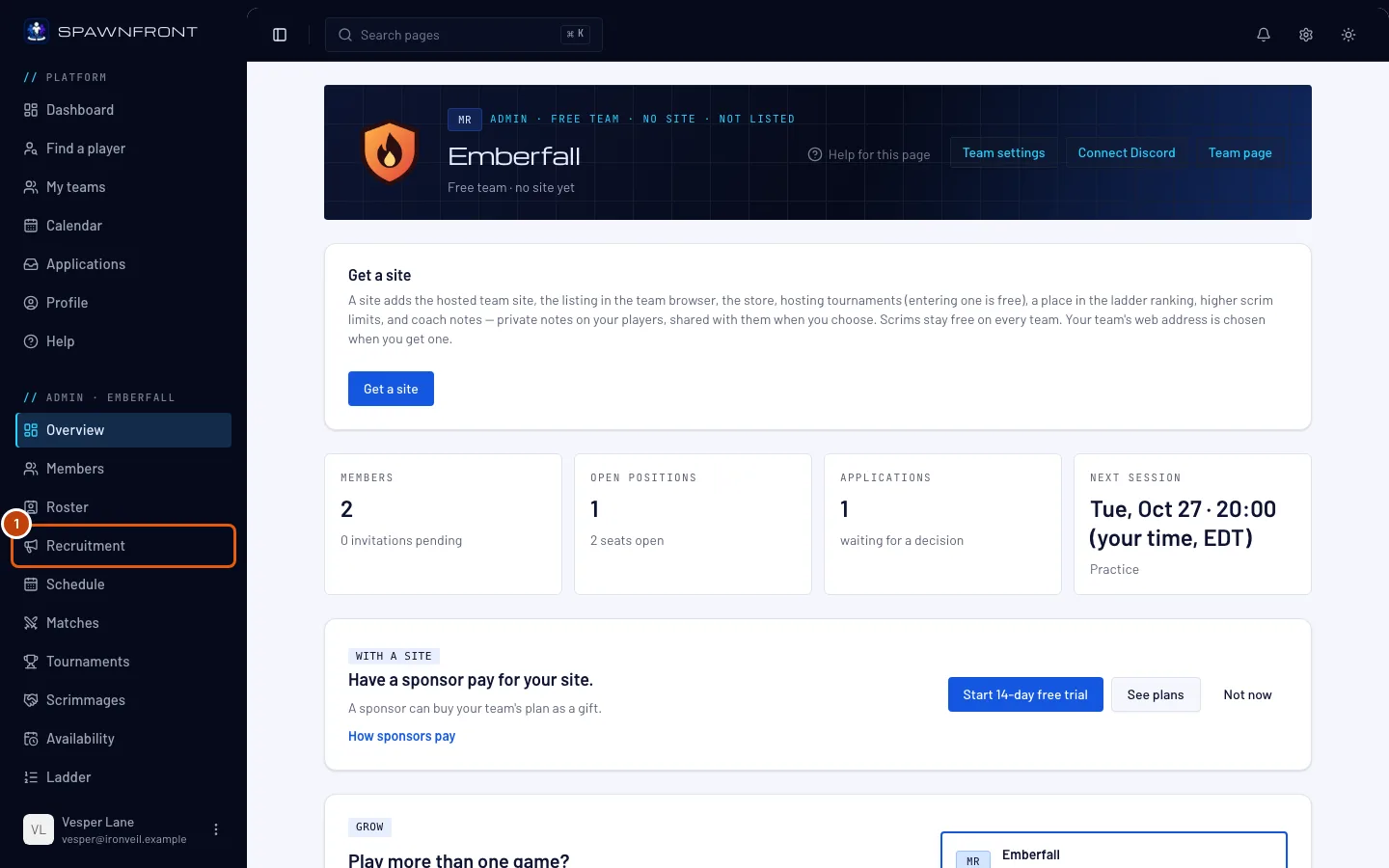
Step 1: Open Recruitment
In the menu on the left, under Admin, press Recruitment.
You should see: the Open positions tab, with Applications beside it.
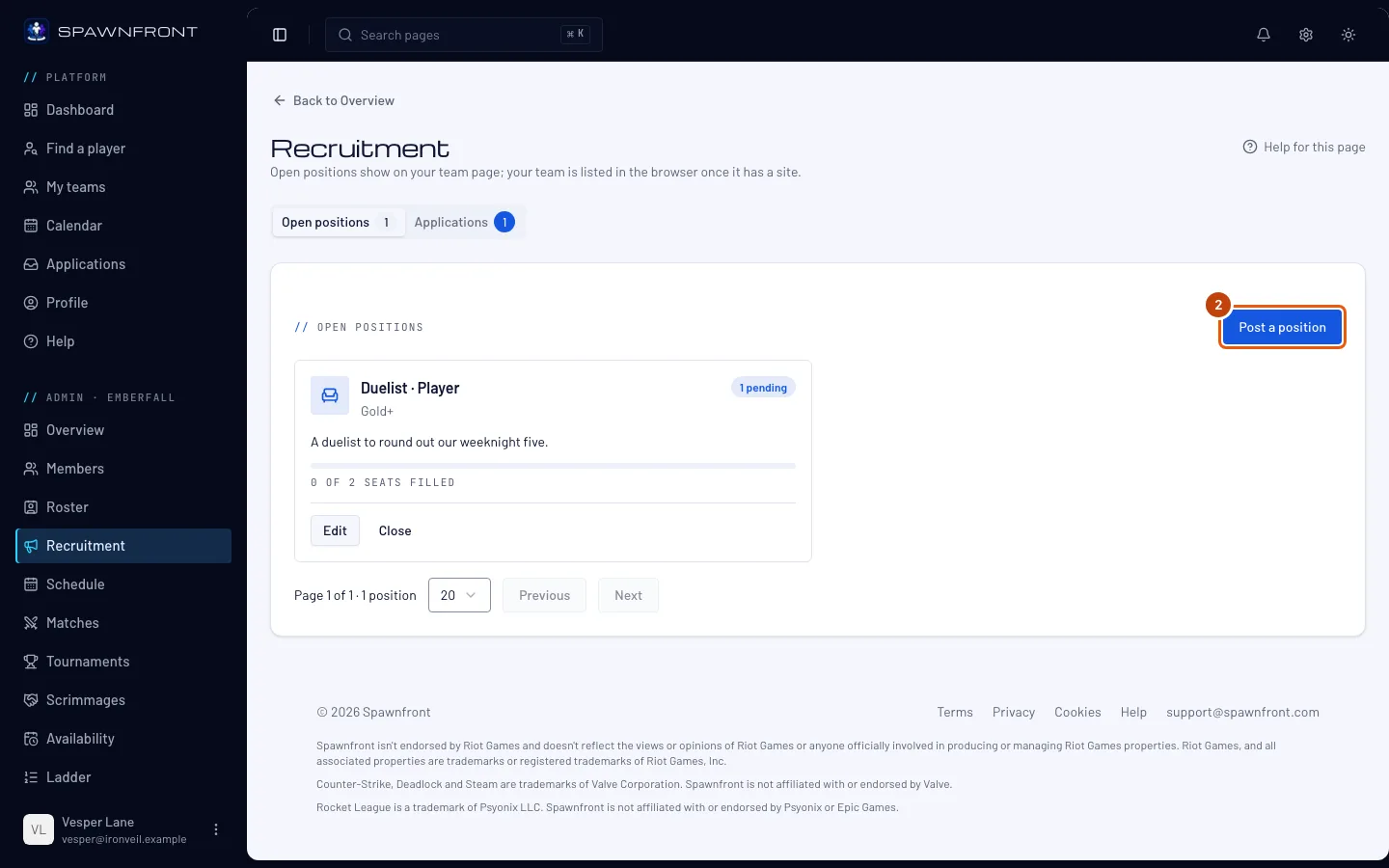
Step 2: Press Post a position
Press Post a position.
You should see: a box titled Post a position. Keep Kind on Roster spot for a place on your team; for a player for one session, choose Ringer — see Find a ringer.
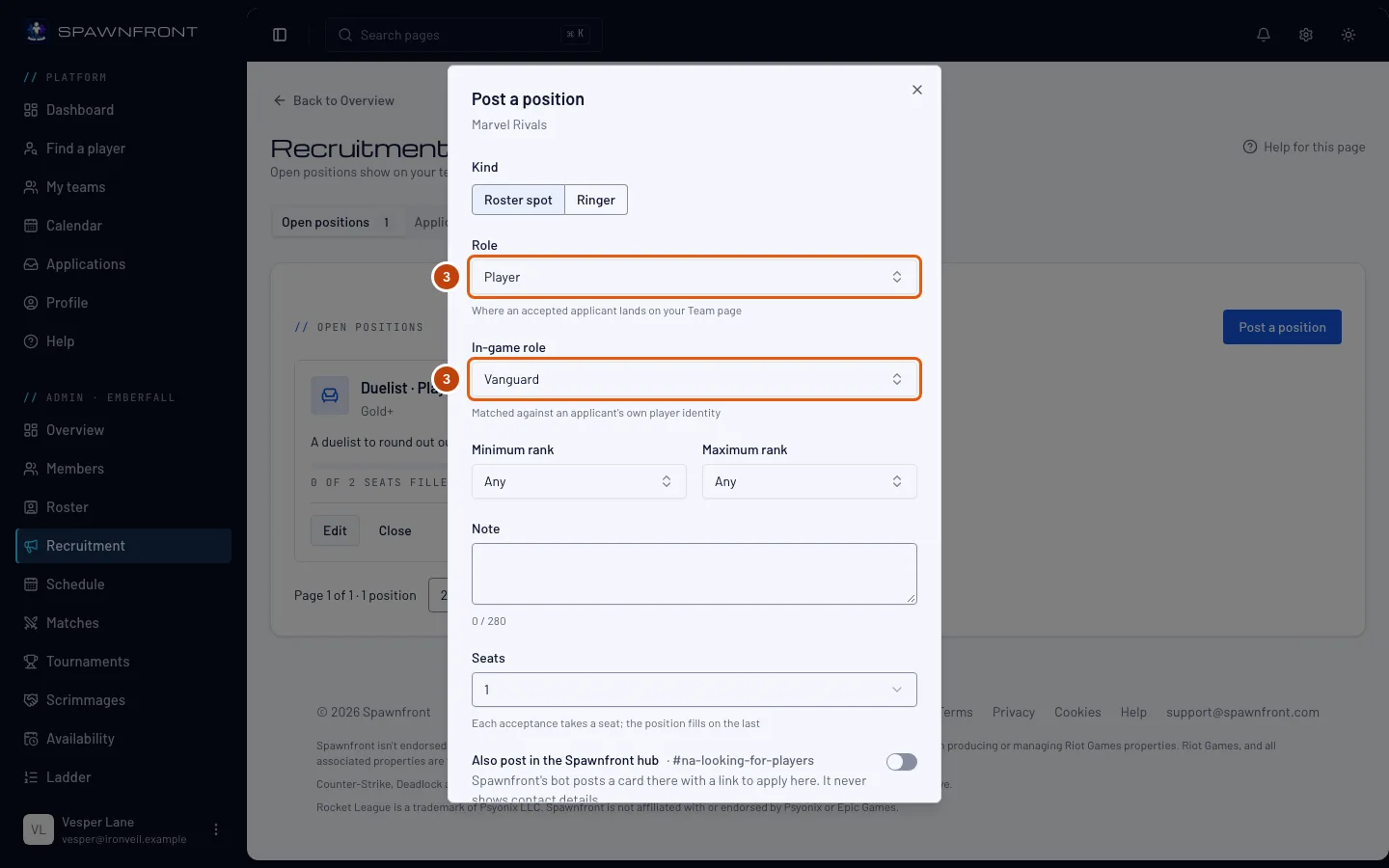
Step 3: Choose the role
Choose a Role — where an accepted player lands on your team page. For a player or substitute, also choose the In-game role.
Only players whose game identity plays that role can apply. A Coach, Manager, Analyst or Content position needs no in-game role, and you can invite staff listed in Find a player to it — see Invite a player to apply.
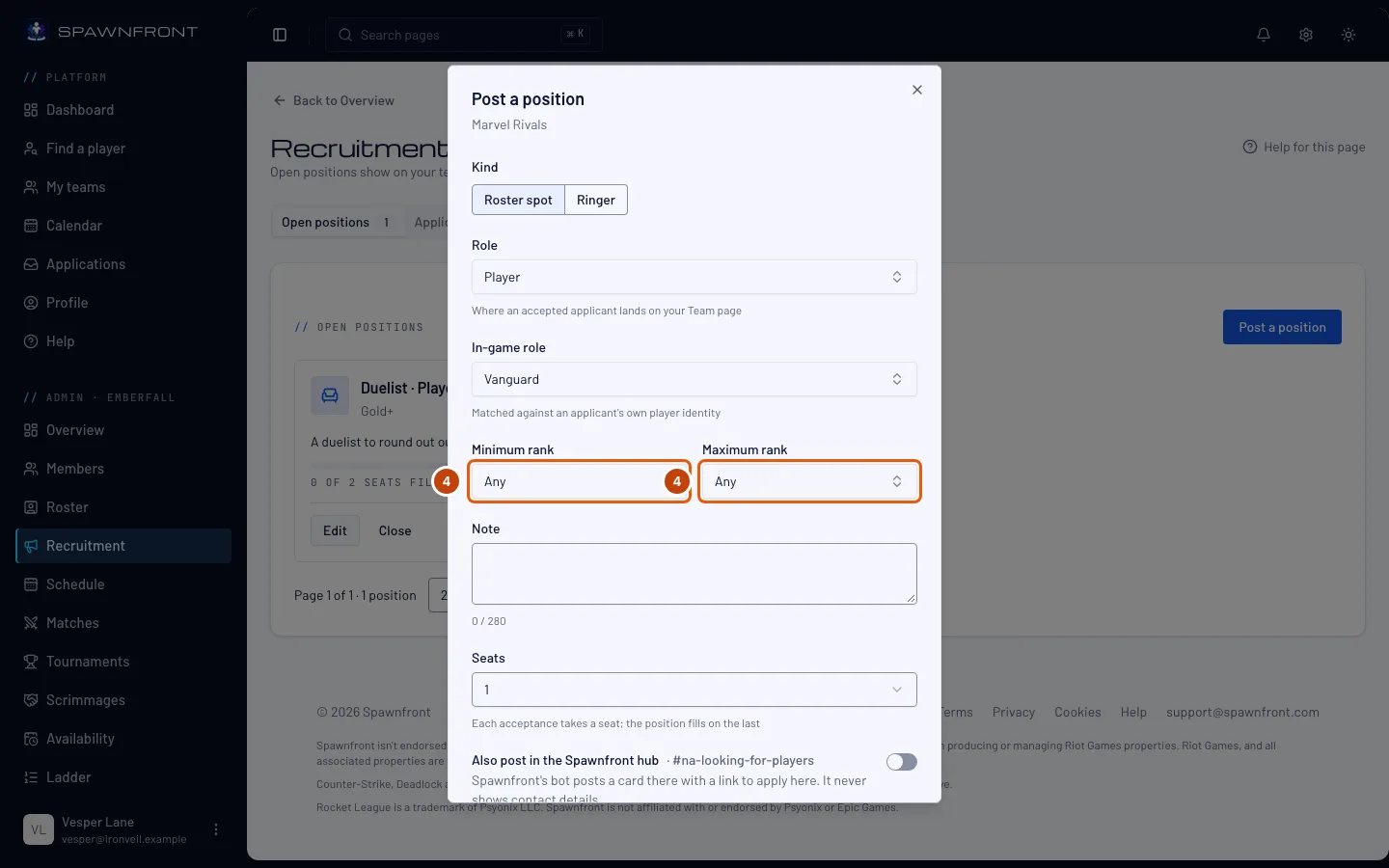
Step 4: Set a rank range
Choose a Minimum rank and a Maximum rank, or leave them at Any.
For a League of Legends player position, you can also pick up to 5 Wanted champions — for Valorant, up to 5 Wanted agents. Players can find your team by them in Find a team, and you can change them later with Edit.
Step 5: Add a note and the seats
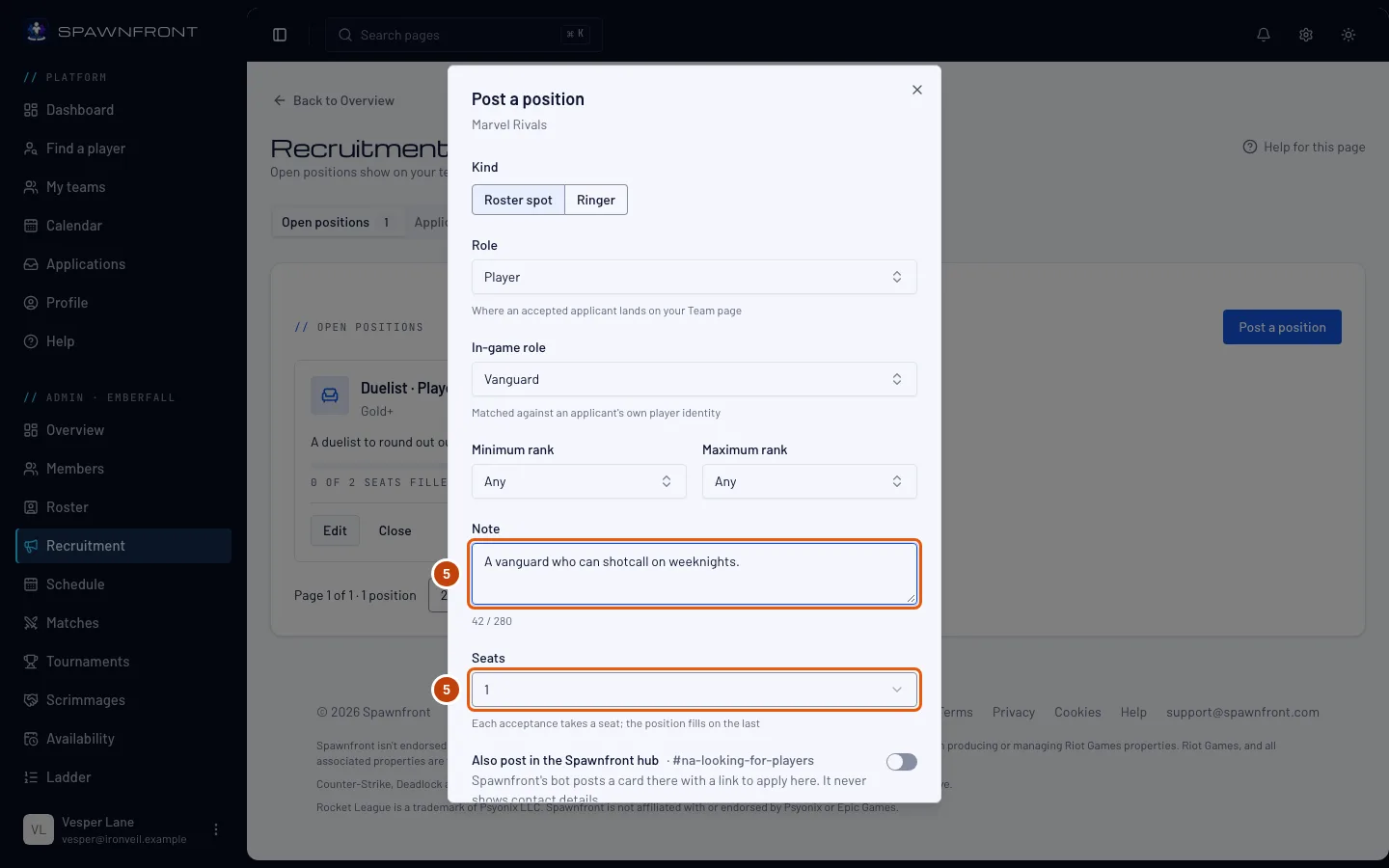
Type a short Note (up to 280 characters) saying who you're looking for. Choose how many Seats — up to 5. Each acceptance takes a seat, and the position fills on the last.
Step 6: Save
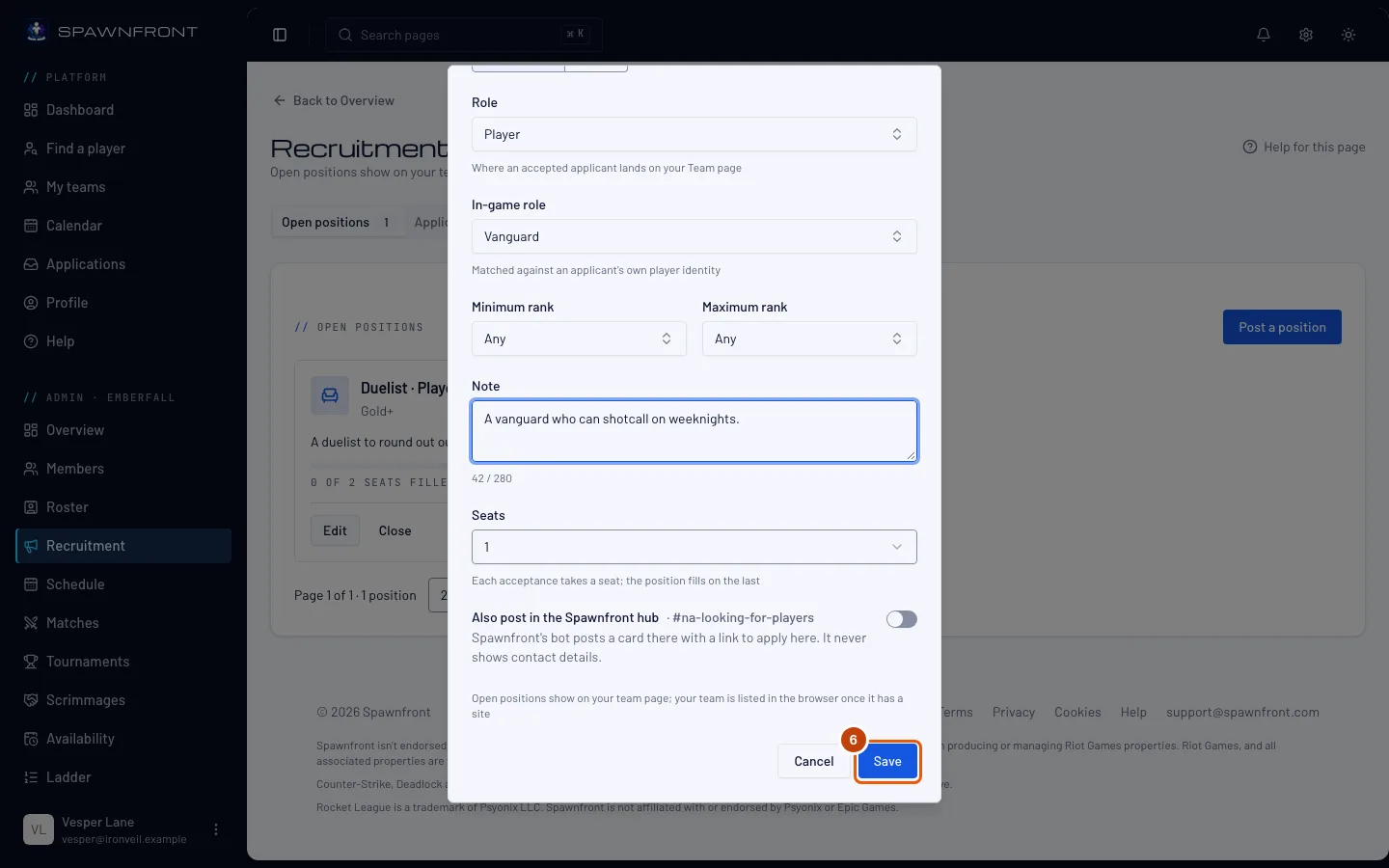
To also post it on the Spawnfront Discord, turn on Also post in the Spawnfront hub. The switch names the hub channel it goes to: a player position goes to looking-for-players for your team's region, a ringer need to looking-for-ringer, and a staff position to looking-for-staff. An Xbox or PlayStation team's player positions go to that console's recruitment channel. The card shows the role, rank range, region and platform, with a button to apply here, and never your contact details. Then press Save.
You should see: "Position posted", and the position in Open positions. It shows on your team page with an Apply button. Your team is listed in Find a team once it has a site. A card posted to the hub is marked Filled or Closed when the position fills or you close it.
How to know it worked
- The position is listed under Open positions, and on your team page.
Something doesn't look right?
I can't change a position's role
A posted position keeps its role. Close it and post a new one.
How do I see only the Valorant applicants who play an agent?
On the Applications tab, choose the agent in the Agent box. The list shows only applicants with that agent in their agent pool. Choose Any agent to see everyone again.
How do I see only the League of Legends applicants who play a champion?
On the Applications tab, choose the champion in the Champion box. The list shows only applicants with that champion in their champion pool. Choose Any champion to see everyone again.
It says "Free teams keep 2 positions open at a time. Get a site to open more."
A free team keeps two positions open at a time. Close one to post another, or get a site to keep up to ten open.
I don't see Also post in the Spawnfront hub
The switch shows only when you post a new position, and only when the Spawnfront hub has a channel for your game and your team's region or console. Set your team's region in Settings. A position you have already posted can't be added to the hub; close it and post it again.
How do I stop recruiting for a position?
Press Close on its row, then Close position in the box. Its pending applications close with it; the applicants are told in the app, not by email.
Related articles
Still stuck? Contact support or email support@spawnfront.com — tell us the page you're on and the step number.