
Add or remove organization admins
Choose admins from your teams' members, remove them, or hand the organization to one of them.
For team owners and admins · 6 steps
An organization has one owner and any number of admins. An admin runs the organization like the owner — adding teams, inviting and withdrawing invitations, changing its settings — and acts in every team as an admin of that team: its roster, recruitment, schedule and settings. An admin is never a team's owner, so what only a team's owner does — handing the team to a new owner, for example — stays with that team's own owner.
Only the organization's owner detaches teams, adds and removes admins, hands the organization on and deletes it.
What you need first
- You are the organization's owner. Admins see the Admins page without its buttons.
- The person is a member of one of your teams. An admin is chosen from the people already in one of your teams — someone who is not joins one first, for example by applying to one of its open positions.
Steps
Step 1: Open Admins
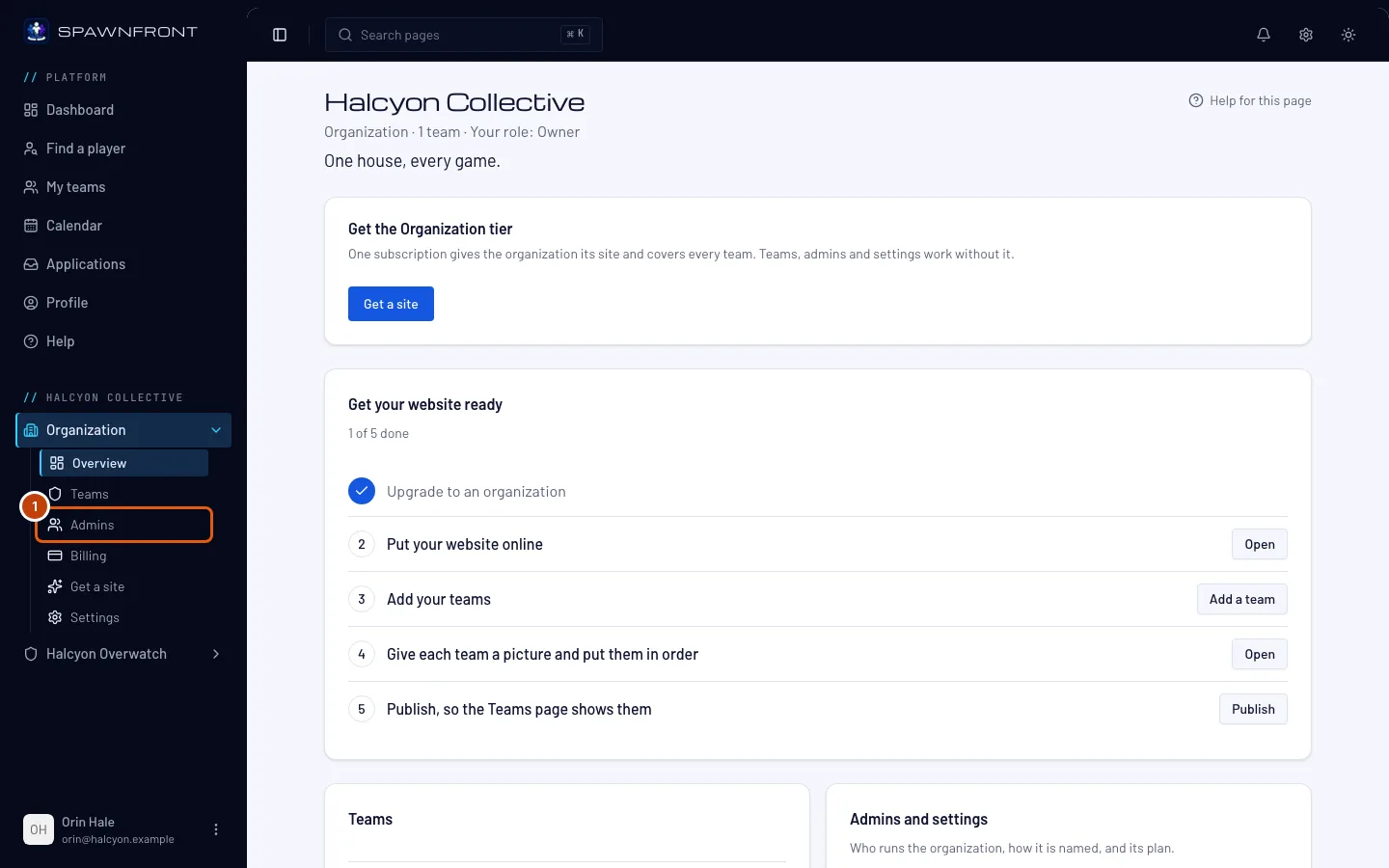
In the menu on the left, under your organization's name, press Admins in the Organization list. If the list is closed, press Organization first to open it.
You should see: everyone who runs the organization, each marked Owner or Admin, and an Add admin button.
Step 2: Press Add admin
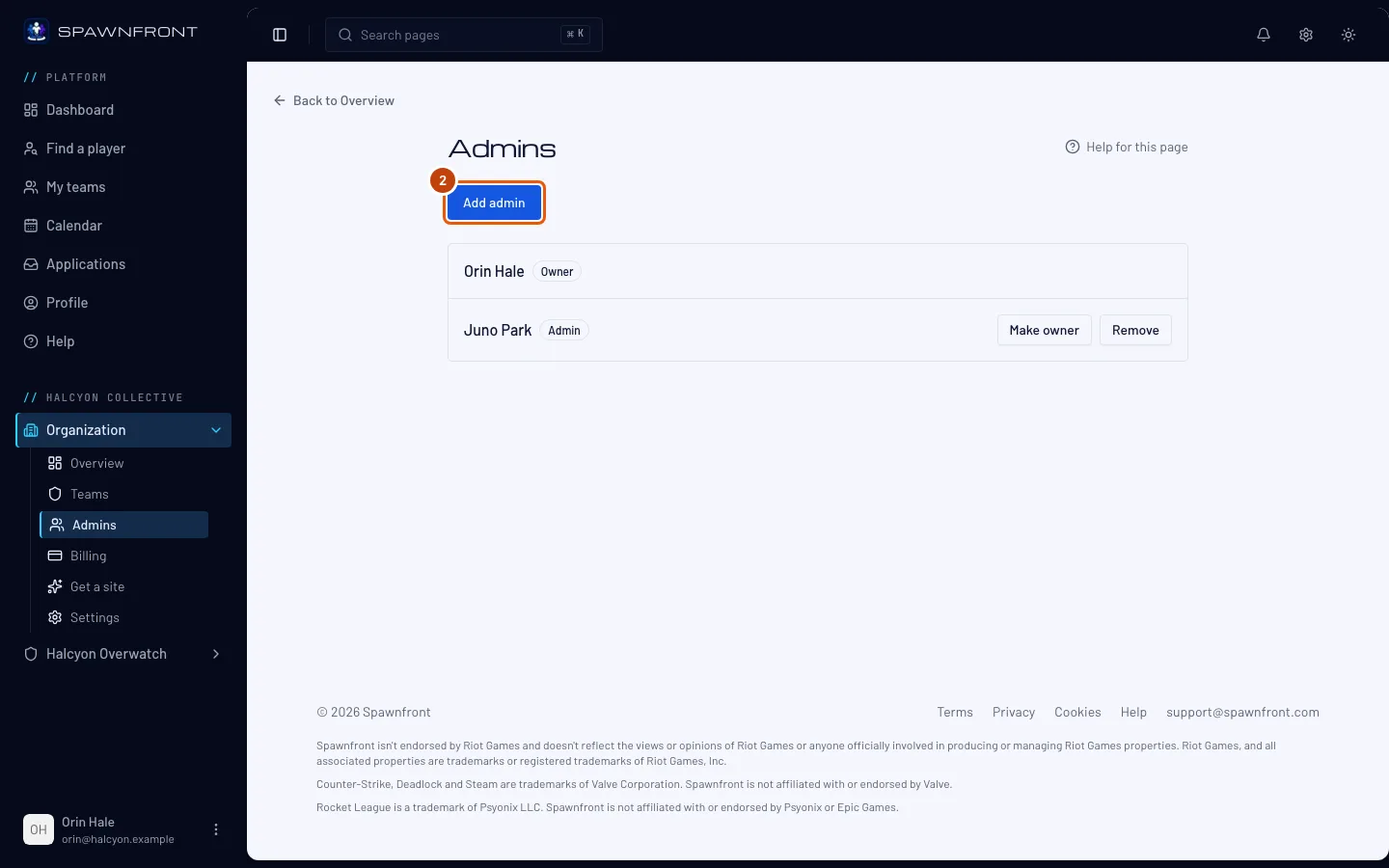
Press Add admin.
You should see: the Add admin box, saying what an admin can and cannot do.
Step 3: Choose a team member
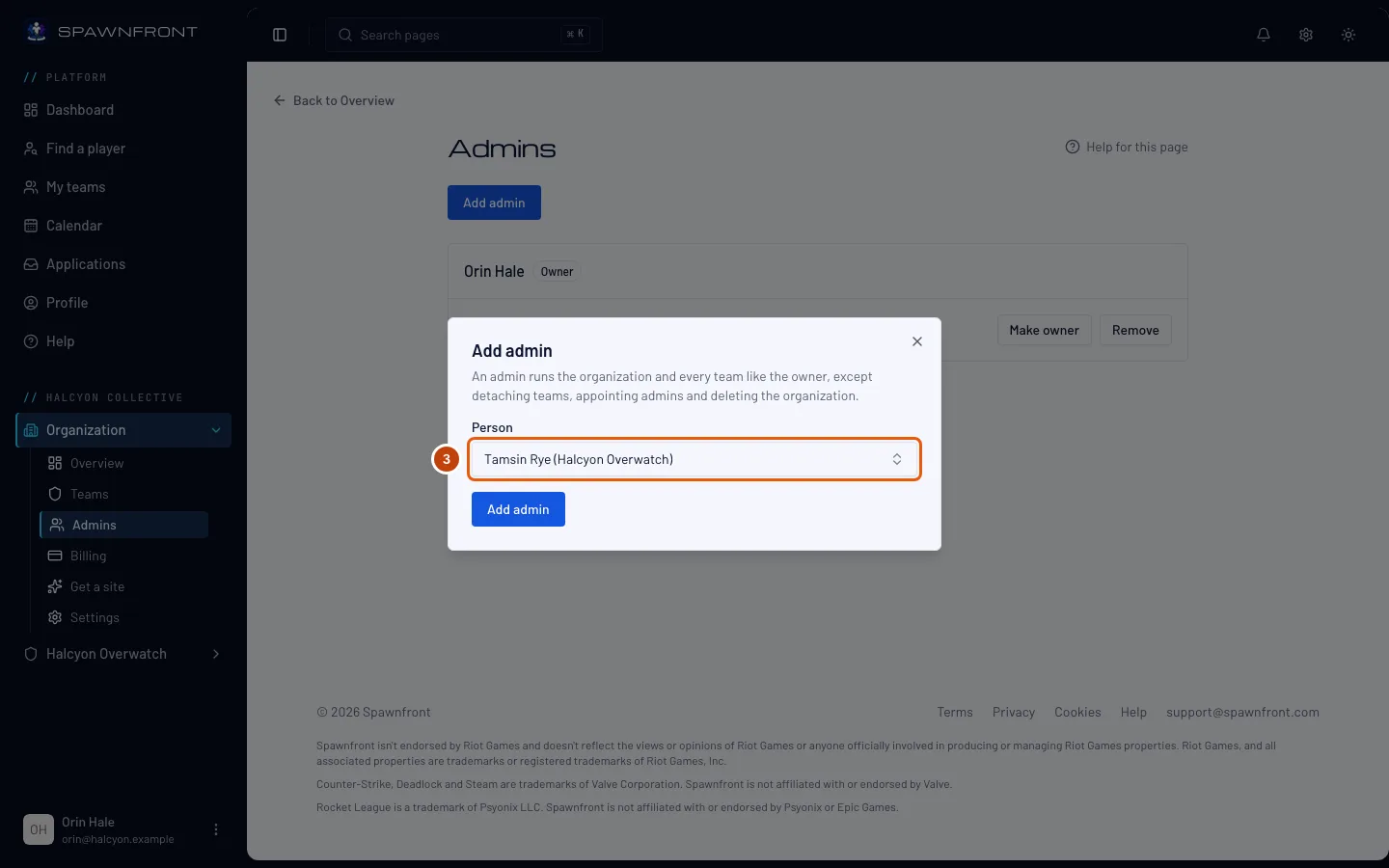
Open Person and choose the person. Each name shows the team they are in.
Step 4: Add them
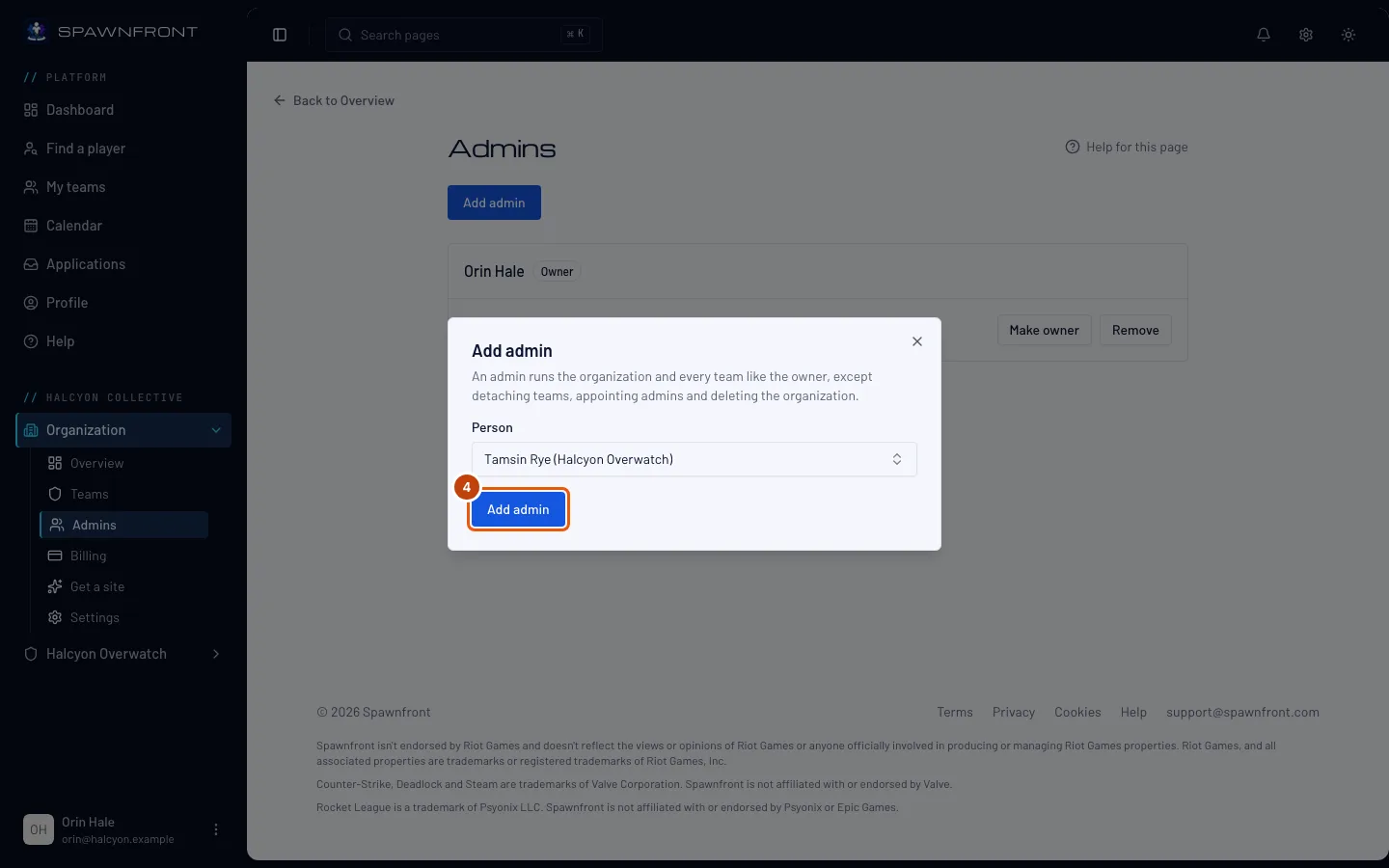
Press Add admin in the box.
You should see: "… is now an admin", and their row marked Admin. It changes at once — the next page they open shows your organization in their menu on the left and on their My teams.
Step 5: Remove an admin
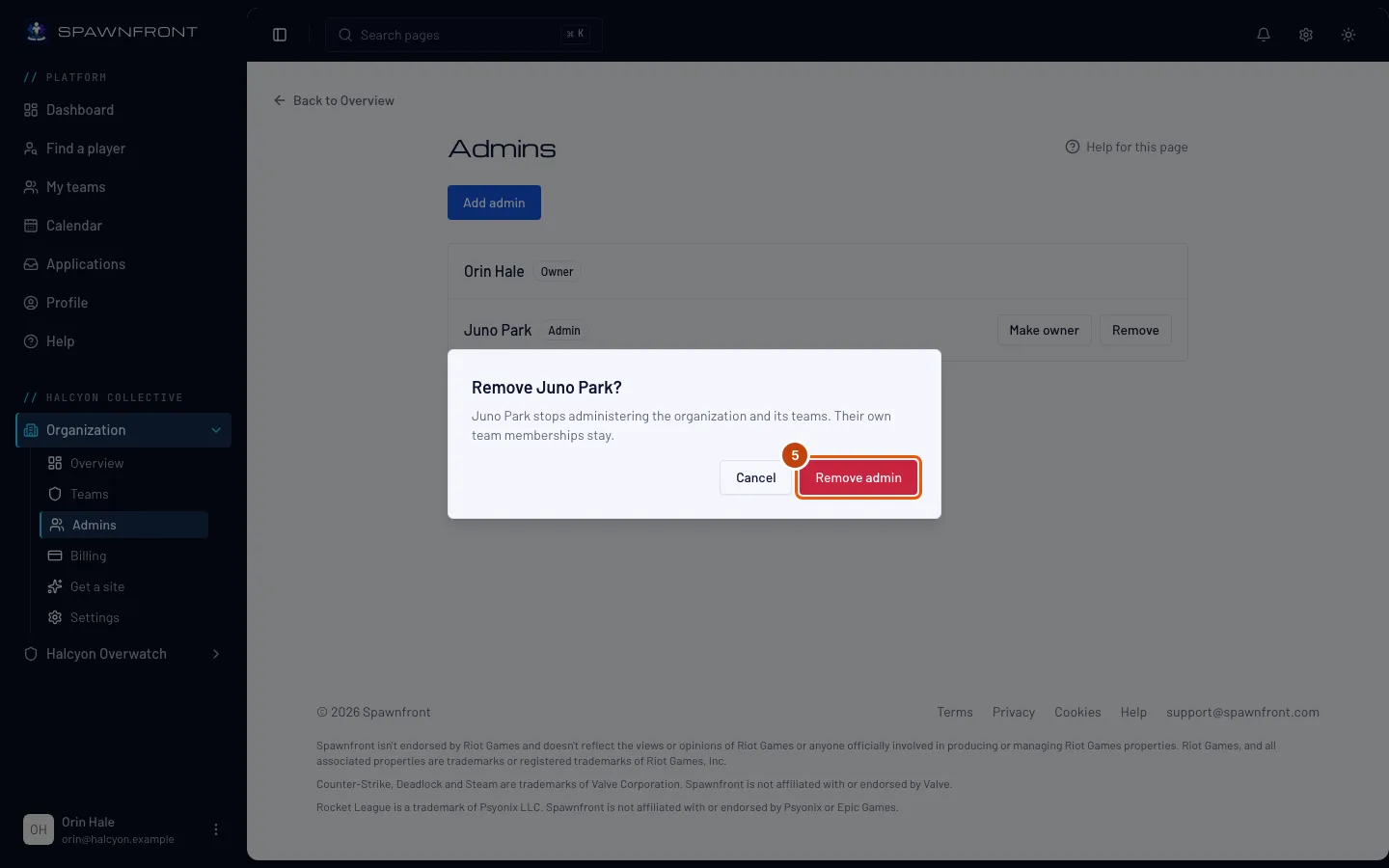
Press Remove on the admin's row, then Remove admin in the box that opens.
You should see: "… is no longer an admin". They stay in their own team — removing an admin only ends what they could do across the organization.
Step 6: Hand ownership on
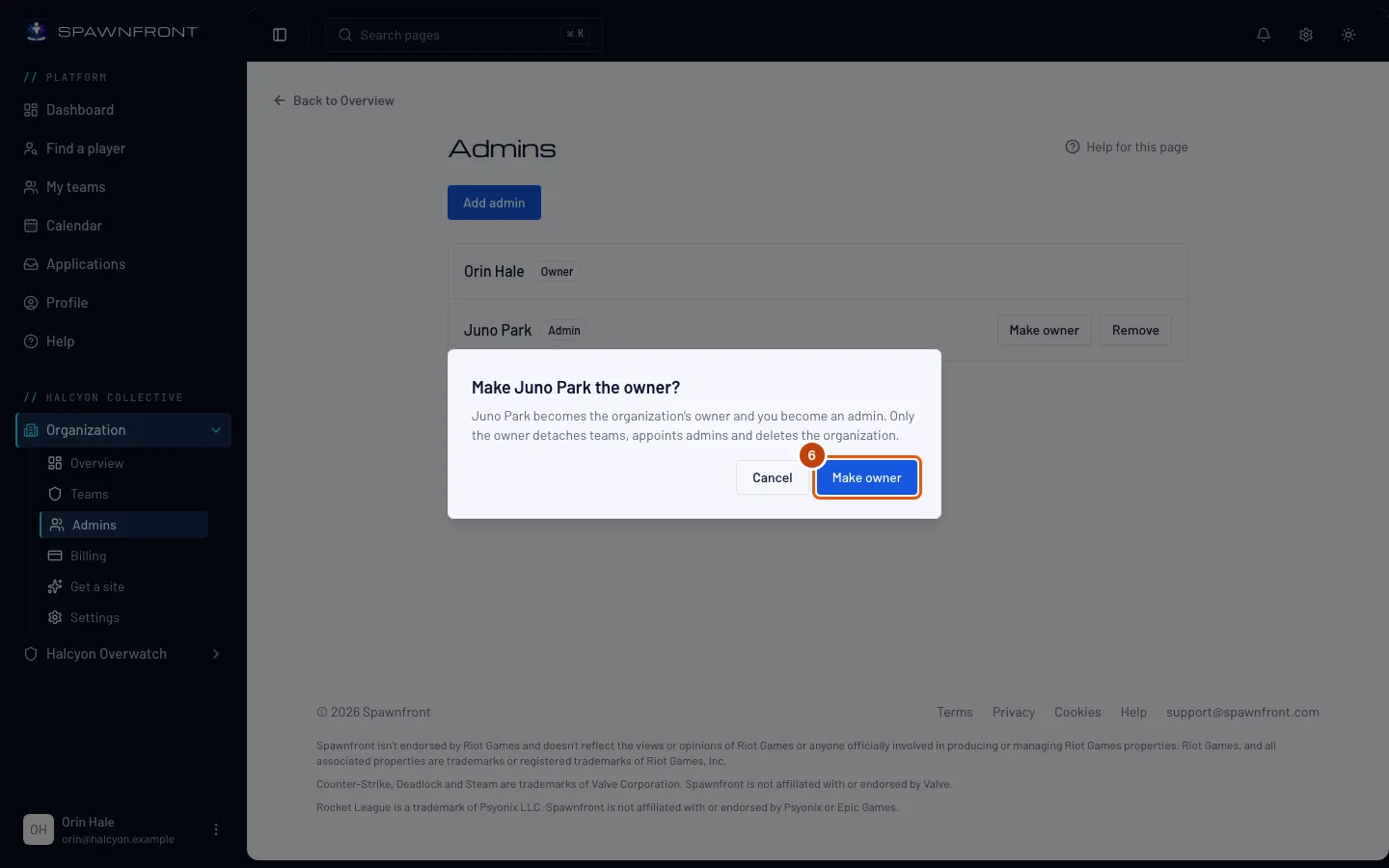
Press Make owner on an admin's row, then Make owner in the box that opens.
You should see: "… is now the owner", and your own row marked Admin. You cannot take it back yourself — only the new owner can hand it on again.
How to know it worked
- The Admins page marks the person Admin, or Owner after a hand-over.
- On their My teams, the organization appears with their role.
Something doesn't look right?
Add admin is grayed out
Nobody in your teams can be added: everyone there already runs the organization, or there are no teams yet. The person joins one of your teams first — see Add a team to your organization and Review applications.
I can't find the person in the list
Only members of the organization's teams are listed, and only once. Someone who is not in any of its teams cannot be chosen.
There is no Make owner or Remove on a row
They appear only to the owner, and only on admins' rows — the owner's own row has neither. To leave the owner's place, make an admin the owner first.
It says only the organization's owner can do that
You are an admin, not the owner. Ask the organization's owner.
Related articles
Still stuck? Contact support or email support@spawnfront.com — tell us the page you're on and the step number.