
Enter a hosted tournament
Find a tournament another team hosts on Spawnfront, enter it, then follow your matches and report your results.
For team owners and admins · 9 steps
What you need first
- Entering is free. Any team can enter, with or without a site subscription — only hosting a tournament needs one.
- You are the team's owner or an admin.
- If a host limits rank or region, it is checked against the details your team shares in Settings. Share them there first, or the host's limit keeps you out.
Steps
Step 1: Open Tournaments
In the menu on the left, under Admin, press Tournaments.
You should see: a page titled Tournaments, with an Entered card listing the tournaments your team is in.
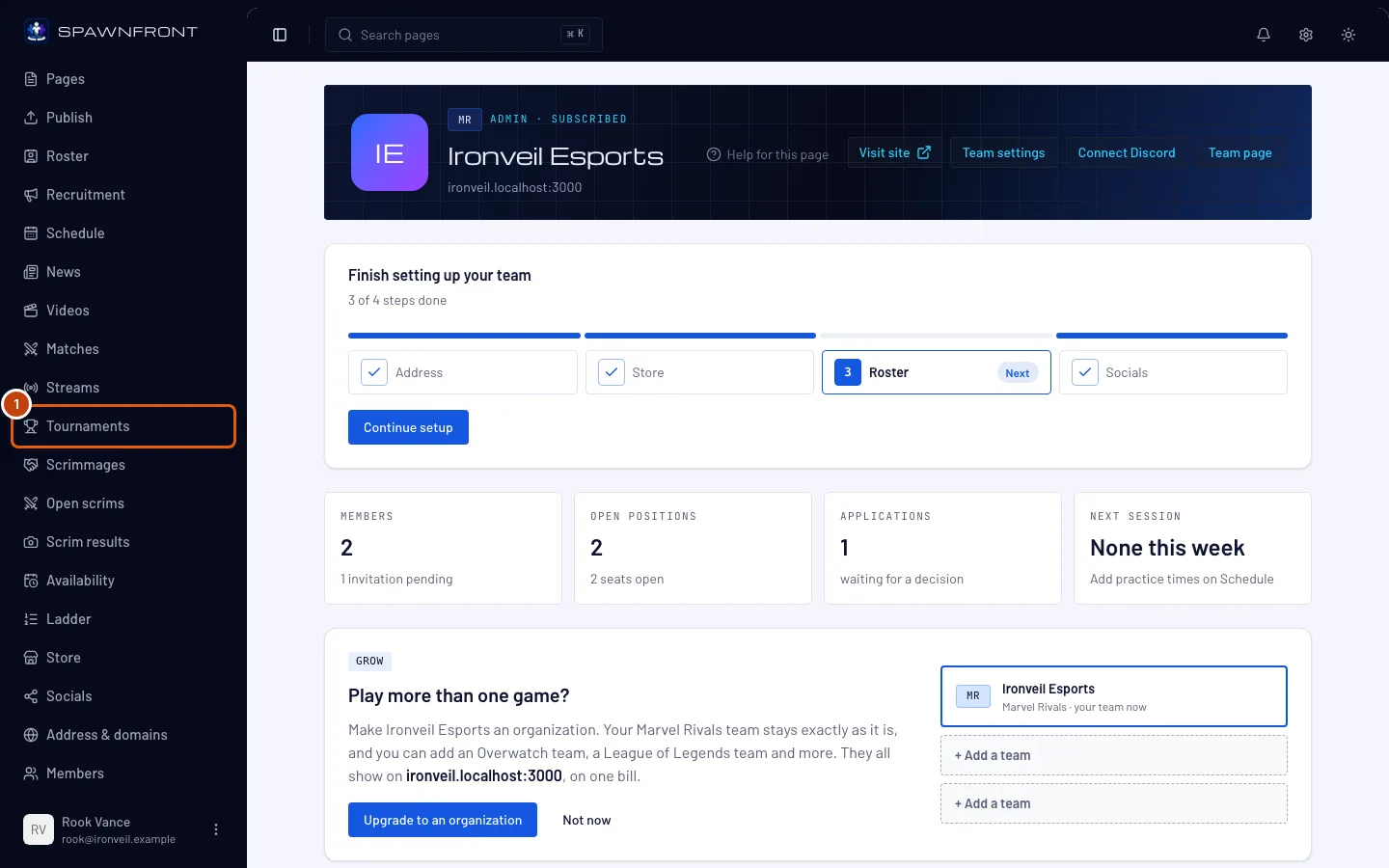
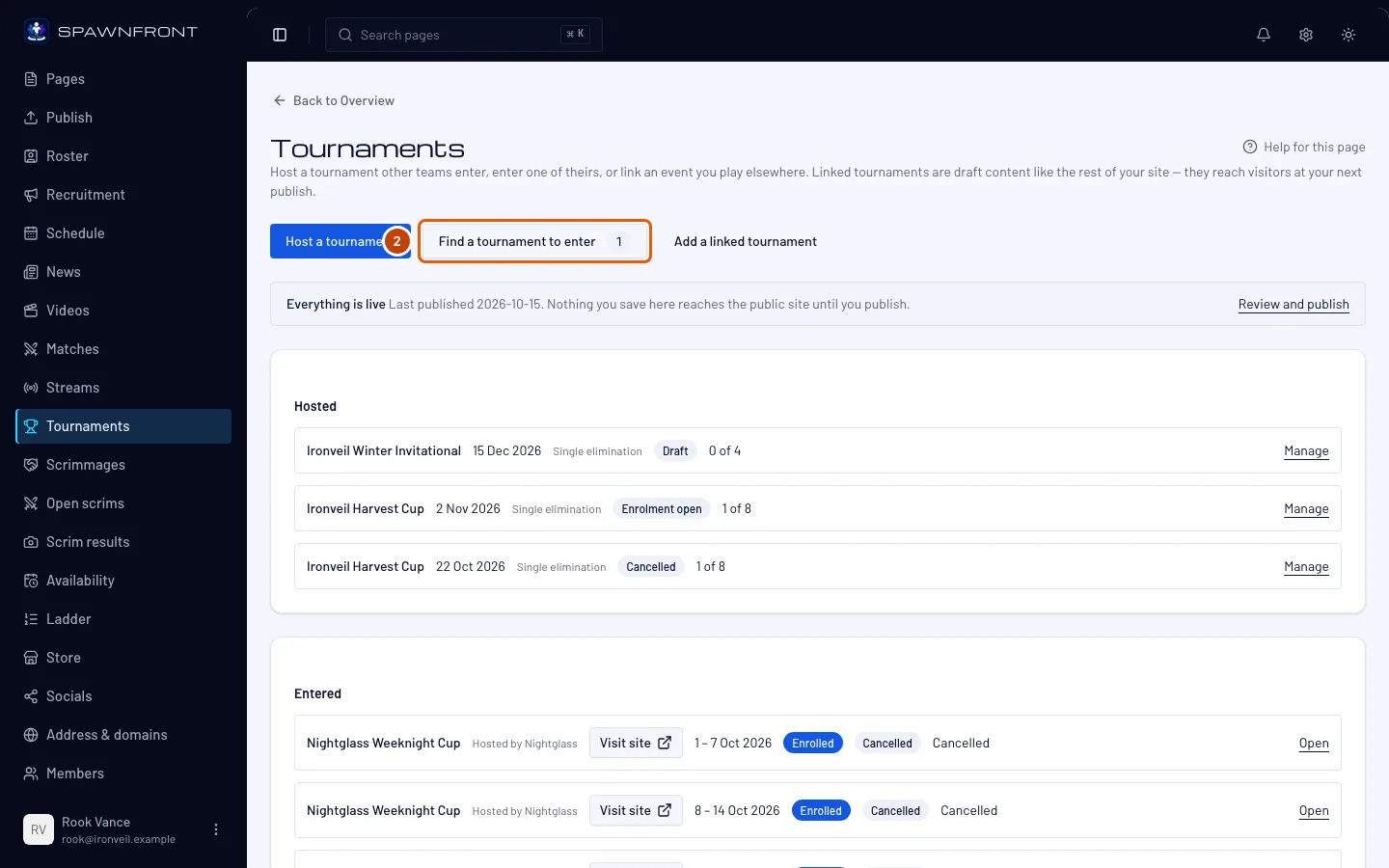
Step 2: Press Find a tournament to enter
Press Find a tournament to enter. The number on the button is how many tournaments are open for entry in your game right now — some may be full or outside your rank.
You should see: every tournament another team is hosting that is open for entry, soonest first. Each row shows the host, its dates in your team's time zone, the format, the spots left, how entry works, the host's rank limit and where it's played — its regions, its server or its region and platform, as the tournament's page says it.
Under the title, See every tournament on Spawnfront opens the public list of tournaments, where anyone can browse every game's cups. See Find a tournament. You still enter here.
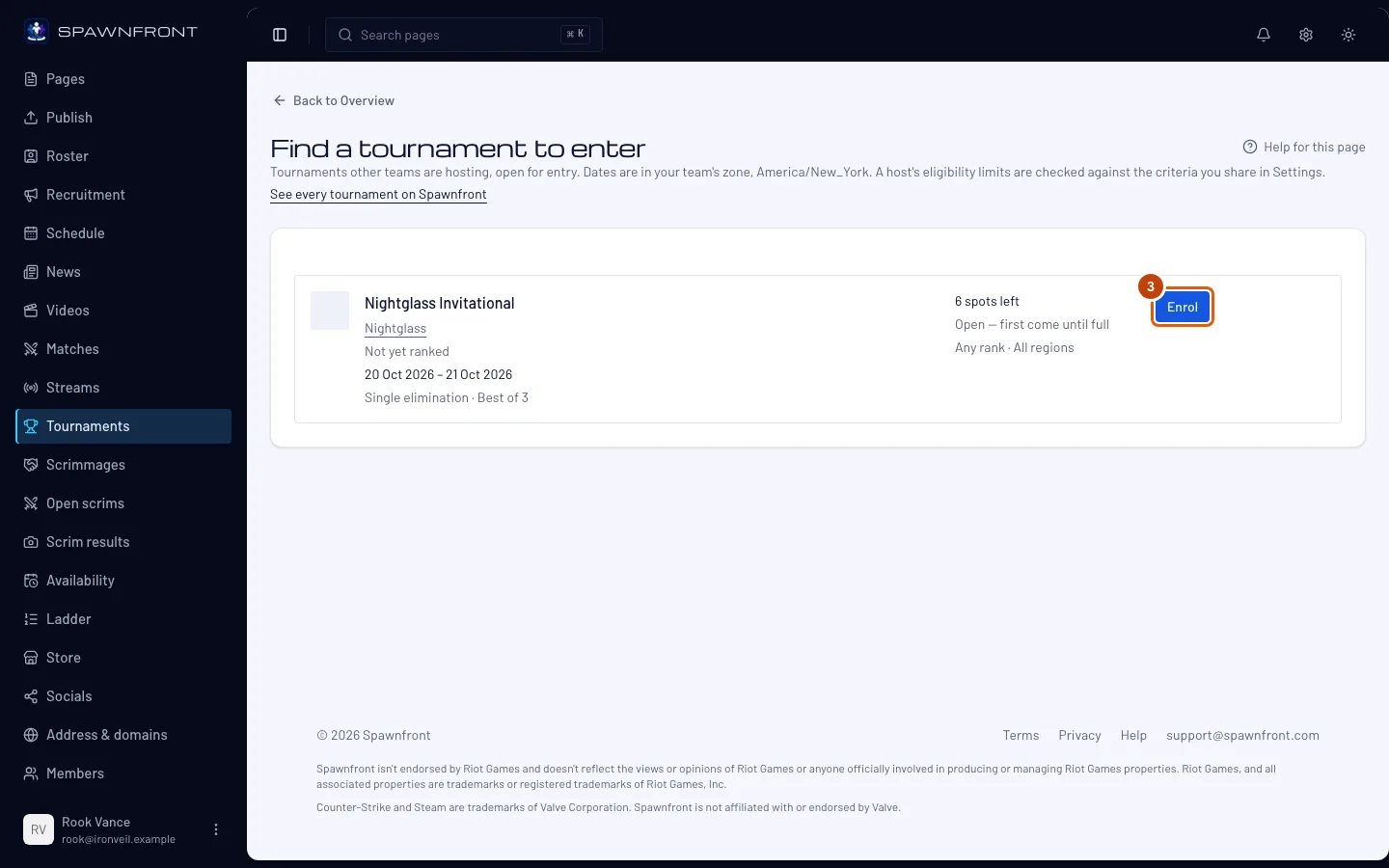
Step 3: Enrol
On the tournament's row, press Enrol. When the host has critical rules, a box lists them: read them, tick Our team has read these and press Enrol in the box.
You should see: the message Entered — see it under Entered. When the button reads Request to enrol instead, the host approves each team: you are Requested until the host accepts or declines you.
A full tournament still takes entries — on its waitlist. Its row reads Full · waitlist open and the button Join the waitlist; press it (with critical rules, tick Our team has read these and press Join the waitlist in the box). You should see: On the waitlist — see it under Entered. Your team waits in the order it joined and moves up when an entered team leaves.
A grayed-out button has its reason under it — for example Already entered, Your team missed check-in, or a rank or region the host doesn't allow. A tournament leaves this list once its enrolment closes. The host sees your team in its list of entrants, with the details you share.
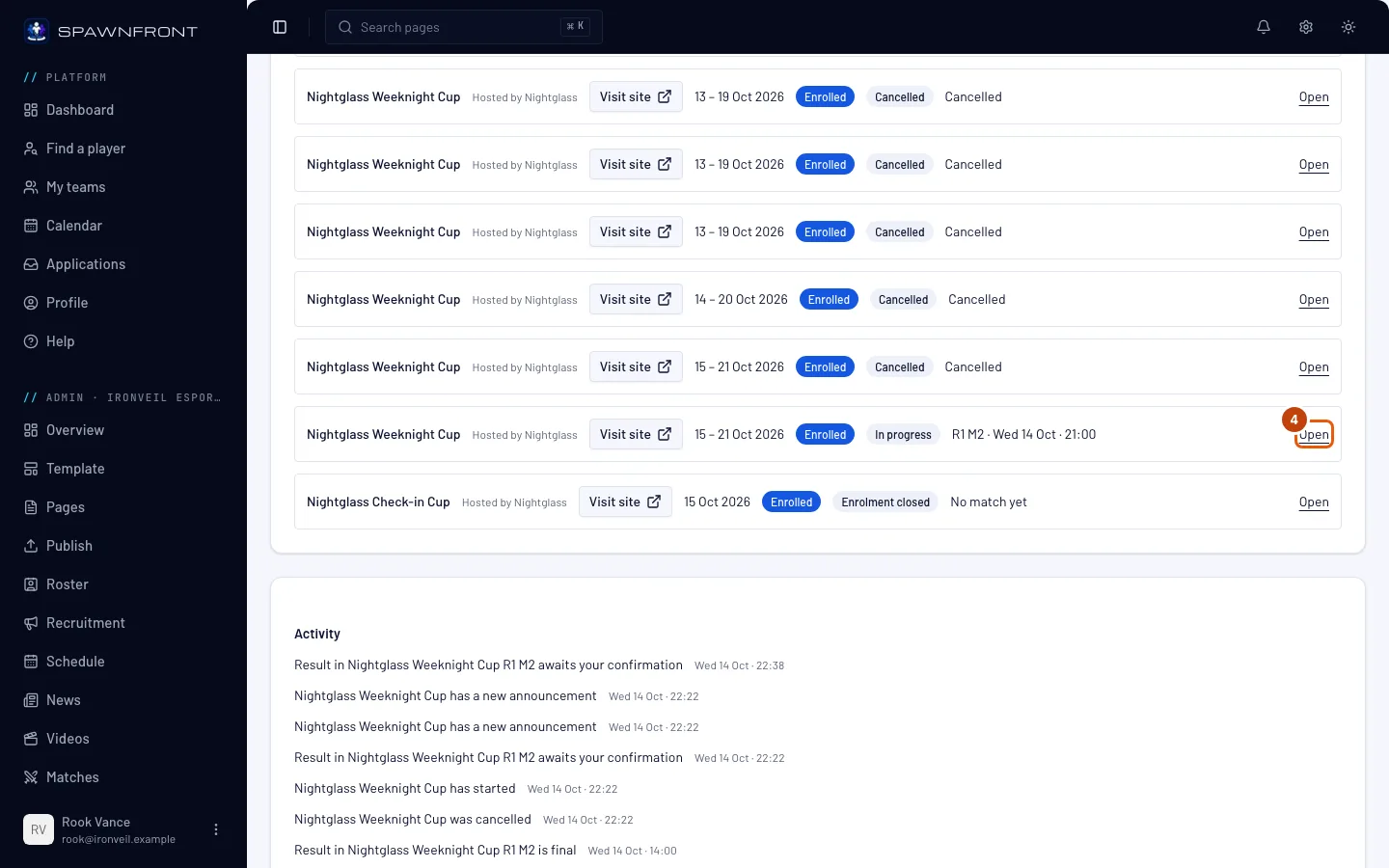
Step 4: Open the tournament you entered
Back on the Tournaments page, in the Entered card, press Open on the tournament's row.
You should see: a page titled Entered tournament, with the tournament's name, its host and its state — for example In progress.
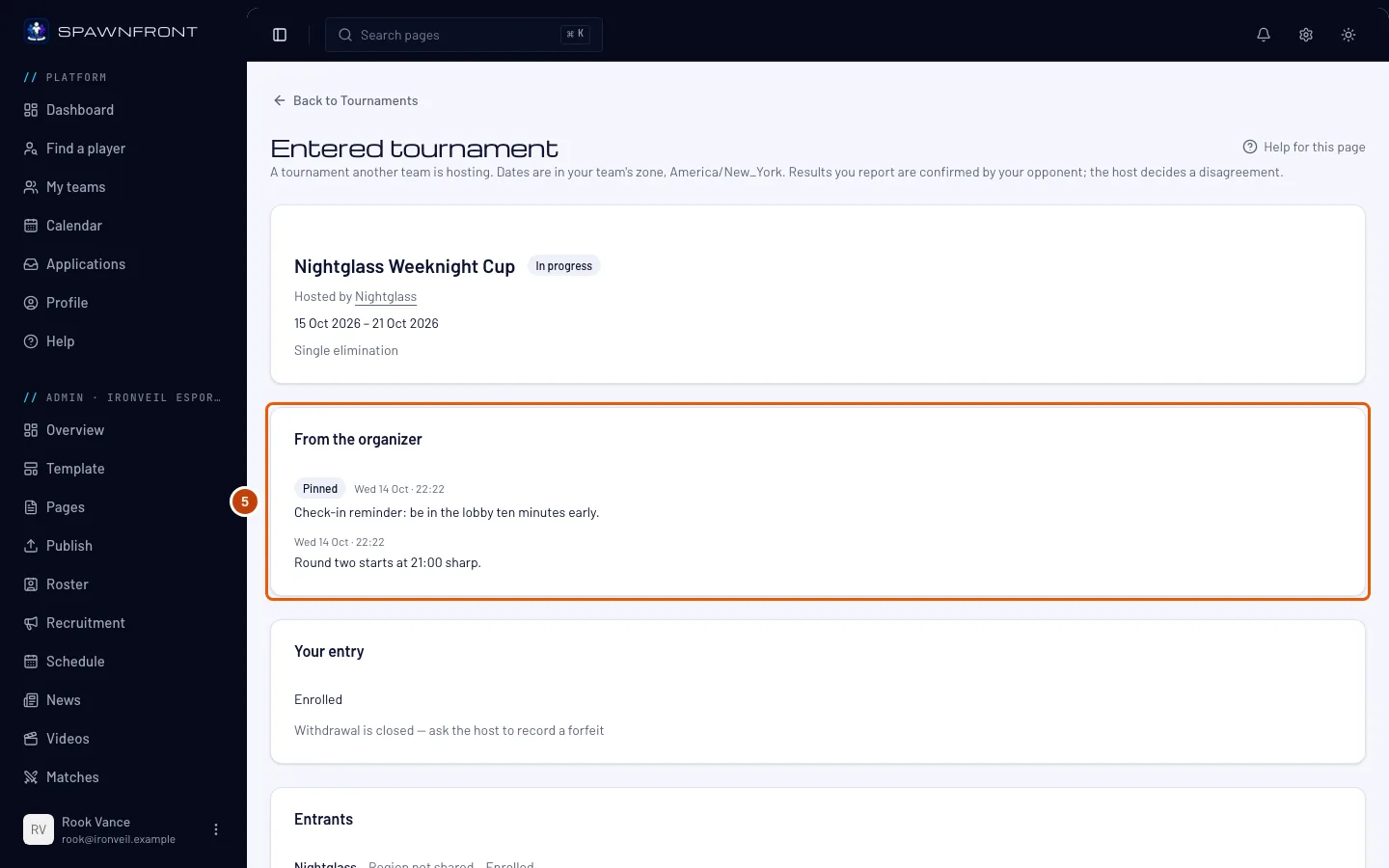
Step 5: Read what the organizer posted
Read From the organizer near the top of the page: the host's announcements, each with the time it was posted in your team's time zone. Pinned ones come first, then the newest.
The host posts here on match day — a round that starts later, a map swap, a reminder — and your team gets a notice in its Activity with each new one. The same messages show on the tournament's page on the host's site.
You should see: the host's announcements, or no From the organizer card at all when the host hasn't posted any.
Step 6: Check your entry
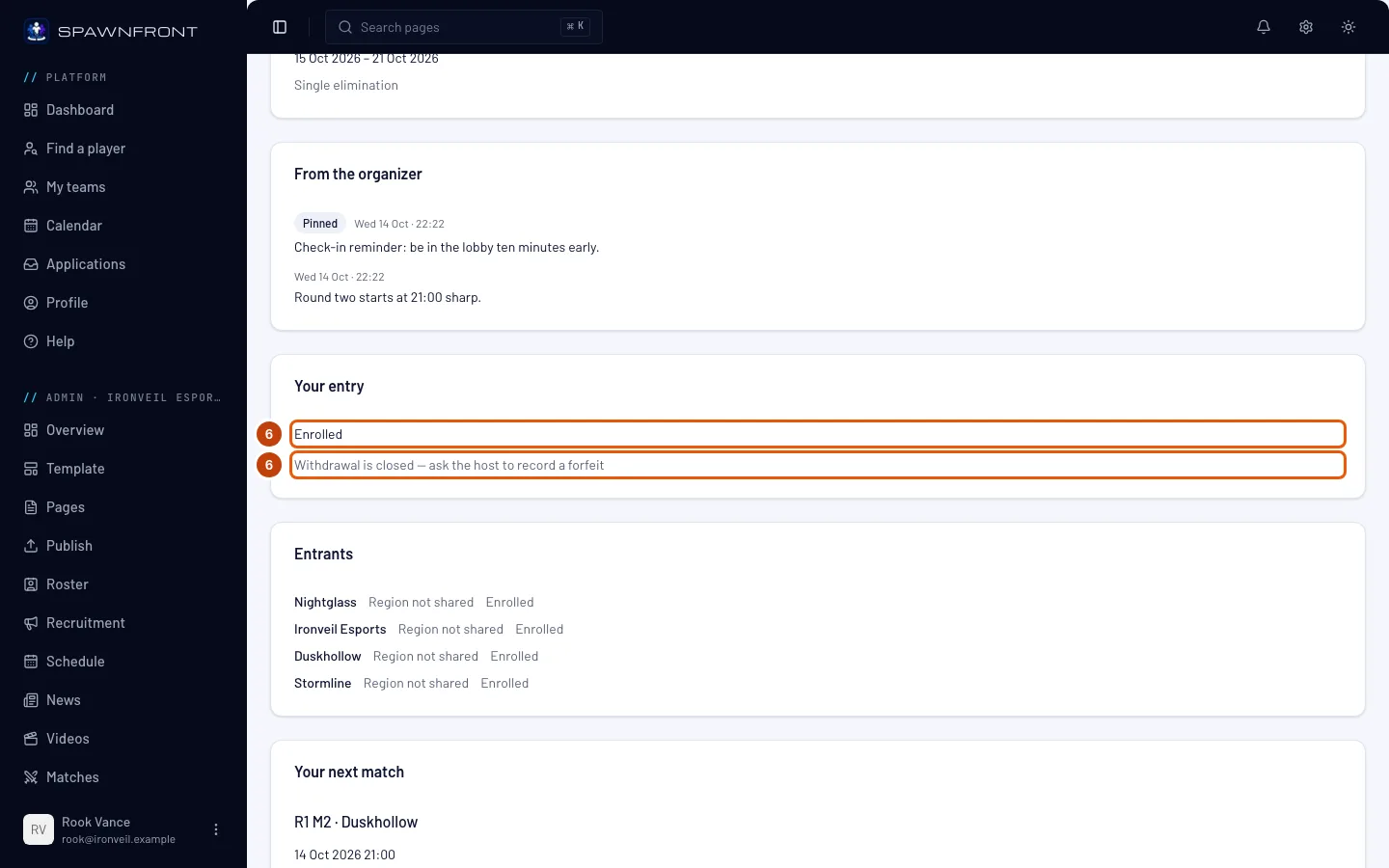
Under Your entry, read your team's status: Enrolled, Waitlisted, Requested, Missed check-in, or Declined with the host's reason.
When the host turned check-in on, a check-in card shows above your entry while check-in is open: any member of your team names the lineup and presses Check in before the start, or your team doesn't play. See Check in for a tournament.
You can withdraw only before the tournament starts: press Withdraw, then Withdraw in the box that opens. Your place goes back to the host, and you can enter again only while enrolment is still open. Once it has started, the button is replaced by Withdrawal is closed — ask the host to record a forfeit.
Step 7: Find your next match
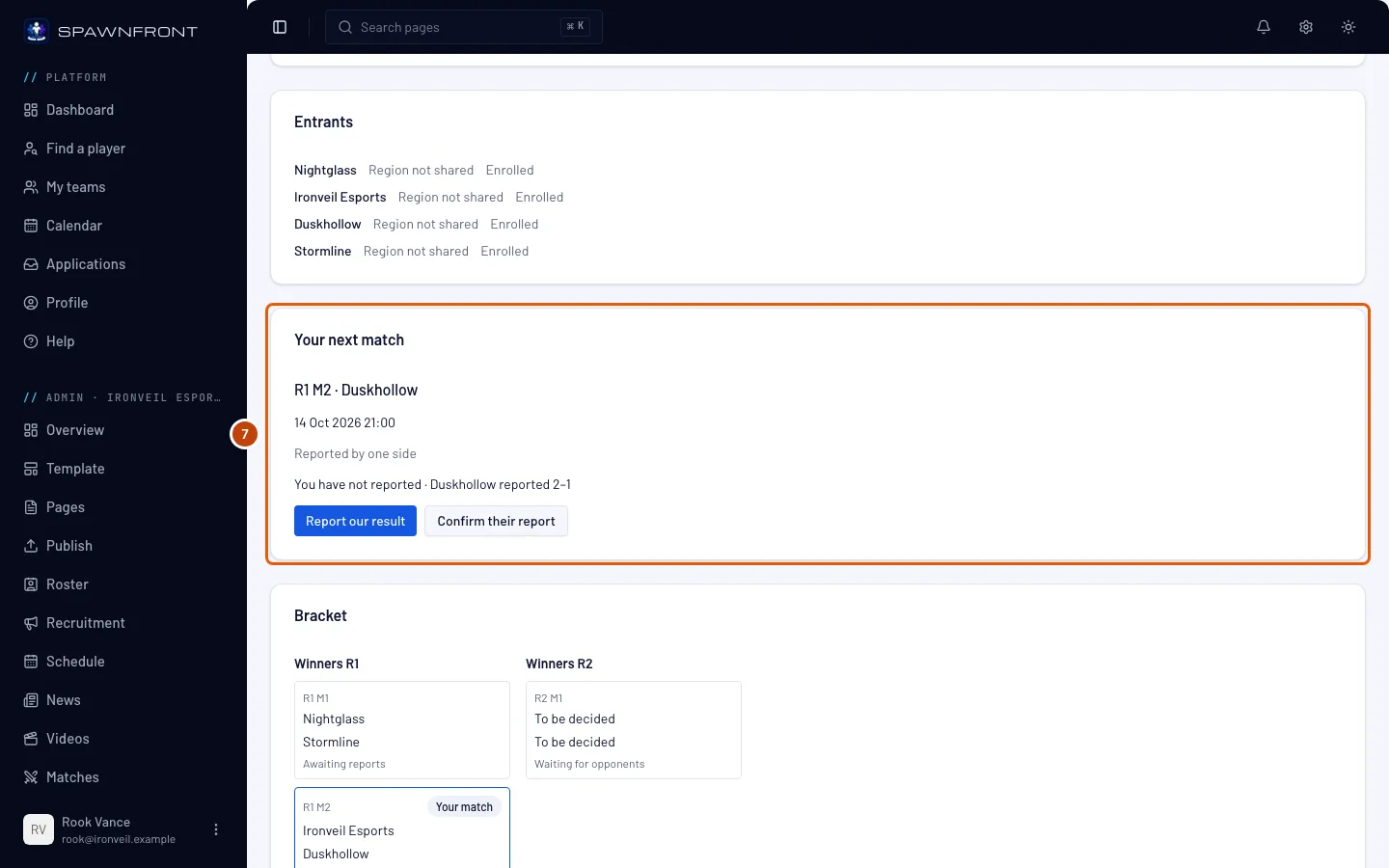
Read Your next match: the match, your opponent, when it's played in your team's time zone, and where it stands — for example Reported by one side. The Bracket card below shows the whole draw, with your matches marked. A team that is part of an organization shows as Organization · Team — for example Blades · Team 2.
Before the tournament starts this card shows only round one's date: report and confirm controls appear once the match is played.
Step 8: Report your result
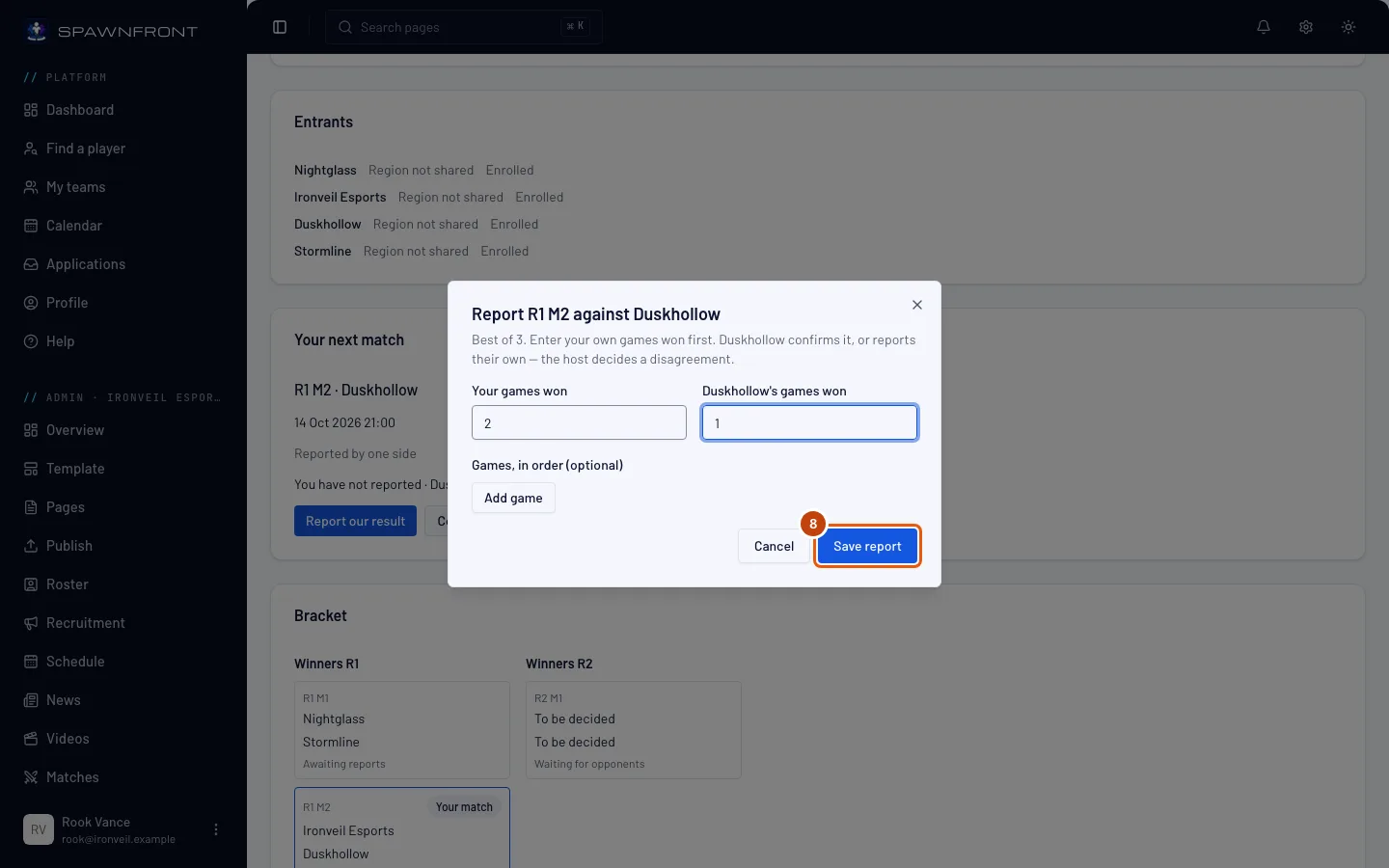
Press Report our result. In the box that opens, type your games won in Your games won and your opponent's beside it — your own score first — then press Save report. Adding each game's map under Games, in order is optional.
In some games the box asks for each game instead of a score, and counts the score for you — the same fields as a scrim's result (see Record your matches):
- League of Legends and Deadlock — under Games, in order, press Add game for each game, then choose Our side and the Winner; each side's picks are optional.
- Valorant and Counter-Strike 2 — the veto under Map veto (optional) if you like, then under Maps, in order press Add map for each map and fill in the map, the side you started on and both teams' rounds.
- Rocket League — under Games, in order, press Add game for each game and type both teams' goals; tick Overtime if it went to overtime, and choose the color under We played. The arena and Add a player line (optional) are optional.
If both reports agree, the result stands. If they differ, the match is Disputed and the host decides. Against the host's own team, your report decides the result. Until the result stands you can report again to correct yours.
If your opponent says nothing, your score confirms itself once the host's confirmation window — 15, 30 or 60 minutes, the host's choice — has passed since the last report. A new report from either team starts that clock again.
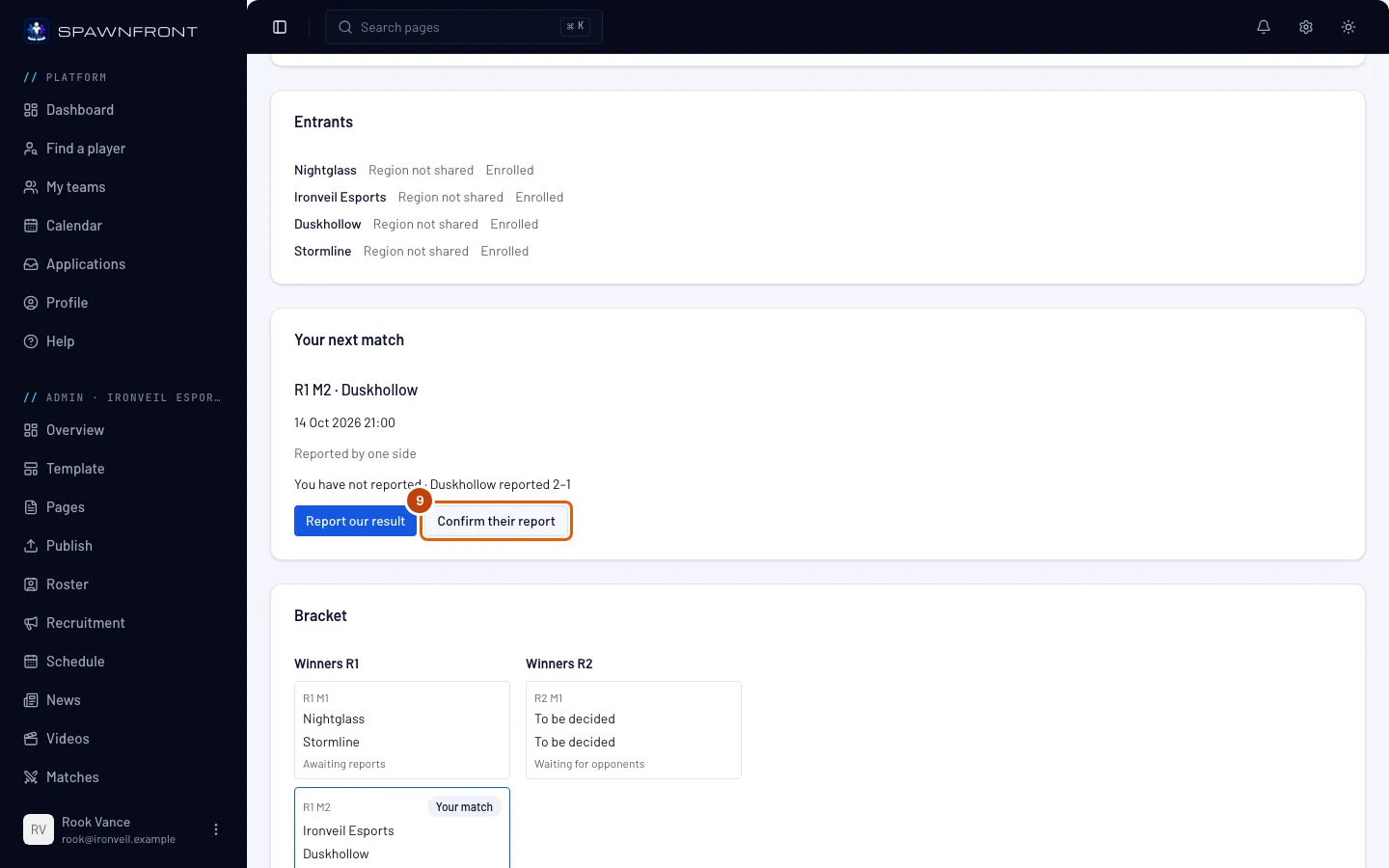
Step 9: Confirm their report
When your opponent has reported and you haven't, press Confirm their report.
It takes their score as the result at once — there is no confirmation. If their score is wrong, report your own instead (step 8).
Answer in time: if your team does nothing, their score confirms itself once the host's confirmation window has passed since their report. Confirm it, or report your own score to dispute it, before then. A match against the host's own team has no window: their report already decides it.
How to know it worked
- The tournament is listed in the Entered card on the Tournaments page, with your status.
- After a report, Your next match shows what each side reported, until the result stands.
- The host's announcements show under From the organizer.
Something doesn't look right?
The Enrol button is grayed out
The reason is written under it. Already entered says it all; Your team missed check-in means your team was entered and didn't check in before the start, so it can't enter this tournament again; a rank or region reason means the host's limit doesn't match what your team shares in Settings — or you don't share that detail at all.
Enrolling says "This tournament takes one team per organization"
The host keeps this tournament to one team per organization, and another of your organization's teams has already entered it. Only one of them can play: if the other team withdraws, yours can enter.
The tournament I want isn't in the list
The list shows only tournaments whose enrolment is still open, hosted by other teams. Your own team's tournaments aren't listed, and one that has closed or been called off leaves the list.
We're on the waitlist — will we play?
Only if a spot opens: an entered team withdraws, the host removes or declines one, or — when the host takes the next team from the waitlist — an entered team misses check-in. Check in anyway while check-in is open, so your team is ready if a spot opens. See Check in for a tournament.
I can't find the Withdraw button
The tournament has started. Withdrawal closes at the start; ask the host to record a forfeit.
Our opponent's score became the result before we answered
Nobody on your team confirmed it or reported a different score within the host's confirmation window, so their report confirmed itself. A confirmed result can't be disputed from your side: ask the host — only the host can enter a different result.
The host entered the wrong score for our match
When the host enters your result, Your next match shows it with a Dispute this result button. Press it to ask the host to look again. Only a result the host entered can be disputed.
How do we report a Valorant match?
In the report, add the map veto if you had one, then each map in order: the map, the side you started on, and both teams' rounds; optionally the agents each team played and which of your players played them. Both teams report; when the maps and rounds agree, the result is in. Valorant has no tournament codes. Filling in maps from Riot's own records is on its way, not here yet: once Riot approves Spawnfront, a PC Valorant match whose players on each team have confirmed their accounts with Riot fills in its maps by itself. Until then, report your result.
We play League of Legends — where is our tournament code?
Tournament codes are on their way, not here yet. Once Riot approves Spawnfront for its Tournament API, each game of a League of Legends match gets a tournament code, shown under Riot tournament codes in Your next match — only to the two teams playing it. You join the game's lobby with it in the League client, and the result fills in by itself once the game ends. Until then, report your result as described in step 8.
Related articles
Still stuck? Contact support or email support@spawnfront.com — tell us the page you're on and the step number.