
Answer a request to join an organization
As your team's owner, say yes or no on your team's Overview when an organization asks your team to join it.
For team owners and admins · 5 steps
An organization runs several teams in any games — its plan covers 4, the person who pays adds more, and a game holds up to 10. When one asks your team to join it, you — the team's owner — say yes or no. Steps 3 and 4 say yes; step 5 says no.
What you need first
- You are the owner of the team. An admin of the team sees the request too, but cannot answer it.
- Your team is not in an organization yet.
- To say yes: your team has no custom domain connected. Remove it first in Address & domains.
Steps
Step 1: Look in the bell
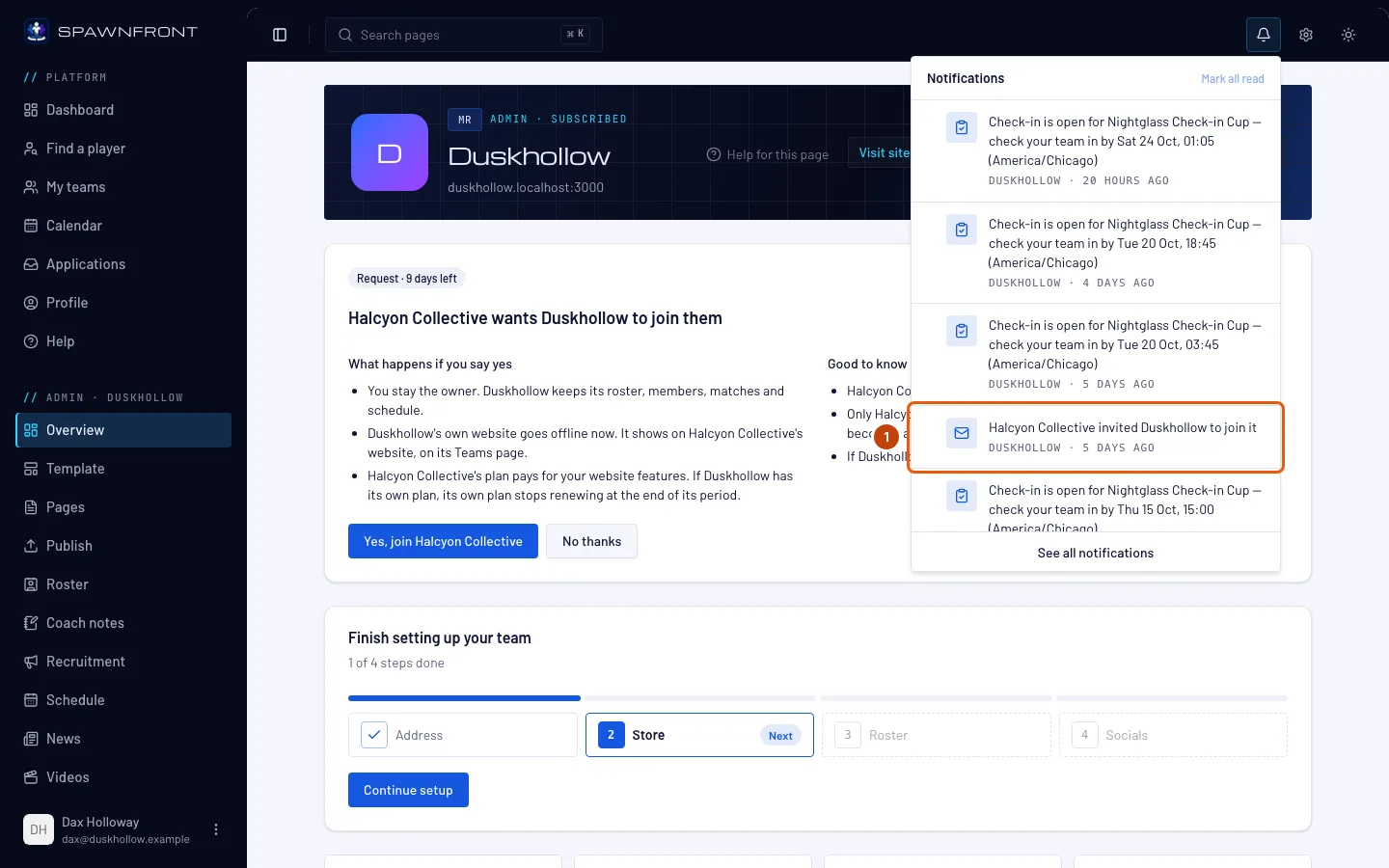
Press the bell at the top of any page. The request is a notice: "… invited … to join it". You get the same line by email too, with See the invitation.
Pressing the notice opens your team's Settings, where the request waits under Requests to join an organization, with Accept and Decline — the same answers as on the Overview.
Step 2: Open your team's Overview
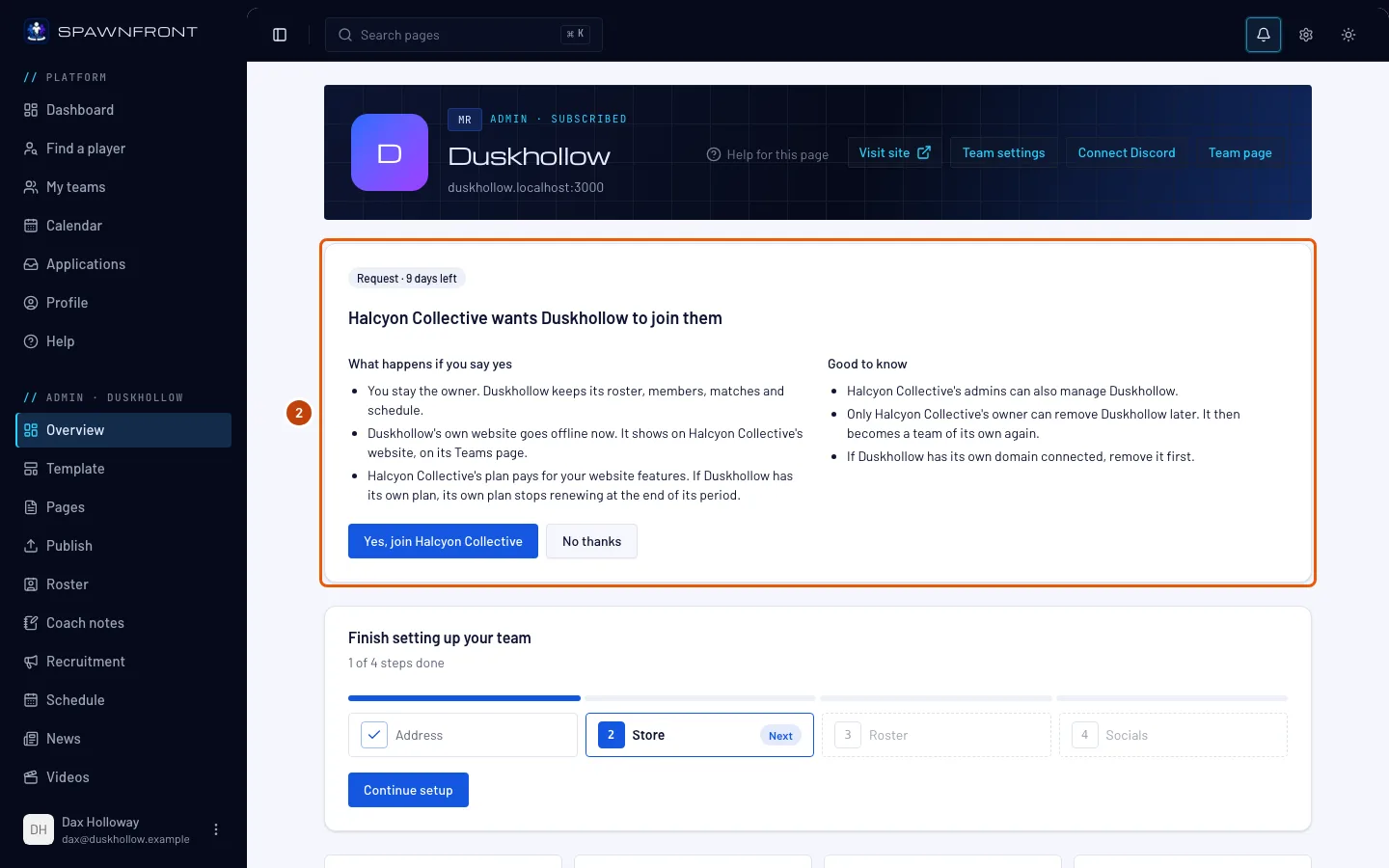
Open your team from My teams. Its Overview opens.
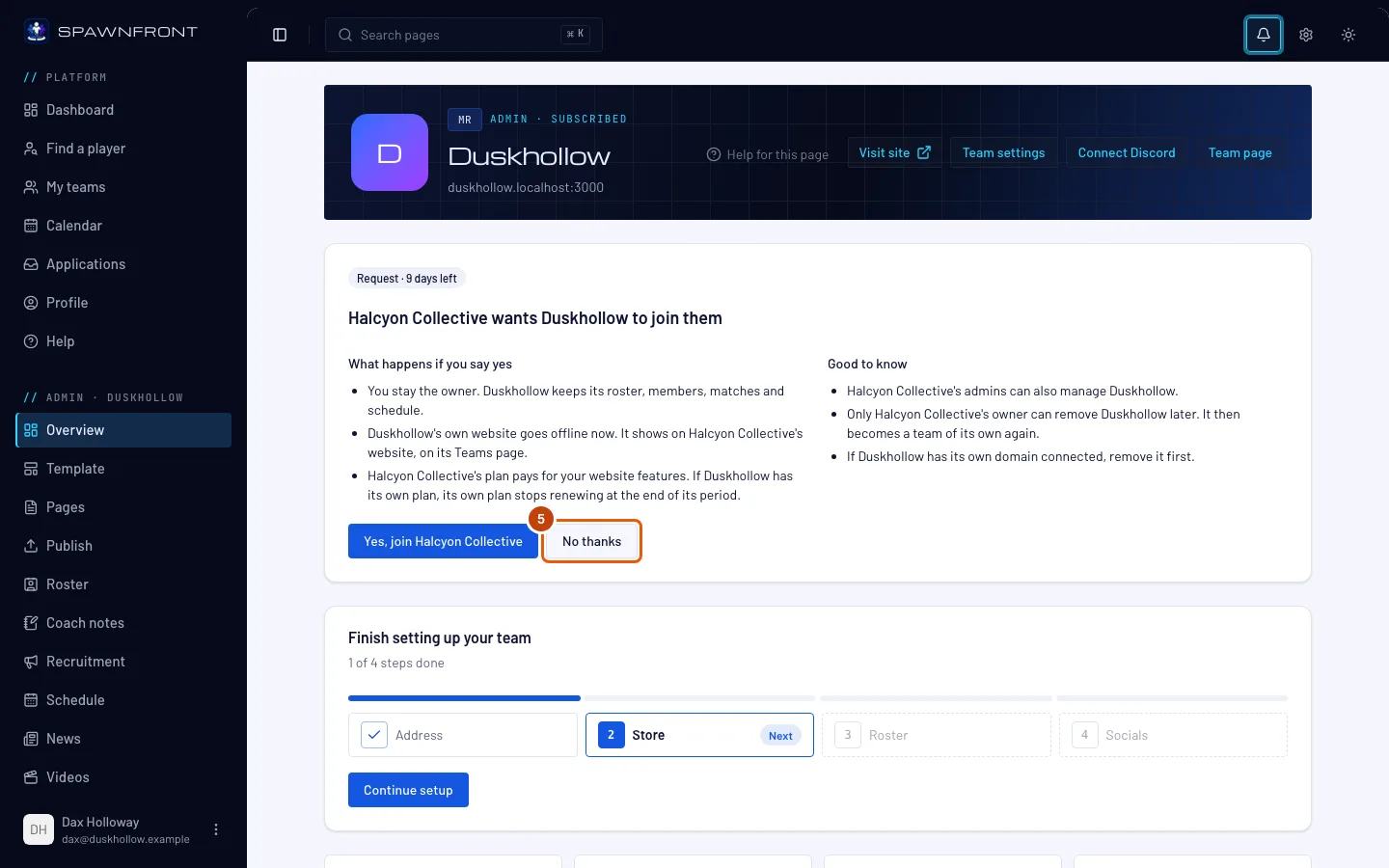
You should see, at the top: "… wants … to join them", with Request and the days left. Under it, What happens if you say yes and Good to know. A request waits 14 days; after that it is gone, and the organization can send another.
Step 3: Say yes
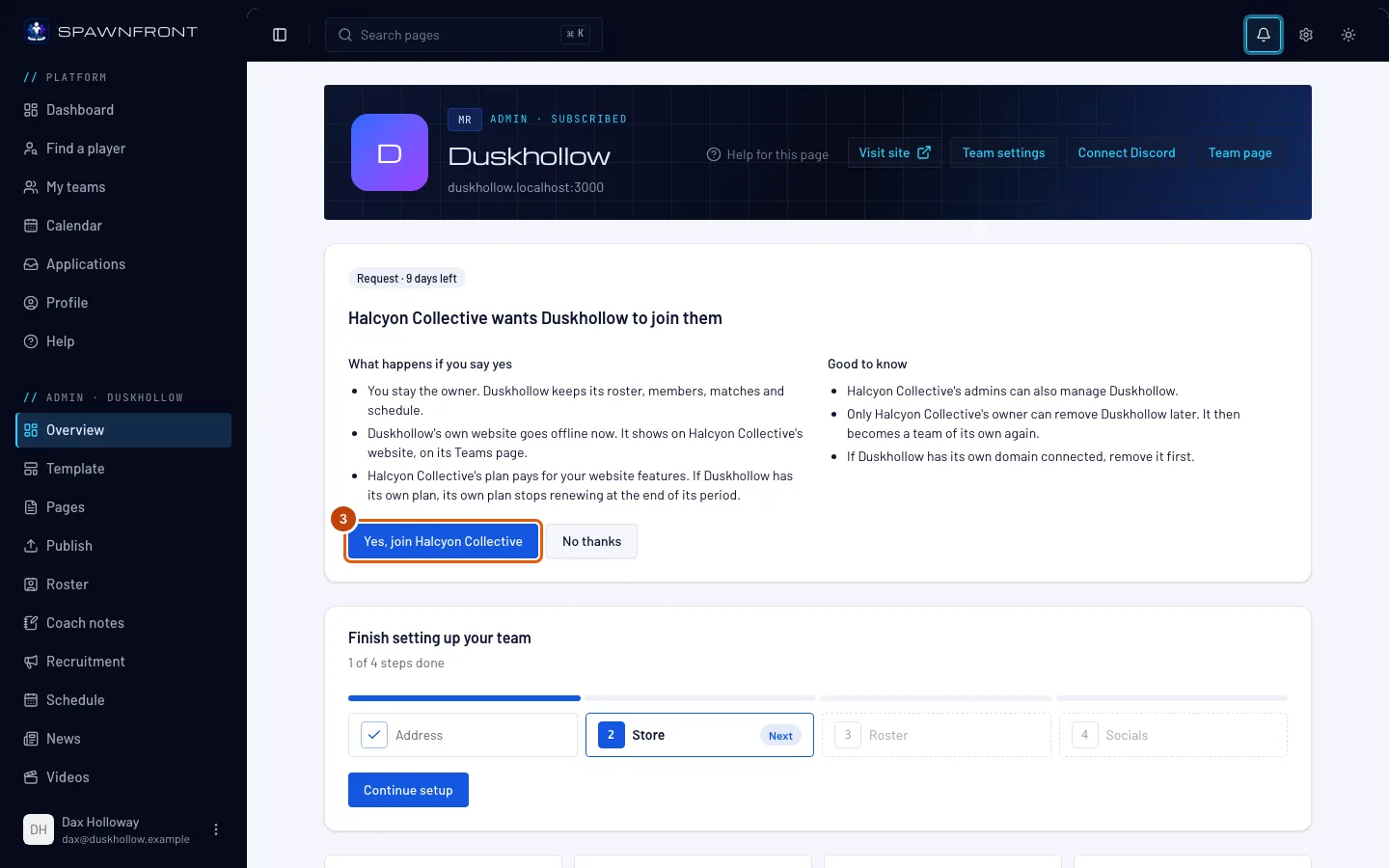
Read What happens if you say yes, then press Yes, join … followed by the organization's name.
What changes when you say yes:
- Your team's own site goes offline at once, and the organization's site shows your team on its Teams page.
- You stay the owner. Your team keeps its name, roster, members, matches and schedule.
- The organization's plan pays for your site features. If your team has its own plan, it stops renewing at the end of its period.
- The organization's admins can manage your team too, and only its owner can remove your team later.
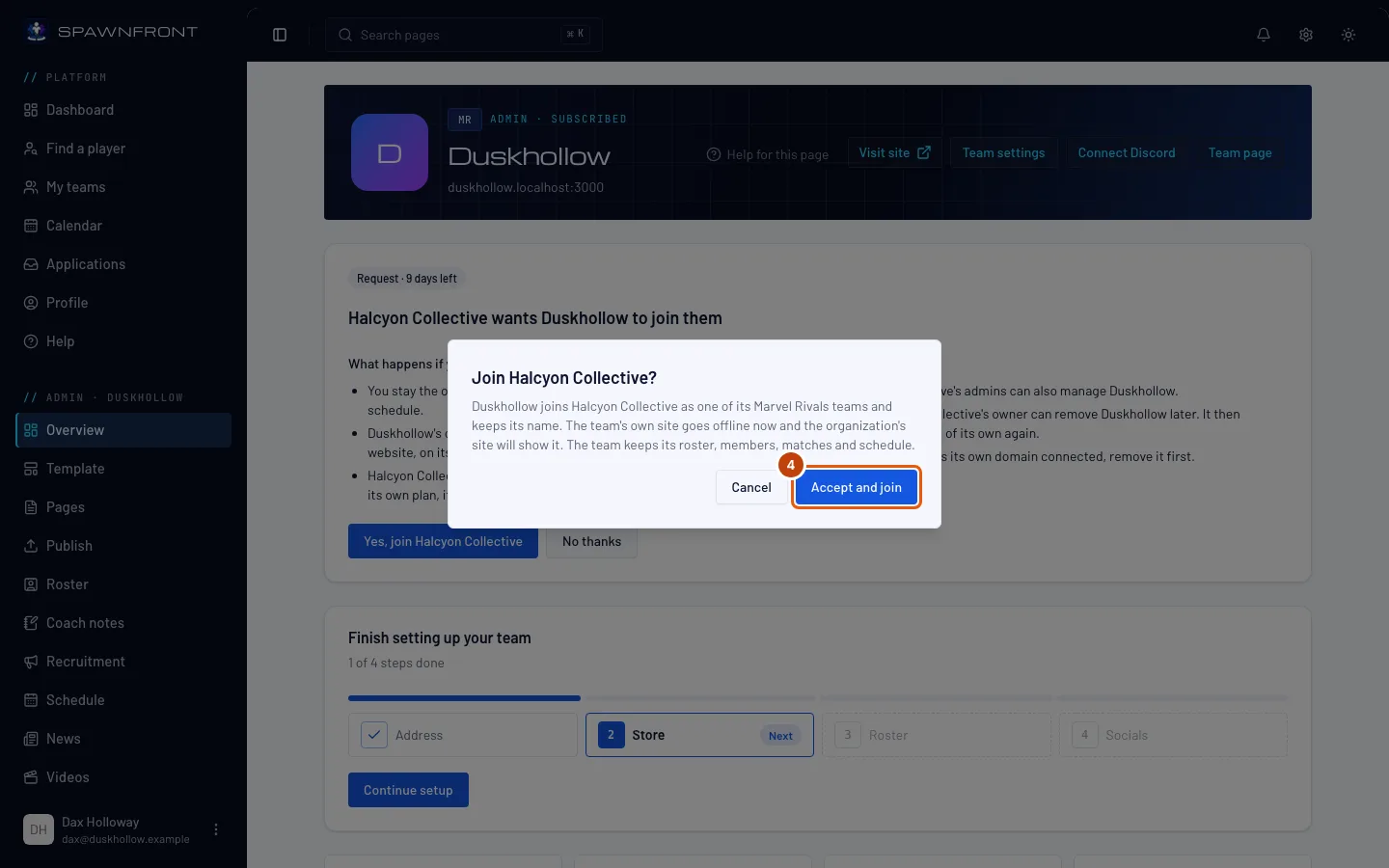
You should see: a box, Join …?, saying the same.
Step 4: Accept and join
In the box, press Accept and join.
You should see: "… is now part of …". The request card is gone, and your team is listed on the organization's Teams.
Step 5: Or say no
To turn the request down, press No thanks on the card instead. It happens at once — there is no confirmation.
You should see: "Request from … declined", and the card is gone. Nothing about your team changes. The organization can ask again later.
How to know it worked
- After a yes, your team's Overview no longer shows the request, and the organization's Teams lists your team.
- After a yes, in the menu on the left your team is listed under the organization's name instead of Admin, without the website's pages: the organization's admins run its website, store and billing.
- After a no, the request is gone from your Overview and from Settings.
Something doesn't look right?
The card says “Only the owner, …, can answer.”
You are an admin of the team, not its owner. Only the owner can say yes or no — ask the person the card names.
It says "Remove the custom domain first"
A team in an organization has no custom domain of its own. Remove it in Address & domains, then press Yes, join … again.
It says "You already have 10 … teams"
The organization has no room for your team since it asked you: its plan covers no more teams until the person who pays adds one, or it already has 10 teams in your game. Your team stays as it is; press No thanks, or ask the organization to make room.
It says "Another … team in … is called …"
One of the organization's teams in your game already has your team's name, and no two of its teams in a game can share one. Rename your team in Settings (or ask the organization to rename theirs), then press Yes, join … again.
The request is gone
It waited 14 days without an answer, or the organization cancelled it. Ask the organization to send a new one.
I said no by mistake
Ask the organization to send a new request — a no takes nothing away and changes nothing on your team.
Related articles
Still stuck? Contact support or email support@spawnfront.com — tell us the page you're on and the step number.