
Change what your store sells
Add or take off products, put them in order, choose up to four featured, then save and publish.
For team owners and admins · 7 steps
What you need first
- Your team has a site subscription, and your Fourthwall shop is connected. If it isn't yet, follow Open your team's store first.
- You are the team's owner or an admin.
- The products you want to add are published on Fourthwall. Hidden or draft products don't appear in Spawnfront.
Steps
Step 1: Open Store
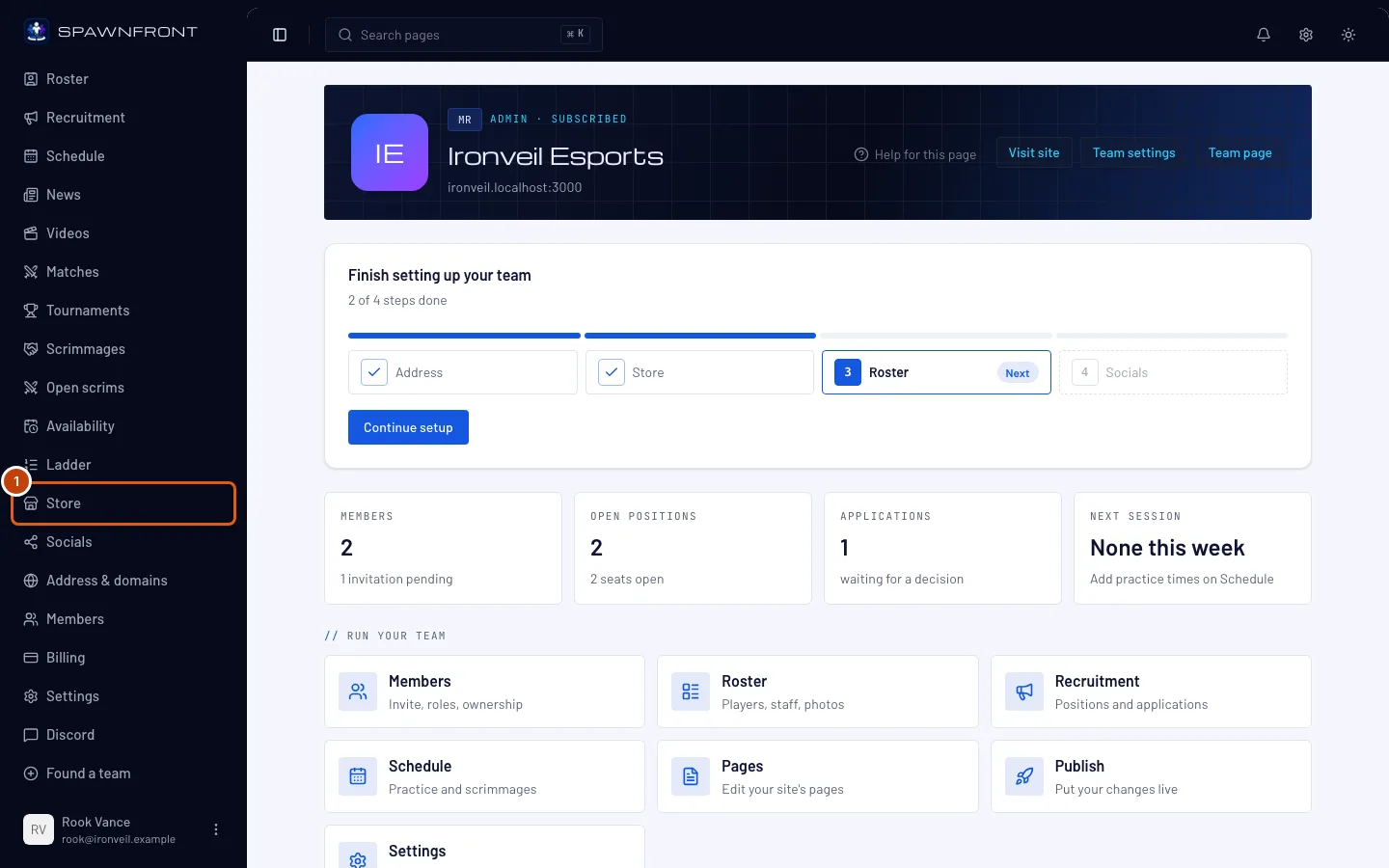
In your team's admin, press Store in the sidebar.
You should see: your shop's card, then Products in your shop (everything your shop sells) and Picked for your store page (what your site shows).
Step 2: Add or take off a product
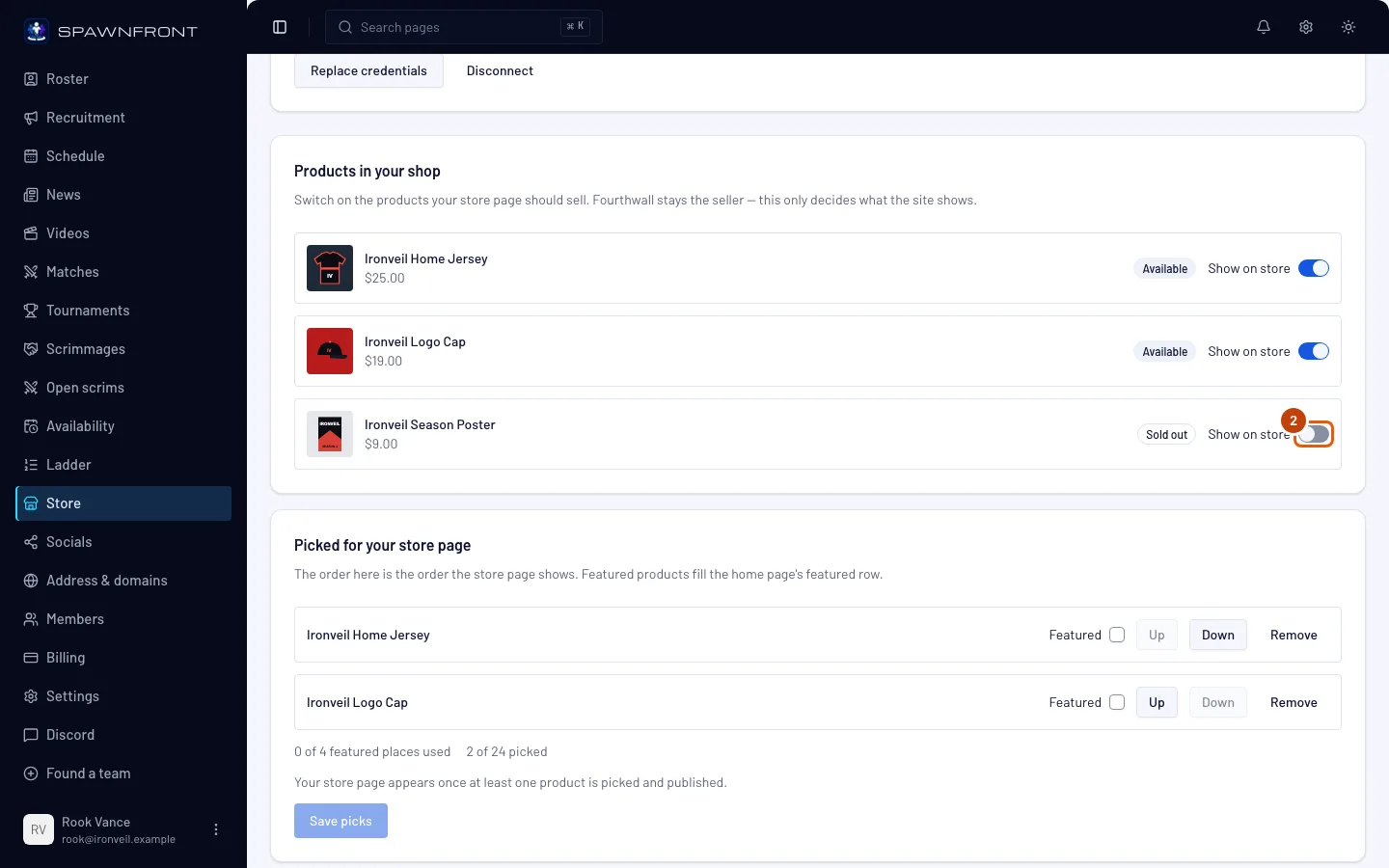
In Products in your shop, turn Show on store on for a product to add it, or off to take it away.
You should see: a product you turn on join the bottom of Picked for your store page, and one you turn off leave it. You can pick up to 24 products — at 24 the other switches gray out until you turn one off.
Step 3: Put them in order
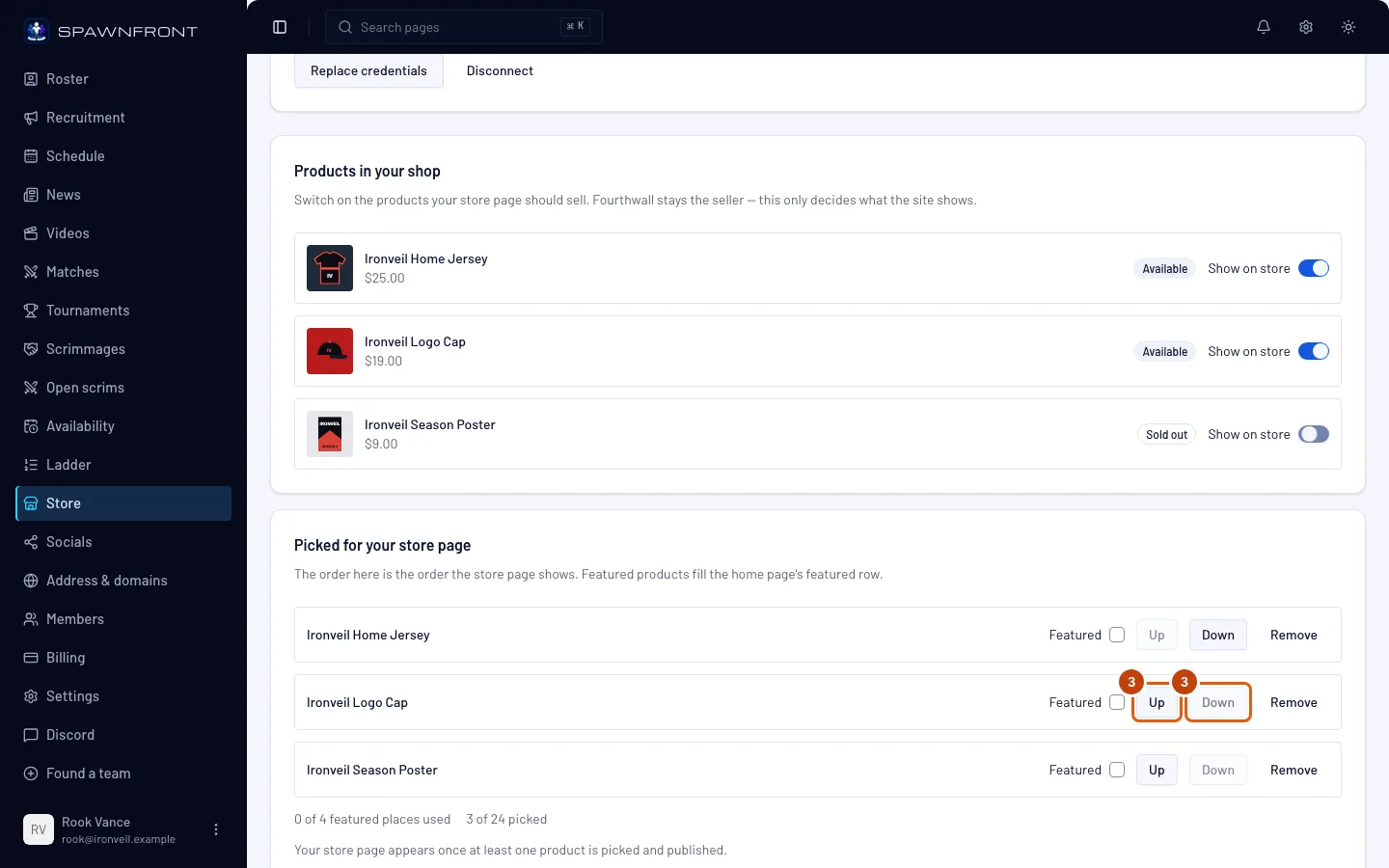
In Picked for your store page, press Up or Down beside a product to move it one place.
You should see: the product swap places with its neighbour. The order in this list is the order your site's Store page shows. The first product's Up and the last product's Down are grayed out.
Step 4: Choose your featured products
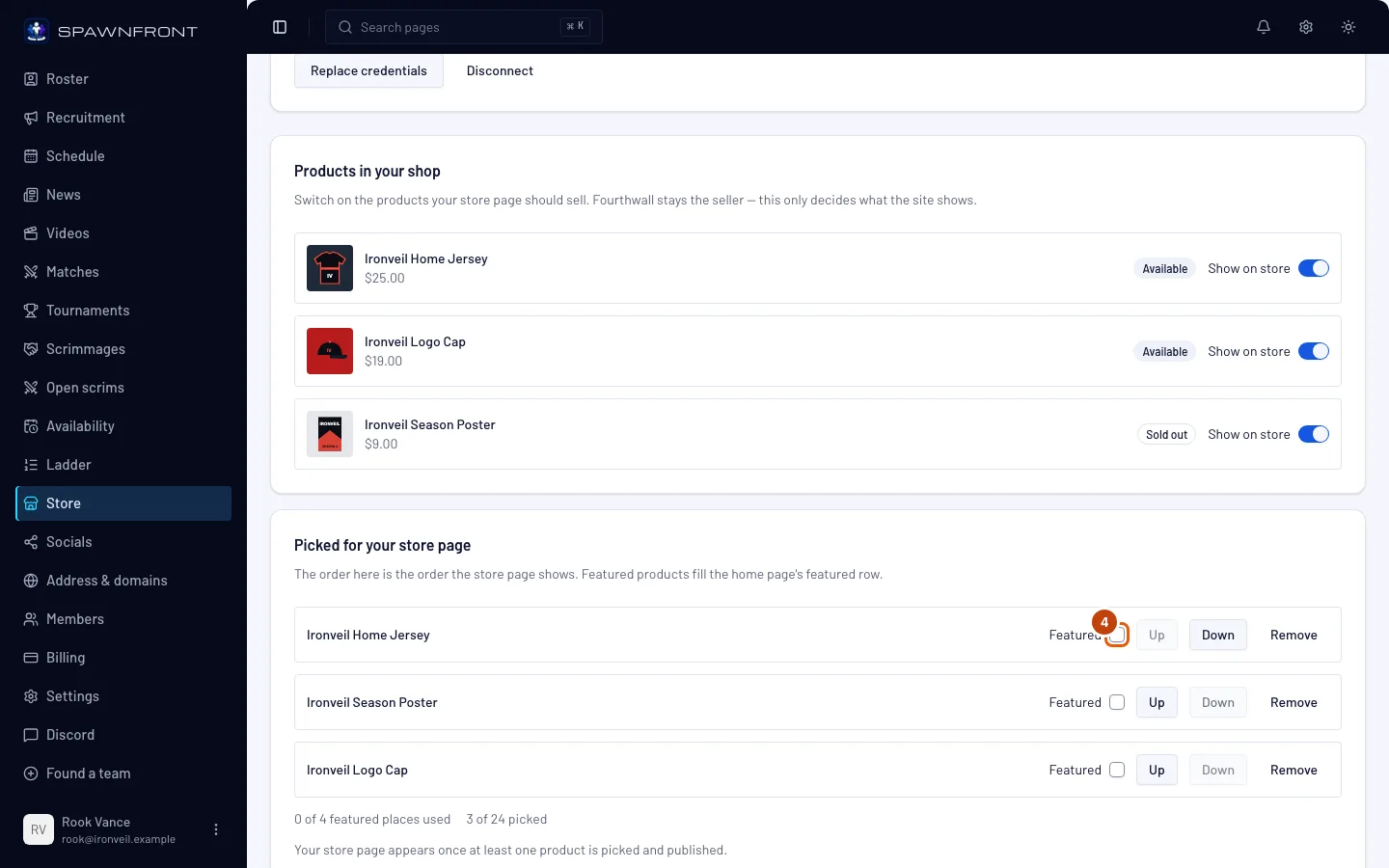
Tick Featured beside a picked product.
You should see: the count under the list go up, for example "1 of 4 featured places used". Featured products fill the Featured row on your site's home page, in the order of your list. Up to four can be featured — once four are ticked, the other boxes gray out until you untick one.
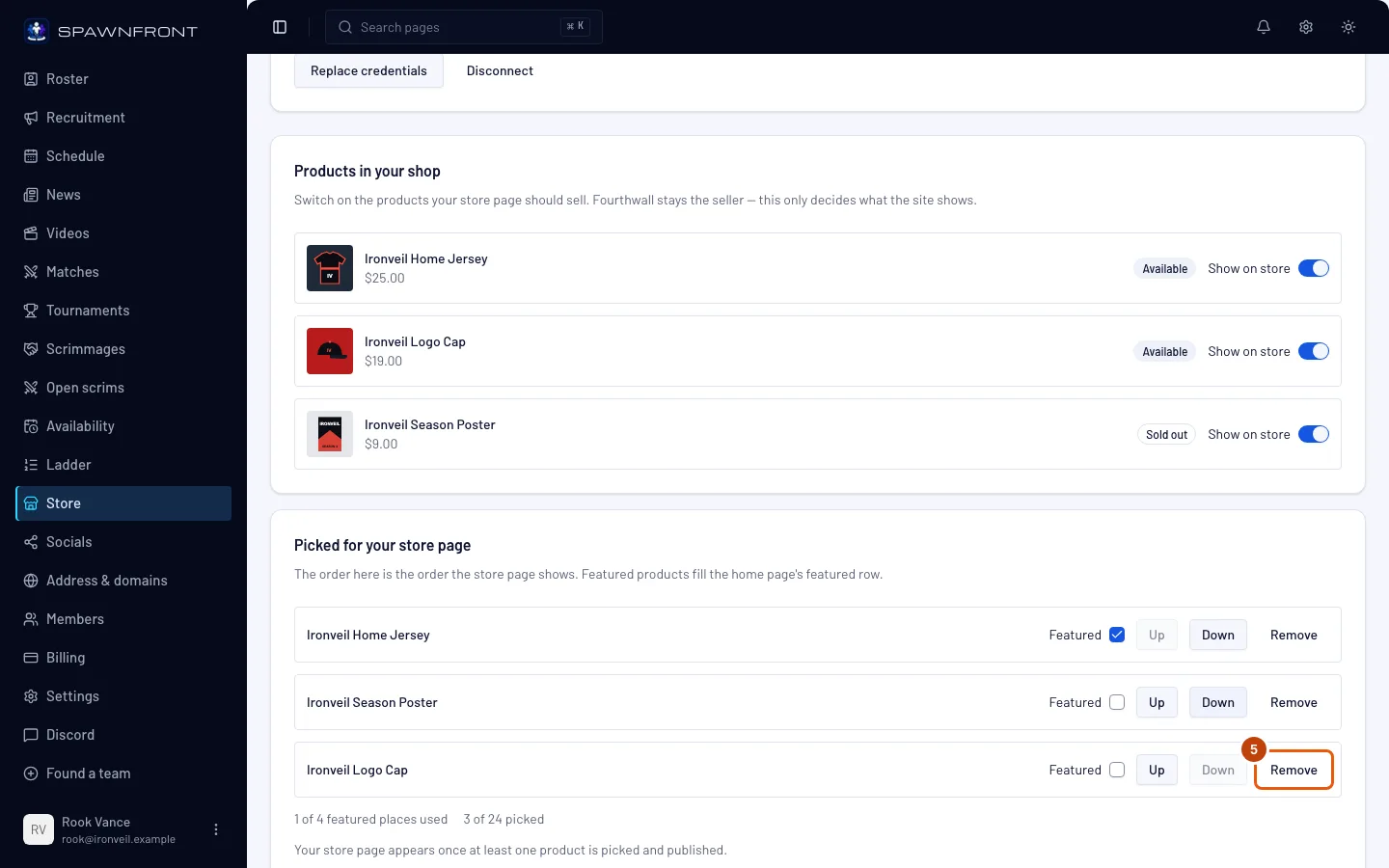
Step 5: Remove a pick
Press Remove beside a picked product you no longer want to sell on your site.
You should see: the product leave the list, and its Show on store switch turn off. A product marked No longer in your shop isn't in your shop's list any more — Remove is the only way to take it off. Your site already skips it.
Step 6: Save your picks
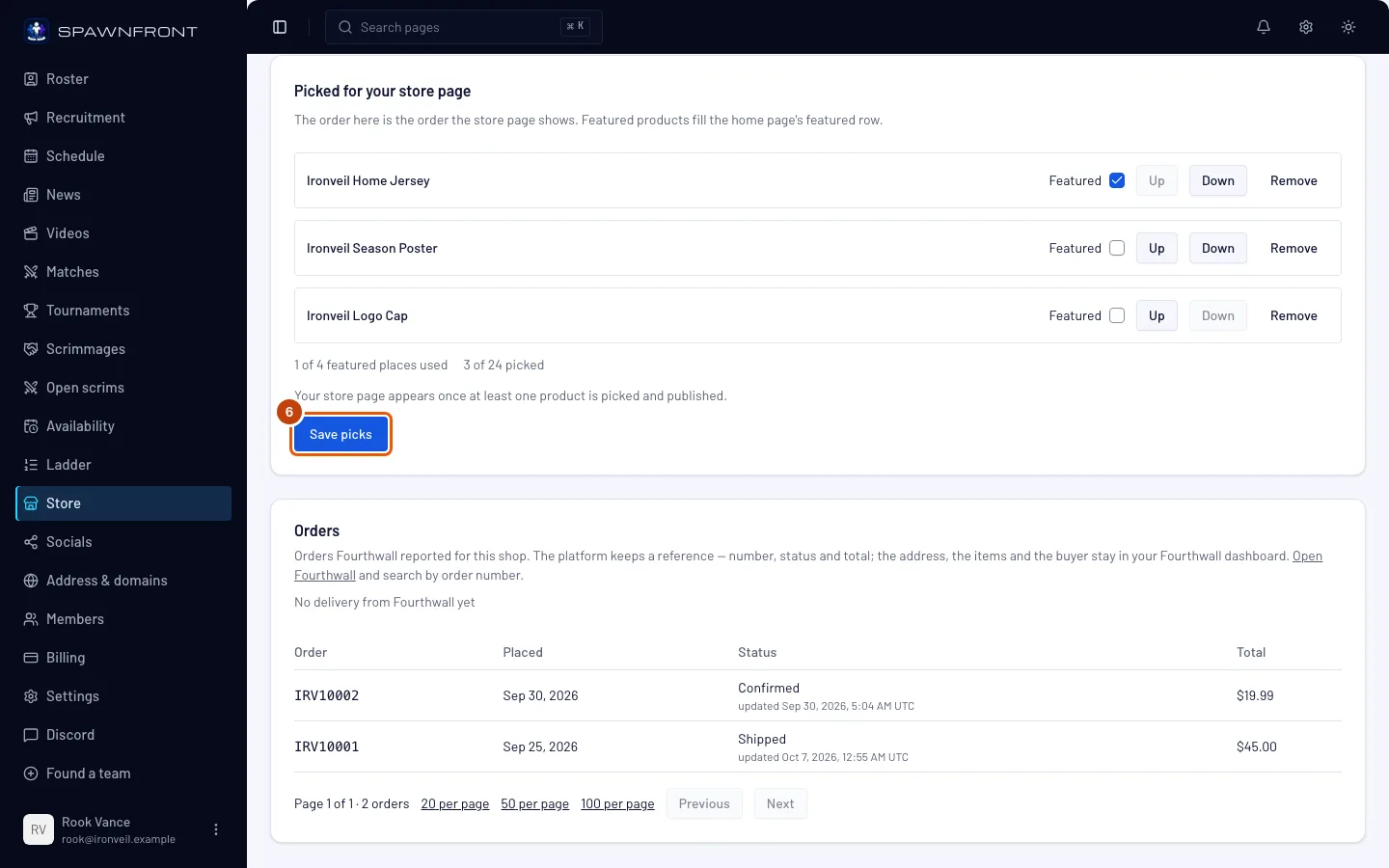
Press Save picks. It only works once you've changed something.
You should see: "Picks saved". Your changes are a draft — visitors still see your old list until you publish (next step).
Step 7: Publish your site
Press Publish in the sidebar, then Publish on the page, then Publish now in the box that opens. Publish your site walks through it.
This is the step that puts your new picks on your site.
You should see: Everything is live.
How to know it worked
- Your site's Store page lists the products you picked, in your order.
- Your home page's Featured row shows the products you ticked.
- To take the store off your site but keep your shop connected, turn every product off, save, and publish — Store leaves your site's menu once no product is picked.
Something doesn't look right?
Save picks is grayed out
Nothing has changed since your last save. Change a pick, its place or its Featured tick and the button comes back. If every control on the page is grayed out, your site subscription has lapsed and the page is read-only — see Manage your billing.
I can't tick Featured on another product
Four products are already featured. Untick one first (step 4).
A pick says "No longer in your shop"
Fourthwall no longer lists that product — it was removed or hidden there. Your site already leaves it out. Press Remove (step 5), then Save picks and publish.
The page says it could not refresh your shop's products
Fourthwall didn't answer just then. The products you already picked are still listed and can be reordered, featured or removed. Reload the page in a few minutes to see your shop's full list again.
My site still shows the old products
Your picks reach visitors only when you publish. Press Publish after saving (step 7).
Related articles
Still stuck? Contact support or email support@spawnfront.com — tell us the page you're on and the step number.