
Disconnect or replace your shop
Swap in new Fourthwall credentials or a different shop, or disconnect it — and what stays when you do.
For team owners and admins · 5 steps
What you need first
- Your team has a site subscription, and a Fourthwall shop is connected. If it isn't, see Open your team's store.
- You are the team's owner or an admin.
- To replace the connection, have your shop's storefront token, checkout domain and webhook secret ready from the shop's developer settings on Fourthwall.
Steps
Step 1: Open Store
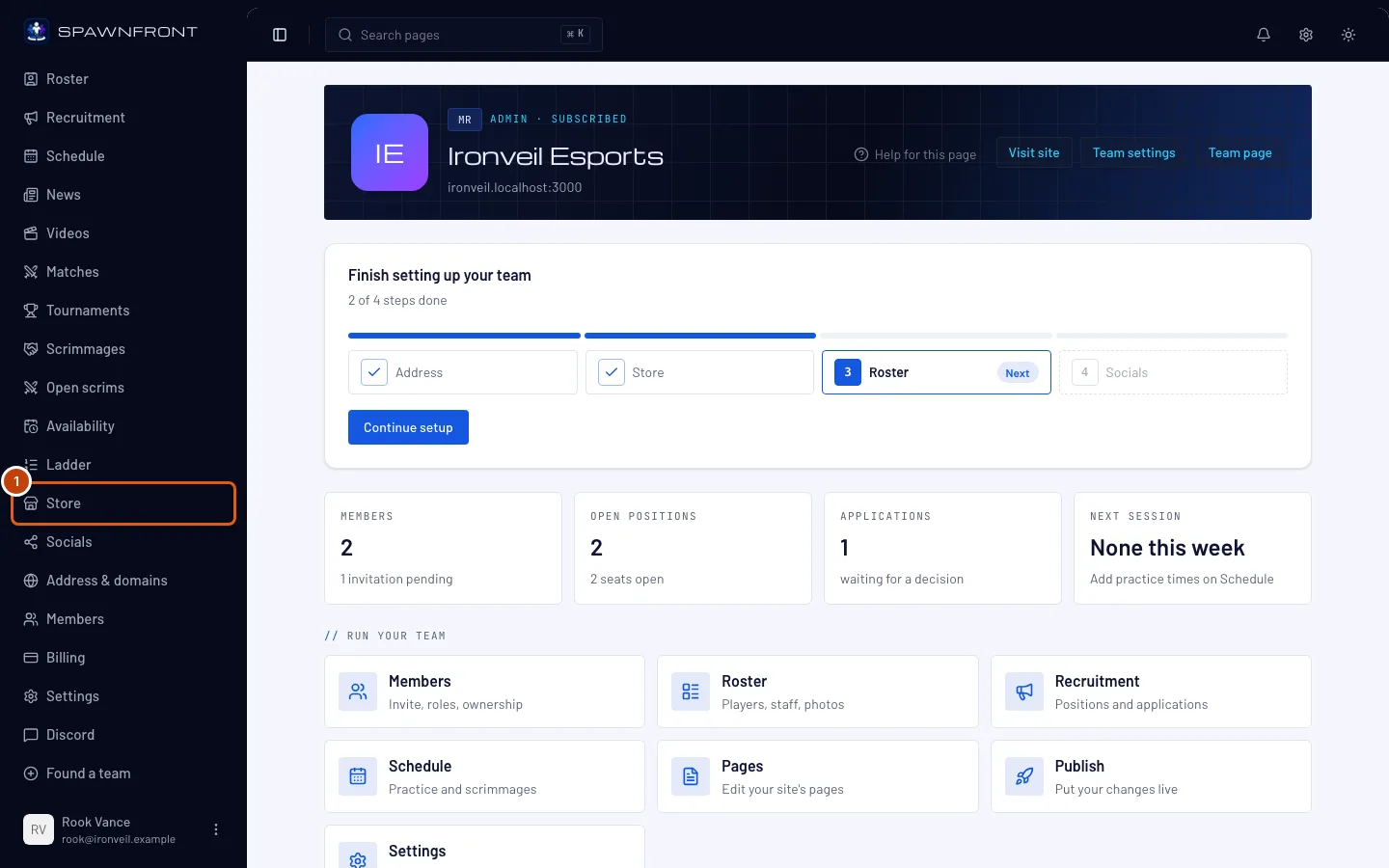
In your team's admin, press Store in the sidebar.
You should see: a card naming your shop, with the last four characters of its storefront token, its checkout domain and its Webhook address.
Step 2: Open Replace credentials
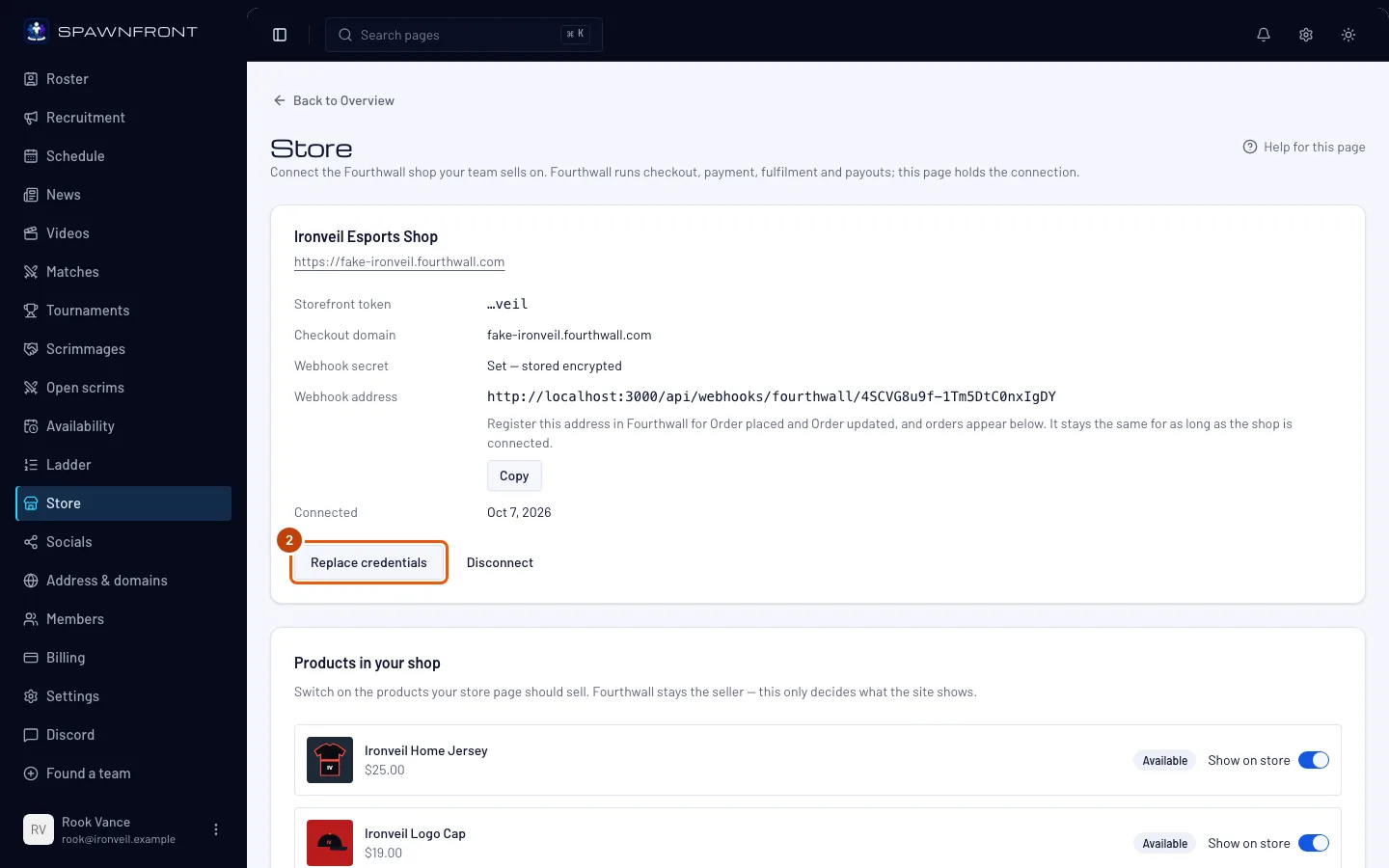
To switch to a new token, a new webhook secret or a different shop, press Replace credentials under your shop's card. To stop selling on your site instead, go to step 4.
You should see: the Storefront token, Checkout domain and Webhook secret fields, empty, below the card.
Step 3: Paste the new values and press Replace
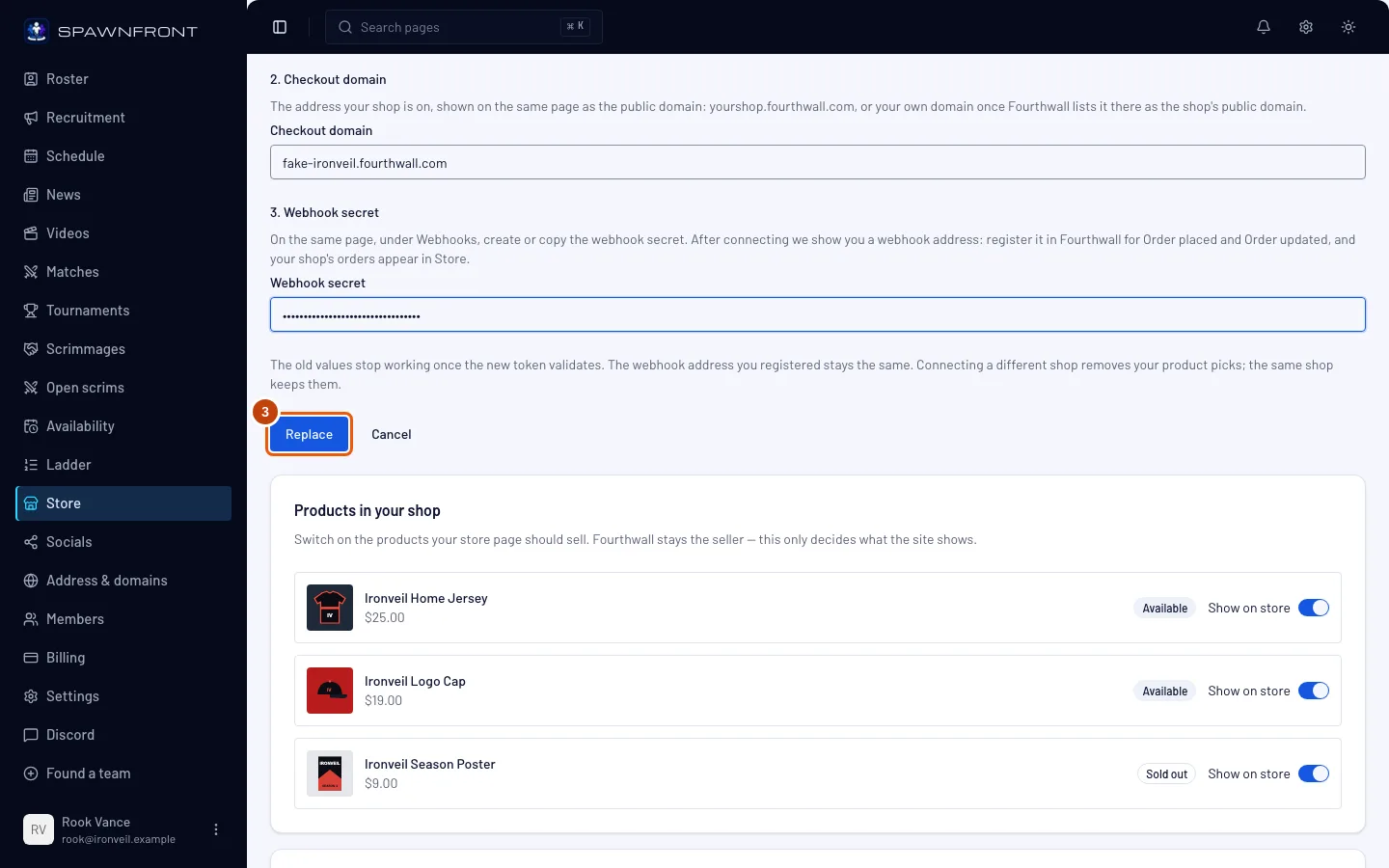
Paste the three values into their fields, then press Replace. To back out, press Cancel.
You should see: "Shop connected", and the card showing the new token's last four characters. What stays the same:
- The webhook address you registered in Fourthwall stays the same — you don't need to change it there.
- Orders already recorded stay on this page.
- Your picked products stay if the token is for the same shop. A token for a different shop removes all your picks the moment you press Replace — the note above the button is the only warning. Until you pick and publish again, your site's Store shows none of the old shop's products. Pick the new shop's products and publish again (Change what your store sells).
If Fourthwall refuses the new values, nothing changes: your old connection keeps working.
Step 4: Press Disconnect
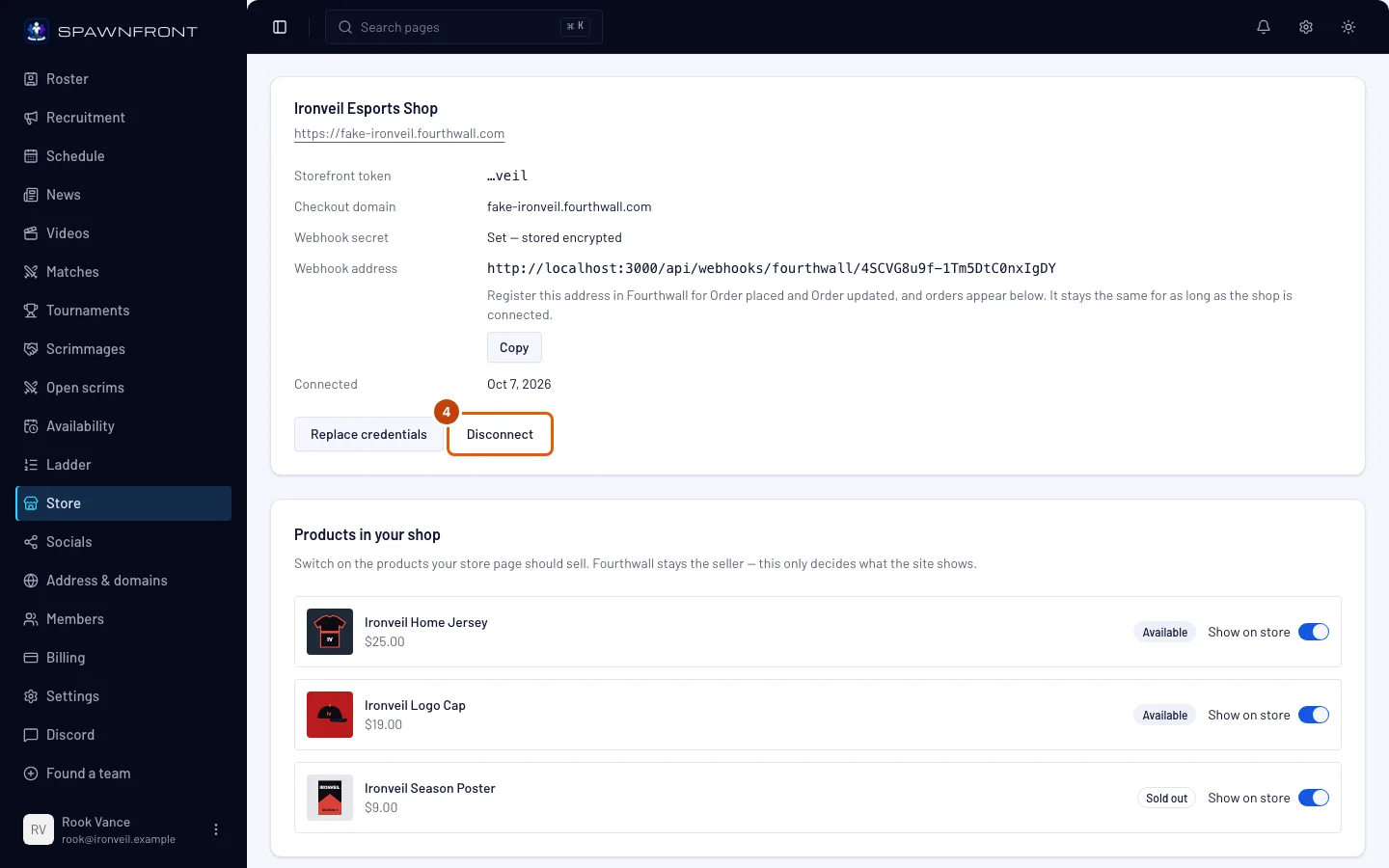
To stop selling through your site, press Disconnect under your shop's card.
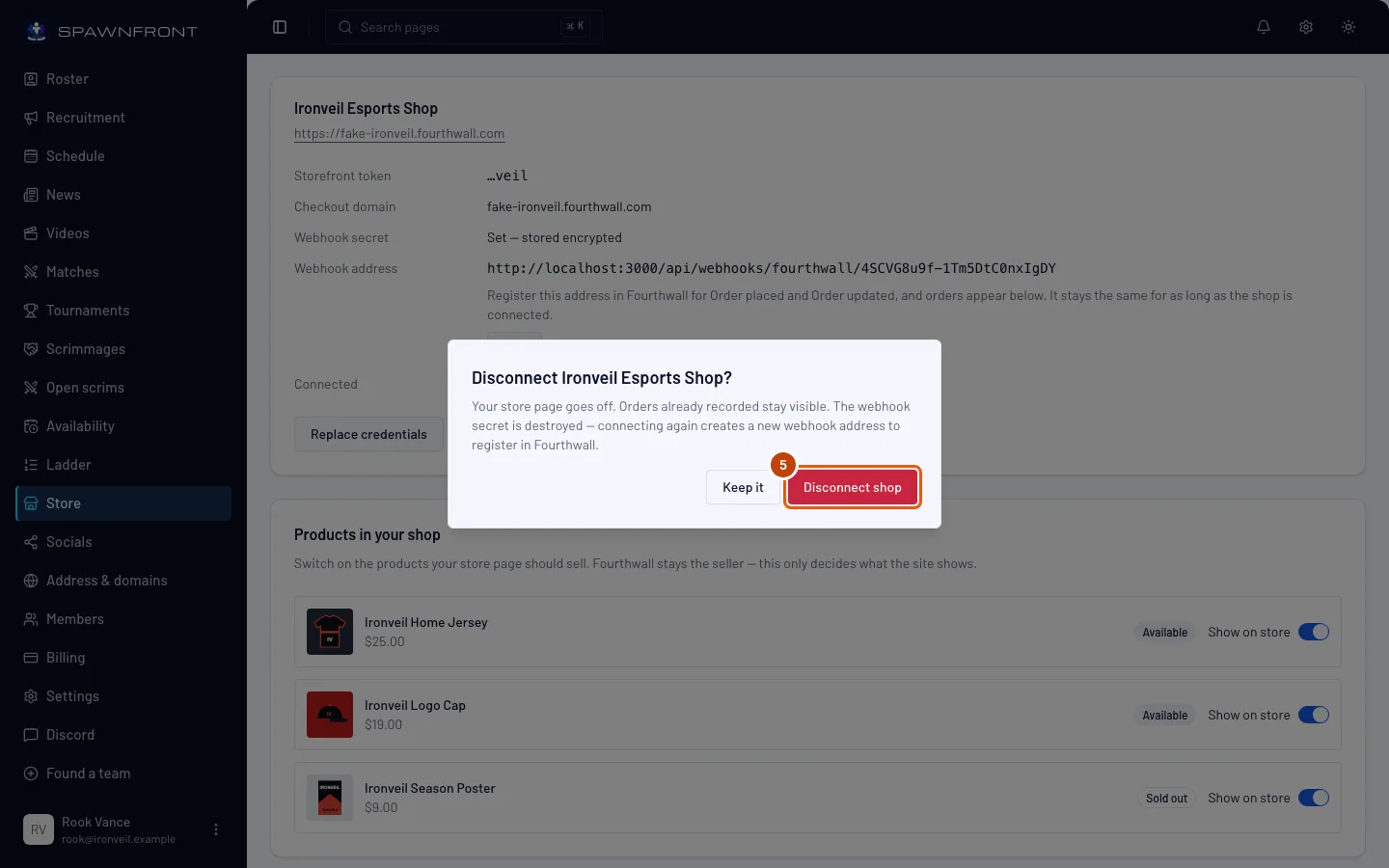
You should see: a box titled Disconnect followed by your shop's name.
Step 5: Confirm with Disconnect shop
Read the box, then press Disconnect shop. To back out, press Keep it.
You should see: "Shop disconnected", and the three connect fields in place of your shop's card. What happens:
- Store and the cart leave your site's menu straight away — you don't need to publish. The Featured row on your home page goes too.
- Orders already recorded stay on this page.
- Your picks are kept for thirty days. Connect the same shop again within that time and they come back; after that they are deleted.
- The webhook secret is deleted, and the webhook address stops working. Connecting again gives you a new address to register in Fourthwall. Delete the old webhook in your shop's developer settings on Fourthwall.
- Nothing changes on Fourthwall itself: your shop, products and orders stay there.
How to know it worked
- After replacing: the card shows the new token's last four characters, and the Webhook address is the one you had before.
- After disconnecting: the Store page shows the connect fields again, and your site's menu has no Store.
Something doesn't look right?
Replace says "We could not read a shop with that token"
Paste the storefront token from your shop's developer settings — it starts with ptkn_. Nothing changed: your old connection still works.
Replace says the checkout domain is not this shop's
The message names the domain Fourthwall lists for the shop your token belongs to. Paste that domain, or check that you copied the token from the right shop.
My picks disappeared after I replaced my credentials
The new token belongs to a different shop, so the old shop's picks were removed. Pick products again and publish (step 3).
New orders stopped appearing after I reconnected
Disconnecting deletes the old webhook address. Copy the new Webhook address from your shop's card and register it in Fourthwall for Order placed and Order updated.
It says "Too many attempts to connect a shop this hour"
A team can try to connect or replace a shop ten times an hour. Wait, then try again.
Replace credentials and Disconnect are grayed out
Your site subscription has lapsed, so the page is read-only. See Manage your billing.
Related articles
Still stuck? Contact support or email support@spawnfront.com — tell us the page you're on and the step number.