
Style your news covers
Choose what a news card keeps in view of your cover, and how the title stays readable over it, with a live card to check.
For team owners and admins · 9 steps
What you need first
- Your team is on Team Pro or Organization: images in news posts come with them. On the Team plan, Cover image stays locked. A free team's admin shows Get a site instead of News.
- You are the team's owner or an admin.
- You have chosen a template — see Choose a template. Until you do, the card preview can't be drawn.
Steps
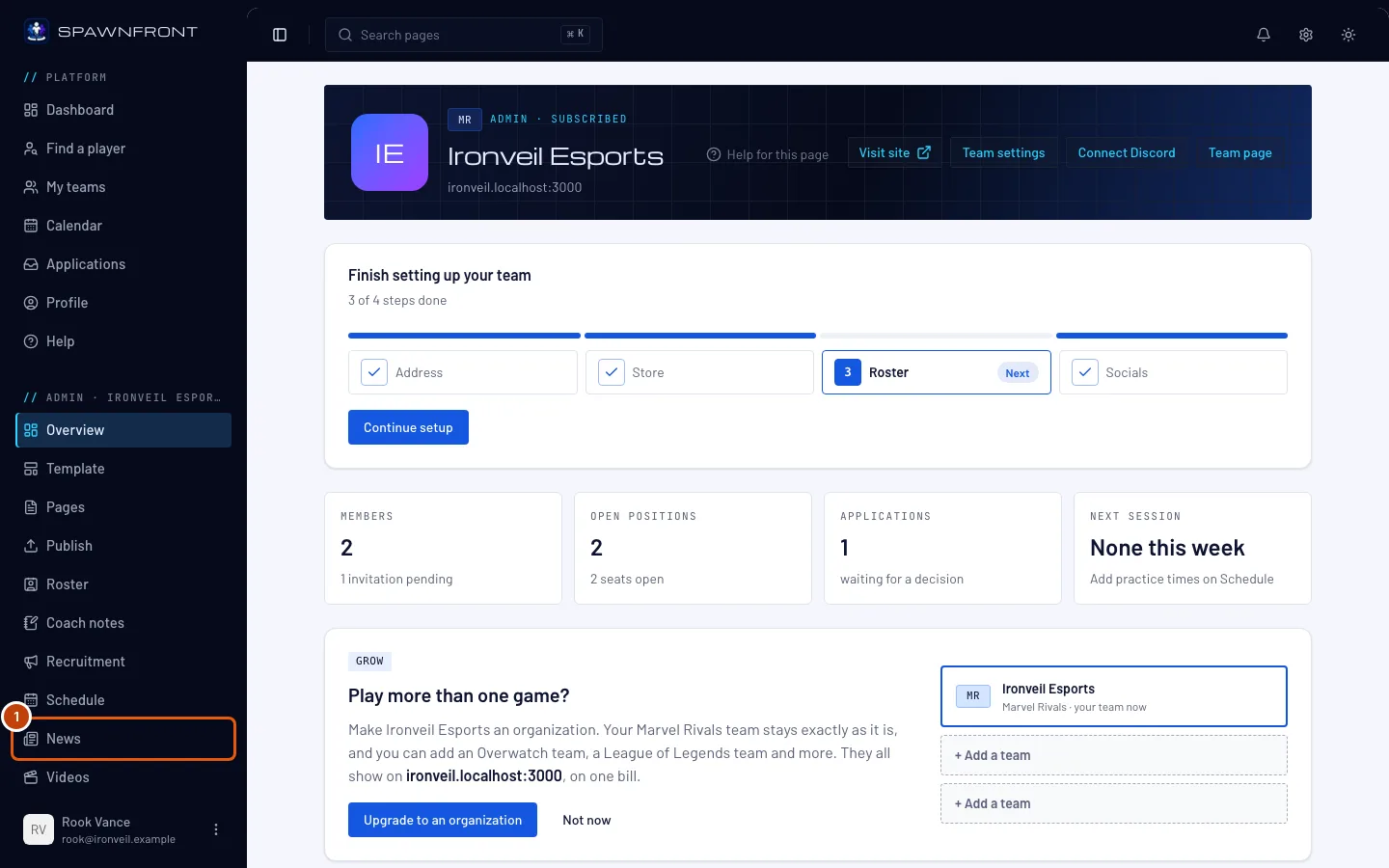
Step 1: Open News
In the menu on the left, press News.
You should see: a page titled News, listing your articles newest first.
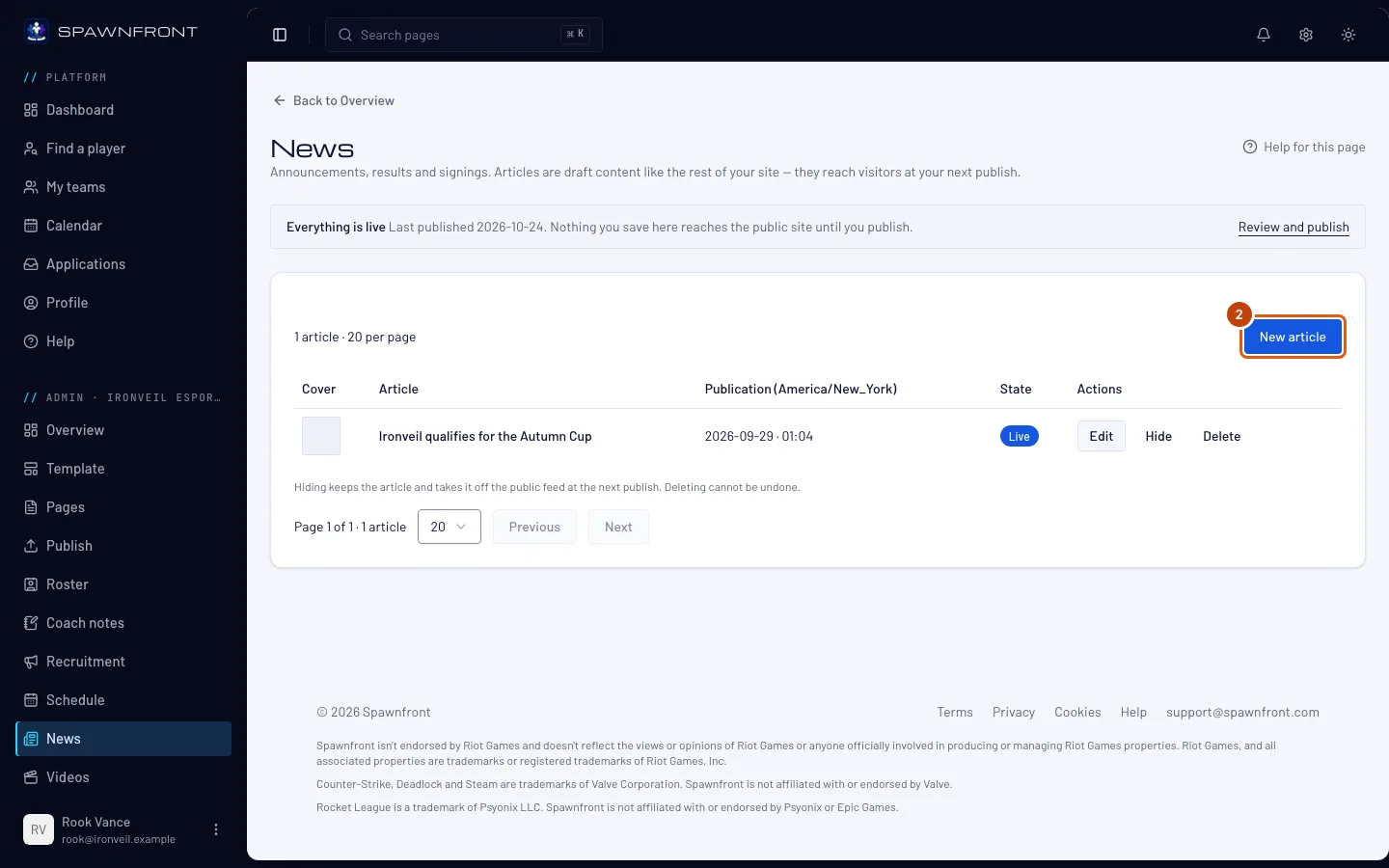
Step 2: Open an article
Press an article's title to open it, or press New article and write one — see Write a news article.
You should see: the article's form, with Cover image under the publication date.
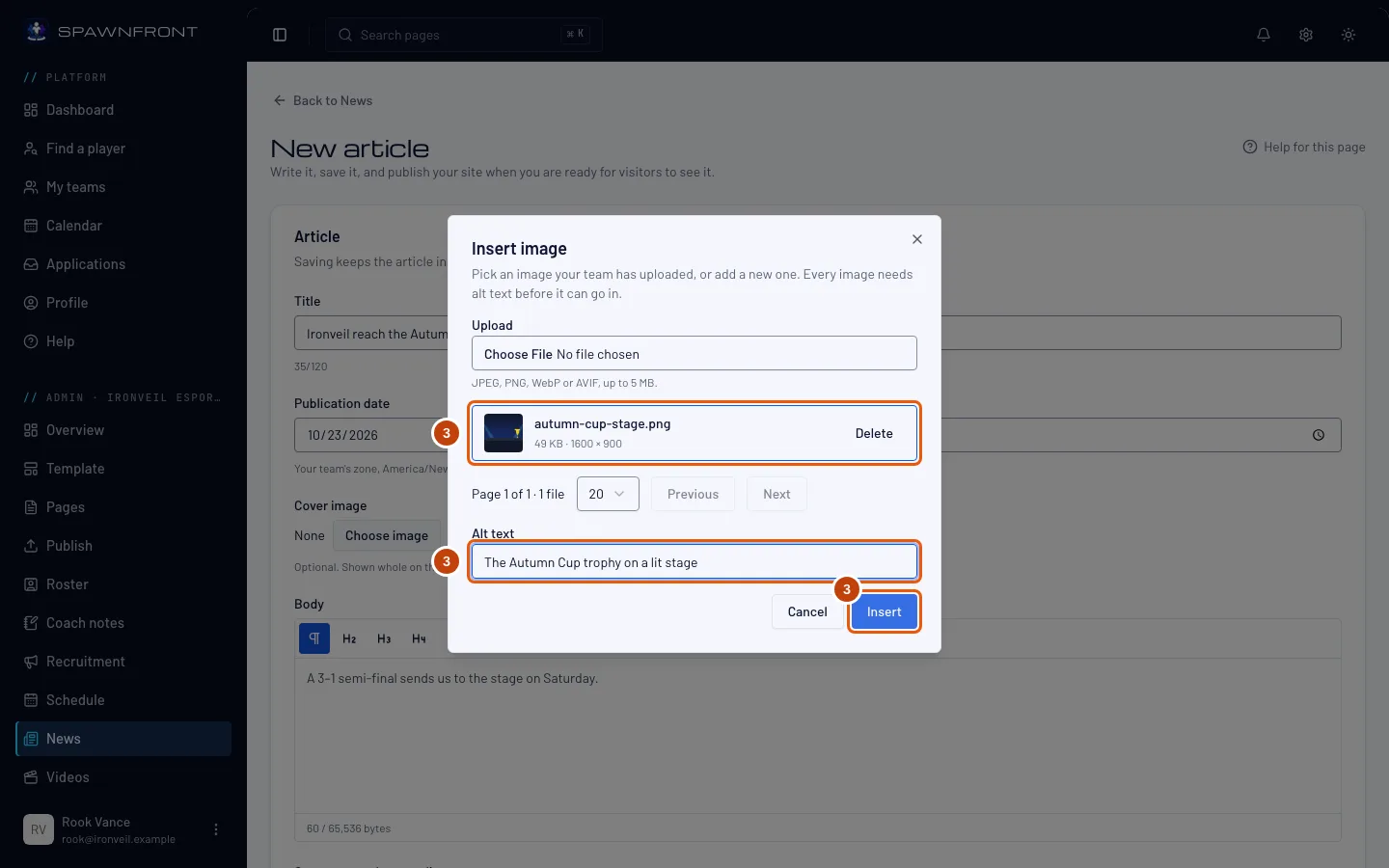
Step 3: Choose a cover
Under Cover image, press Choose image (it reads Replace once a cover is set). In the box that opens, pick an image your team has already uploaded, or add one with Upload. Type the Alt text, then press Insert.
A cover is optional. Without one, the article keeps the usual layout and the steps below don't appear.
You should see: the cover under Cover image, with a dot in its middle, and Title over the image below it.
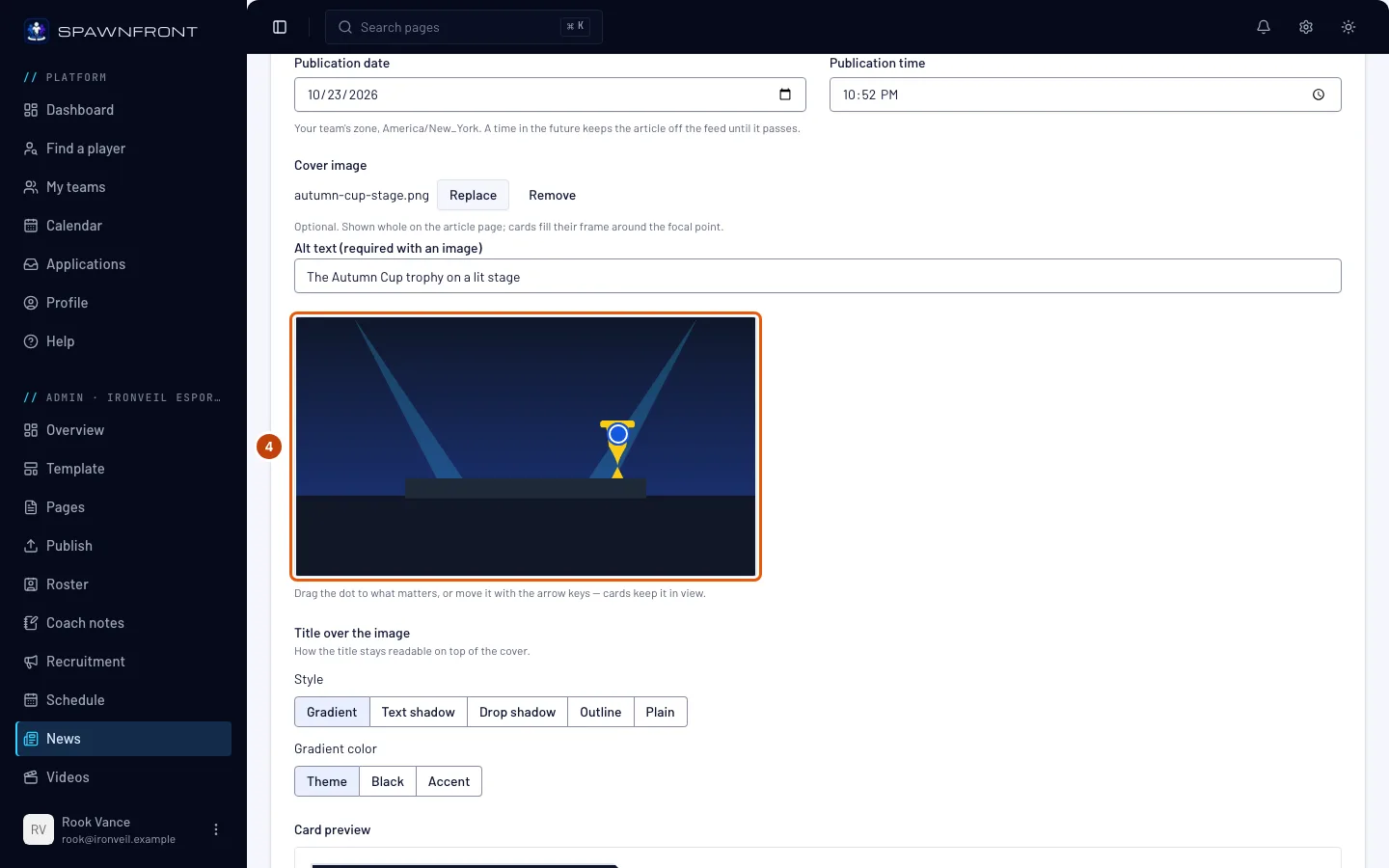
Step 4: Set the focal point
Drag the dot onto what matters most in the picture — a face, a trophy, a logo. Or press the dot and use the arrow keys: each press moves it 5%.
The dot chooses what your news cards keep in view. A card has its own shape, so it fills its frame from your cover and keeps the dot's spot visible. The article's own page always shows the whole cover.
You should see: the dot where you put it, and the Card preview below follow it.
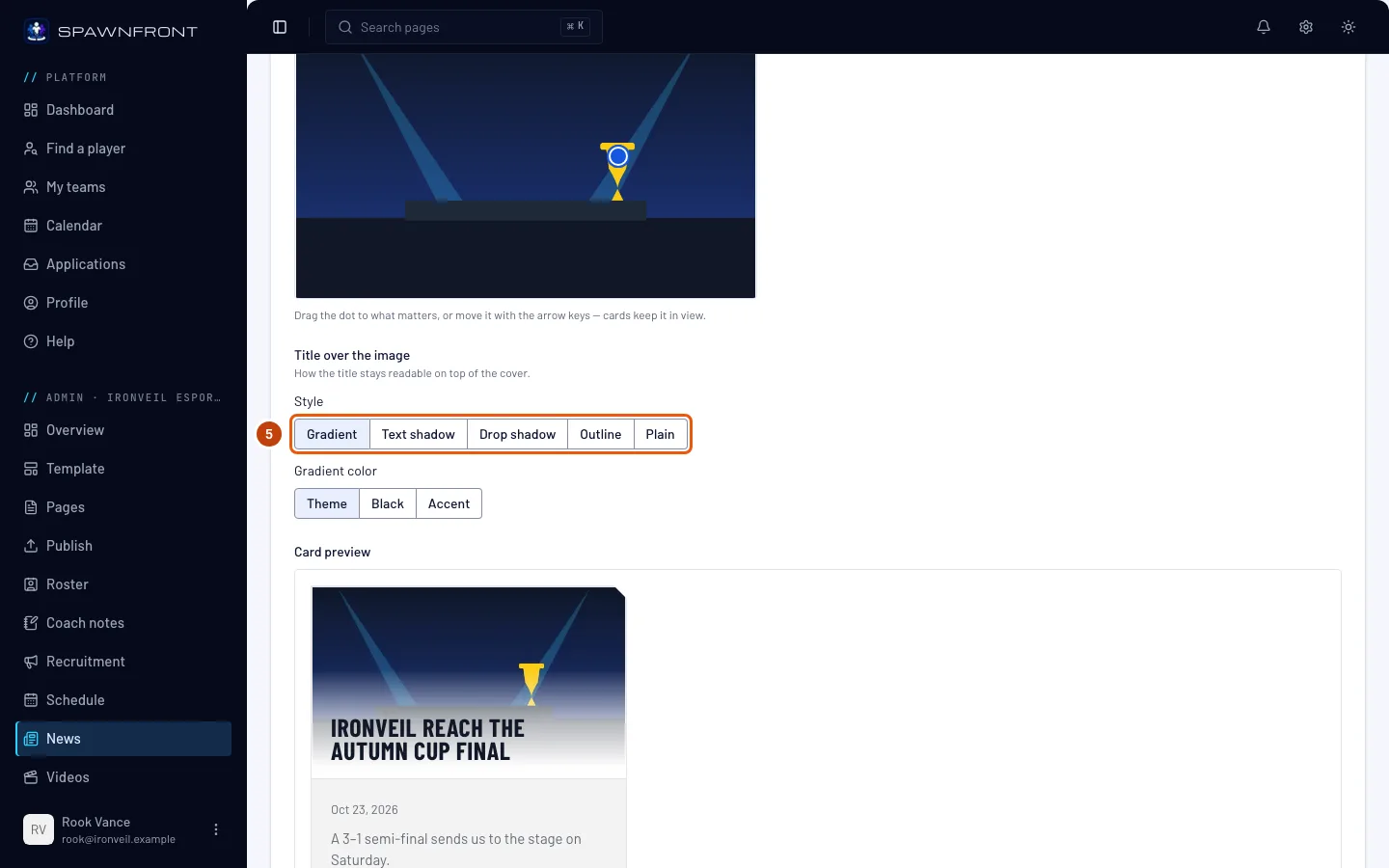
Step 5: Choose a title style
Under Style, press Gradient, Text shadow, Drop shadow, Outline or Plain.
The title is set over the cover, and the style is how it stays readable: Gradient (the one you start with) darkens the bottom of the picture, Text shadow and Drop shadow put a shadow behind the letters, Outline draws a dark edge around them, and Plain adds nothing.
You should see: the card preview's title in that style.
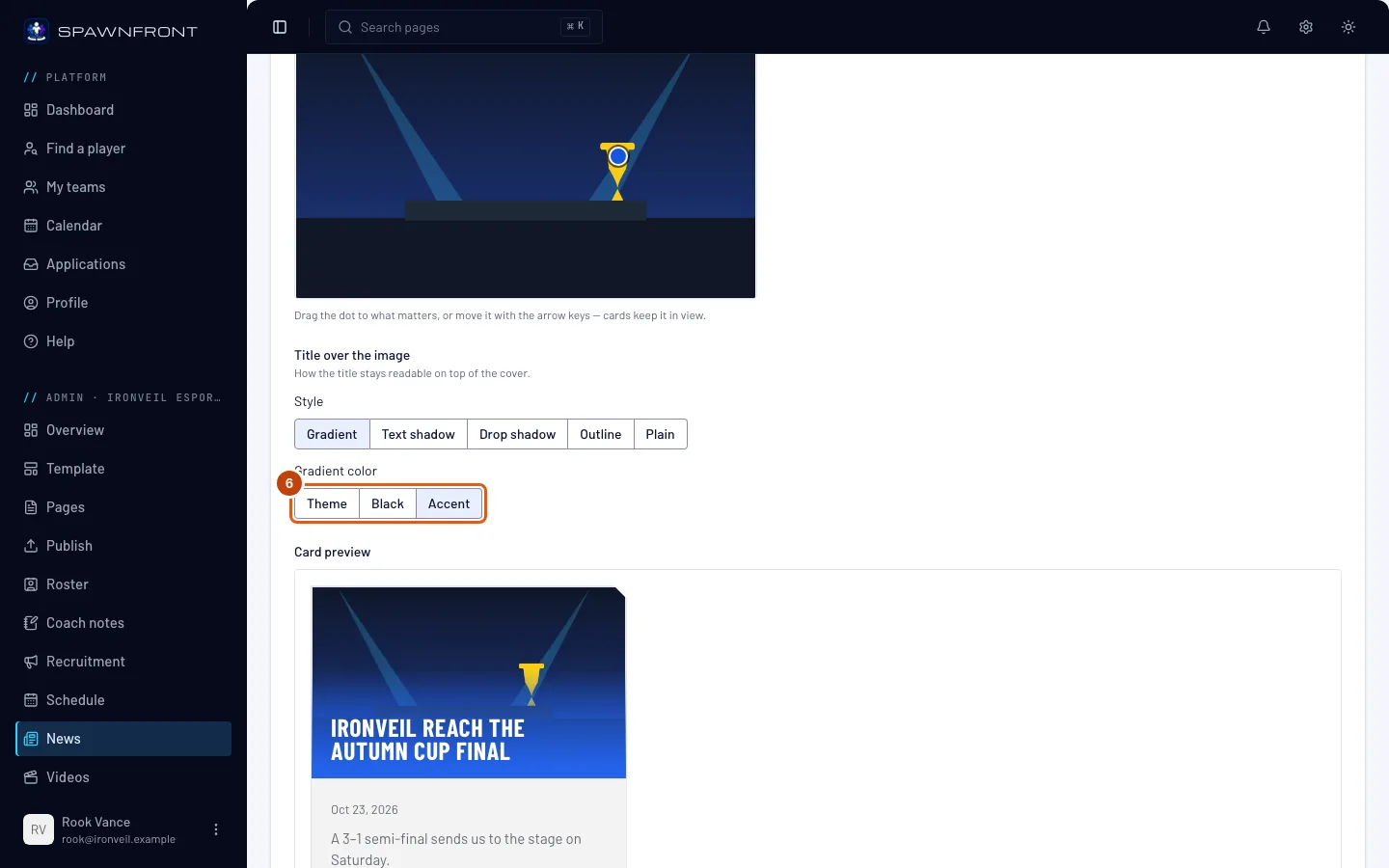
Step 6: Choose the gradient color
With Gradient chosen, press Theme, Black or Accent under Gradient color.
Gradient color only shows for the Gradient style. Theme and Accent follow your colors in Appearance.
You should see: the card preview's gradient in that color.
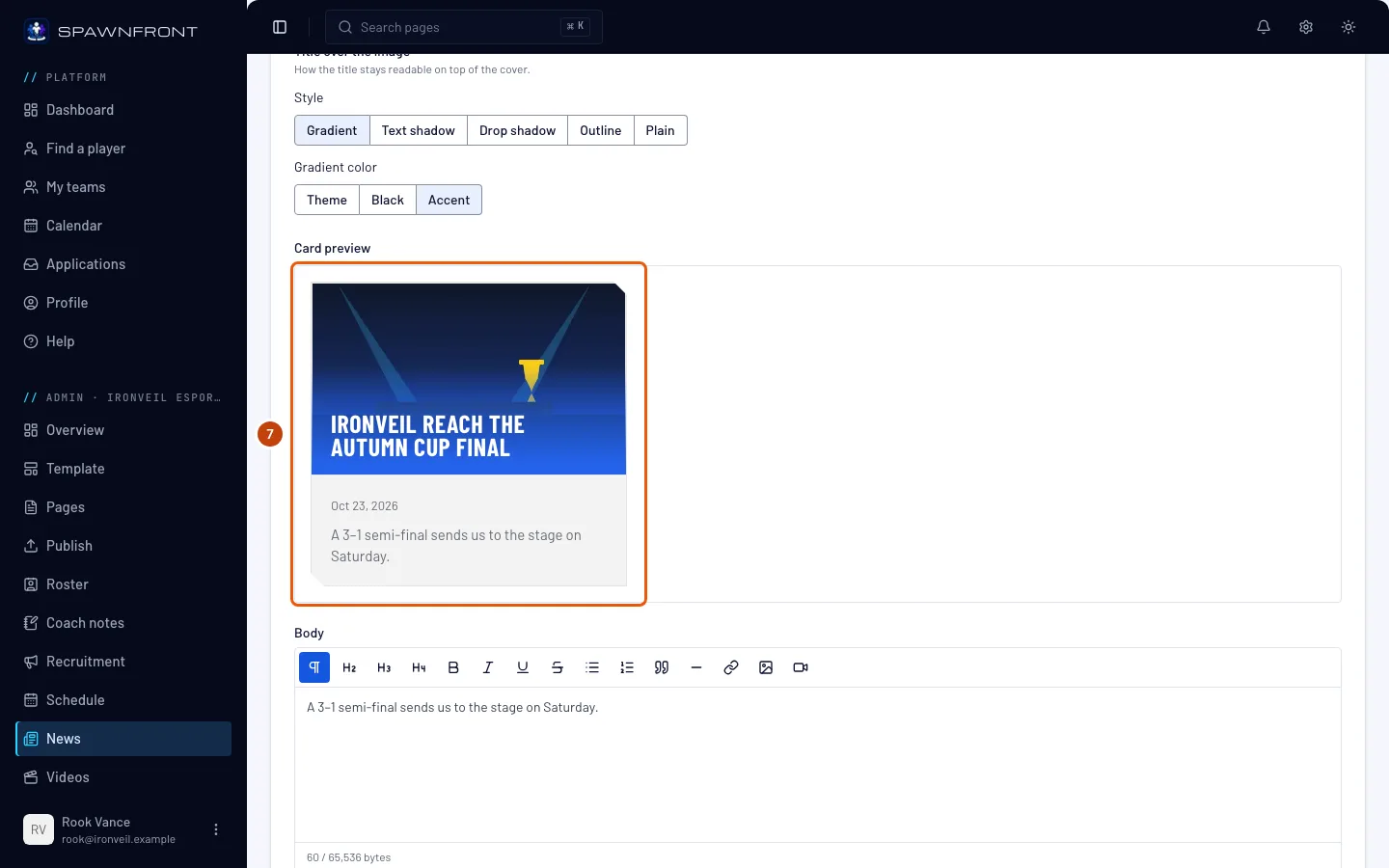
Step 7: Check the card
Look at Card preview, below the title style. It is the news card your site shows, drawn in your template, with your cover, focal point and title style.
You should see: your title over the cover, readable.
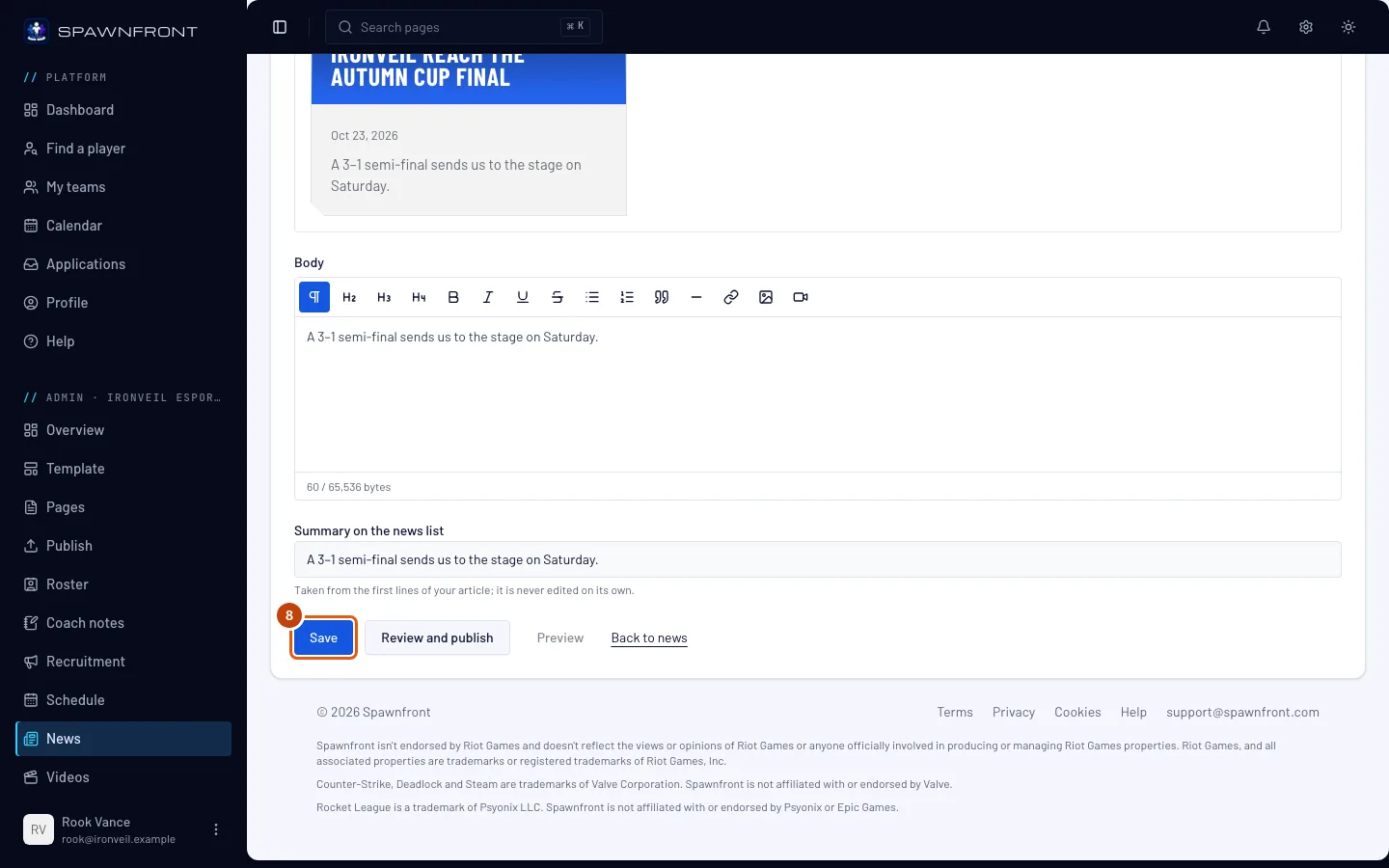
Step 8: Save
Press Save.
Saving keeps the article in your draft — visitors don't see it yet.
You should see: the article open on its own page, with the cover and its style kept.
Step 9: Publish your site
Press Review and publish. It saves the article and opens the Publish page, where you publish your whole site — see Publish your site.
You should see: after you publish, your news cards with the cover and the title over it, and the article's page showing the whole cover with the title over its lower part.
How to know it worked
- Your site's news list shows the card as the preview did.
- The article's page shows the whole cover, nothing cut off, with the title over it.
Something doesn't look right?
The card cuts off the part of my cover I wanted
Move the dot onto that part (step 4), save, and publish again. The card keeps the dot's spot in view.
I can't find the focal point or the title style
They only appear once the article has a cover. Choose one first (step 3).
Gradient color has gone
It only shows while Gradient is the style. Press Gradient under Style to bring it back.
My title is hard to read on the card
Pick a stronger style: Gradient with Black, or Outline, usually reads best over a busy picture. Then save and publish.
I saved, but my site hasn't changed
Saving keeps the article in your draft. Open Publish in the menu and publish your site (step 9).
Related articles
Still stuck? Contact support or email support@spawnfront.com — tell us the page you're on and the step number.