
Read your coaches' feedback
Read the notes your team's coaches shared with you, on your team's page, where only you can see them.
For team members · 3 steps
What you need first
- You are a member of the team, and your entry on its roster is linked to your account. A coach can write about your entry before it is linked; you see what they shared once it is.
- Your team's owners, admins or coaches have shared at least one note with you. Notes they keep private never reach you, and with nothing shared the section is not on the page.
Steps
Step 1: Open your team's page
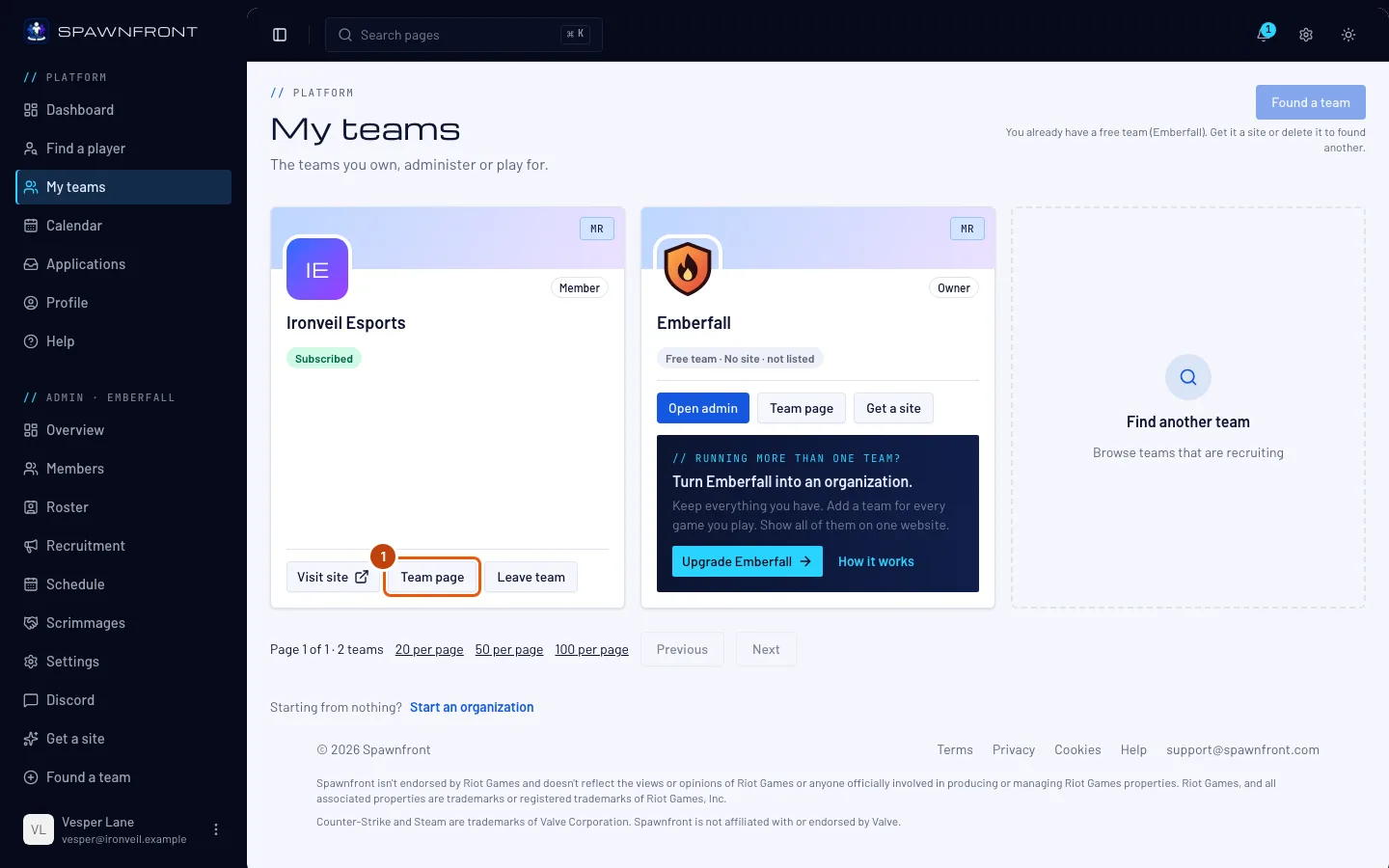
In the sidebar, press My teams, then Team page on your team's card. The notice … shared a note with you under the bell opens the same place.
You should see: your team's page, with Feedback from your coaches near the top.
Step 2: Read the notes
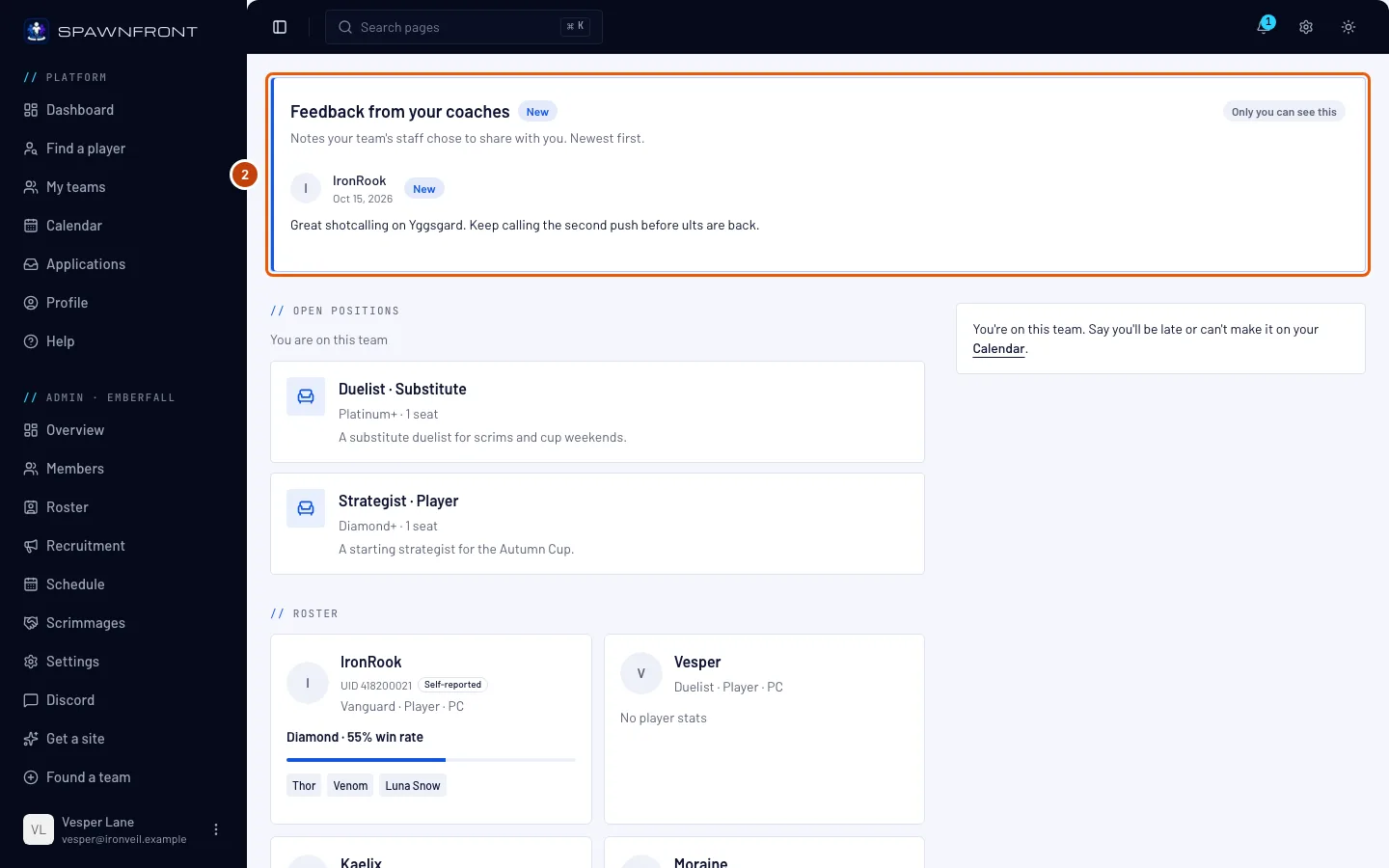
Read the section Feedback from your coaches. It shows the notes shared with you, newest first, each with who wrote it and the day it was shared. A note shared since your last visit reads New; one changed after it was shared reads Edited.
Only you can see this section. Your teammates never see the notes shared with you.
You should see: Only you can see this beside the heading, and your notes under "Notes your team's staff chose to share with you. Newest first."
Step 3: See older notes
With more than twenty notes, press Next under the list to read older ones, or show 50 or 100 at a time.
You should see: the next notes, and the page you're on under the list.
How to know it worked
- The notes shared with you are under Feedback from your coaches.
Reading a note tells its author you saw it. Once a note has been on your screen, the coach sees Seen with the date. You can read a note, never answer it — talk to your coach as you normally do.
Something doesn't look right?
I got the notice but I don't see the note
Your coach may have made it private again, or removed you from the roster. Ask them to check the note says Shared with you.
My coach says they shared a note but I have no Feedback from your coaches section
Your roster entry must be linked to your account. Ask an owner or admin to check your entry on the team's Roster page.
Related articles
Still stuck? Contact support or email support@spawnfront.com — tell us the page you're on and the step number.