
Use your own checkout address
Send buyers to your own domain at checkout: set it up on Fourthwall, then replace your shop's checkout domain.
For team owners and admins · 6 steps
Your checkout domain is the address your shop runs on at Fourthwall. When a buyer presses Checkout in your site's cart, Spawnfront sends them to that address to pay. Usually it is your shop's Fourthwall address, such as yourshop.fourthwall.com; this article moves it to a domain of your own, such as shop.yourteam.com.
What you need first
- Your team has a site subscription, and your Fourthwall shop is connected on the Store page. If it isn't yet, follow Open your team's store first.
- You are the team's owner or an admin.
- You own the domain you want to use and can change its settings where you bought it.
- You can open your shop's developer settings on Fourthwall (Settings → For developers). You will paste your storefront token and webhook secret again — Spawnfront never shows the saved ones back.
Steps
Step 1: Set up your domain on Fourthwall
In your shop's dashboard on Fourthwall, add your own domain to the shop and finish the steps Fourthwall gives you there. This happens on Fourthwall's own site, not in Spawnfront — see Fourthwall's help center and search for "custom domain".
Wait until Fourthwall lists your domain as the shop's public domain on the developer settings page. Spawnfront asks Fourthwall which address your shop is on, and refuses any other.
You should see: your shop opening at your own domain.
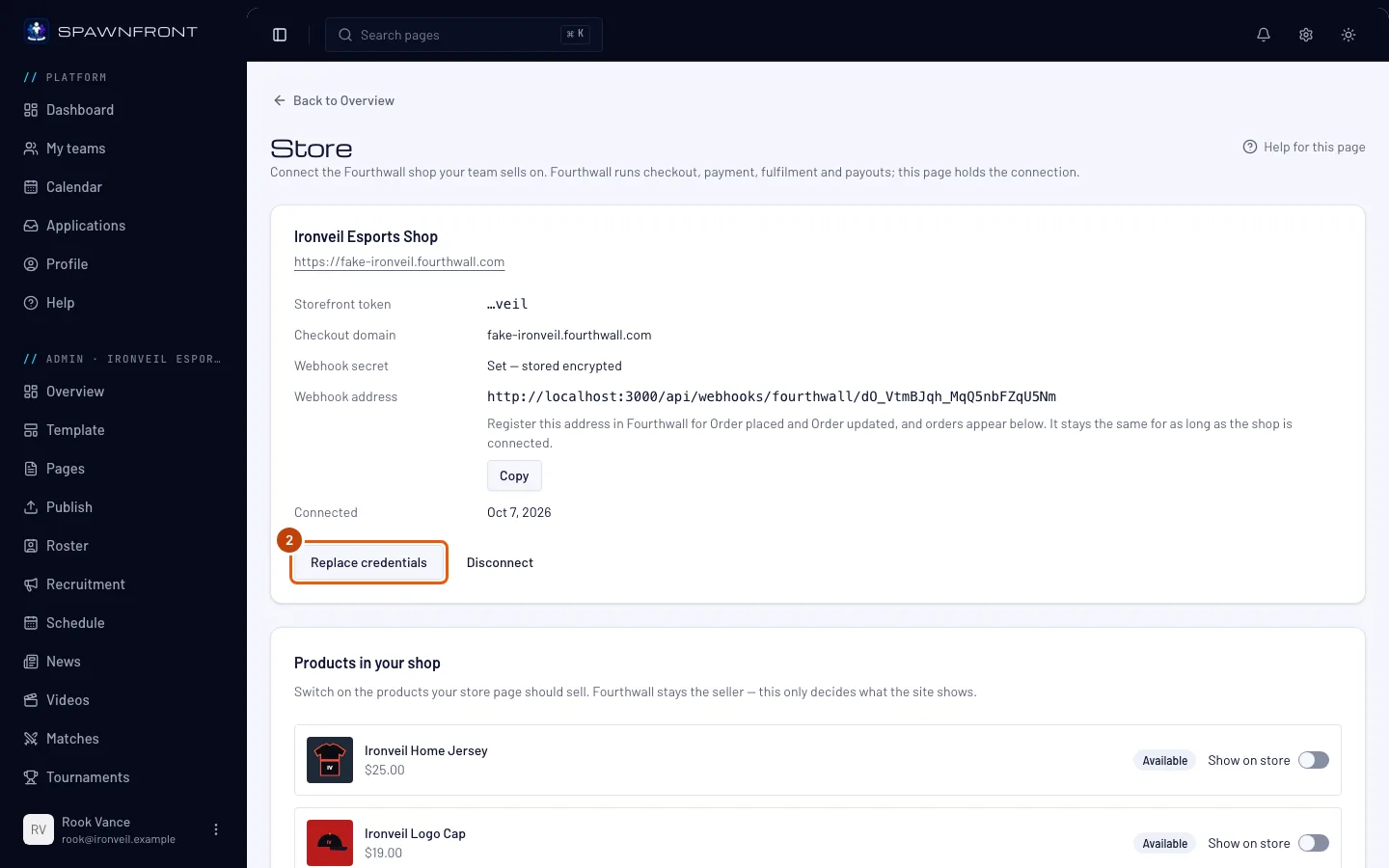
Step 2: Open Replace credentials
In Spawnfront, press Store in your team's admin, then Replace credentials at the bottom of the card that names your shop.
You should see: the three fields — Storefront token, Checkout domain and Webhook secret — below the card, empty.
Step 3: Paste your storefront token
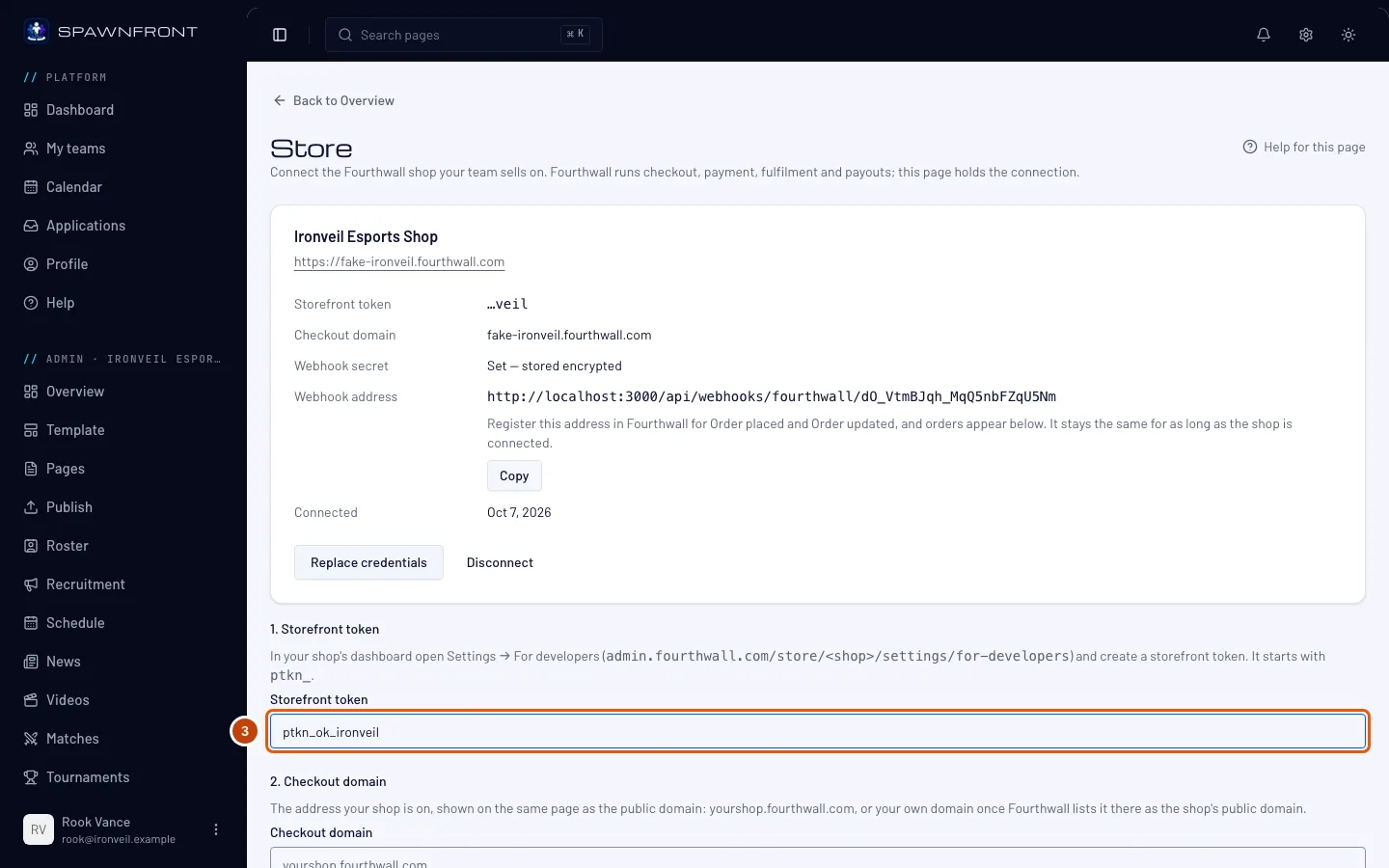
Copy the storefront token from your shop's developer settings on Fourthwall and paste it into Storefront token. It starts with
ptkn_.Every field must be filled, even the ones you aren't changing. An empty one stops the form with "Paste the storefront token first" (or the checkout domain, or the webhook secret).
You should see: the token in the field.
Step 4: Enter your own checkout domain
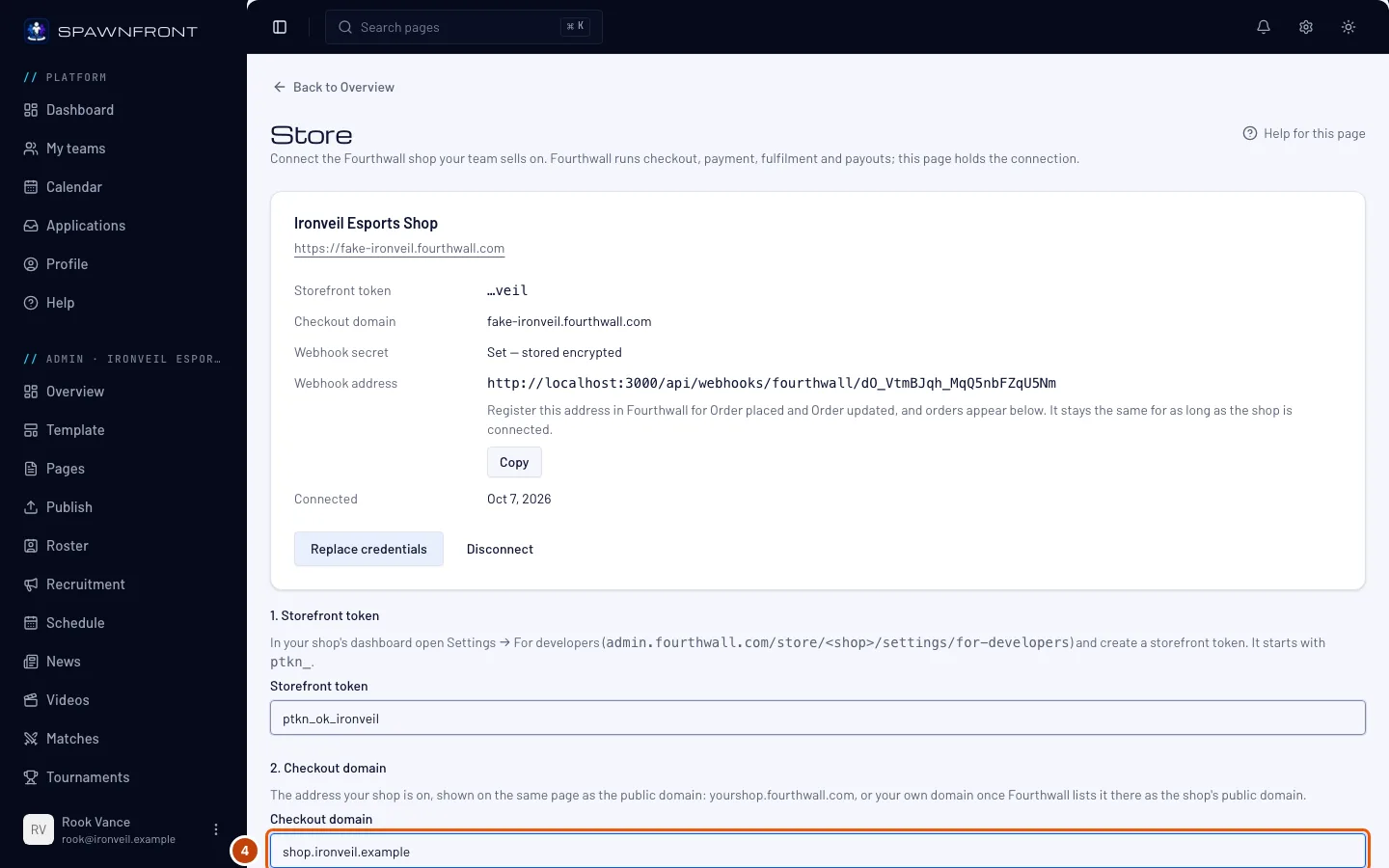
Type your own domain into Checkout domain, exactly as Fourthwall lists it as your shop's public domain — for example
shop.yourteam.com. You can paste it withhttps://in front; Spawnfront keeps only the address.You should see: your domain in the field.
Step 5: Paste your webhook secret
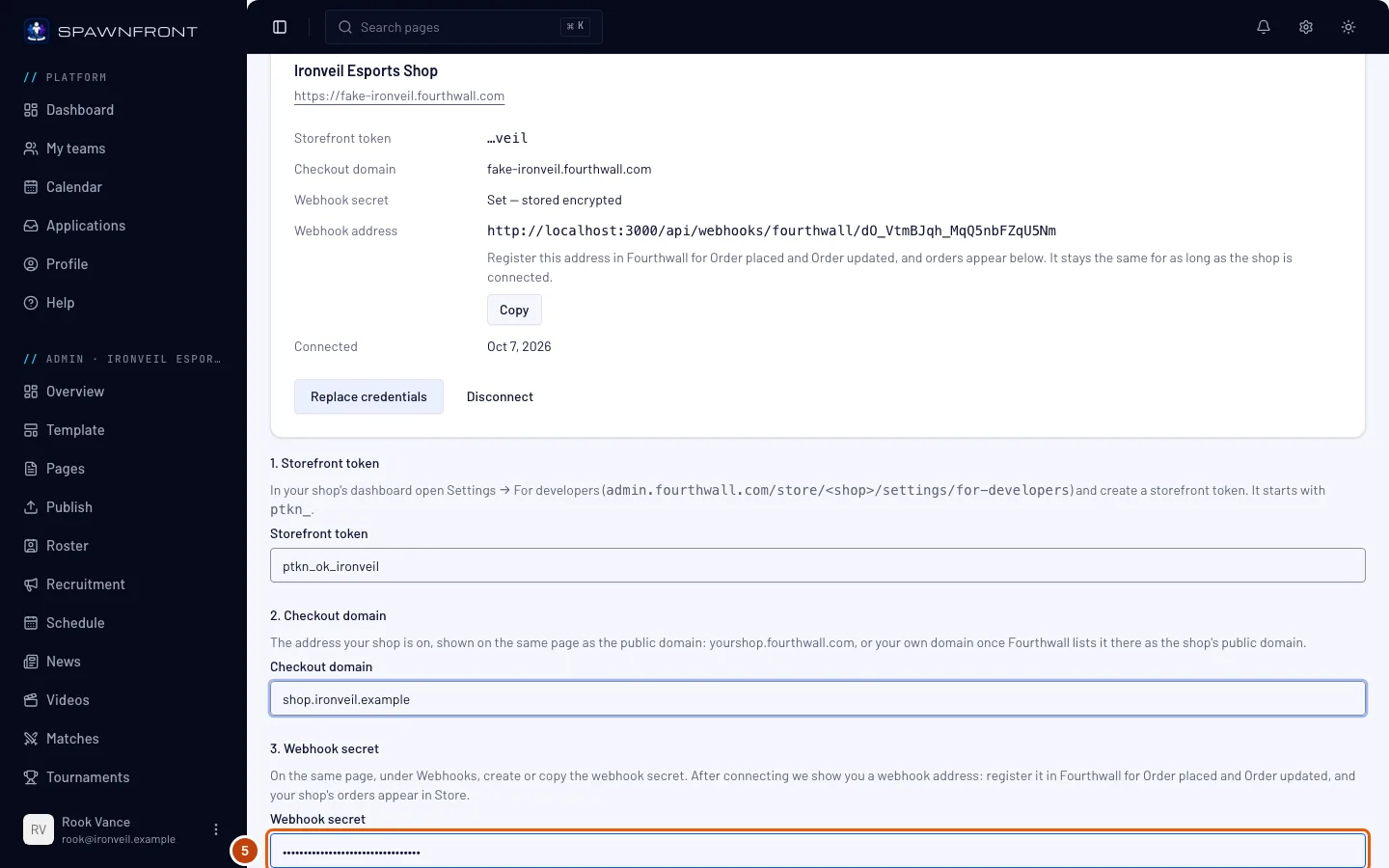
Copy the webhook secret from the Webhooks section of the same developer settings page and paste it into Webhook secret.
Paste the secret Fourthwall signs with. A different one makes Spawnfront refuse your shop's order updates.
You should see: the field filled, its characters hidden.
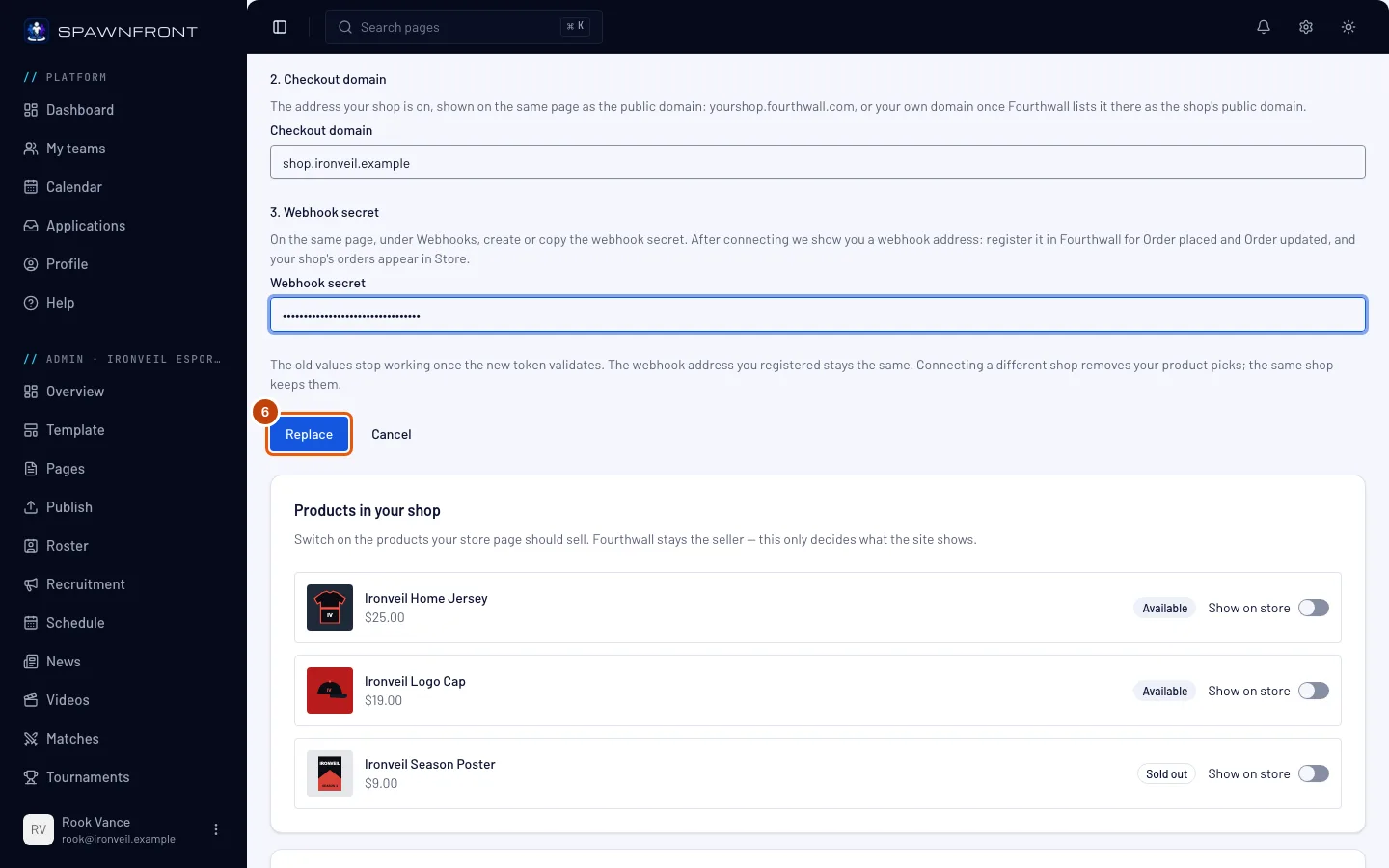
Step 6: Press Replace
Press Replace. Spawnfront checks the token and the domain with Fourthwall before saving anything.
Your webhook address stays the same, and your product picks stay as long as the token is for the same shop. You don't need to publish: the next Checkout on your site uses the new address.
You should see: "Shop connected", and your own domain under your shop's name and beside Checkout domain on the card.
How to know it worked
- The Store page's card shows your own domain as the Checkout domain.
- On your site, add a product to the cart and press Checkout: the payment page opens on your own domain. Stop there — an order costs real money.
Something doesn't look right?
Replace says the checkout domain is not this shop's
The message names the address Fourthwall reports for your shop. Fourthwall doesn't list your own domain as the shop's public domain yet — finish setting it up there (step 1), then try again. Until then, the address in the message is the one that works.
It says "That checkout domain does not look like a Fourthwall checkout address"
What you typed isn't a web address. Enter a full domain with at least one dot, such as shop.yourteam.com — no spaces, and no email address.
It says "We could not read a shop with that token"
Copy the storefront token again from your shop's developer settings — it starts with ptkn_. An Open API password won't work.
I don't want to paste the token and secret again
Spawnfront stores them but never shows them back, so a replacement needs all three fields. Both are on your shop's developer settings page on Fourthwall.
Orders stopped arriving after I replaced my credentials
The webhook secret you pasted isn't the one Fourthwall signs with. Copy it again from the Webhooks section of your shop's developer settings and replace your credentials once more. Your webhook address didn't change, so there's nothing to update on Fourthwall.
Related articles
Still stuck? Contact support or email support@spawnfront.com — tell us the page you're on and the step number.