
Connect a domain you own
On Team Pro, put your site on your own domain: connect it, add the records at your registrar, make it primary.
For team owners and admins · 9 steps
What you need first
- Your team is on the Team Pro plan. On the Team plan, the Custom domain card says Custom domains are part of Team Pro. with an Upgrade button instead.
- You are the team's owner or an admin.
- You own the domain already, and you can change its DNS records where you bought it (your registrar — Namecheap, GoDaddy, Cloudflare and so on). Don't own one yet? See Buy a domain through Spawnfront.
- Your team has no other domain in its list. A team has one; remove the old one first.
Steps
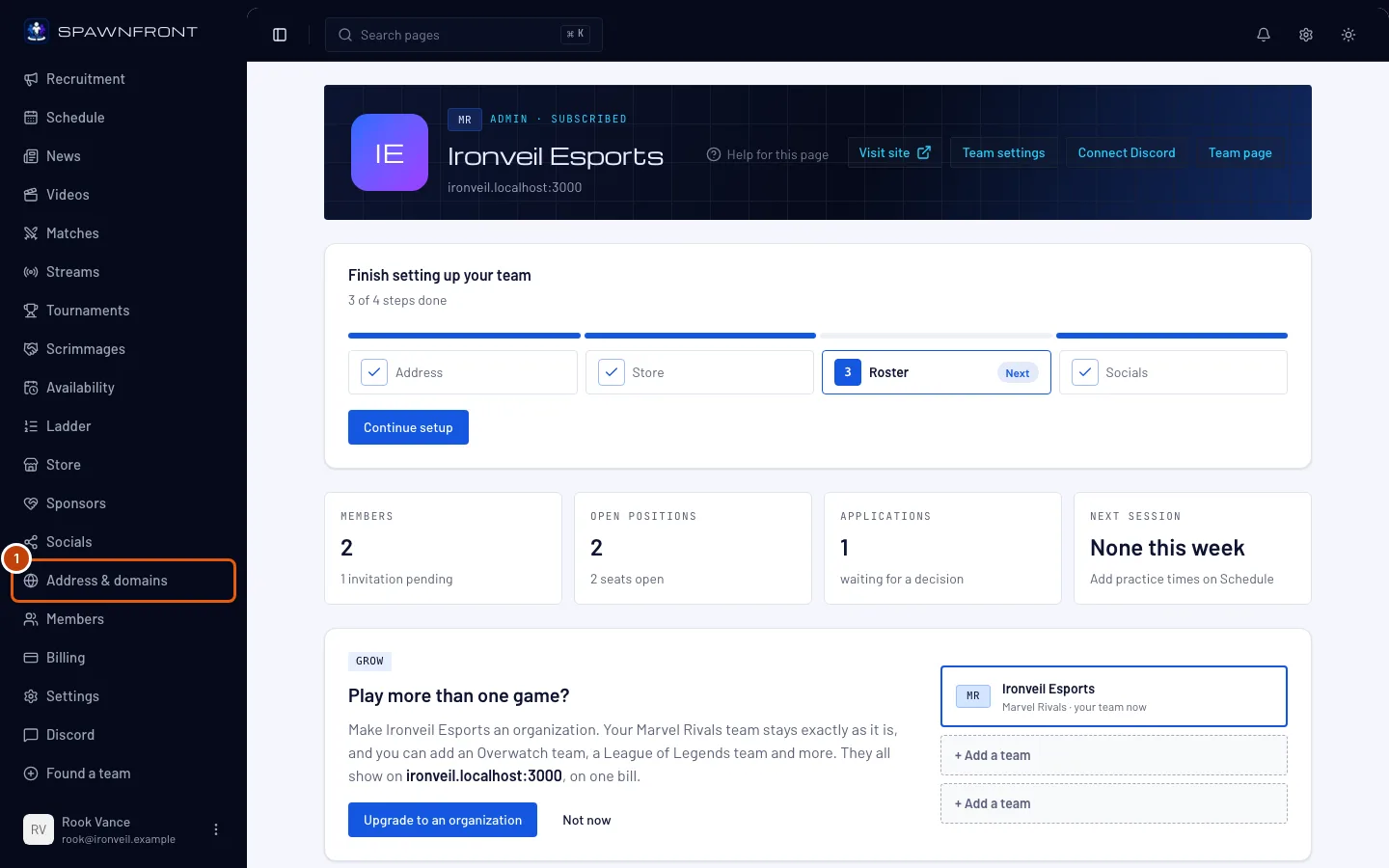
Step 1: Open Address & domains
In the menu on the left, under Admin, press Address & domains.
You should see: your site's address at the top, and a Custom domain card below it.
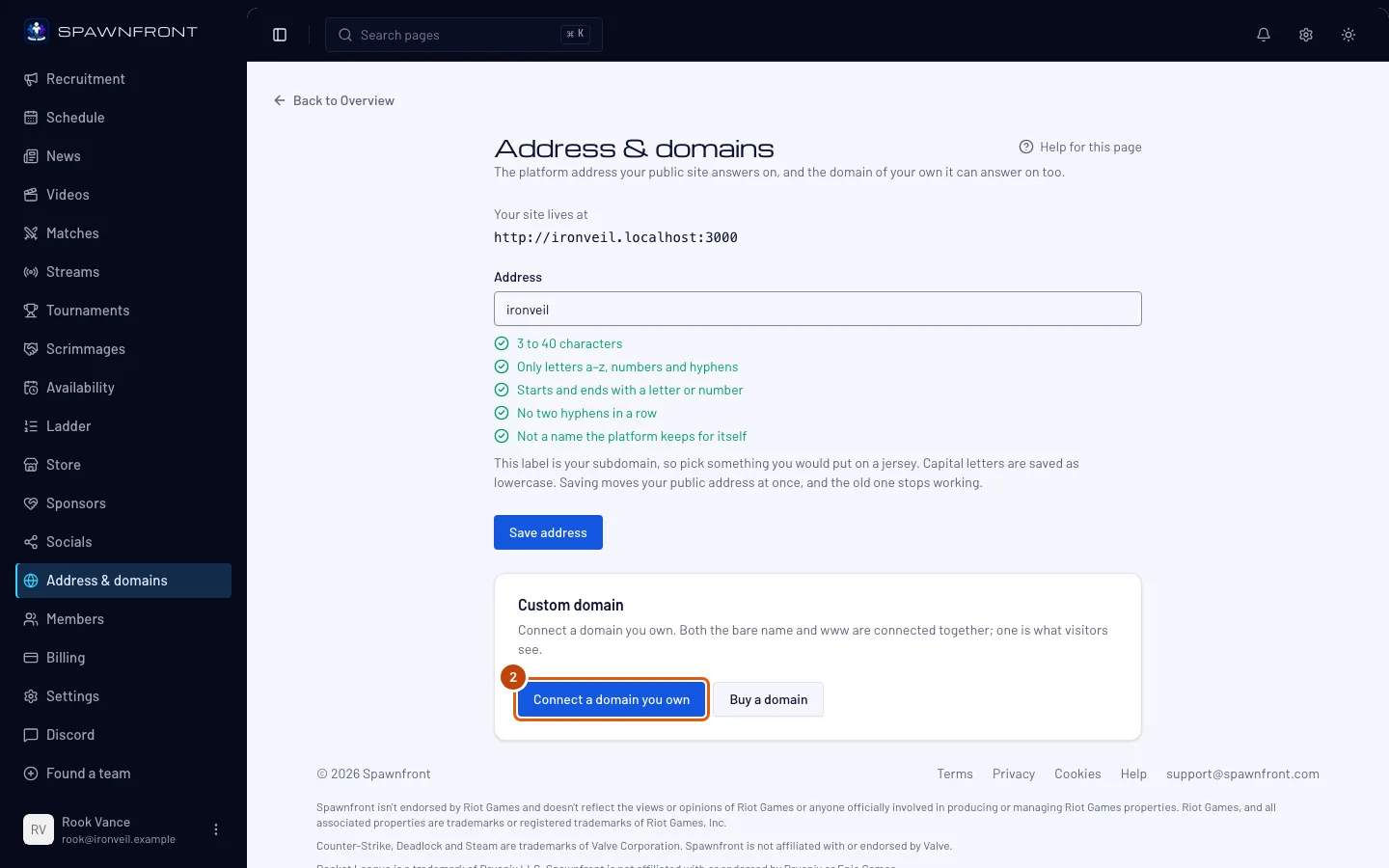
Step 2: Press Connect a domain you own
In the Custom domain card, press Connect a domain you own.
You should see: a form with a Domain field.
Step 3: Type your domain
In Domain, type your domain, like
yourteam.gg. Typingwww.yourteam.ggworks too.Both forms are connected together —
yourteam.ggandwww.yourteam.gg— so you only type one.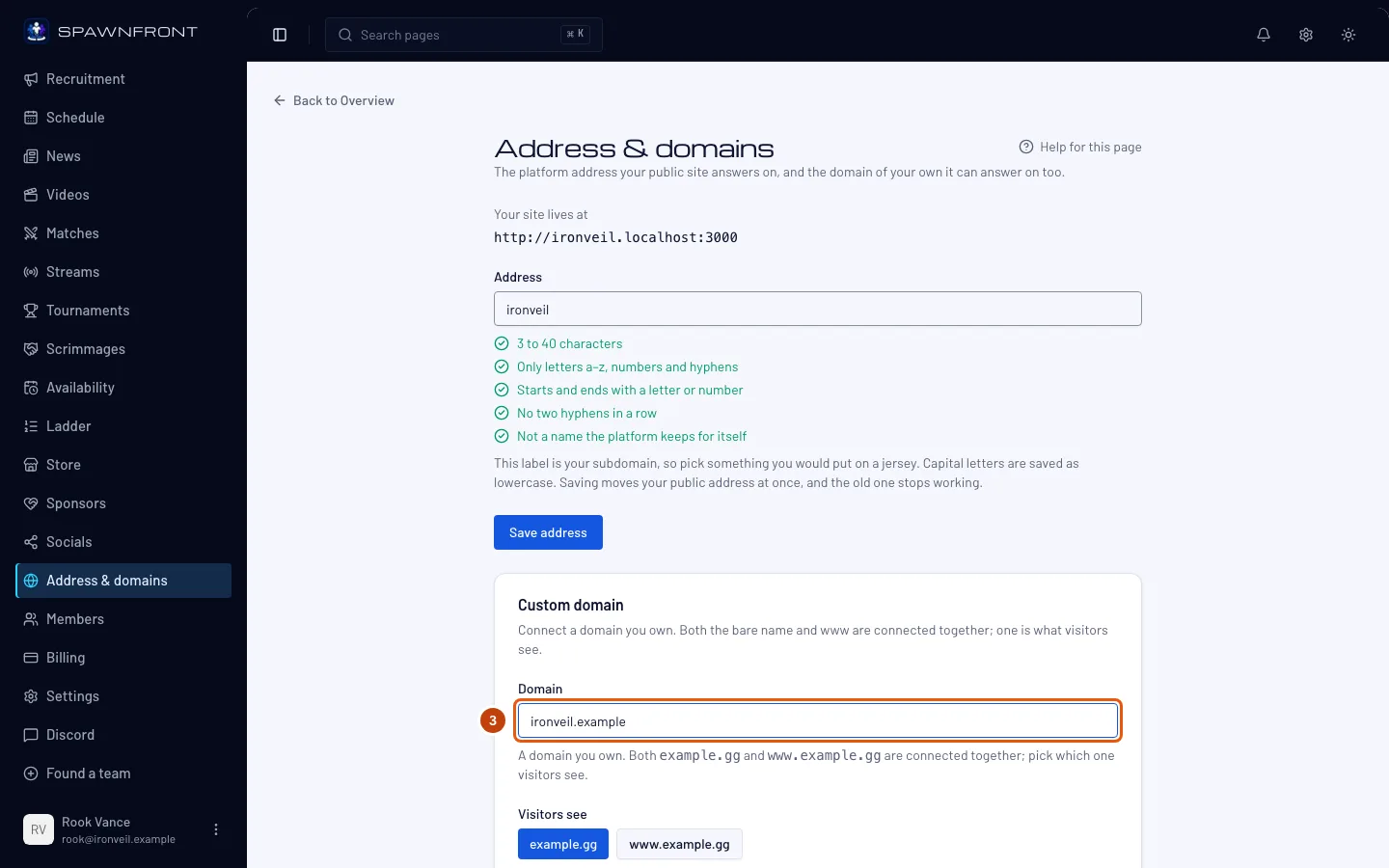
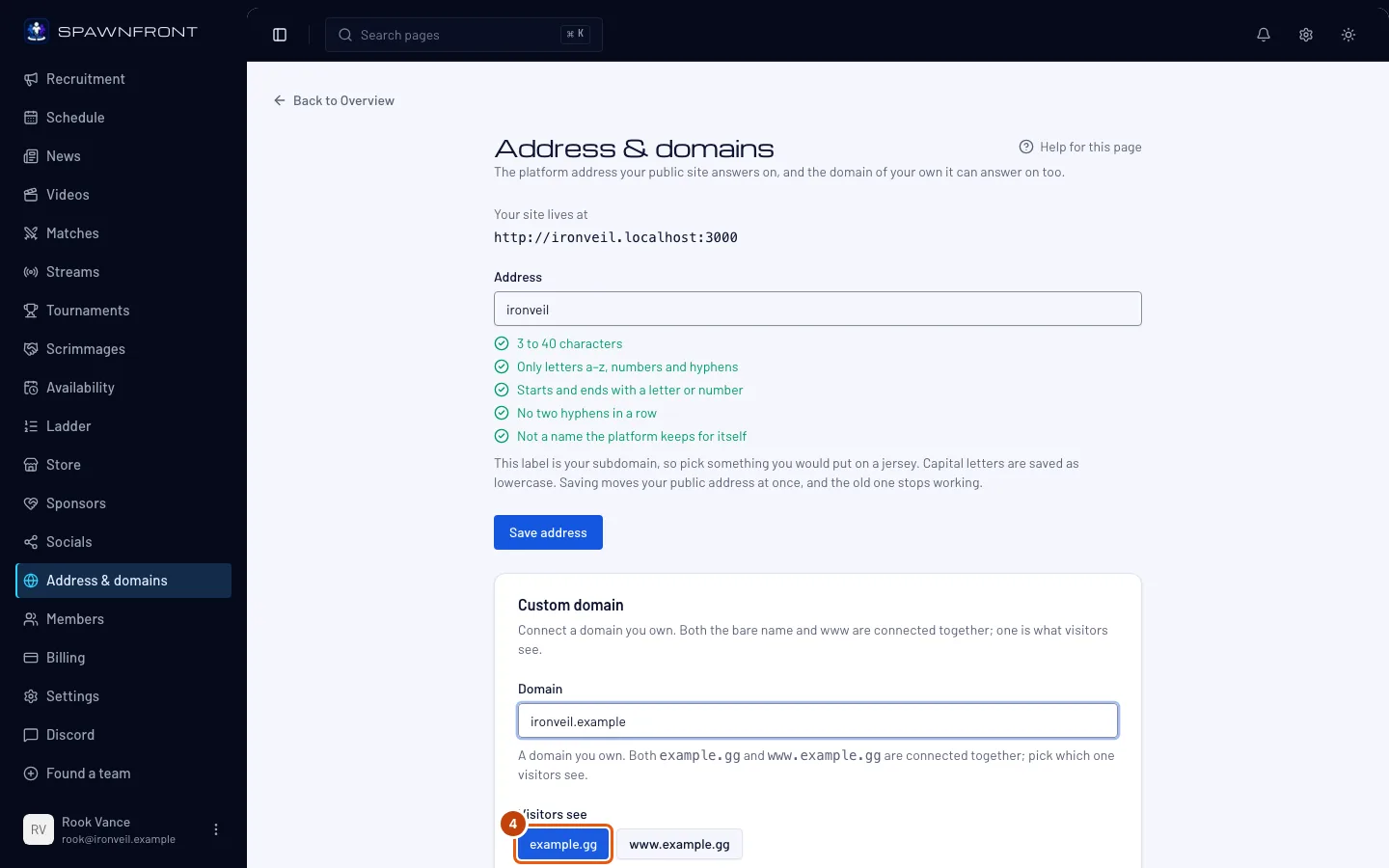
Step 4: Choose what visitors see
Under Visitors see, press example.gg to show the bare name (
yourteam.gg), or www.example.gg to show thewwwform. The other one sends visitors to it.You should see: the button you pressed filled in.
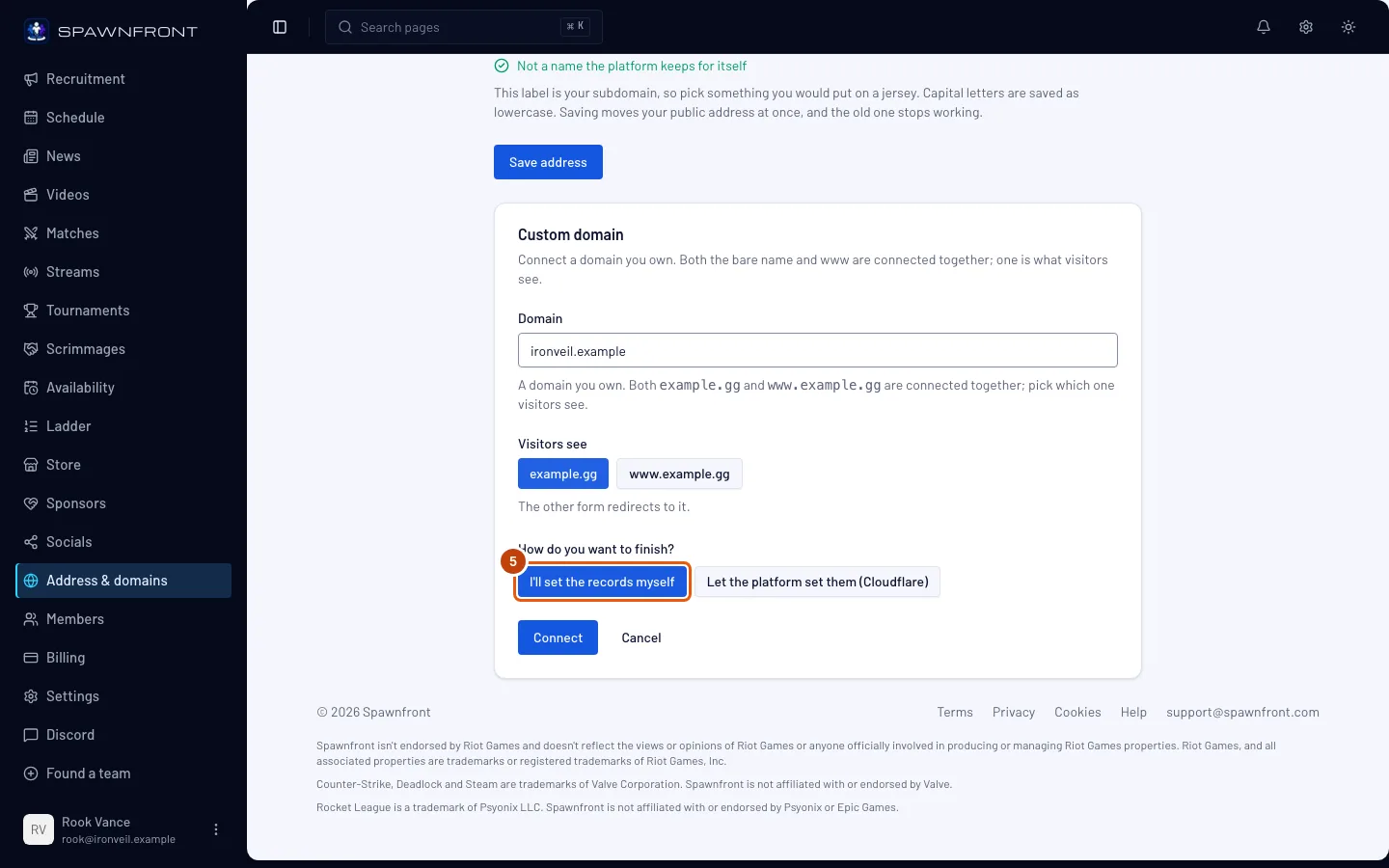
Step 5: Choose how to finish
Under How do you want to finish?, press I'll set the records myself.
If your domain's DNS is on Cloudflare, you can press Let the platform set them (Cloudflare) instead — see the question at the bottom of this page.
Step 6: Press Connect
Press Connect.
You should see: "Domain connected". Your domain and its
wwwform join the list under your Spawnfront address, and a table of records appears below them.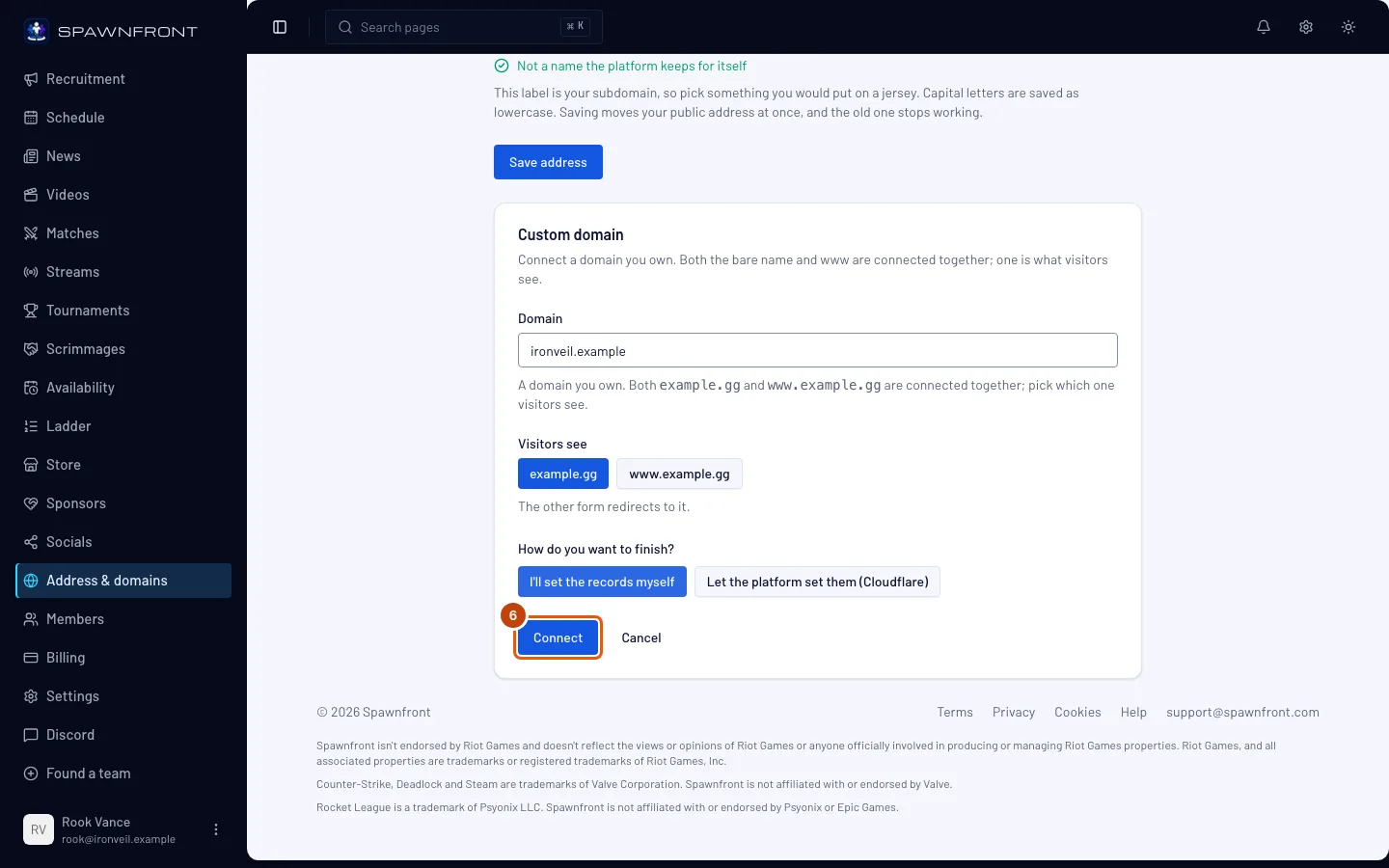
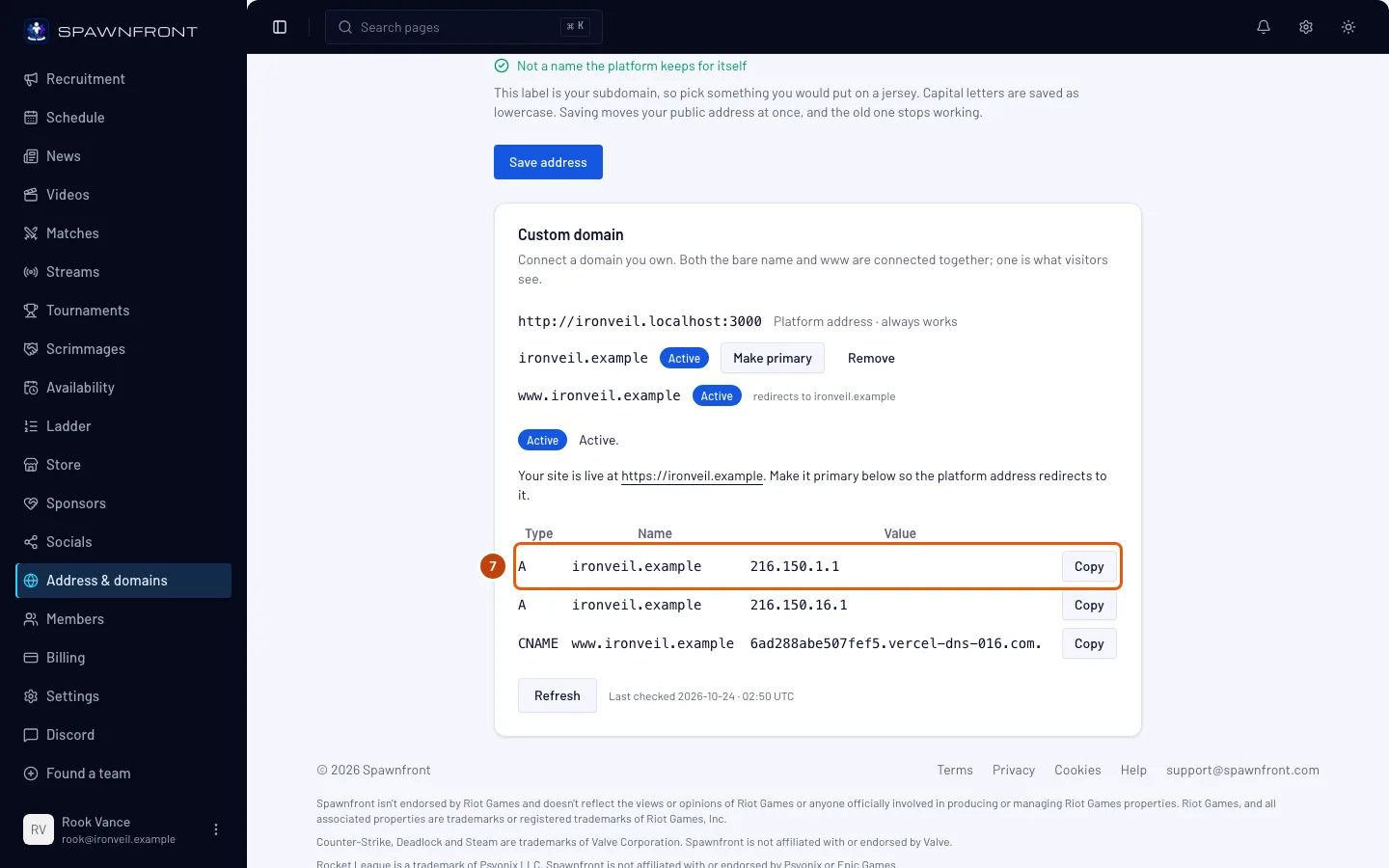
Step 7: Add the records at your registrar
At your registrar, open your domain's DNS settings and add every record from the table — same Type, Name and Value. Press Copy beside a value to copy it exactly.
If your domain already has records of the same type and name, delete the old ones — they fight with the new ones.
You should see (in Spawnfront): Add these records at your registrar, exactly as shown. Typically takes minutes, can take up to a day.
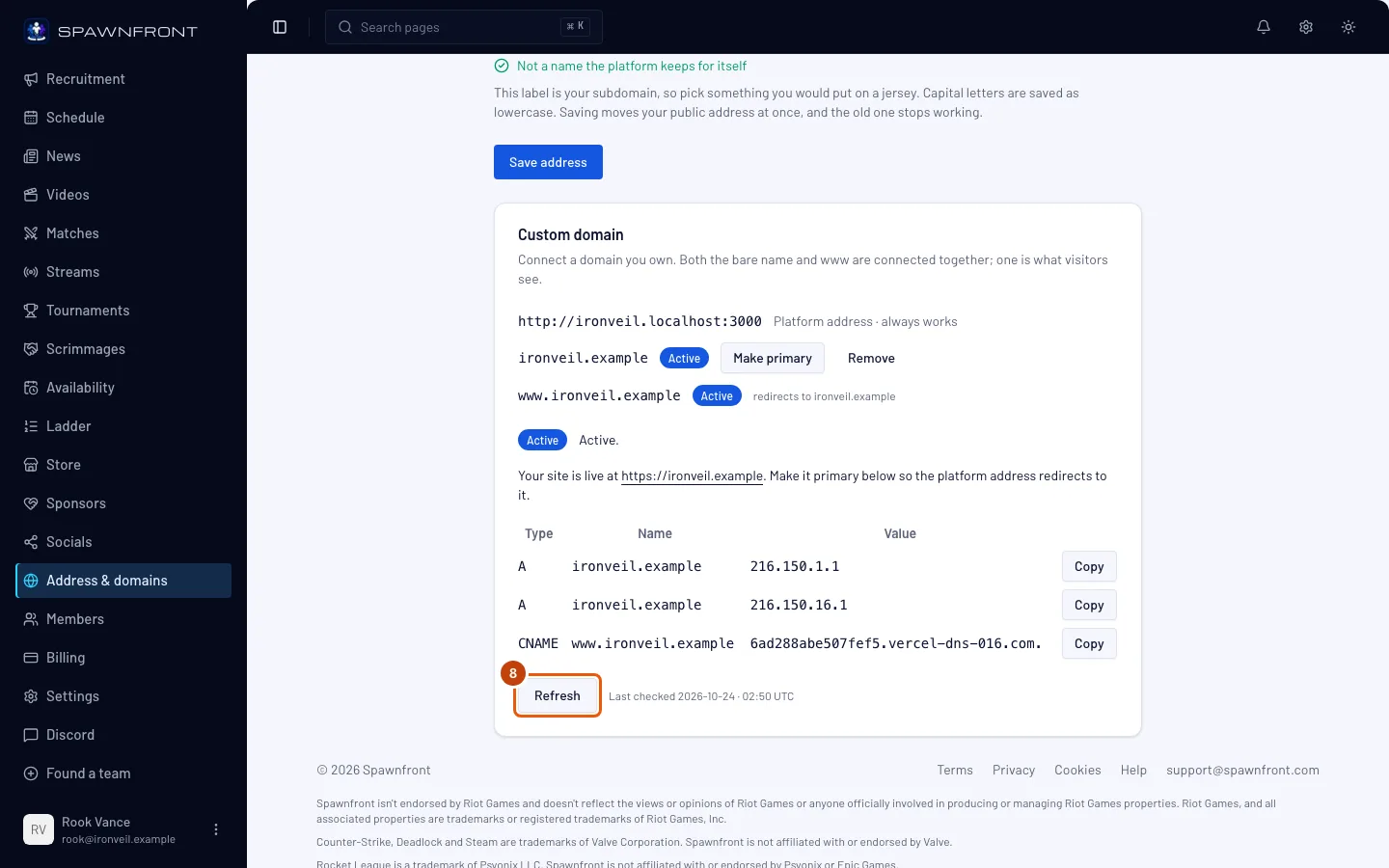
Step 8: Press Refresh
Back in Spawnfront, press Refresh to check your records again. Next to it, Last checked says when the last check ran.
The badge moves from Pending to Verified ("Securing your domain… the certificate is being issued.") to Active.
You should see: Active, and Your site is live at with your domain.
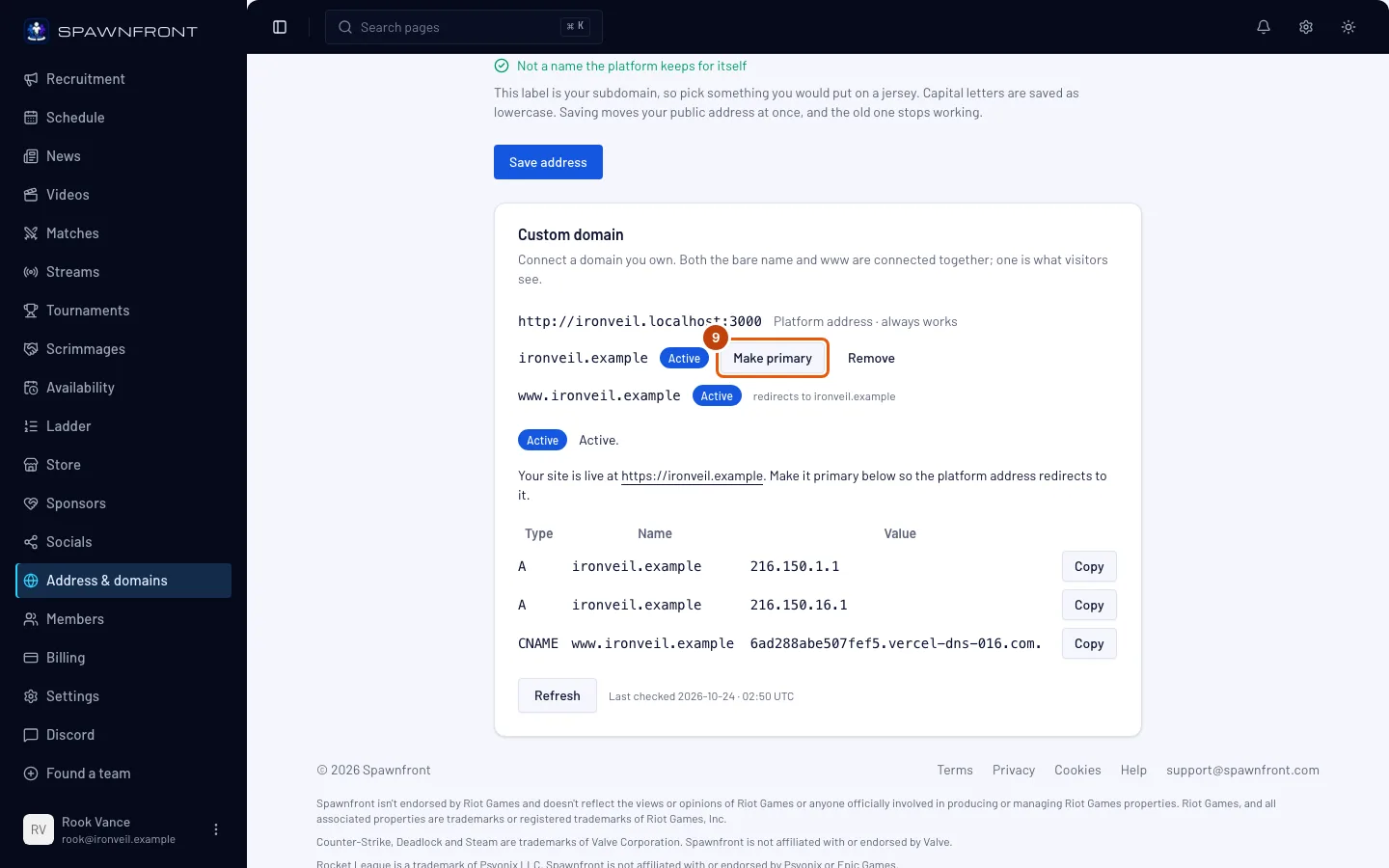
Step 9: Make it primary
On your domain's row, press Make primary. The button appears once the domain is Active.
Until you do, your domain sends visitors on to your Spawnfront address. Once it's primary, it's the other way round: your Spawnfront address sends visitors to your domain.
You should see: "Primary address updated", and a Primary mark on the row.
How to know it worked
- Your domain's row shows Active and Primary.
- Opening
yourteam.ggin your browser shows your site, and your Spawnfront address takes you there too.
Something doesn't look right?
It's been hours and it still says Pending
Check the records at your registrar against the table, character by character — Copy avoids typing mistakes. Some registrars want the name without your domain on the end (www instead of www.yourteam.gg). After a day, the table shows Found or Not found yet beside each record, with the usual causes: records added to a different domain, a proxy switched on for the name (turn it off), or old records still there beside the new ones.
It says "That domain is connected to another site"
Another team on Spawnfront has that domain. If it's yours, remove it from that team's page first.
It says "This team already has a domain; remove it first"
A team connects one domain. In the list, press Remove on the old one, then Remove domain in the box that opens. Your site keeps working on its Spawnfront address, and the records at your registrar are left alone — delete them there if you no longer need them.
My domain's DNS is on Cloudflare
At step 5, press Let the platform set them (Cloudflare). After Connect, create a Cloudflare API token with Zone → DNS → Edit on your domain, paste it into API token and press Connect. You should see: "Records set at Cloudflare". Revoke forgets the token and leaves the records in place.
My domain says "Paused" or "Not serving"
Paused means your team is on the Team plan — custom domains are part of Team Pro, so upgrade to bring it back. Not serving means your subscription has lapsed; resume it to bring the domain back.
Related articles
Still stuck? Contact support or email support@spawnfront.com — tell us the page you're on and the step number.