
See your store's orders
Register your webhook address on Fourthwall, then follow each order's status from your Store page.
For team owners and admins · 5 steps
What you need first
- Your team has a site subscription, and your Fourthwall shop is connected on the Store page. If it isn't yet, follow Open your team's store first.
- You are the team's owner or an admin.
- You can sign in to your shop's dashboard on Fourthwall. Orders reach Spawnfront only after you register one address there (step 2).
Steps
Step 1: Copy your webhook address
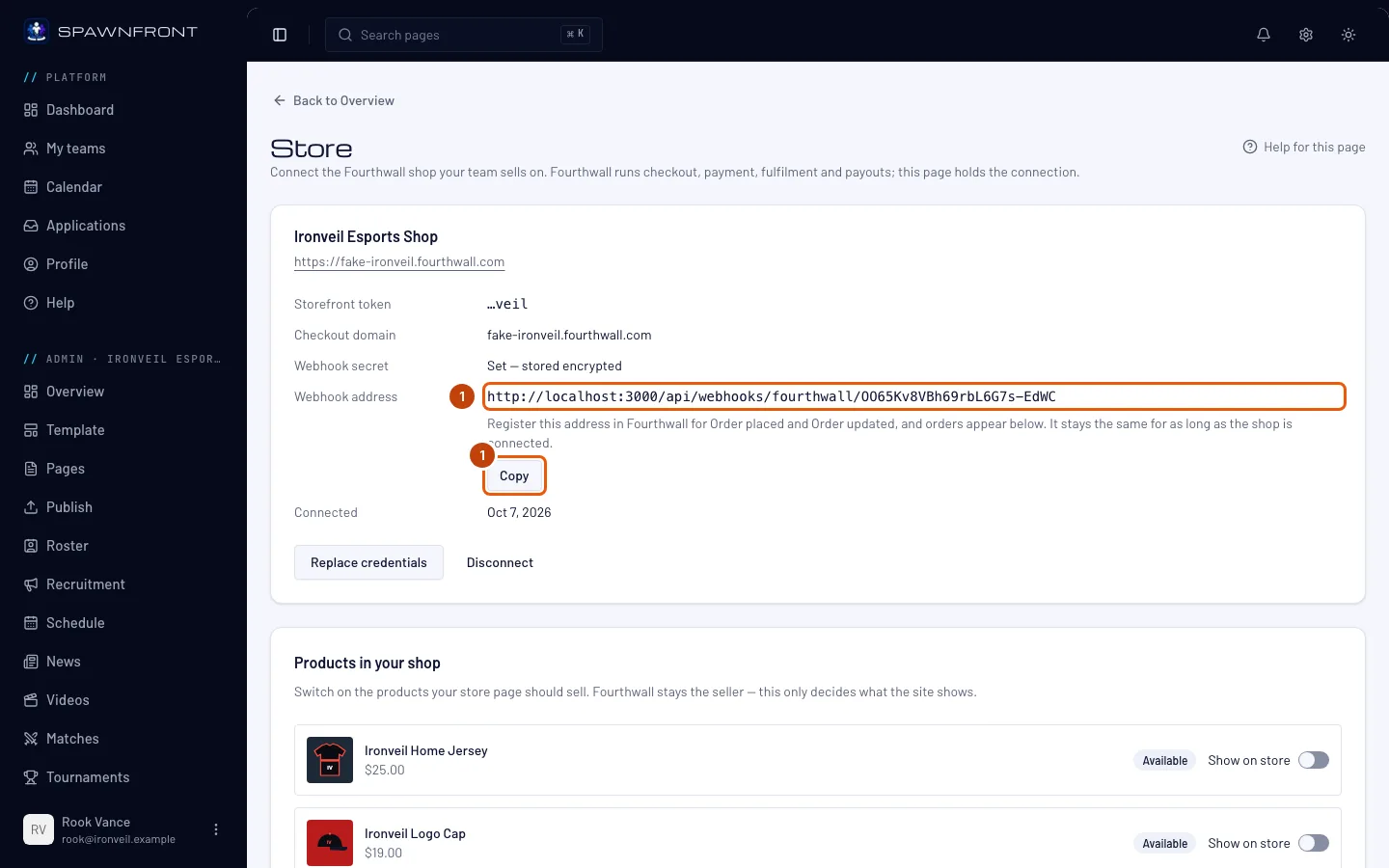
In your team's admin, press Store in the sidebar. On the card that names your shop, find Webhook address and press Copy beside it.
You should see: "Address copied". The address stays the same for as long as your shop is connected — replacing your credentials keeps it, but disconnecting deletes it.
Step 2: Register the address on Fourthwall
In your shop's dashboard on Fourthwall, open Settings → For developers, and under Webhooks add the address you copied. Choose the two events Order placed and Order updated.
Register both. Order placed brings a new order in; Order updated keeps its status current. This happens on Fourthwall's own site, not in Spawnfront — see Fourthwall's help center if you haven't added a webhook before.
You should see: the address listed among your shop's webhooks on Fourthwall.
Step 3: Check that Fourthwall reaches you
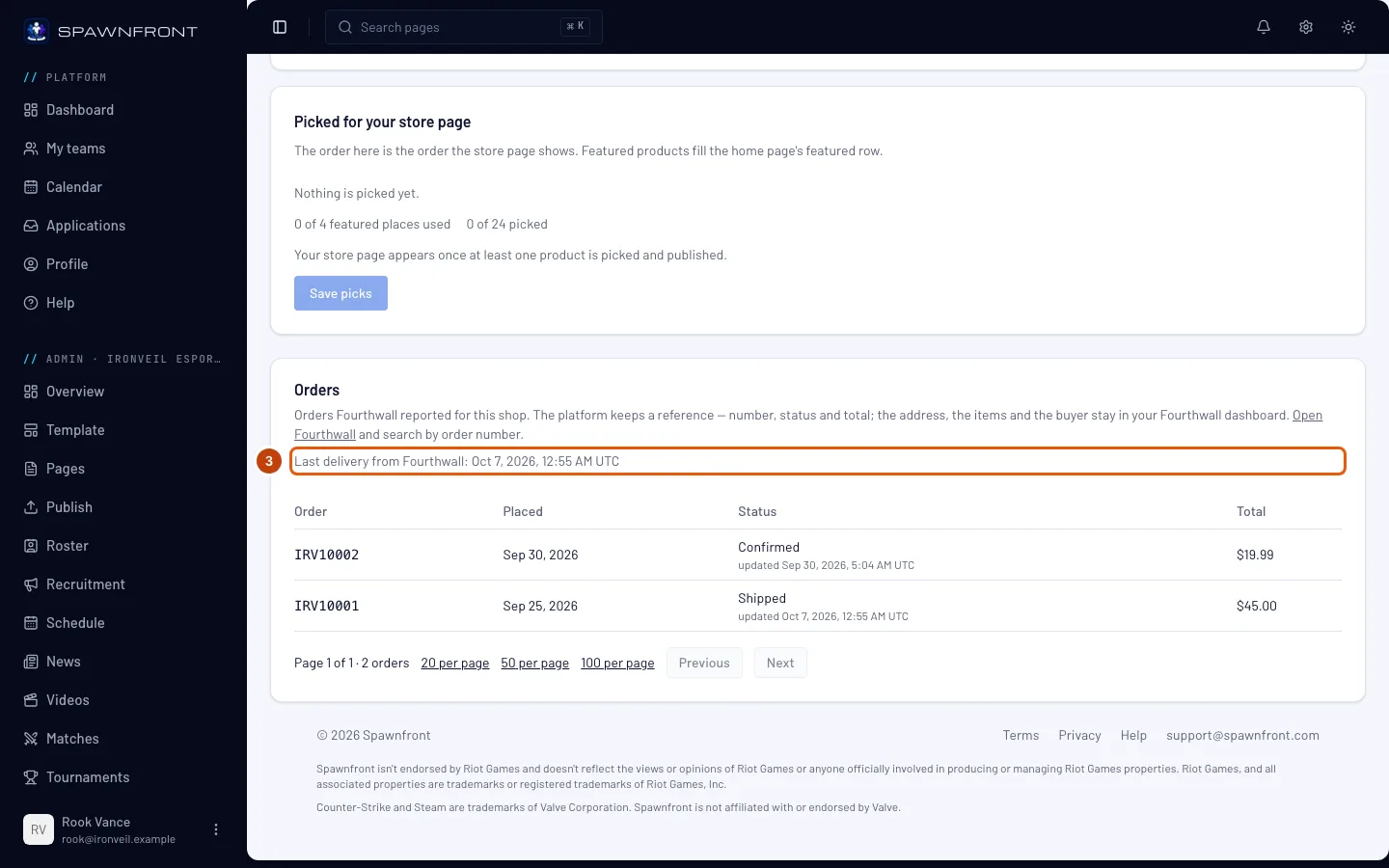
Back in Spawnfront, reload the Store page and scroll to Orders. Read the line under its description.
You should see: Last delivery from Fourthwall: followed by a date and time in UTC. Until Fourthwall sends anything, it reads No delivery from Fourthwall yet. You don't need to place an order to test it: Fourthwall's "Send test notification" for the webhook updates this line and adds no order to your list.
Step 4: Read your orders
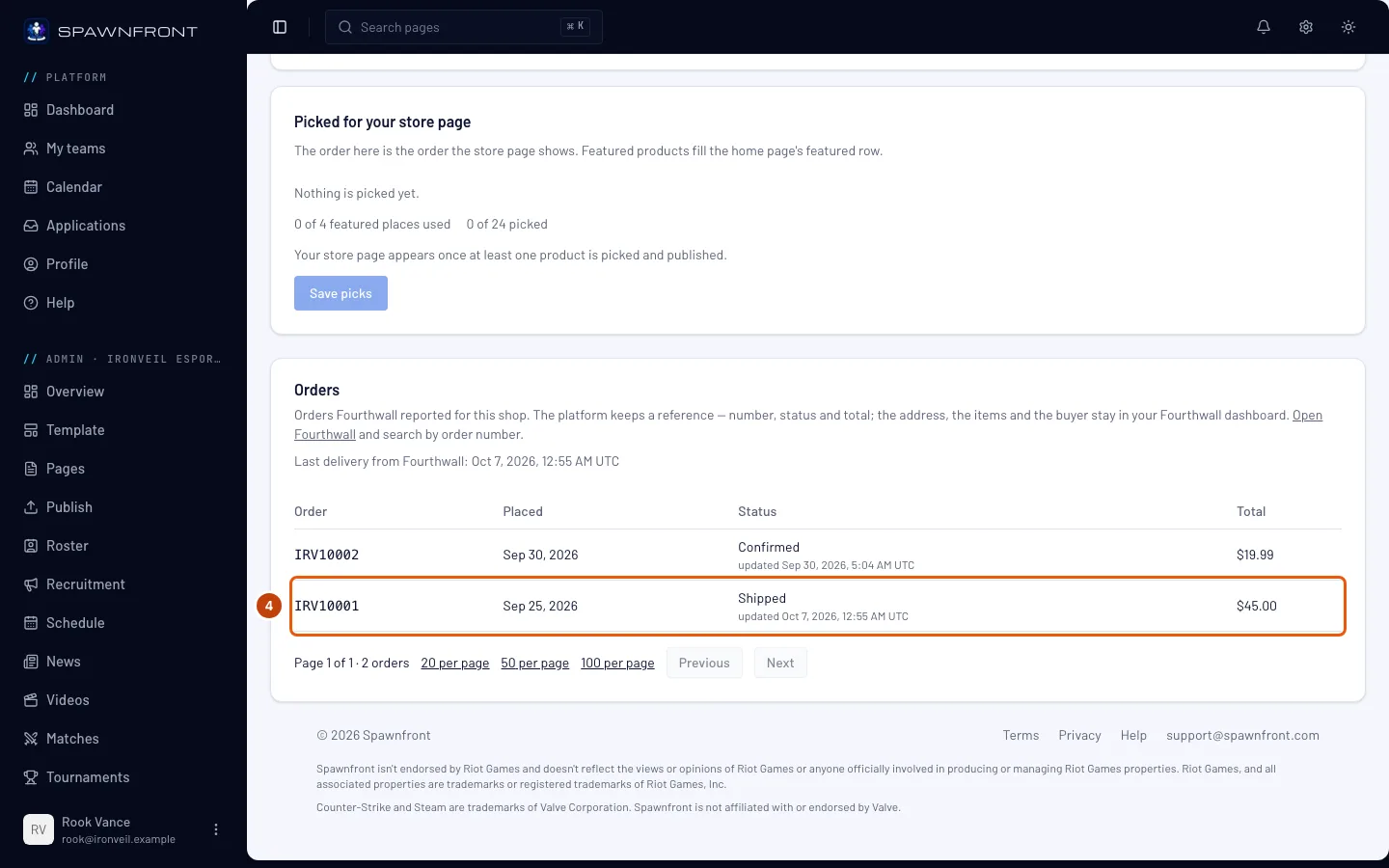
Each row is one order: Order is Fourthwall's order number, Placed the day it was placed, Status where it stands — Confirmed, In production, Shipped, Delivered, Cancelled and so on — with the time of Fourthwall's last update under it, and Total what the buyer paid.
The newest order is at the top. The list shows 20 orders a page; use Previous and Next under it, or show 50 or 100 at a time.
You should see: your orders, newest first.
Step 5: Open the order on Fourthwall
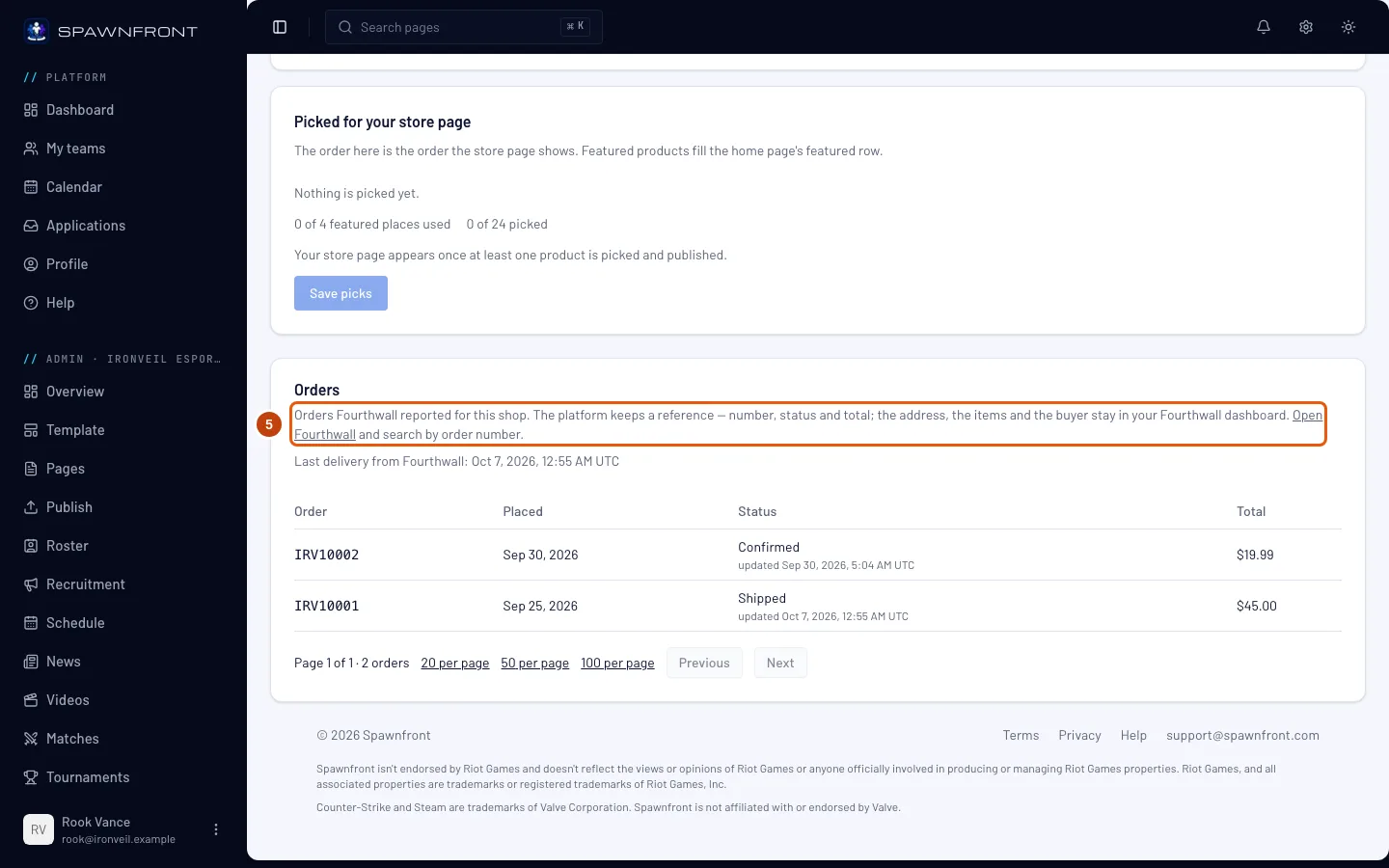
Press Open Fourthwall in the Orders panel's description. It opens your Fourthwall dashboard in a new tab; search there by the order number from the Order column.
Spawnfront keeps only a reference to each order — its number, status, total and dates. The buyer's address, the items and everything about fulfillment stay on Fourthwall, so refunds, returns and shipping are all handled there.
You should see: your Fourthwall dashboard, where the order's full details are.
How to know it worked
- The Store page's Orders panel says Last delivery from Fourthwall: with a recent date.
- A new order on your shop appears at the top of the list after you reload the Store page.
- An order's status changes when you update it on Fourthwall.
Something doesn't look right?
The Orders panel says "No delivery from Fourthwall yet"
Fourthwall hasn't reached Spawnfront. Check that the webhook address from your Store page is registered on Fourthwall for both Order placed and Order updated (steps 1 and 2), then send Fourthwall's test notification and reload the Store page. If Fourthwall shows the test notification as failed, see the next question.
It says "No orders received — check the webhook address in your Fourthwall settings"
Your shop has been connected for more than a week and nothing has arrived from Fourthwall. The address is almost always missing or mistyped on Fourthwall — copy it again (step 1) and register it (step 2).
Orders stopped arriving after I reconnected my shop
Disconnecting deletes your webhook address, and connecting again gives you a new one. Register the new address on Fourthwall (steps 1 and 2) and remove the old one there. To change your token or secret without losing the address, use Replace credentials instead of disconnecting.
Fourthwall shows my webhook deliveries as failed
Either the address registered on Fourthwall is an old one — disconnecting and connecting again gives a new address, so copy it again (step 1) — or the webhook secret saved in Spawnfront isn't the one Fourthwall signs with. Check the address first. For the secret, copy it from your shop's developer settings and paste it under Replace credentials on the Store page, with your storefront token and checkout domain.
Where are the buyer's address and what they bought?
On Fourthwall. Spawnfront never keeps them — press Open Fourthwall and search by the order number (step 5).
I disconnected my shop — are my orders gone?
No. The Orders panel keeps them and says No shop is connected. Connect a shop again to receive new ones, and register its new address on Fourthwall.
Related articles
Still stuck? Contact support or email support@spawnfront.com — tell us the page you're on and the step number.