
Install the Spawnfront app
Put Spawnfront on your home screen, dock or Start menu from your browser, so it opens on your dashboard in its own window.
For everyone · 7 steps
What you need first
- You are logged in.
- You use a browser that installs apps: Chrome or Edge on a computer or an Android phone, or Safari on an iPhone or iPad. Firefox on a computer can't install apps — open Spawnfront in Chrome or Edge instead.
- Nothing to download from an app store: the app comes from your browser and updates itself.
Steps
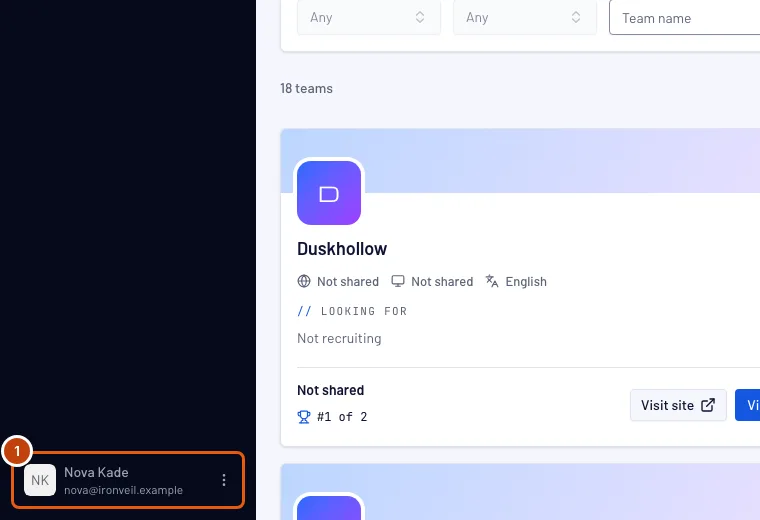
Step 1: Open your account menu
Press your name at the bottom of the menu. On a phone, open the menu first with the button at the top left.
You should see: your account menu, with Account, Install app and Log out.
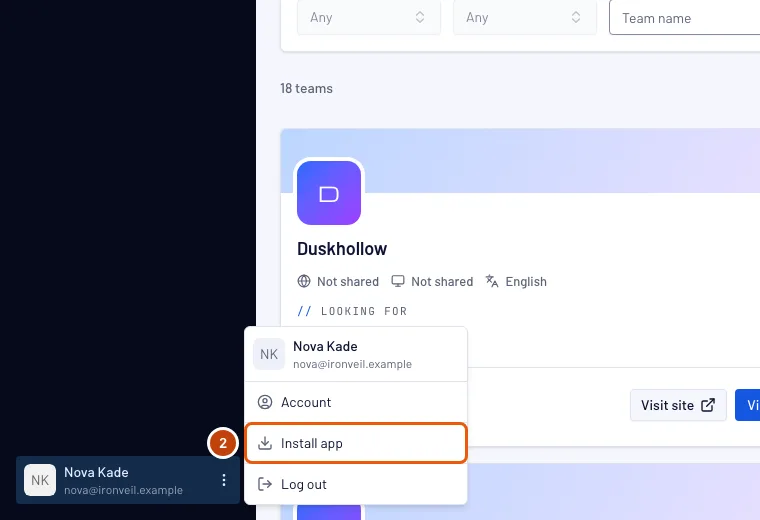
Step 2: Press Install app
Press Install app.
You should see: on a computer or an Android phone, your browser's own box asking to install Spawnfront — go on to step 3. On an iPhone or iPad, the Install Spawnfront steps — skip step 3 and go on to step 4.
Step 3: Confirm in your browser
Press Install in your browser's box.
You're done on a computer or an Android phone — go on to step 7.
You should see: Spawnfront open in its own window, without the browser's address bar, and its icon on your desktop, dock, Start menu or home screen.
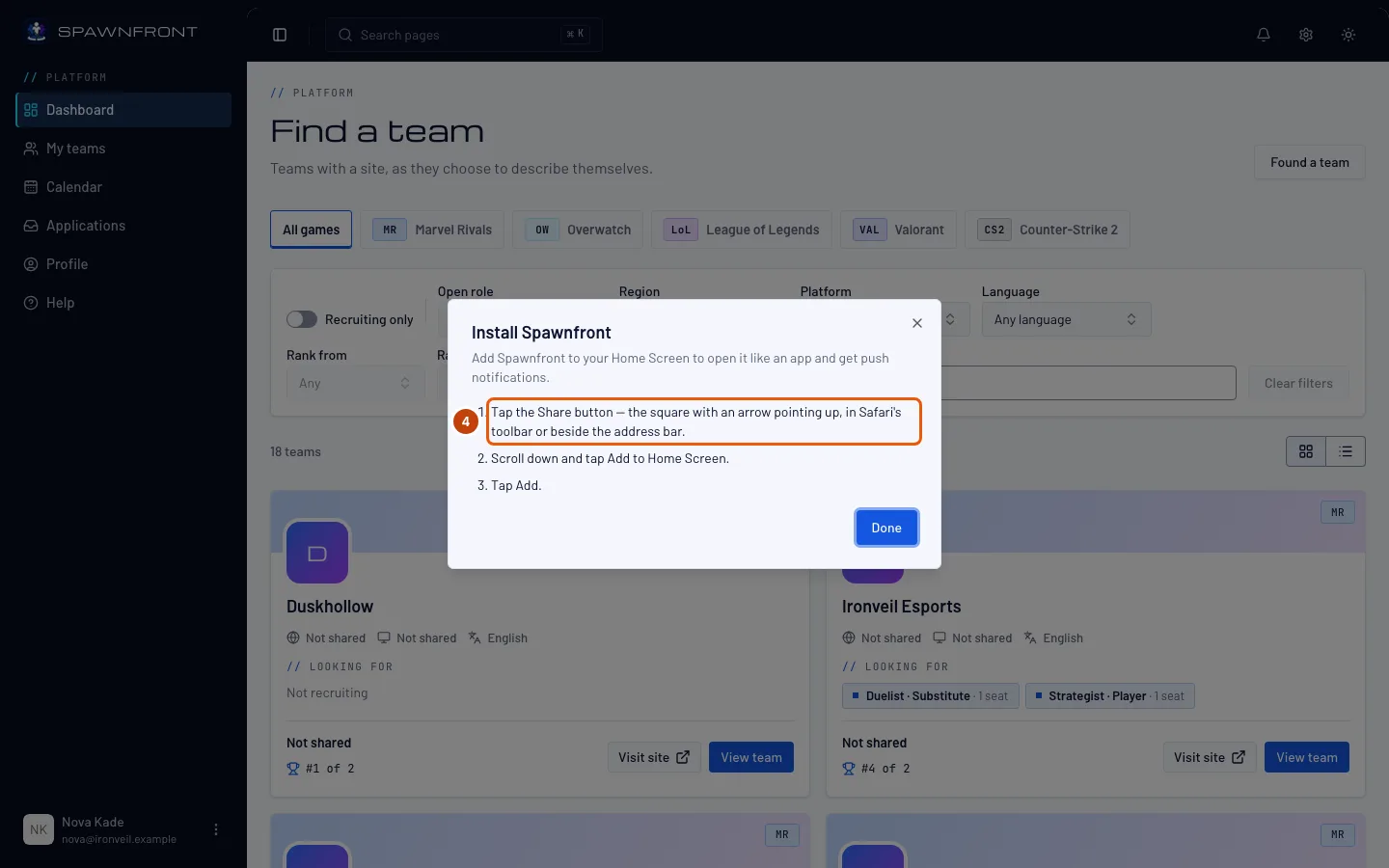
Step 4: On iPhone or iPad, tap Share
Tap the Share button — the square with an arrow pointing up, in Safari's toolbar or beside the address bar.
Step 5: Tap Add to Home Screen
Scroll down the list that opens and tap Add to Home Screen.
Step 6: Tap Add
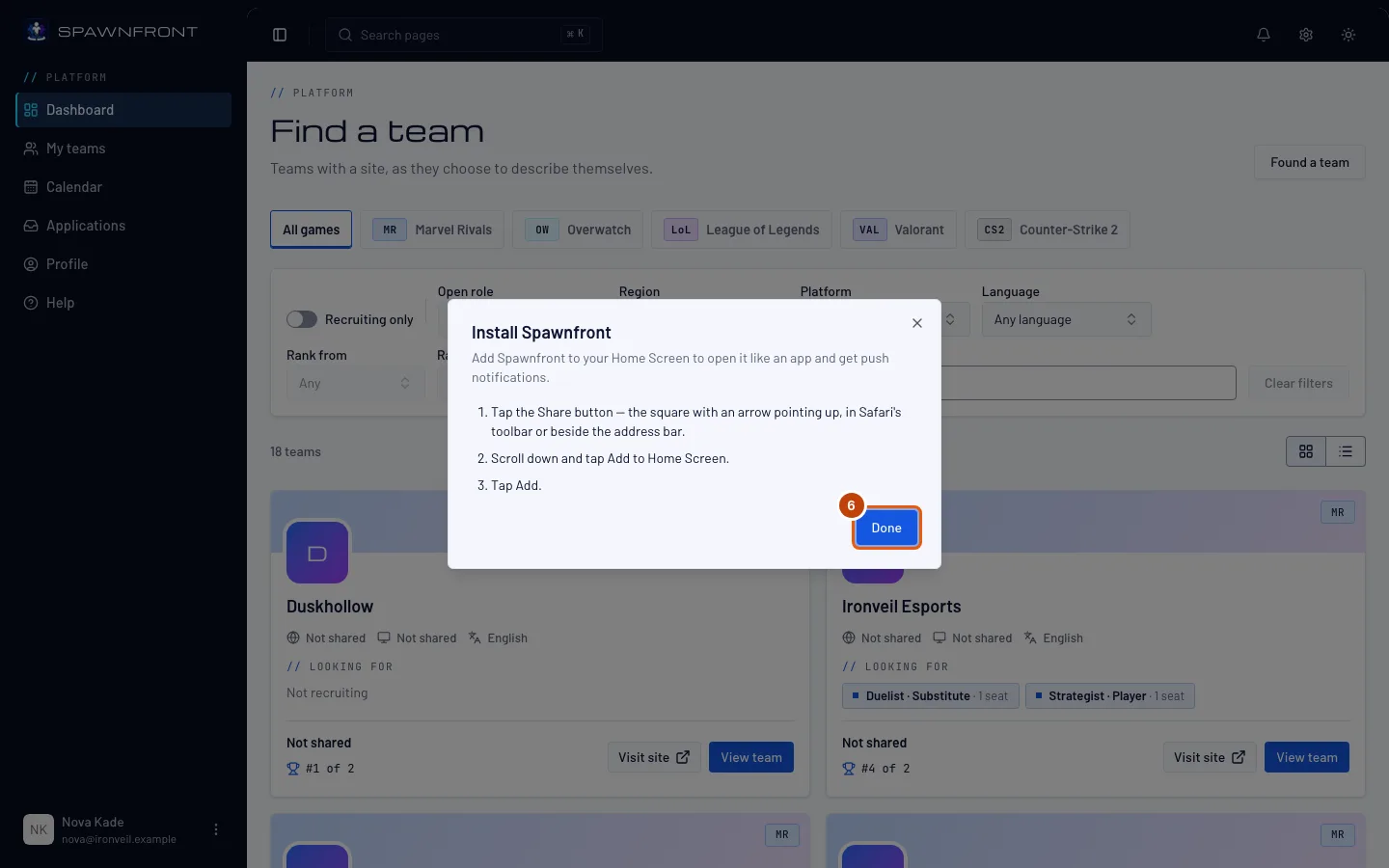
Tap Add at the top right. Back in Spawnfront, press Done to close the steps.
You should see: the Spawnfront icon on your Home Screen.
Step 7: Open Spawnfront from its icon
Open Spawnfront from its icon.
You should see: your Dashboard, in a window of its own. The app is the same Spawnfront you use in the browser — your teams, notices and settings are all there, and you stay logged in.
How to know it worked
- Spawnfront opens from its own icon, on your Dashboard.
- Opened from the icon, the account menu no longer shows Install app.
To get your notices on this device even when Spawnfront is closed, turn on push notifications next — see Turn on push notifications. On an iPhone or iPad that only works in the app you just installed.
Something doesn't look right?
I don't see Install app in my menu
Either Spawnfront is already installed on this device (open it from its icon), you're in a private window, or your browser can't install apps — Firefox on a computer can't. Use Chrome or Edge, or Safari on an iPhone or iPad.
Nothing happens when I press Install app
Your browser shows its box once; if you closed it, reload the page and press Install app again. In Chrome and Edge you can also use the install icon at the right end of the address bar.
The app says it is offline
Spawnfront needs a connection. Check your Wi-Fi or mobile data and press Try again.
How do I remove the app?
Remove it like any other app: on a phone, press and hold its icon; on a computer, open the app's menu at the top right of its window and choose to uninstall. Your account isn't affected.
Related articles
Still stuck? Contact support or email support@spawnfront.com — tell us the page you're on and the step number.