
Show your teams on your website
Put your organization's teams in order, give each one a picture, preview the Teams page and publish.
For team owners and admins · 5 steps
Your organization's website has a Teams page with a section for each game you play, and a card for each of your teams. A game with two or more teams also has its own page, listing just its teams. Each team has its own page at its own address, /teams/<game>/<team> — for example /teams/overwatch/academy. On Teams on your website you choose the order the cards appear in and the picture on each one, and you watch the page change beside you before you publish.
What you need first
- You are an owner or admin of the organization.
- The organization is on the Organization plan — the website comes with it. Without it, the page offers Get the Organization tier instead.
- The organization has at least one team. Add teams first — see Add a team to your organization.
Steps
Step 1: Open Teams on your website
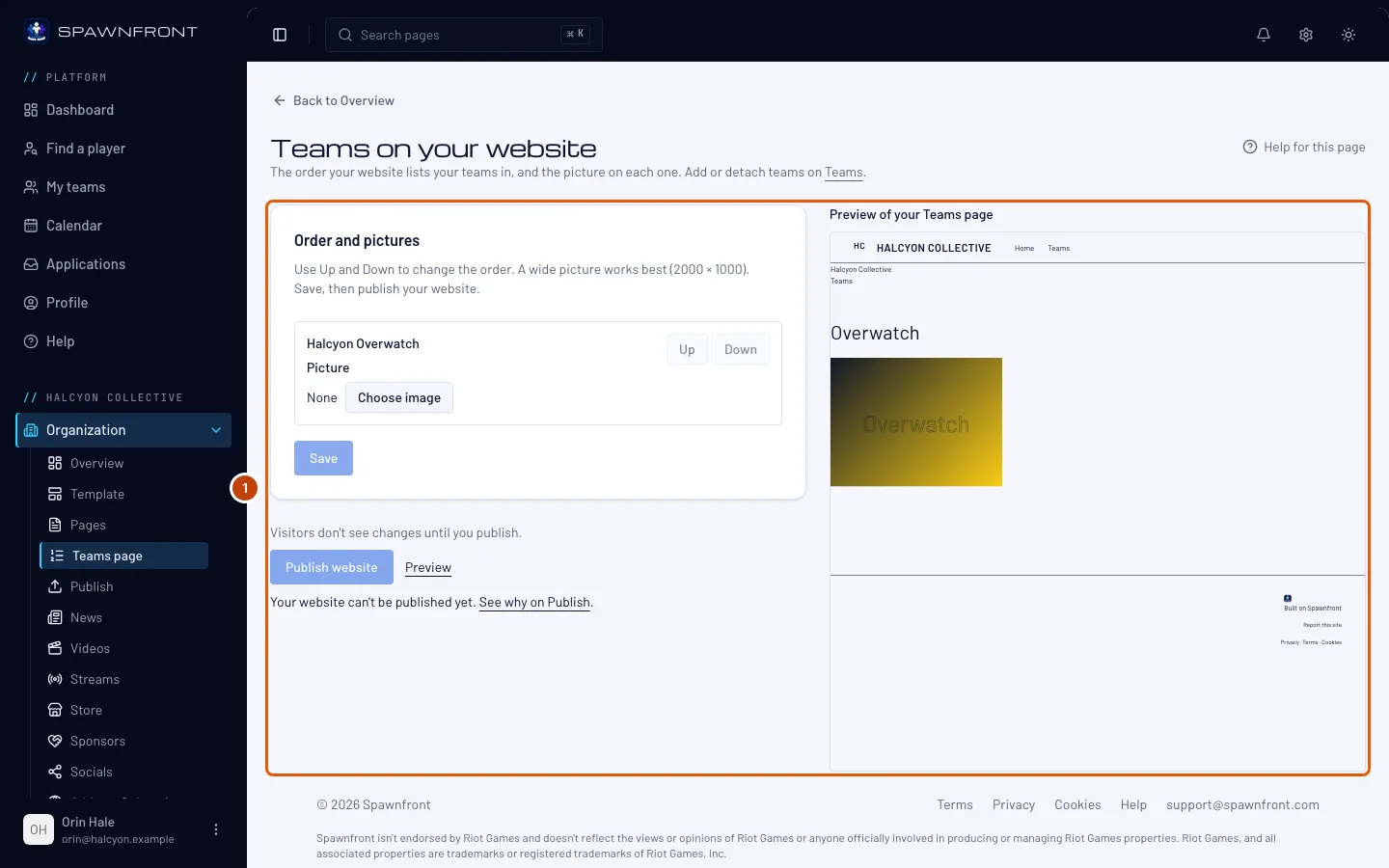
In the menu on the left, under your organization's name, press Teams page in the Organization list. If the list is closed, press Organization first to open it. The link Teams on your website under the list of teams on Teams opens the same page.
You should see: your teams in order on the left, and a preview of your website's Teams page on the right.
Step 2: Put your teams in order
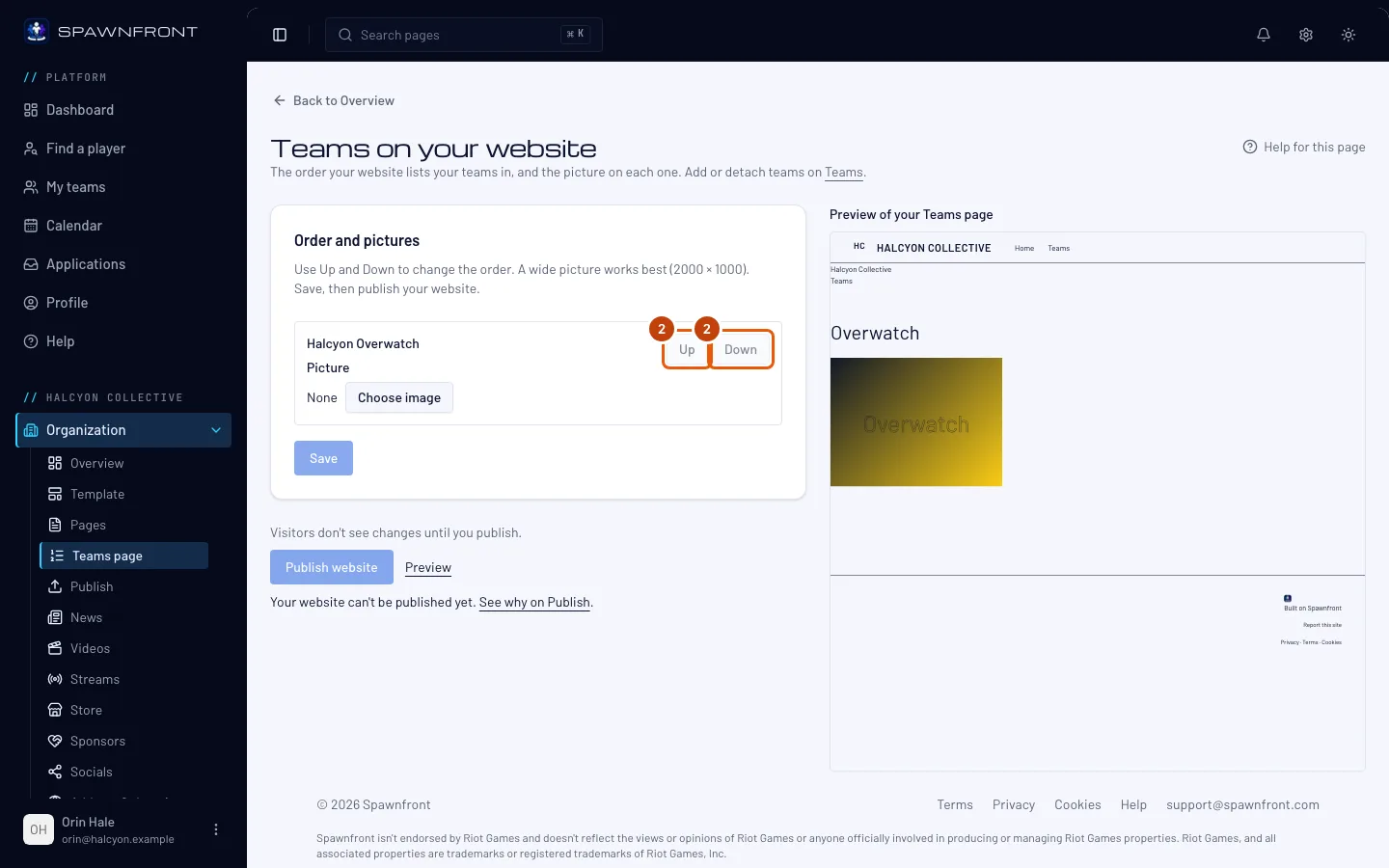
Press Up or Down on a team to move it.
You should see: the preview's cards move at once, in the same order.
Step 3: Give each team a picture
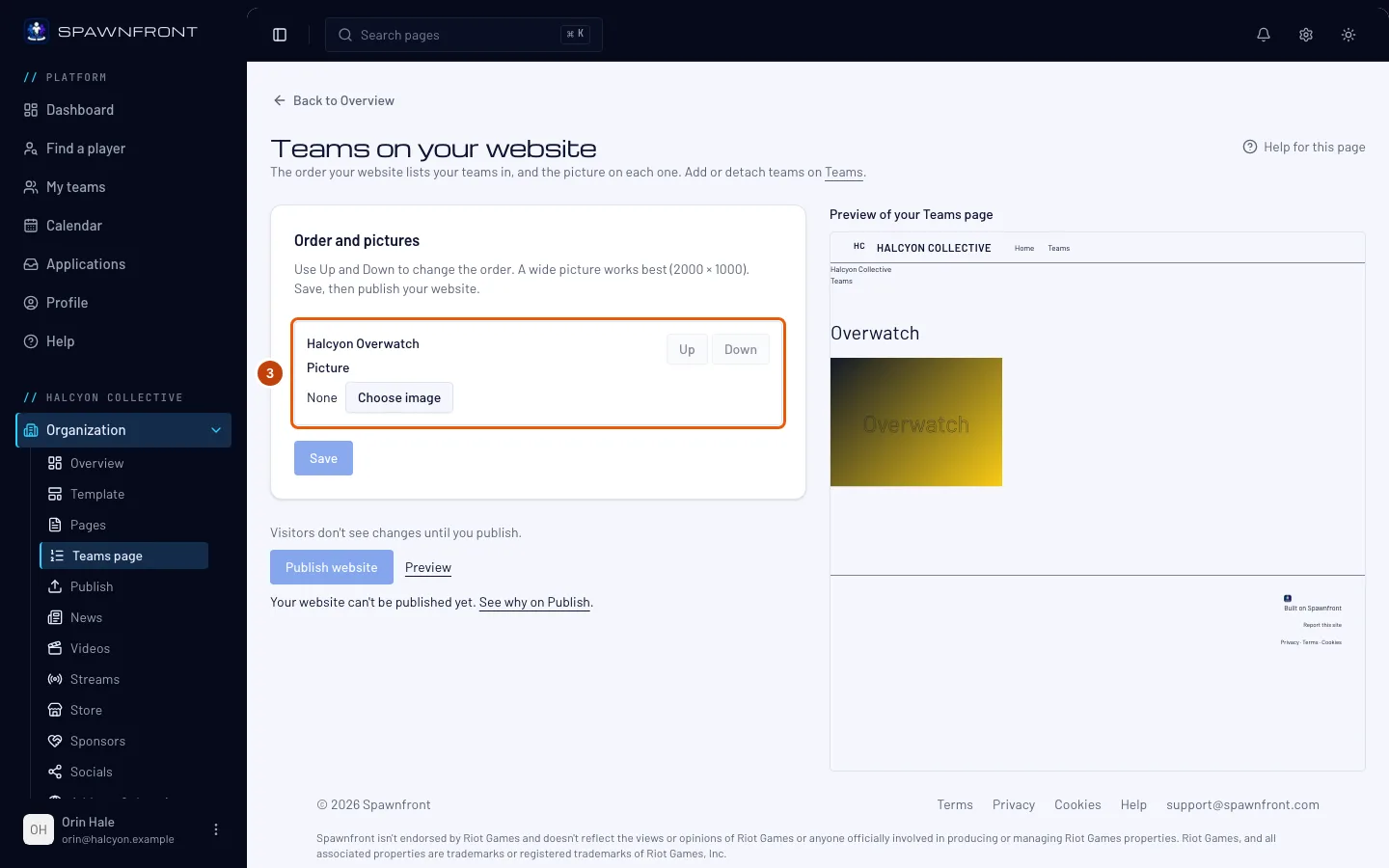
Press Choose image under a team and pick a picture from your organization's media, or upload one. A wide picture works best (2000 × 1000).
You should see: the picture's name under the team. It shows in the preview once you save.
Step 4: Save
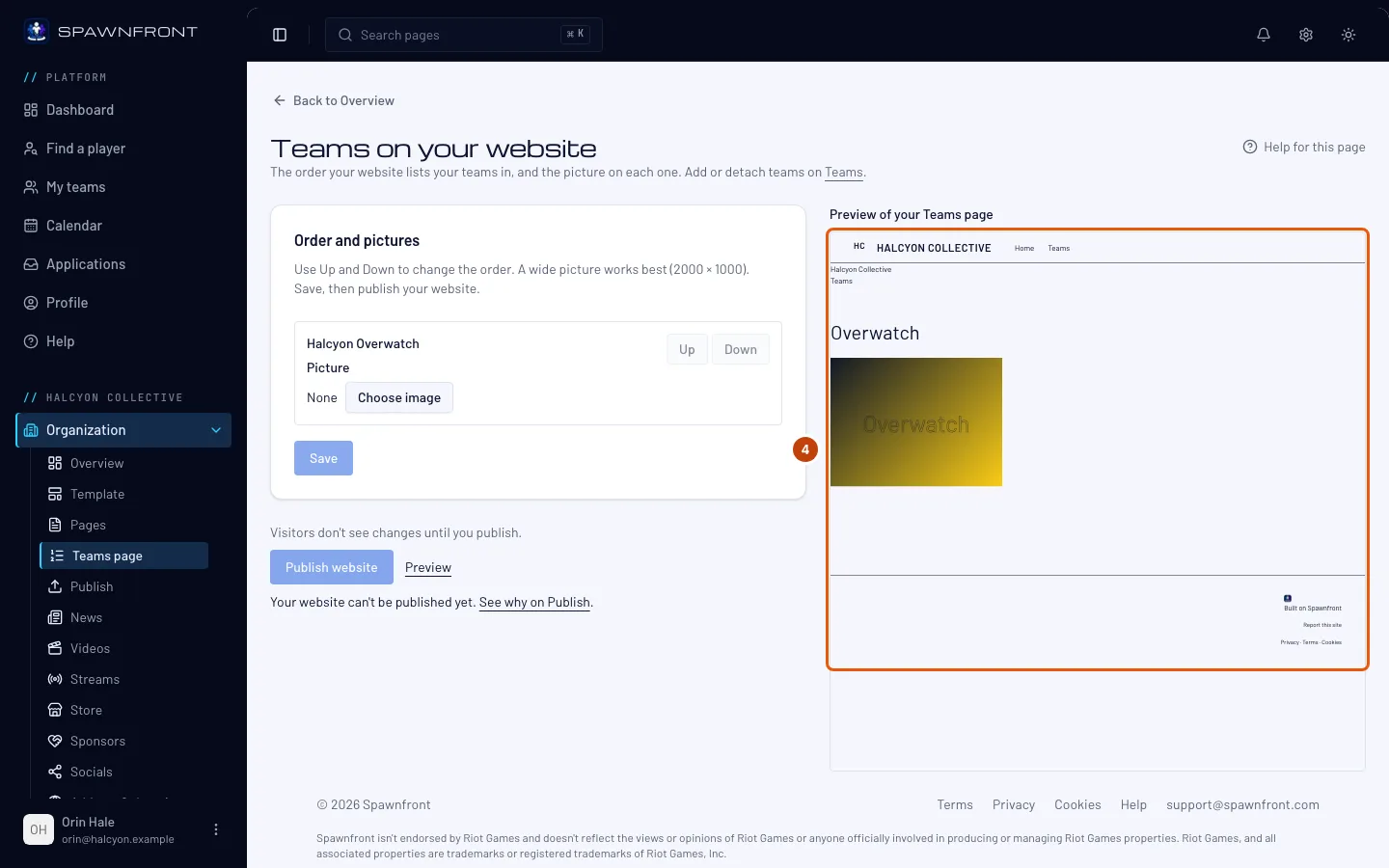
Press Save.
You should see: "Teams saved", and the preview with your pictures.
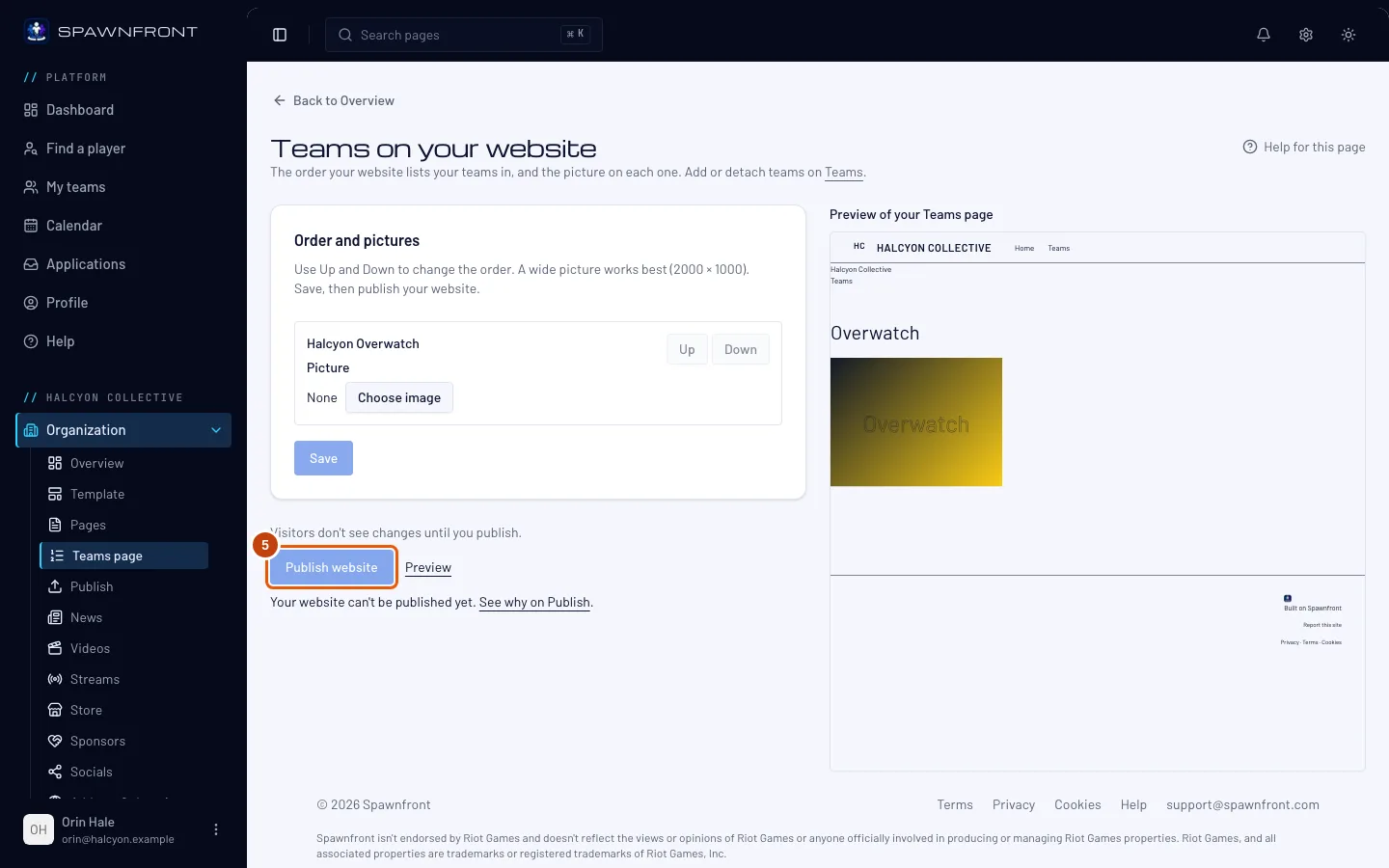
Step 5: Publish your website
Press Publish website, then Publish now in the box that opens.
You should see: "Published. Visitors see your teams now." Visitors don't see changes until you publish.
How to know it worked
- Your website's Teams page lists your teams under each game, in your order, each with its picture.
- Each card opens that team's own page, at
/teams/<game>/<team>.
Something doesn't look right?
Publish website is grayed out
Either you have changes you have not saved — press Save first — or nothing has changed since your last publish. If the page says your website can't be published yet, open Publish to see which check is not met.
A new picture doesn't show in the preview
The preview shows saved pictures. Press Save, and it appears.
A team is missing
Only the organization's teams are listed. Add it from Teams with Add a team; it appears here at the bottom.
Related articles
Still stuck? Contact support or email support@spawnfront.com — tell us the page you're on and the step number.