
See your scrim stats
Each player's K/D/A and win rate across your settled scrims, by month and by map — with a site.
For team owners and admins · 3 steps
What you need first
- You are the team's owner or an admin, and your team has a site.
- Your team has settled scrims: results confirmed by both teams — see Settle a scrim with a screenshot.
Steps
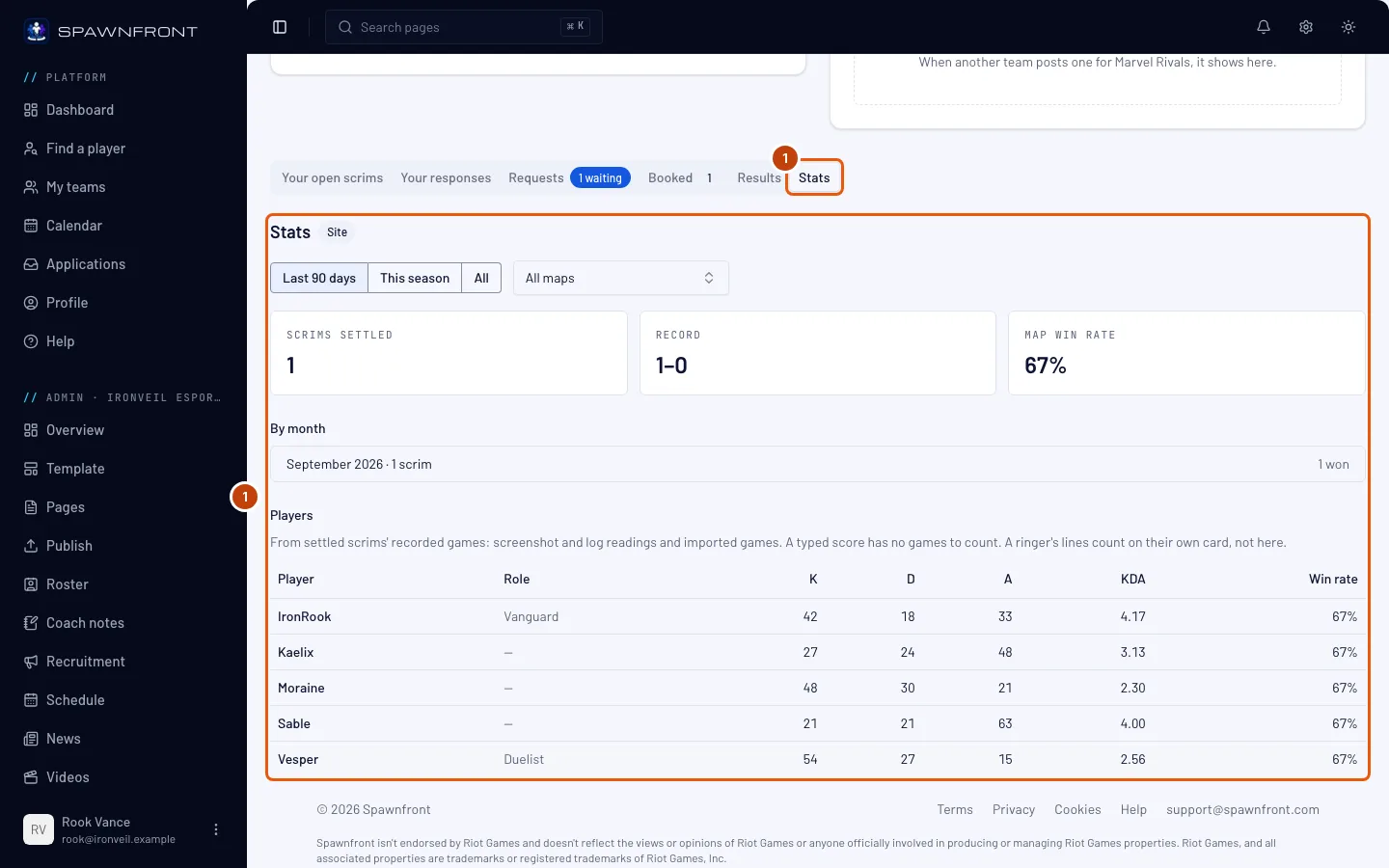
Step 1: Open the Stats tab
In your team's admin, press Scrimmages in the menu on the left, then the Stats tab under the finder.
You should see: Scrims settled, Record and Map win rate, then By month and Players.
Step 2: Choose the period and the map
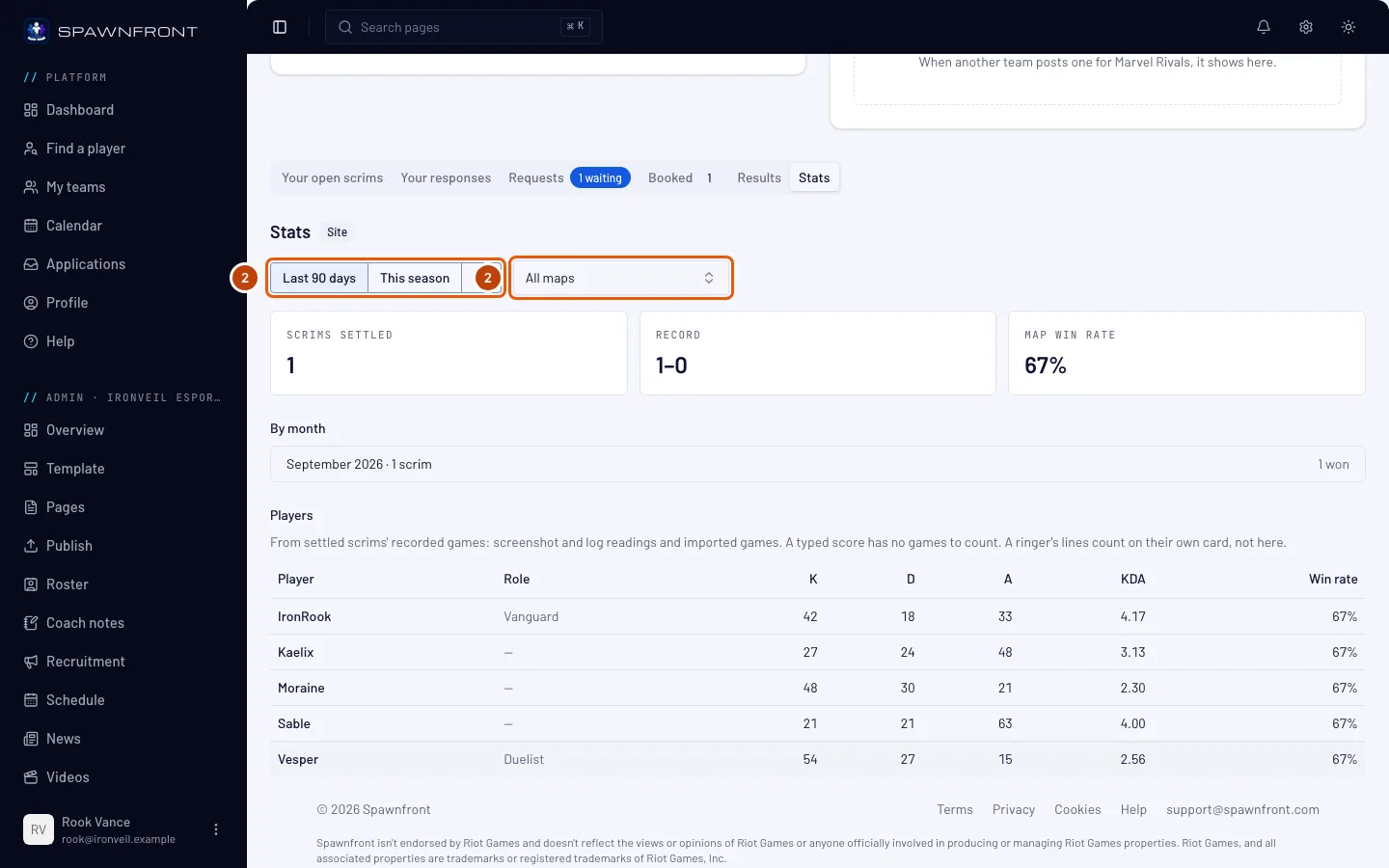
Under Period, press Last 90 days, This season or All. To see one map, choose it under Map; All maps shows every map.
You should see: the tiles, the months and the players change to match.
Step 3: Read each player's line
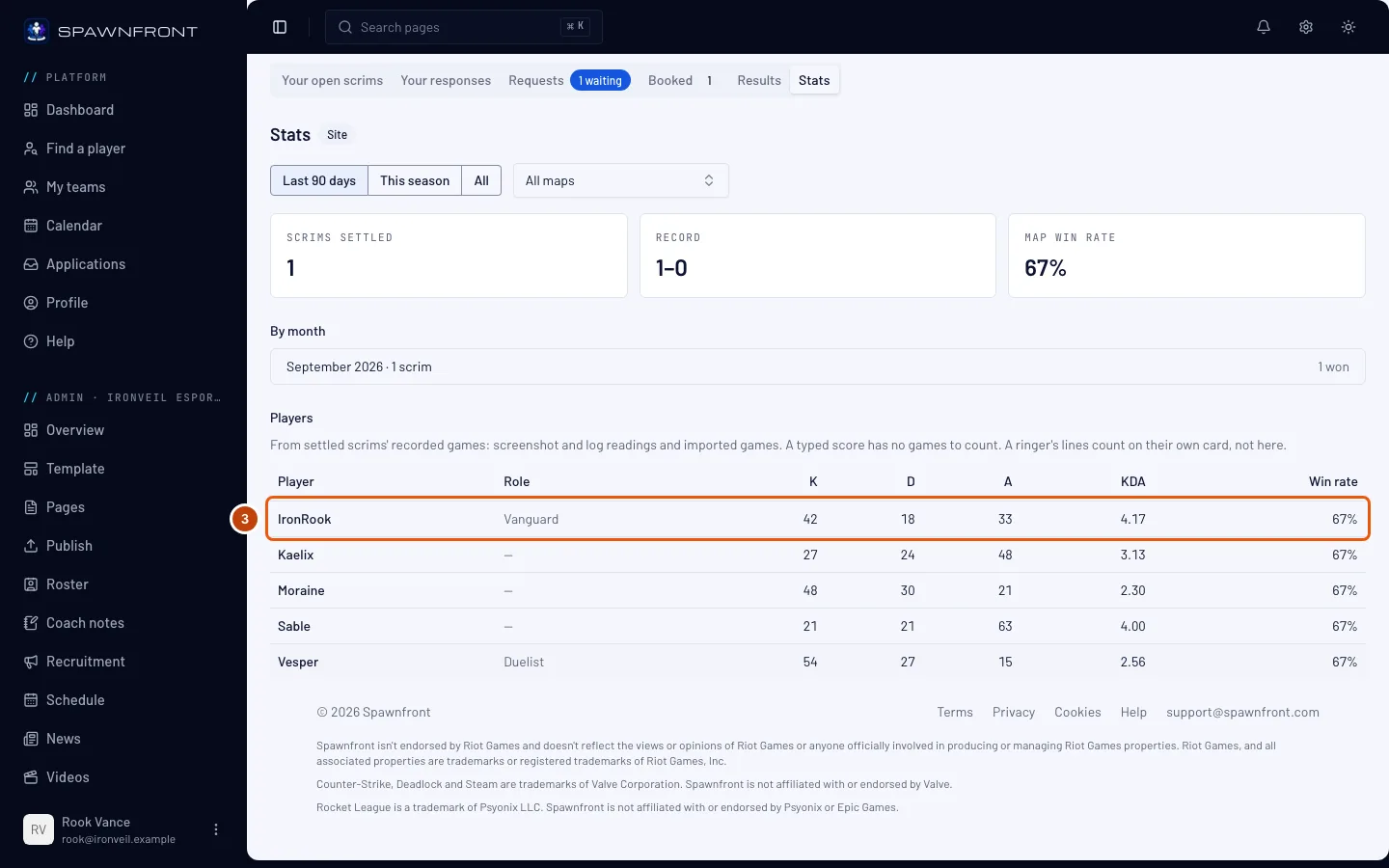
Under Players, each player of your roster has a row: K, D, A, KDA and Win rate, across the games they played.
You should see: the players who played most first.
How to know it worked
- A scrim you settle after this shows in the numbers the next time you open the page.
How it's counted. The numbers come from your settled scrims' recorded games: screenshot and log readings and imported games. A scrim settled only by a typed score has no games to count. KDA is kills plus assists over deaths. A player's win rate is the share of their decided games your team won. A scrim counts as won when your team won more of its games than it lost. Damage and healing are never shown. Players have a row only when their games recorded each player's numbers, as Marvel Rivals screenshot readings do.
Without a site. A free team sees the section with sample rows, never its own numbers, and can start a free trial or see the plans there.
Listed first. Teams with a site are also listed first in Open scrims and the scrimmage finder, with a Site badge.
Related articles
Still stuck? Contact support or email support@spawnfront.com — tell us the page you're on and the step number.