
Contact support
Write to Spawnfront's support from inside Spawnfront, with your team, the page you were on and a screenshot, and get the reply by email.
For everyone · 8 steps
What you need first
- You are logged in. Can't log in, or have no account? Email support@spawnfront.com instead.
- You are on the page your question is about, if there is one — a team's admin page, your profile, a tournament. Contact support sends that page with your message, so support sees what you saw.
- For a privacy request — a copy of your data, or deleting it — email privacy@spawnfront.com.
Steps
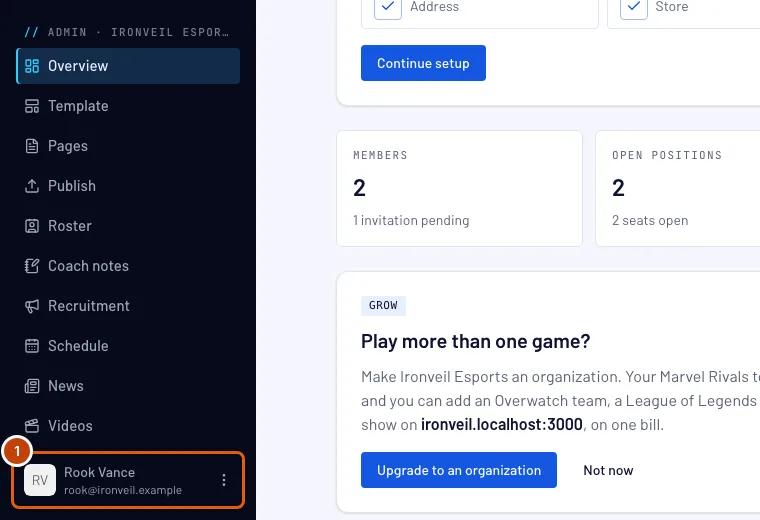
Step 1: Open your account menu
Press your name at the bottom of the menu. On a phone, open the menu first with the button at the top left.
You should see: your account menu, with Account, Contact support and Log out.
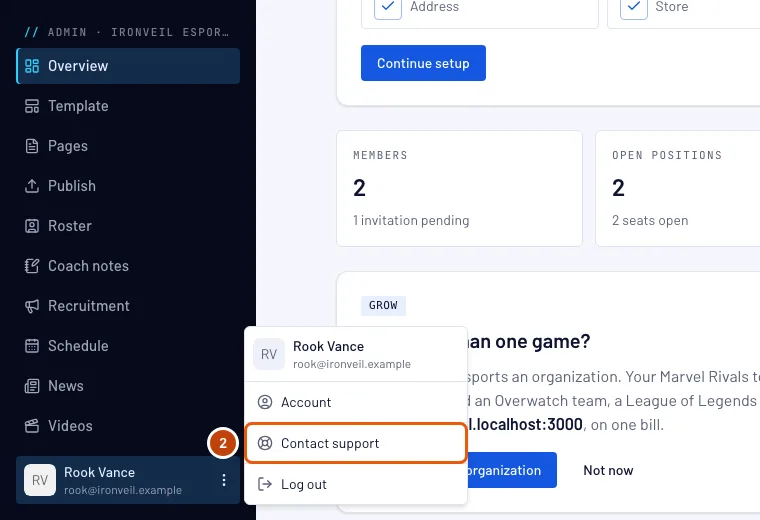
Step 2: Press Contact support
Press Contact support.
You should see: the Contact support page, with "We answer within a day, paying teams first." The Help center's own Contact support buttons open the same page.
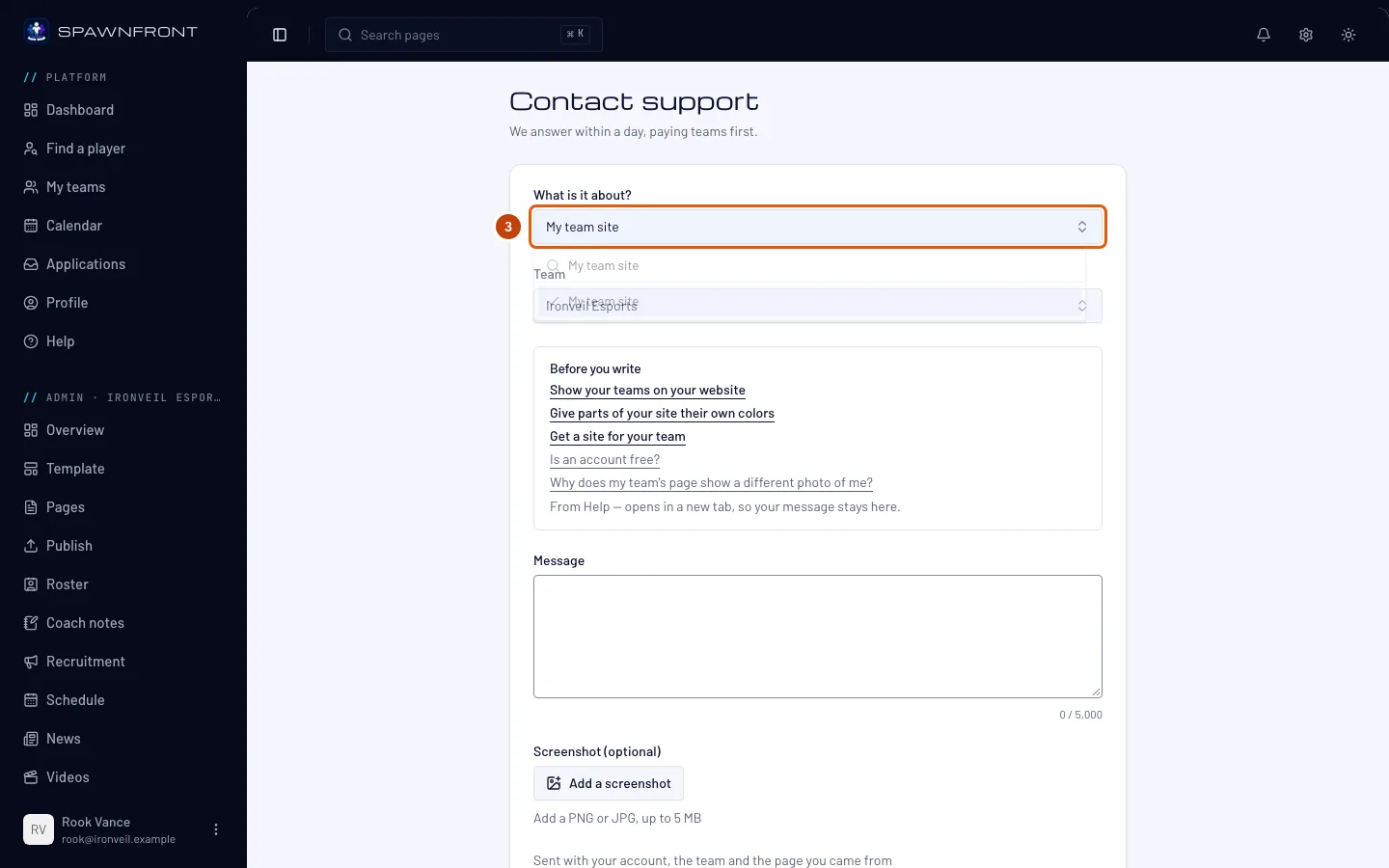
Step 3: Choose what it is about
Press What is it about? and choose the closest topic: My account or signing in, Billing or my plan, My team site, My custom domain, Spawnfront Companion, Something isn't working, An idea or feedback, A translation problem or Something else.
You should see: the topic you chose in the field.
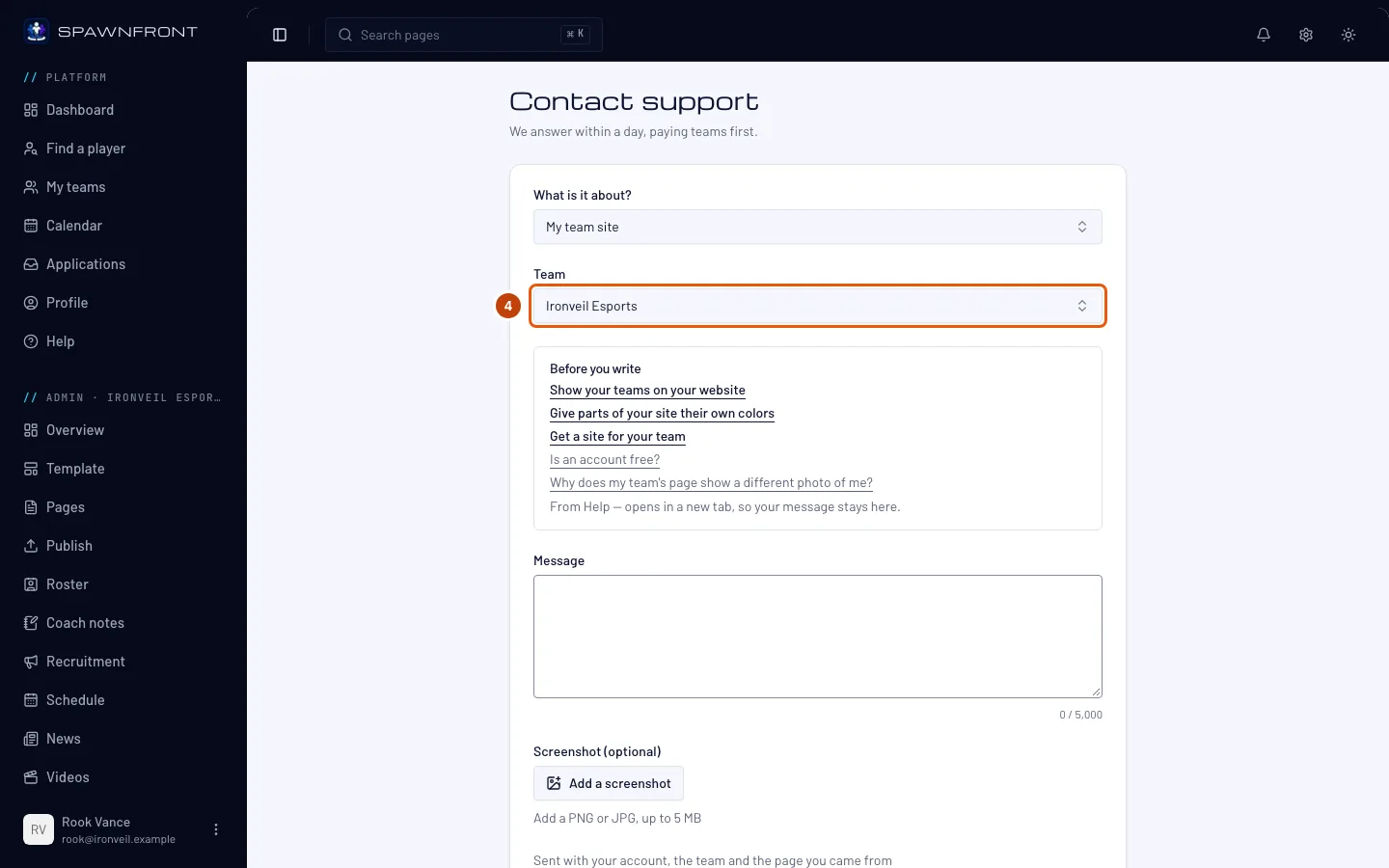
Step 4: Choose the team
If your question is about one of your teams, choose it under Team. If it isn't, choose No team.
You should see: the team you chose. If you opened Contact support from one of your team's pages, that team is already chosen. If you are on no team, the field isn't there — go on to the next step.
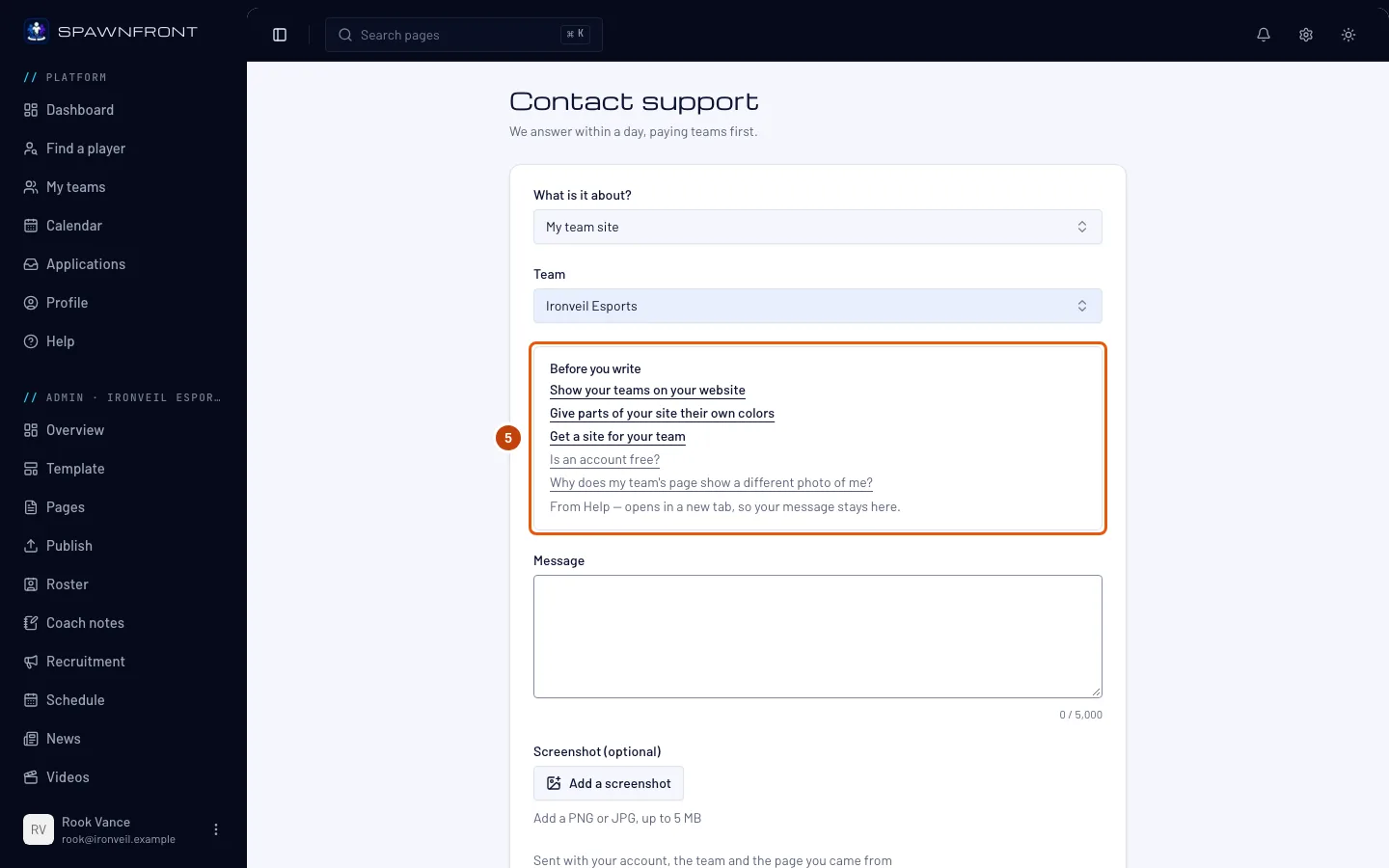
Step 5: Read Before you write
For some topics a Before you write box shows the Help articles and common questions about it. Open one that matches your question — it opens in a new tab, so your message stays here.
You should see: the answer in the new tab, or nothing that fits — then go back to the Contact support tab and go on. Topics such as Something isn't working show no box.
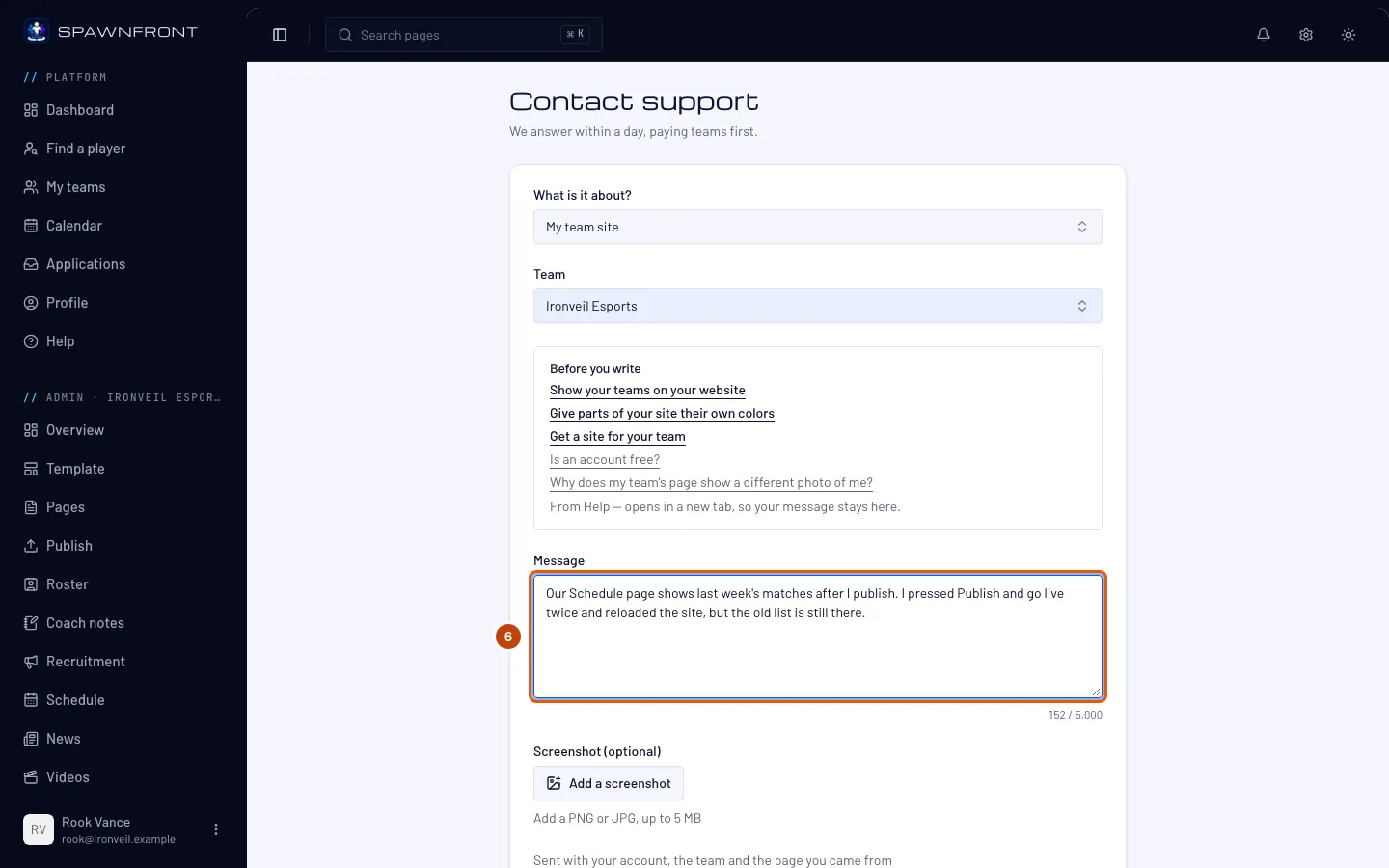
Step 6: Write your message
In Message, write what you tried, what happened and what you expected. Up to 5,000 characters.
You should see: the count under the box, such as "212 / 5,000". The line below names what is sent with it — your account, the team when you chose one, and the page you came from — and the email address support replies to: your account's email.
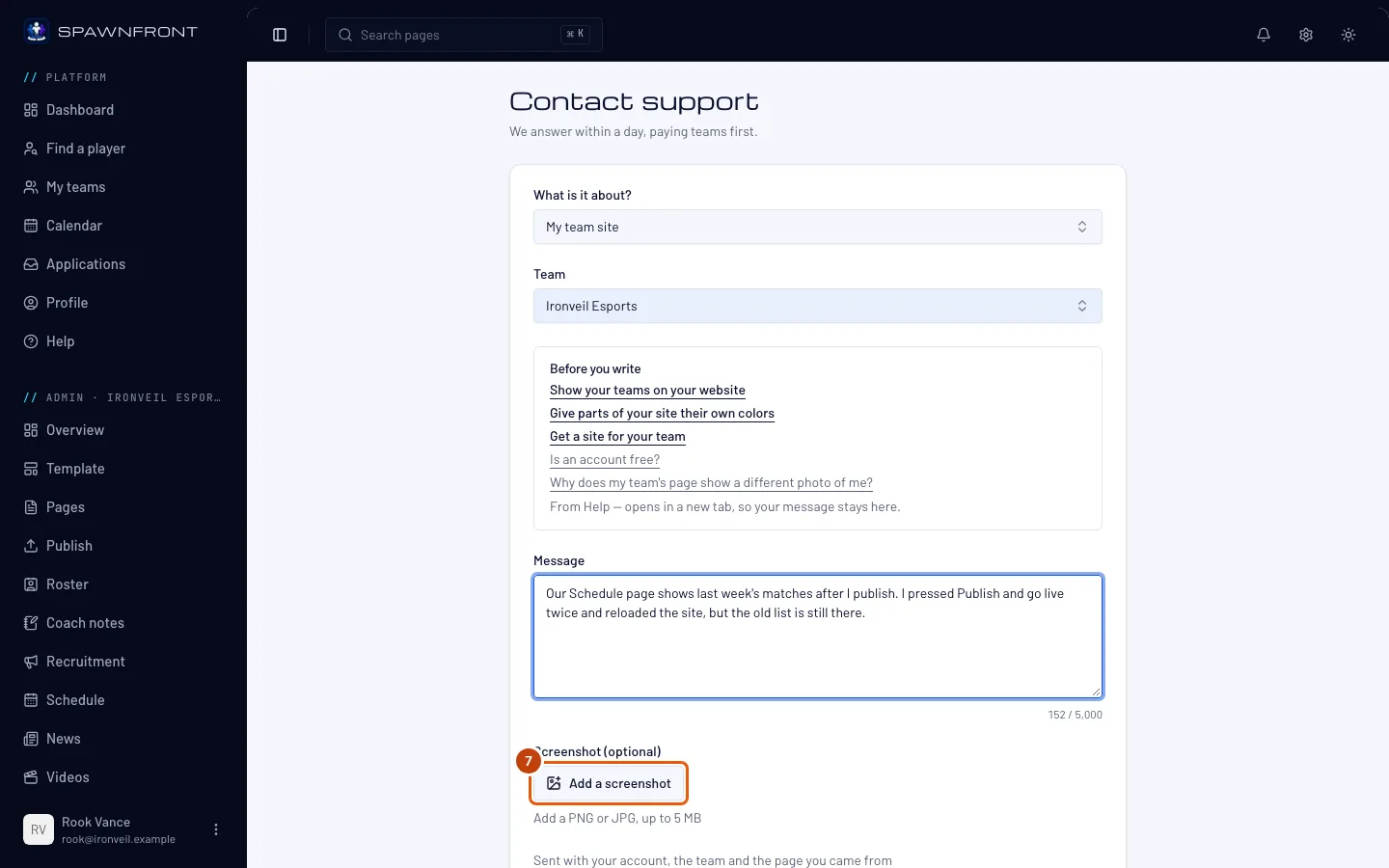
Step 7: Add a screenshot, if it helps
This step is optional. Under Screenshot (optional), press Add a screenshot and choose a picture of the problem — a PNG or JPG, up to 5 MB.
You should see: the file's name with "Adding…", then the name alone. Wait for "Adding…" to go before you send.
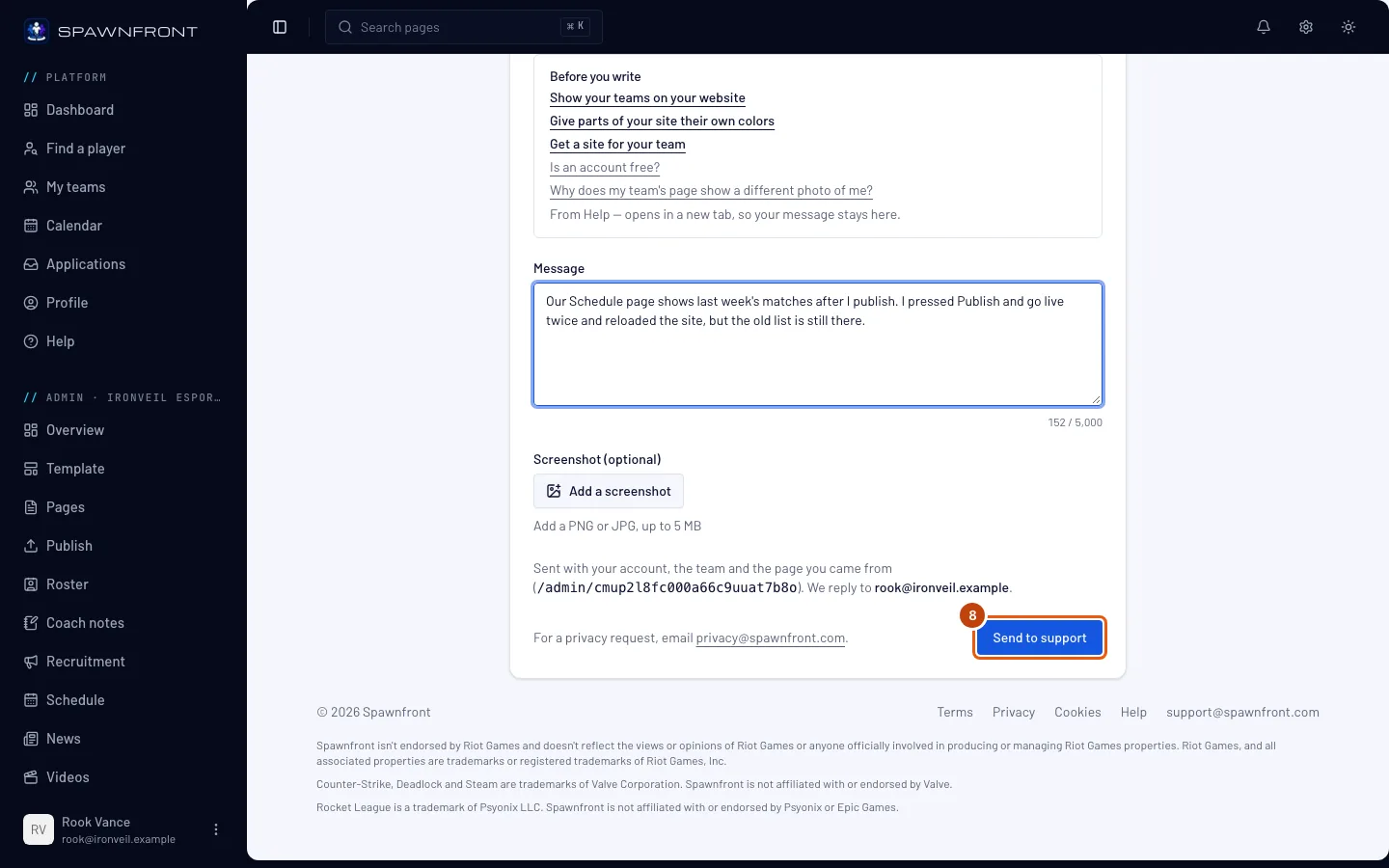
Step 8: Press Send to support
Press Send to support.
You should see: Message sent, and "We'll reply to" your account's email, "usually within a day.", with Go to Dashboard — and Back to the page you were on when you opened the form from a page.
How to know it worked
- The page says Message sent.
- Support's reply comes to your account's email address. Reply to that email to answer support.
Something doesn't look right?
I added the wrong screenshot
Press Remove beside the file's name, then press Add a screenshot and choose the right one.
Send to support stays grey
Choose a topic under What is it about? and write a message — both are needed. If you added a screenshot, wait until "Adding…" goes.
It says I've sent five messages today
You can send five messages a day. Email support@spawnfront.com, or send it tomorrow.
My screenshot won't add
Only a PNG or JPG up to 5 MB can be added. "Add a PNG or JPG screenshot." means the file is another kind — save it as PNG or JPG. "Screenshots can be up to 5 MB." means it is too big — crop it or save it as JPG. "You've added too many screenshots today." means you added ten today: send your message without one, or email support@spawnfront.com with the picture.
I can't log in
Contact support needs you to be logged in. Email support@spawnfront.com from your account's email address and say what happens when you log in. If your account was suspended, see Your account was suspended.
I don't see a Team field
You are on no team, so there is nothing to choose — your message is sent without one. If you should be on a team, say which in your message.
I can't find support's reply
It goes to your account's email address — the one the form names under the message, the address you signed up with. Look in your spam or junk folder for an email from support@spawnfront.com. Replies usually come within a day, paying teams first.
Related articles
Still stuck? Contact support or email support@spawnfront.com — tell us the page you're on and the step number.