
Allow AI assistants on your team
Let your members' AI assistants (Claude, ChatGPT and others) read and change your team. Off until an owner or admin turns it on.
For team owners and admins · 2 steps
What you need first
- You are the team's owner or an admin. Any team can turn this on, with or without a site.
- Each member connects their own AI assistant — Claude, ChatGPT or another app — from that app. This switch decides whether those assistants may reach this team at all.
Steps
Step 1: Open Settings
In the menu on the left, under Admin, press Settings.
You should see: your team's details, and a card titled AI assistants.
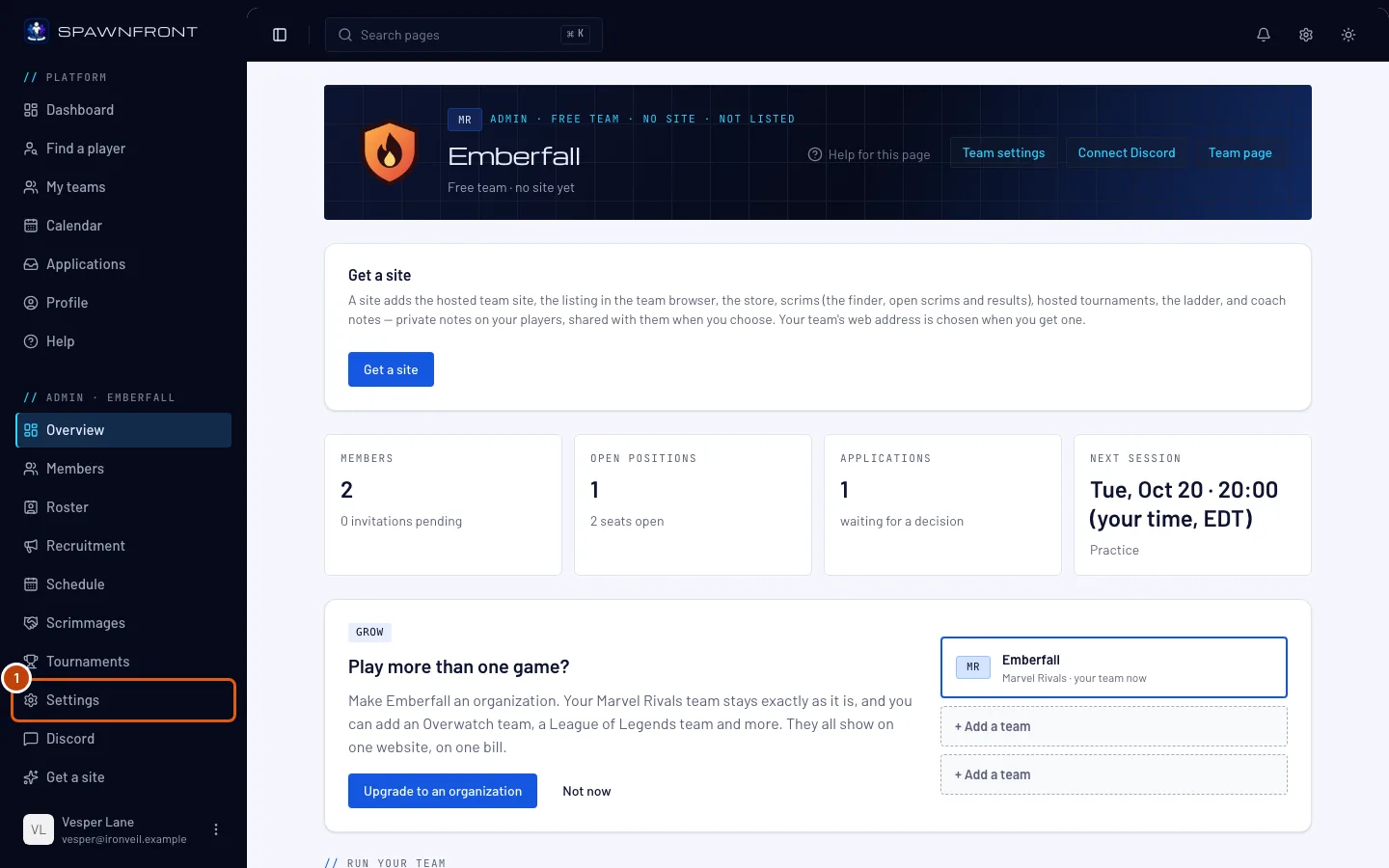
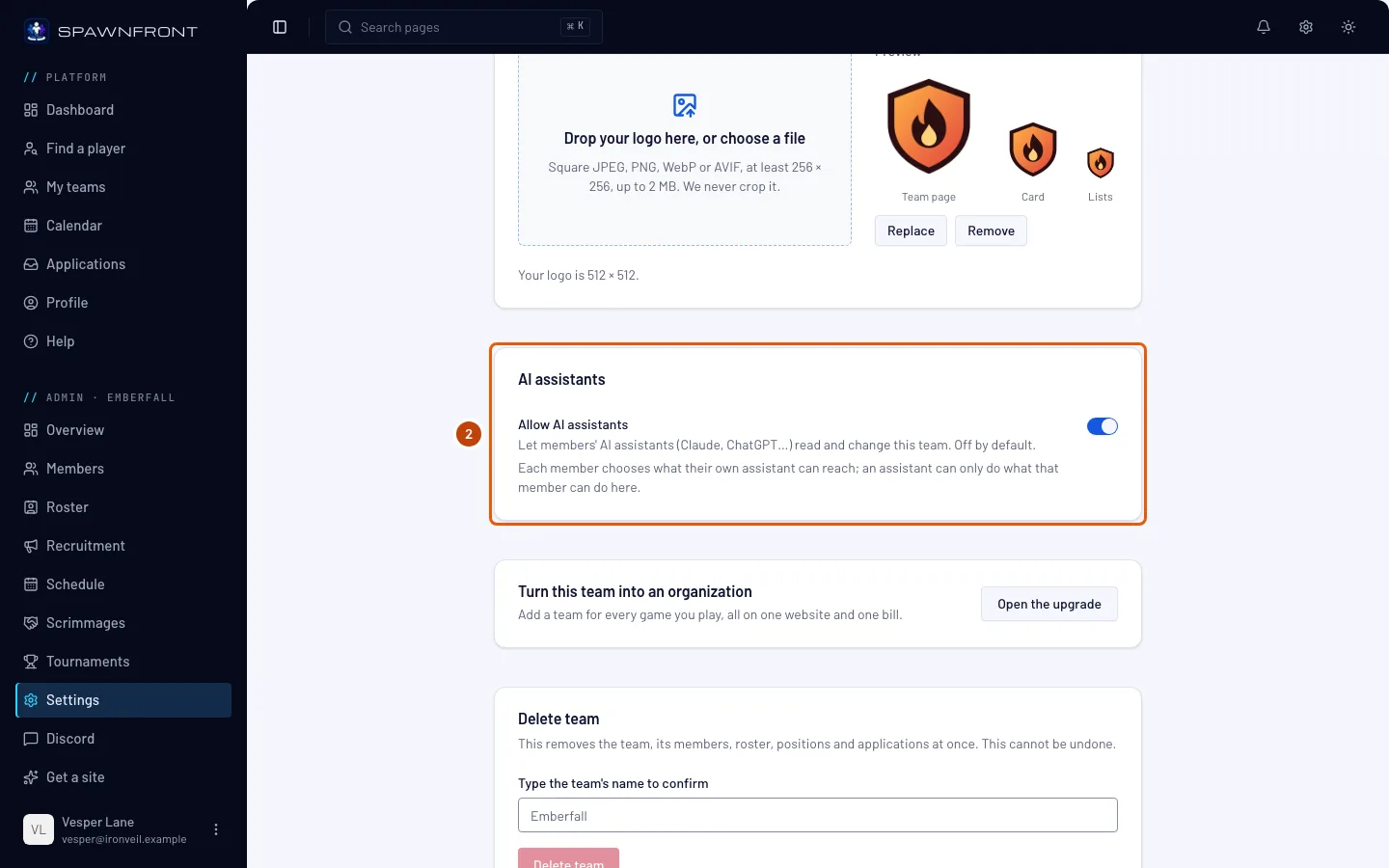
Step 2: Turn on Allow AI assistants
On the AI assistants card, turn on Allow AI assistants.
It is off until you turn it on. While it is off, no member's assistant can read or change anything on this team, even if they connected one.
You should see: the switch turned on.
How to know it worked
- Ask your AI assistant to list your team's roster. It answers with your roster instead of saying the team has not allowed AI assistants.
Something doesn't look right?
My assistant says this team has not allowed AI assistants
An owner or admin has not turned on Allow AI assistants yet. Turn it on in step 2, then ask again.
Can an assistant do everything I can?
No more than the member who connected it — and less: it can make drafts and changes you can undo here, like adding a roster entry or drafting a news post. Publishing, deleting, payments, accepting players and connecting your store or game accounts stay on Spawnfront, and the assistant gives the member a link to finish them.
How do I stop assistants reaching my team?
Turn Allow AI assistants off. It takes effect on the assistant's very next request.
My team is part of an organization
Each team in the organization keeps its own switch here. The organization's own site and settings have a separate switch on the AI assistants card of the organization's Settings — under Organization in the menu on the left, for the organization's owner and admins.
Related articles
Still stuck? Contact support or email support@spawnfront.com — tell us the page you're on and the step number.