
Add your team logo
Upload a square logo for your team's card, team page and lists — with or without a site.
For team owners and admins · 3 steps
What you need first
- You are the team's owner or an admin. Any team can have a logo, with or without a site.
- Your logo as a square image — the same width and height, at least 256 × 256 — in JPEG, PNG, WebP or AVIF, up to 2 MB. A PNG with a transparent background works well.
Steps
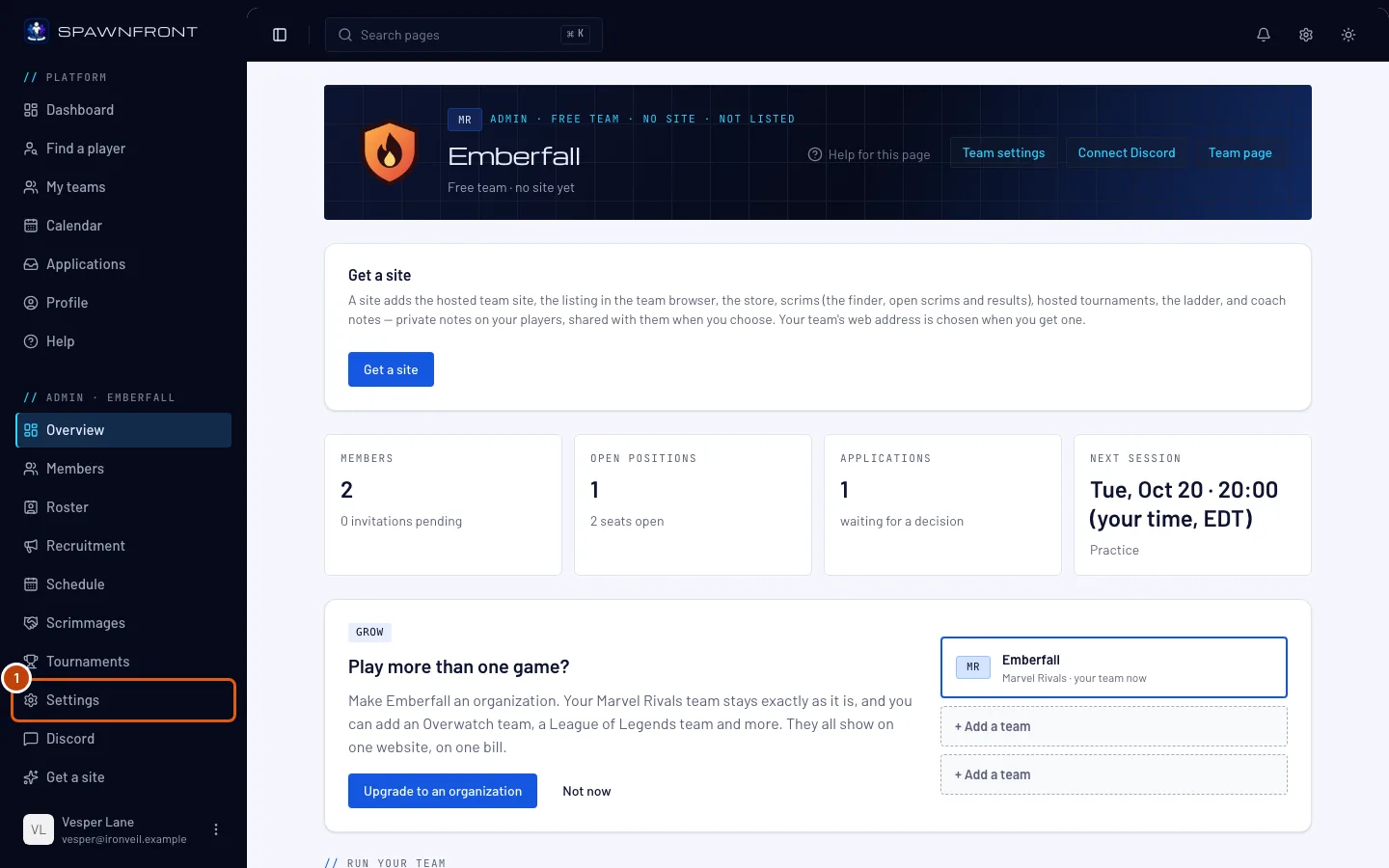
Step 1: Open Settings
In the menu on the left, under Admin, press Settings.
You should see: your team's details, and a card titled Team logo below them.
Step 2: Choose your logo
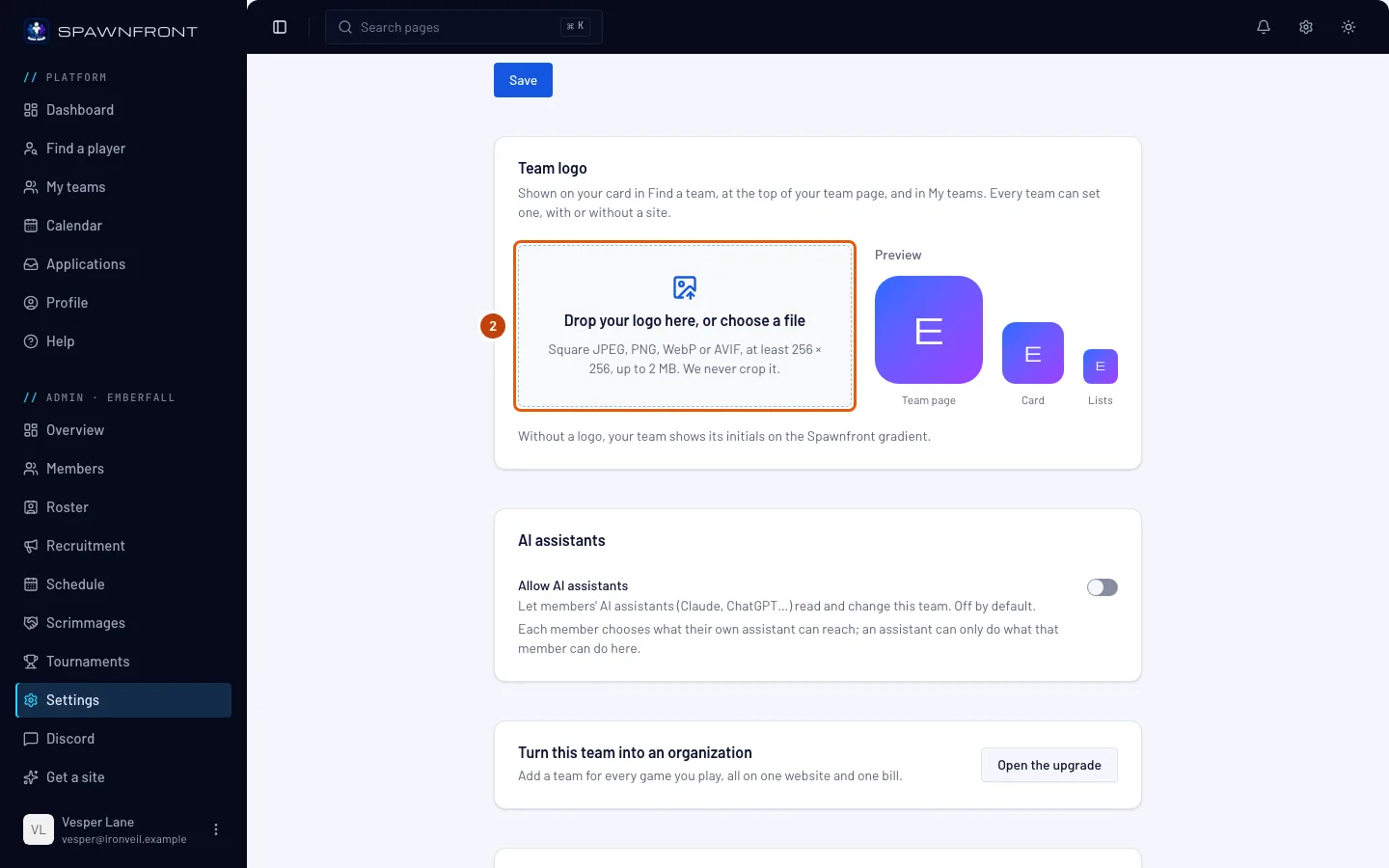
On the Team logo card, press the box that says Drop your logo here, or choose a file and choose your logo — or drag the file onto it.
We never crop your logo, so it has to be square already.
Step 3: Check how it looks
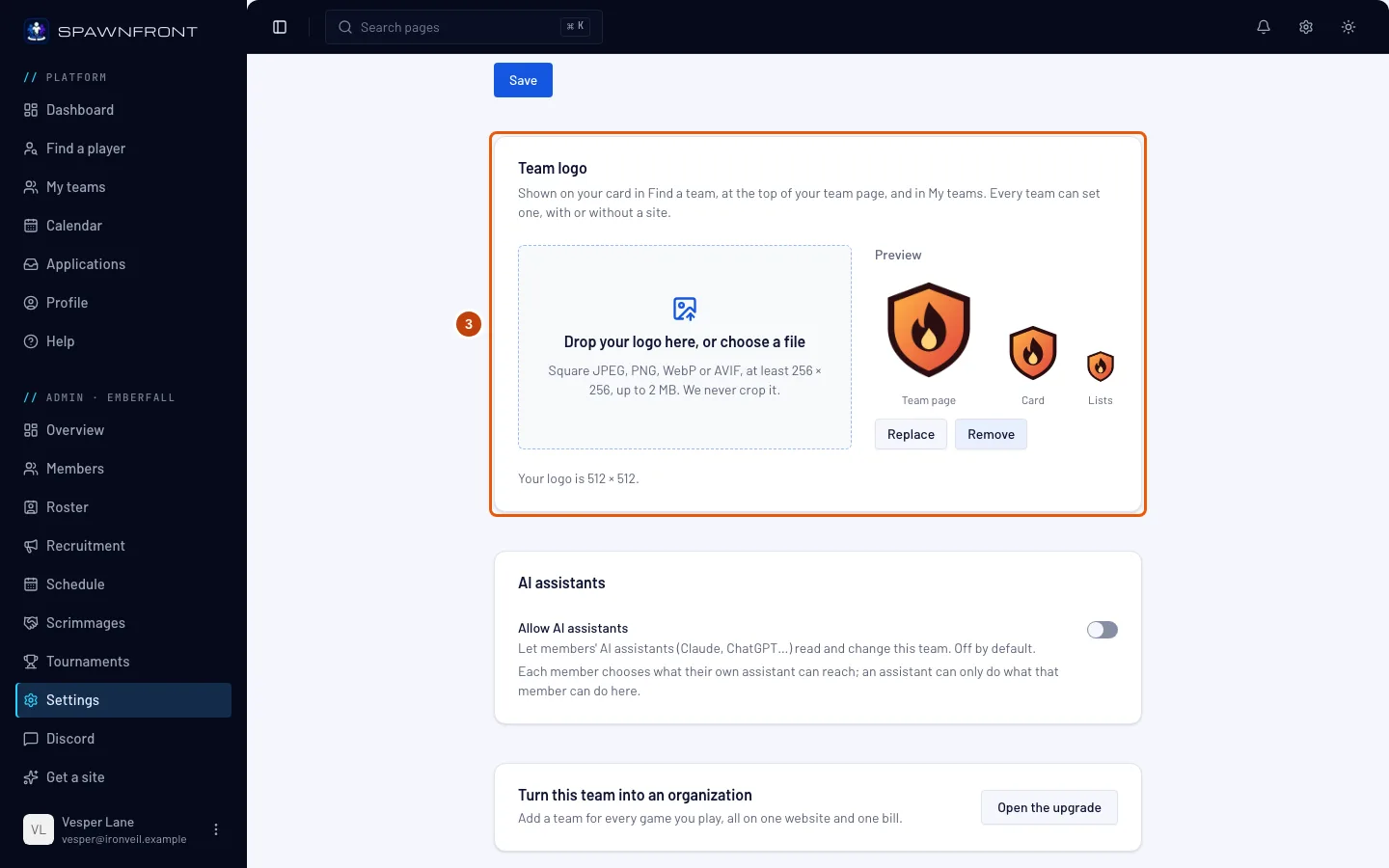
You should see: "Logo saved", and your logo in the three sizes the app draws it — on your team page, on your card in Find a team, and in lists.
To change it, press Replace. To go back to your team's initials, press Remove.
How to know it worked
- Your logo shows at the top of your team page and on your card in My teams.
Something doesn't look right?
It says my logo is not square
The message names the size of your file, for example 1200 × 800. Make a square version — the same width and height — and upload that. We never crop a logo, so nothing gets cut off.
Is my site's logo the same?
Your site keeps its own logo, which changes only when you publish. If your site has no logo yet, the Appearance page offers Use team logo to use the same one.
Related articles
Still stuck? Contact support or email support@spawnfront.com — tell us the page you're on and the step number.