
Connect an AI assistant
Use Spawnfront from Claude, ChatGPT or another AI app: add Spawnfront's address in the app, then choose what it can reach.
For players · 4 steps
What you need first
- You have a Spawnfront account, and an AI app that can connect to other services: Claude (any plan; the Free plan allows one custom connector) or ChatGPT (a paid plan, with developer mode). Other apps that support MCP connectors work the same way.
- It costs nothing on Spawnfront and needs no API key. Your assistant can do only what you can do on Spawnfront.
- To let it reach a team, an owner or admin of that team turns on Allow AI assistants in the team's settings first — see Allow AI assistants on your team.
Steps
Step 1: Copy Spawnfront's address
Copy this address:
https://spawnfront.com/api/mcpYou should see: nothing yet — you paste it into your AI app next.
Step 2: Add Spawnfront in your AI app
In Claude, open Customize, then Connectors, press + Add and choose Add custom connector. Name it Spawnfront, paste the address and press Continue, then Add. On a Team or Enterprise plan your organization's owner adds the connector first, and you press Connect on it. Claude's help has the current steps.
In ChatGPT, turn on developer mode in ChatGPT's settings and create an app with the address. ChatGPT's help has the current steps.
You should see: your AI app opens a Spawnfront page in your browser. If you are signed out, sign in to Spawnfront first and the page comes back.
Step 3: Choose what it can reach
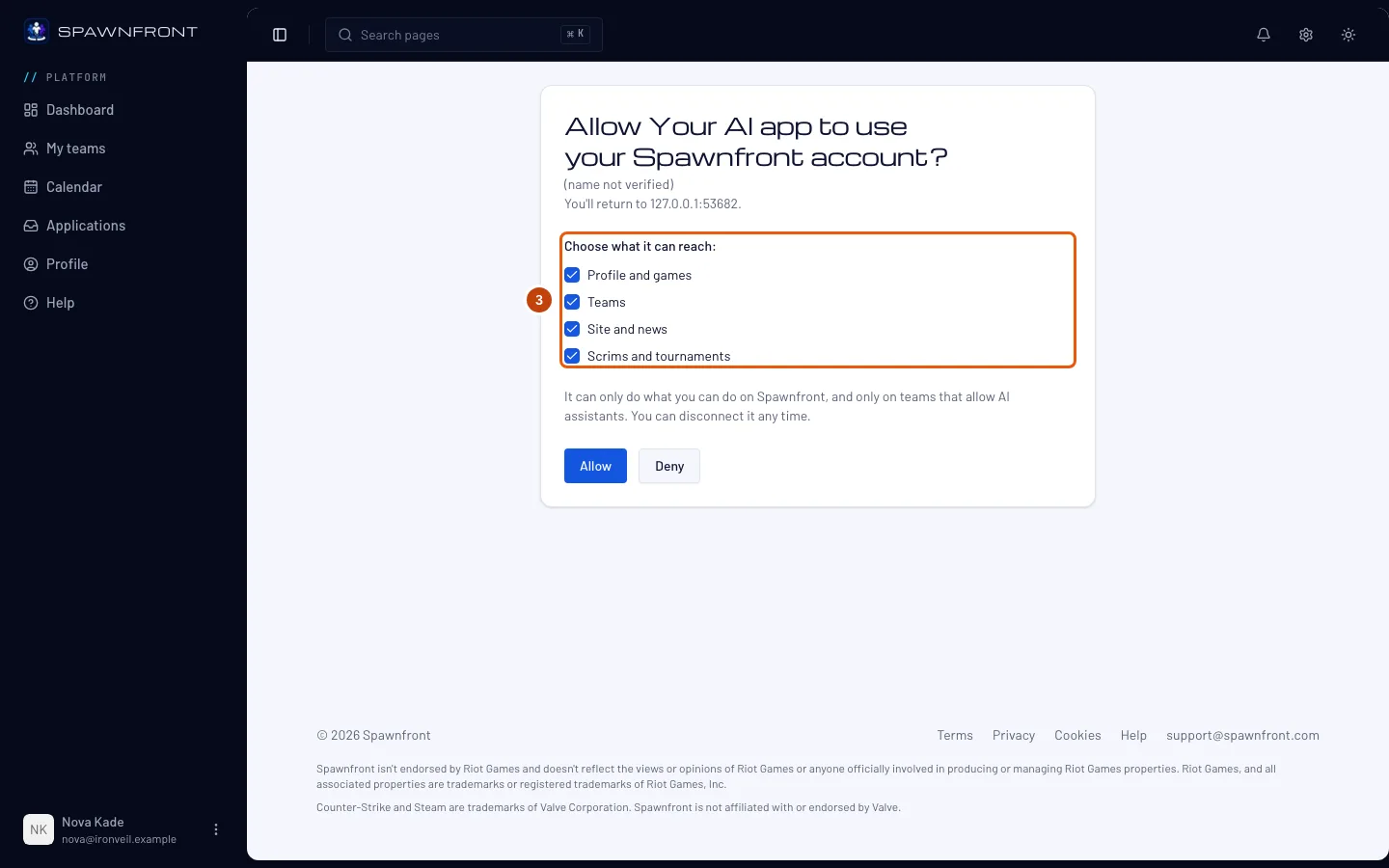
The page names the app asking — with the address it will send you back to — and four areas: Profile and games, Teams, Site and news and Scrims and tournaments. Untick any area you don't want it to reach. Keep at least one: Allow stays grayed out with none ticked.
Check the app's name and address. Claude says from claude.ai and ChatGPT from chatgpt.com. Other apps may say (name not verified), as in the picture — continue only if you just added that app yourself, and otherwise press Deny.
You should see: the areas you keep ticked, and the Allow button.
Step 4: Press Allow
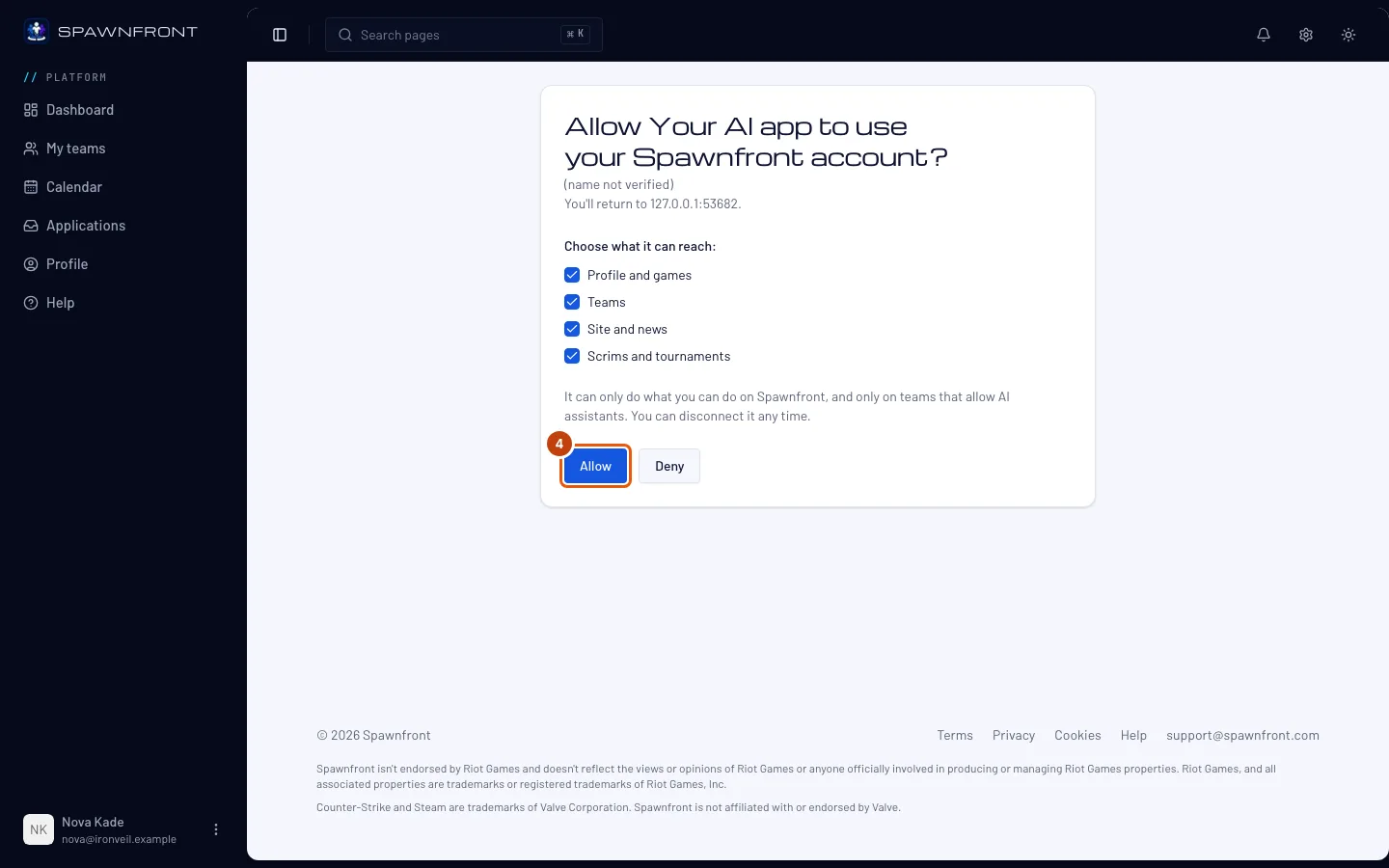
Press Allow.
You should see: your browser goes back to your AI app, and the app shows Spawnfront as connected. Ask it something — "What teams am I on?" or "Draft a news post about Saturday's win". It asks you before it changes anything.
How to know it worked
- In Spawnfront, open your profile and choose AI assistants. The app you connected is listed with the areas you allowed — see See and disconnect your AI assistants.
Something doesn't look right?
My assistant says this team has not allowed AI assistants
An owner or admin of that team turns on Allow AI assistants in the team's settings. Until then no member's assistant can read or change the team — see Allow AI assistants on your team.
My assistant gives me a link instead of doing it
Some things stay on Spawnfront: publishing your site, deleting anything, payments and upgrades, accepting a player or a scrim, and connecting a store, a domain or a game account. The assistant drafts what it can and gives you a link to the page where you finish it.
My assistant says it needs a team with a site
The site, news, store and competition tools are part of a team's site subscription, like they are on Spawnfront. A free team's assistant can still fill in profiles, the roster, open positions and the practice schedule.
The page says This request has expired
The request from your AI app waited too long. Start again from your AI app: it opens a new page to approve.
I want to change the areas I allowed
Disconnect the app in Profile › AI assistants, then connect it again from your AI app and choose the areas again.
The app stopped working after a while
A connection ends after 90 days without use, when you reset your password, and when you disconnect it. Connect it again from your AI app.
I use Claude Code, Codex, Cursor or VS Code
Add the same address, https://spawnfront.com/api/mcp, as an MCP server, and sign in to Spawnfront when your tool opens the browser. In Claude Code, the Spawnfront plugin adds the connector and guided skills in two commands:
claude plugin marketplace add AI-Pioneer-Labs/spawnfront-ai
claude plugin install spawnfront@spawnfront
The Spawnfront AI repository has the setup for each tool and the skills for other agents.
Related articles
Still stuck? Contact support or email support@spawnfront.com — tell us the page you're on and the step number.