
Invite members by email
Invite someone to your team by email, and resend or revoke an invitation.
For team owners and admins · 7 steps
What you need first
- Your team has a site subscription. Invitations by email come with a site: on a free team, people join by applying to one of your open positions — see Post an open position.
- You are the team's owner or an admin. An admin can only invite members; only the owner can invite someone as an admin.
- A team holds up to 20 members and pending invitations combined, and can send ten invitation emails in any 24 hours.
Steps
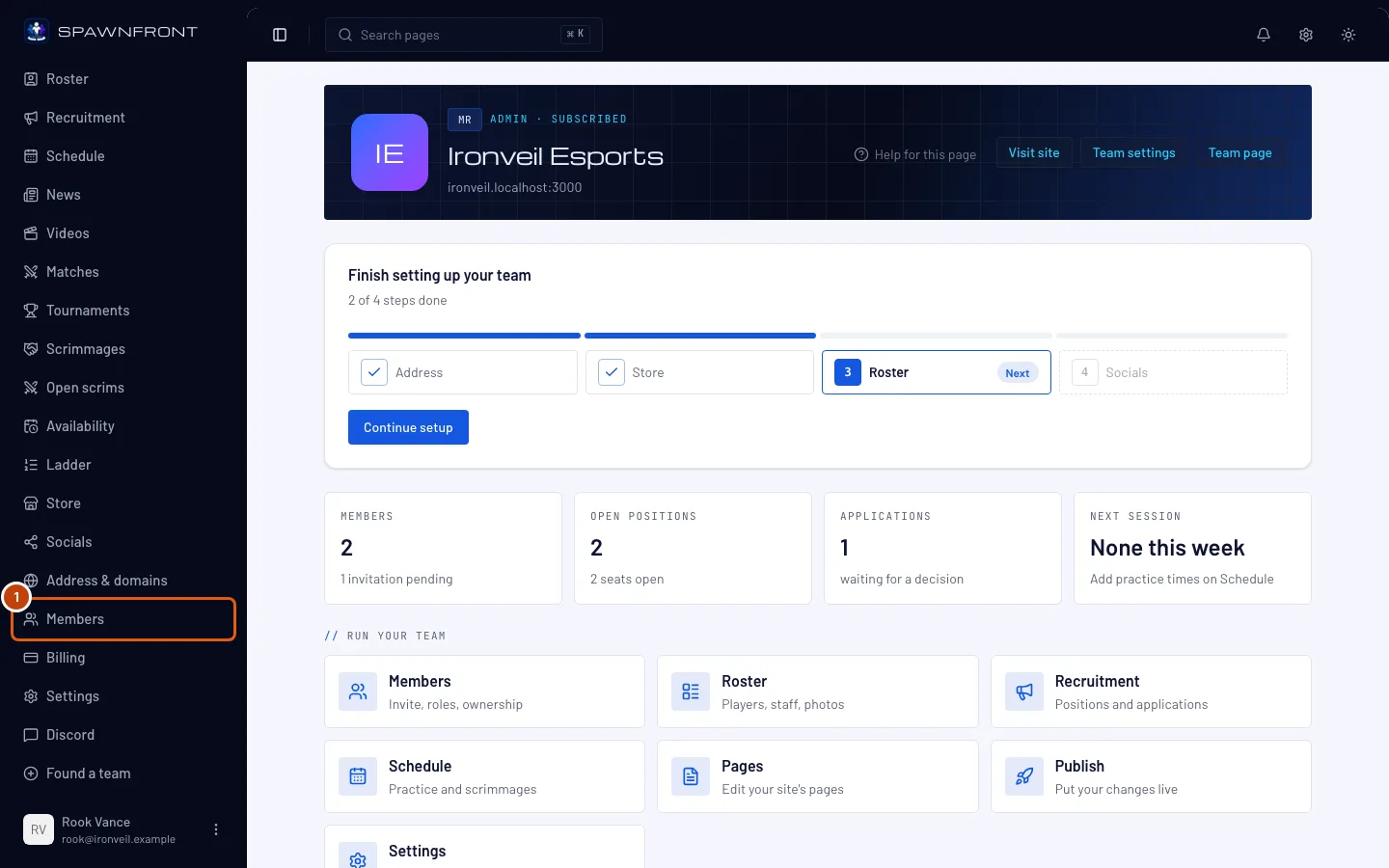
Step 1: Open Members
In the menu on the left, press Members.
You should see: a page titled with your team's name and "members", starting with Invite a member.
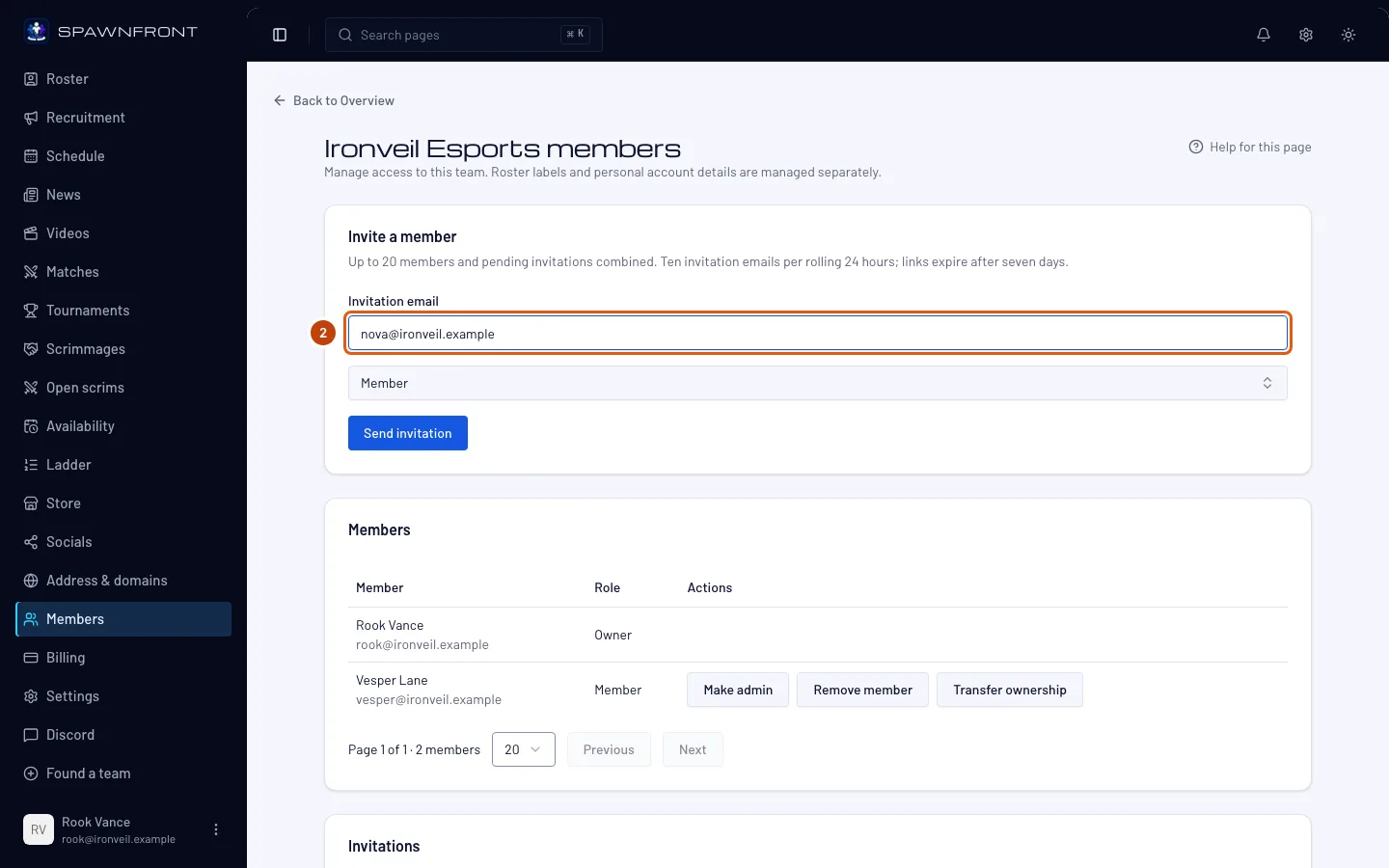
Step 2: Enter their email address
Under Invite a member, type the person's email address in Invitation email.
Use the address they will sign in with. They must log in or sign up with that same address to accept.
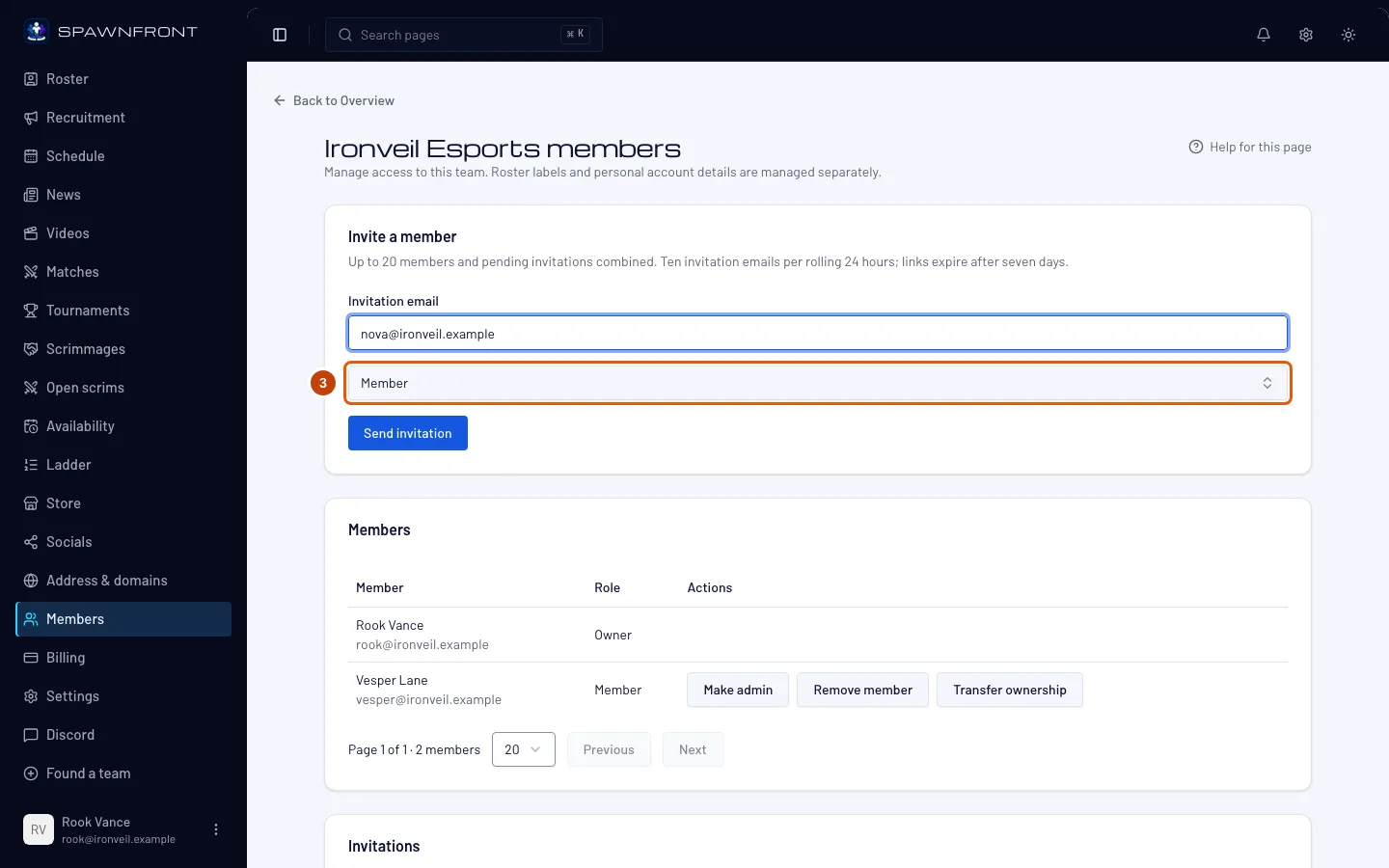
Step 3: Choose their role
As the owner, choose Member or Admin in the role box. An admin sees no role box: their invitations are always for a member.
You should see: the role you chose in the box.
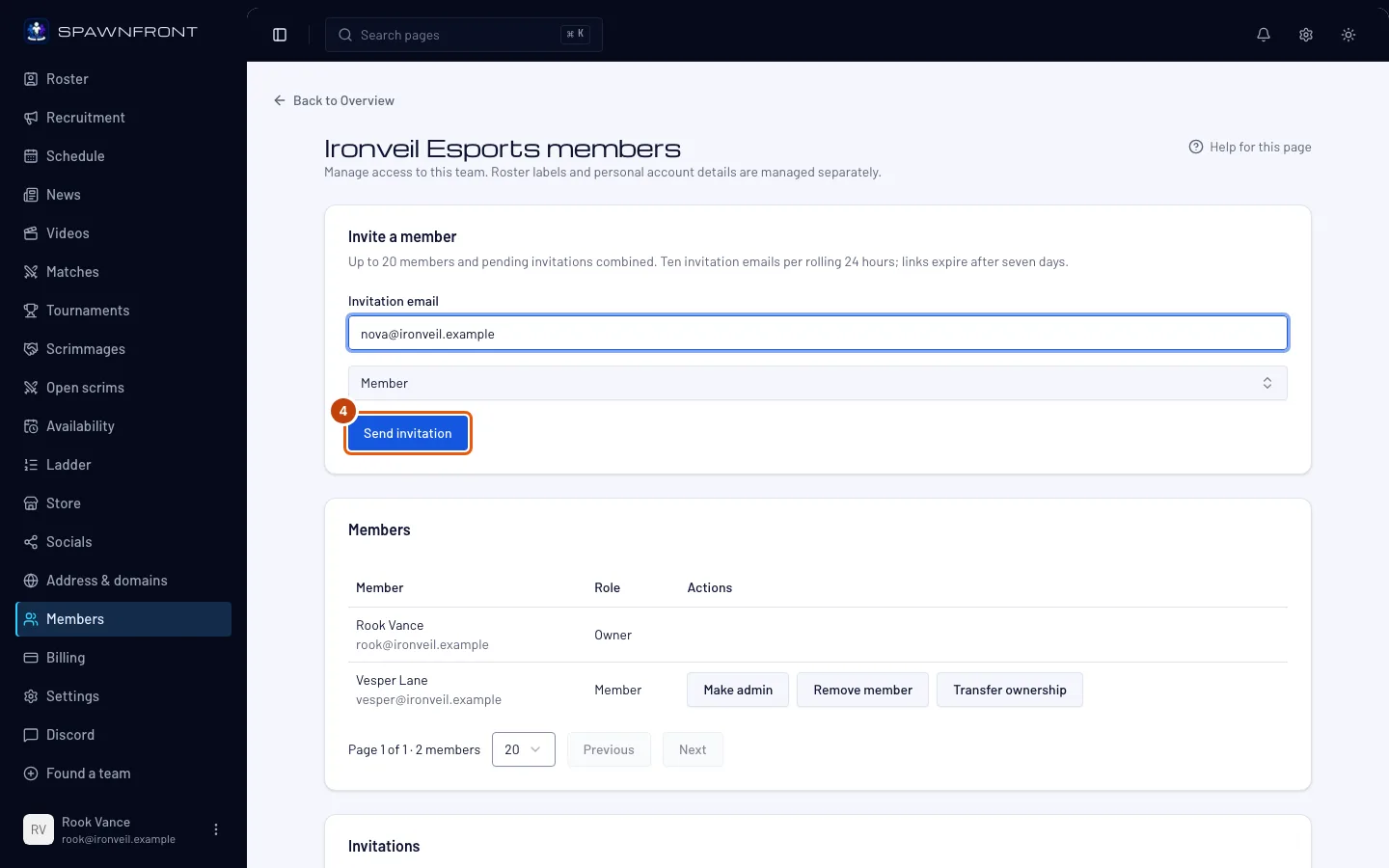
Step 4: Send the invitation
Press Send invitation.
You should see: "Invitation email submitted. The person must explicitly accept to join." Their address appears under Invitations with the status Pending.
The invitation lasts seven days, and it holds one of your 20 places until it is accepted, revoked or expires.
Step 5: They accept the invitation
This happens in their inbox, so there is no picture. They get an email titled "You're invited to join a team". Its Review invitation link opens Spawnfront, where they log in — or sign up — with the invited address, then press Accept invitation.
You should see: them in your members list with the role you chose, and their invitation's status Accepted.
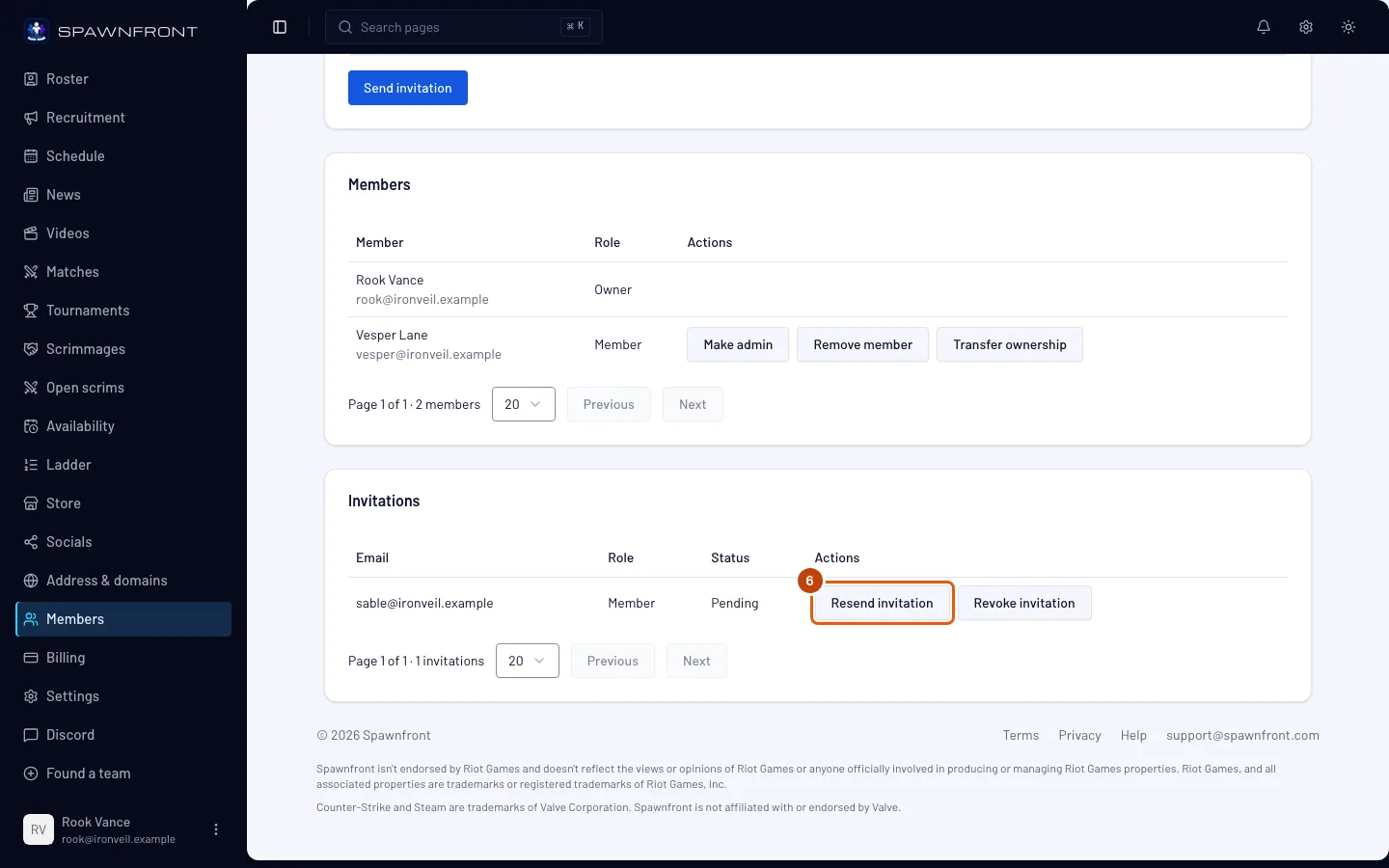
Step 6: Resend an invitation
If they lost the email or it expired, press Resend invitation on their row under Invitations.
It sends a new email at once, with no confirmation, and the link in the old email stops working.
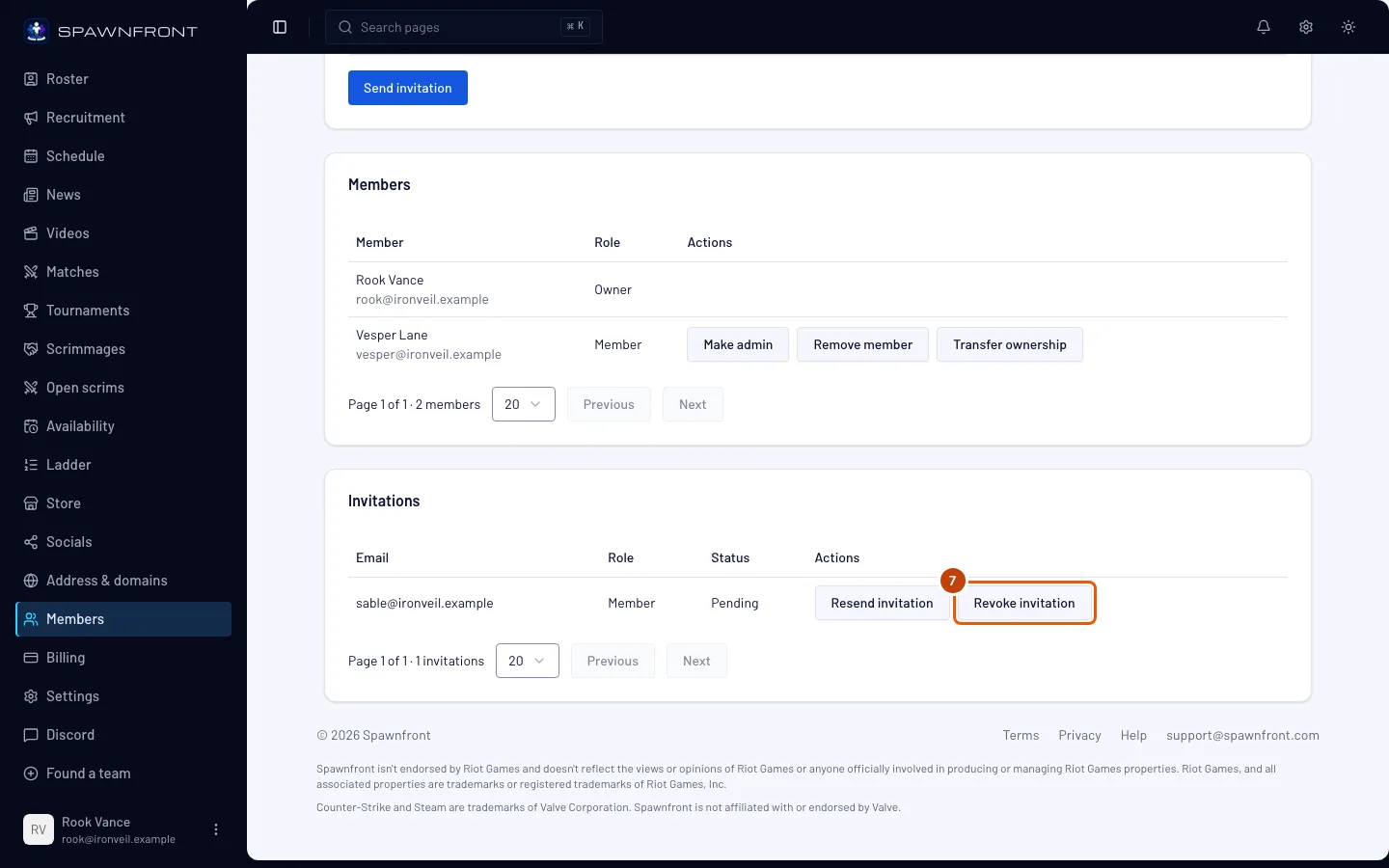
Step 7: Revoke an invitation
To cancel an invitation, press Revoke invitation on its row.
It is cancelled at once, with no confirmation. You should see: "Invitation revoked. Its reserved place is available again.", and the status Revoked.
How to know it worked
- Under Invitations, the person's row reads Pending until they accept (Accepted) or it runs out after seven days (Expired — resend it).
- Once accepted, they are in your members list — see Manage your members to change their role.
Something doesn't look right?
They never got the email
Ask them to check their spam folder, and check the address on their row. If it is right, press Resend invitation (step 6); if it is wrong, revoke it and invite the right address.
It says "use Resend for an existing pending invitation"
That address already has a pending invitation — find its row under Invitations and press Resend invitation. If the person is already in your members list, there is nothing to send.
It says "The team is full"
Your members and pending invitations together reach 20. Revoke an invitation nobody will use, or remove a member, then invite again.
It says the invitation email limit has been reached
A team can send ten invitation emails in any 24 hours, resends included. Wait, then try again.
My free team has no invitation form
Invitations by email come with a site. On a free team, people join by applying to one of your open positions — see Post an open position.
Related articles
Still stuck? Contact support or email support@spawnfront.com — tell us the page you're on and the step number.