
Buy from a team's store
Add a team's merch to your cart on its site and check out on Fourthwall — no account needed.
For anyone buying from a team · 7 steps
What you need first
- You don't need an account to buy. Nothing on a team's site asks you to log in.
- The team's site has Store in its menu, with a cart beside it. A site without them has no store open.
- Your cart is kept in this browser only. A different browser or device starts with an empty cart.
Steps
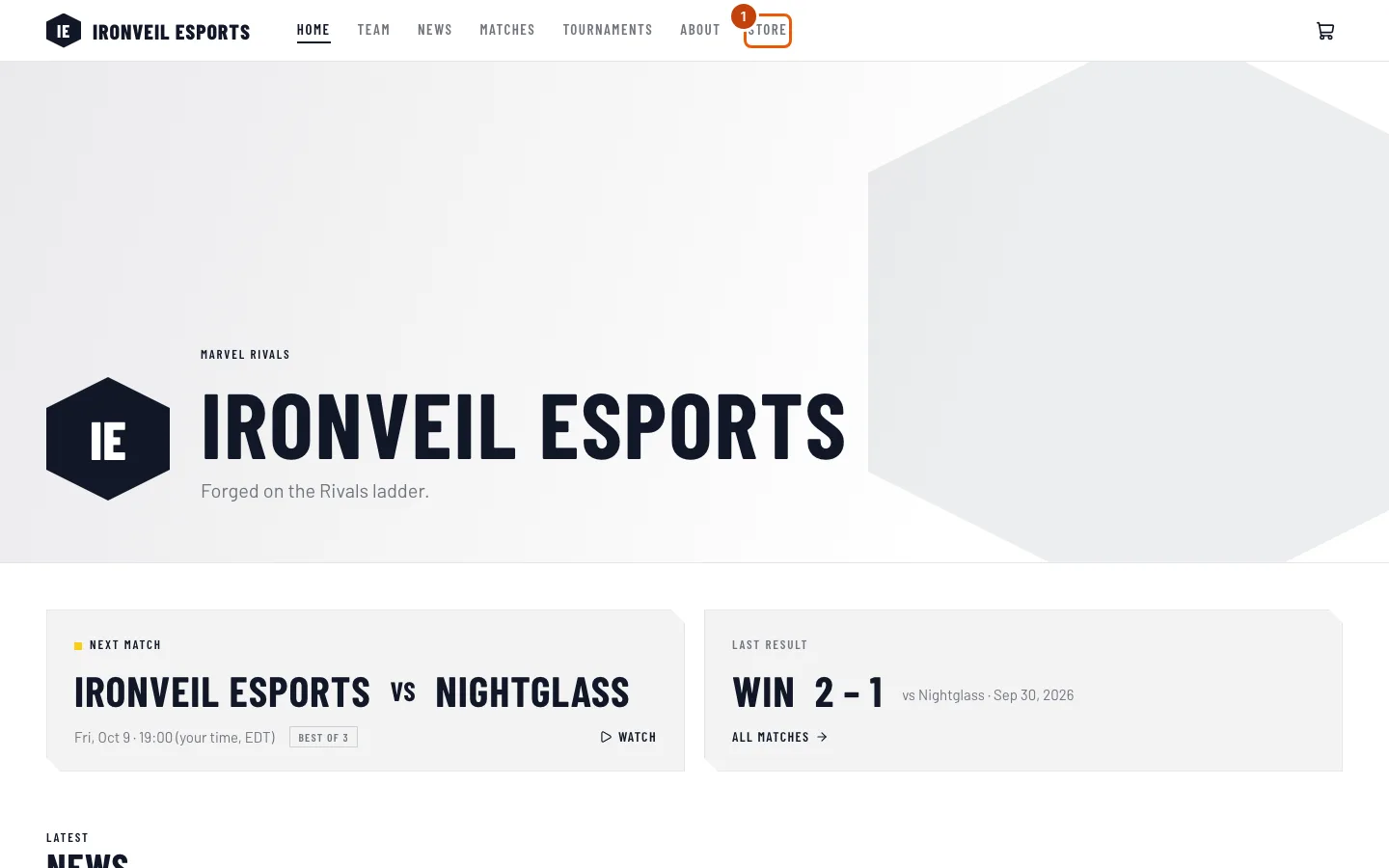
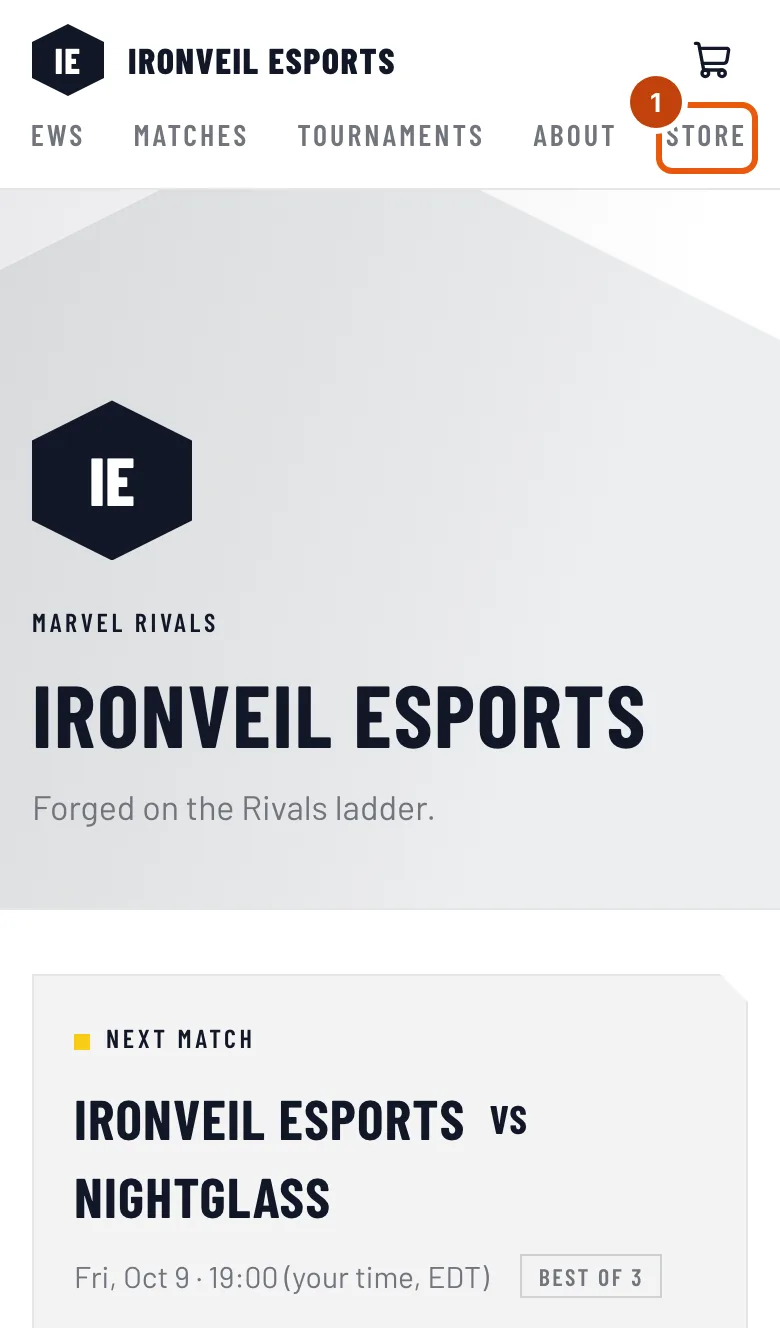
Step 1: Open the team's store
On the team's site, press Store in the menu at the top.
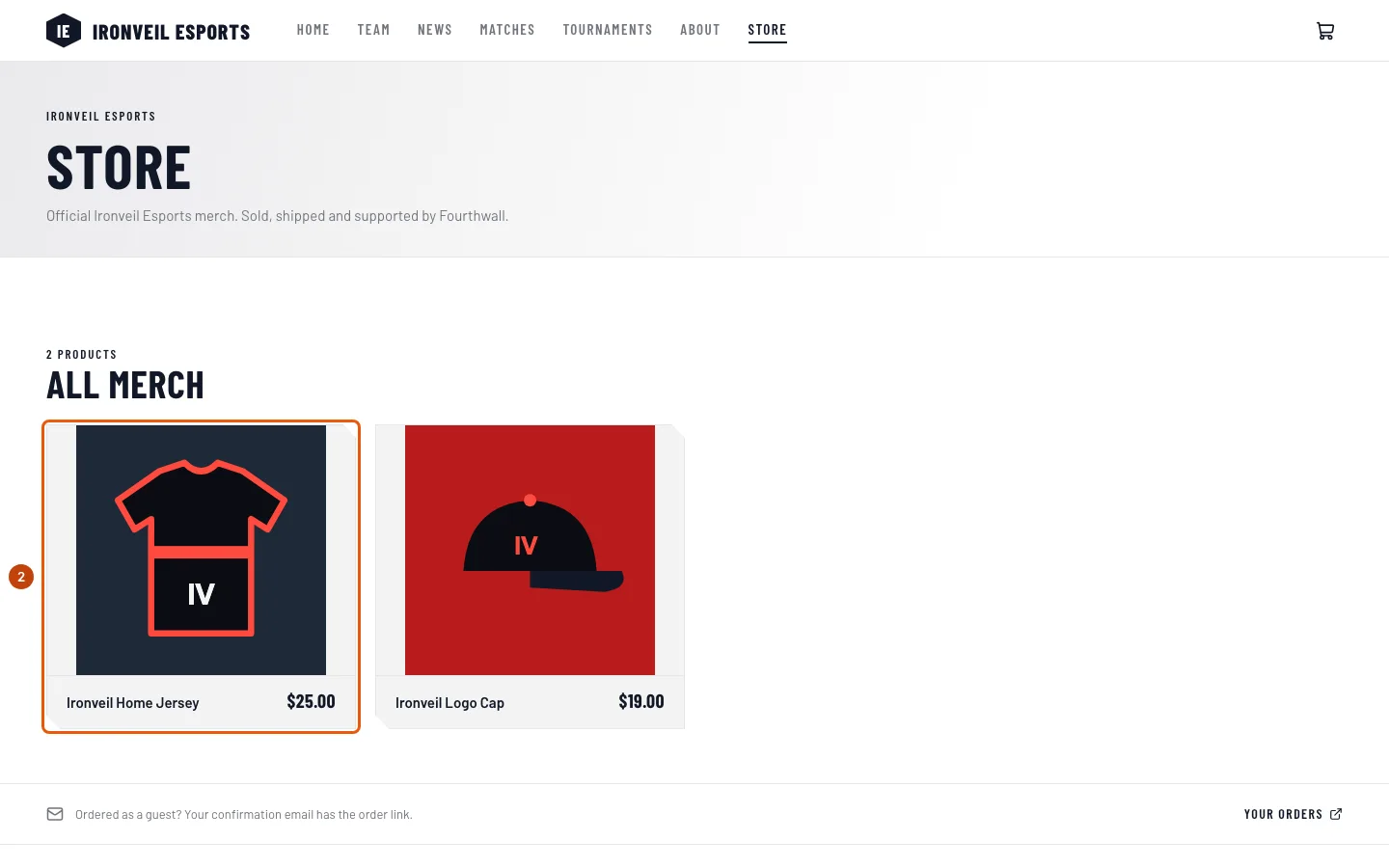
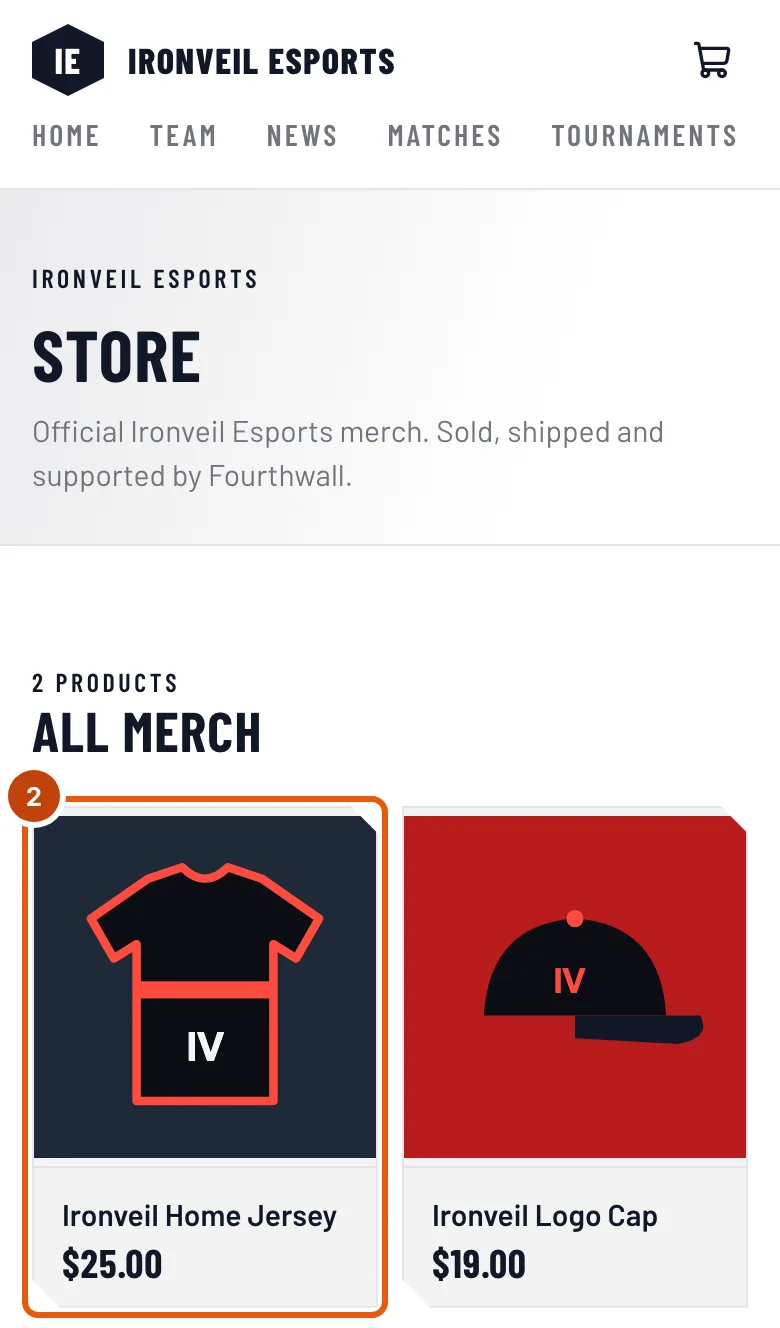
You should see: a page titled Store, with the team's merch under All merch.
Step 2: Open a product
Press the product you want.
You should see: the product's page, with its name, its price, Variant (when it comes in sizes or versions), Quantity and Add to cart.
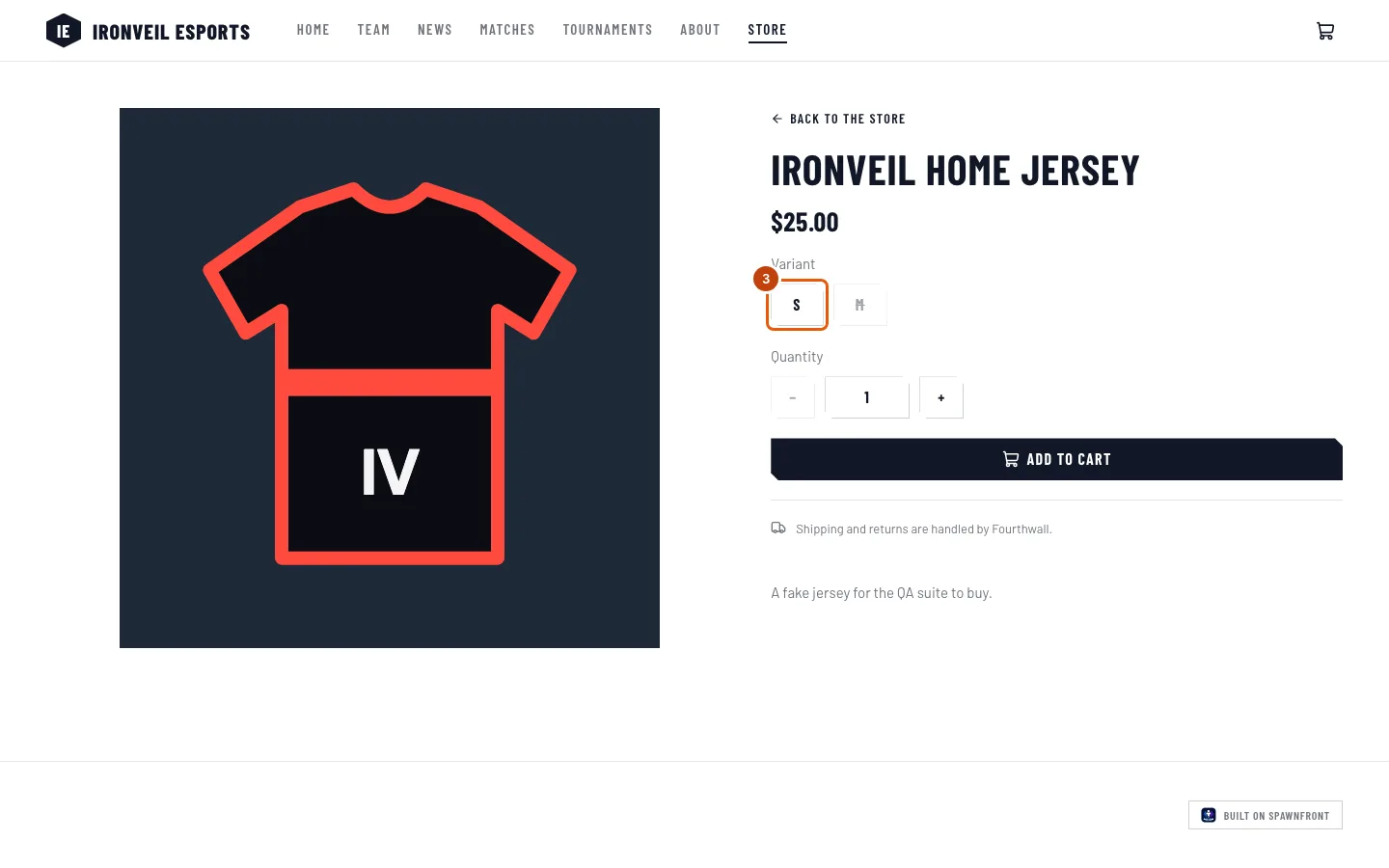
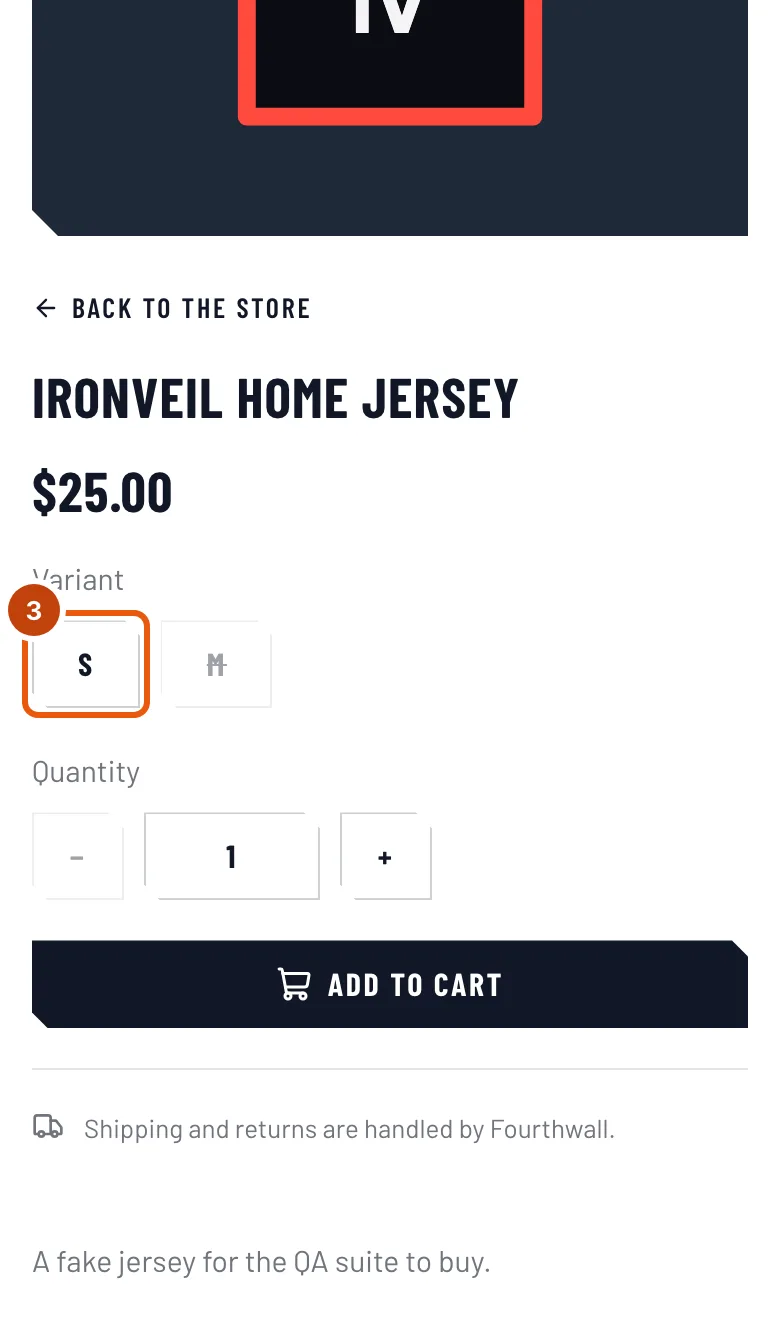
Step 3: Choose your size
Under Variant, press the size or version you want. A struck-through one is sold out and can't be chosen. To buy more than one, press + under Quantity.
You should see: your choice selected. If nothing can be chosen, the page says "No variant is available right now".
Step 4: Add it to your cart
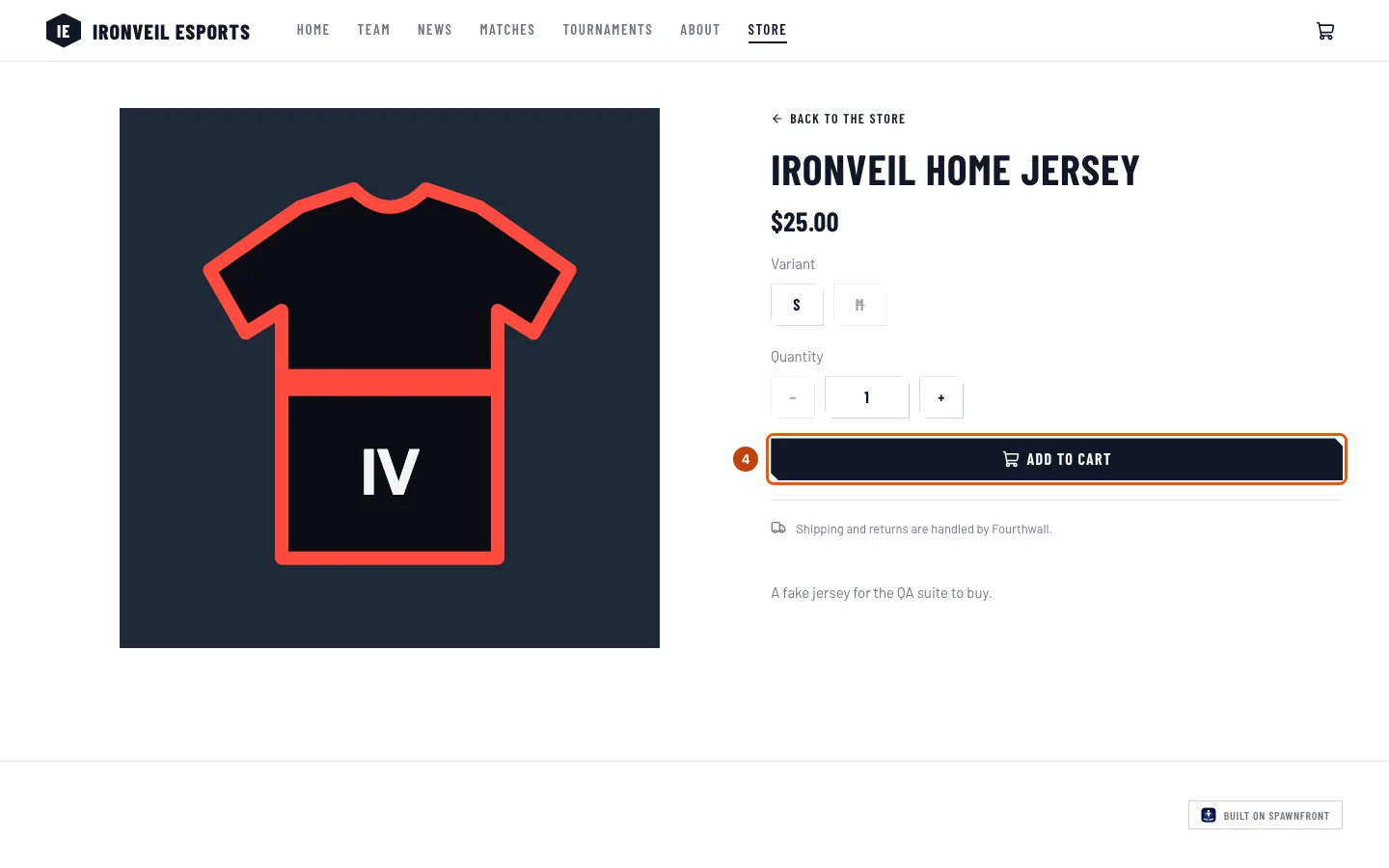
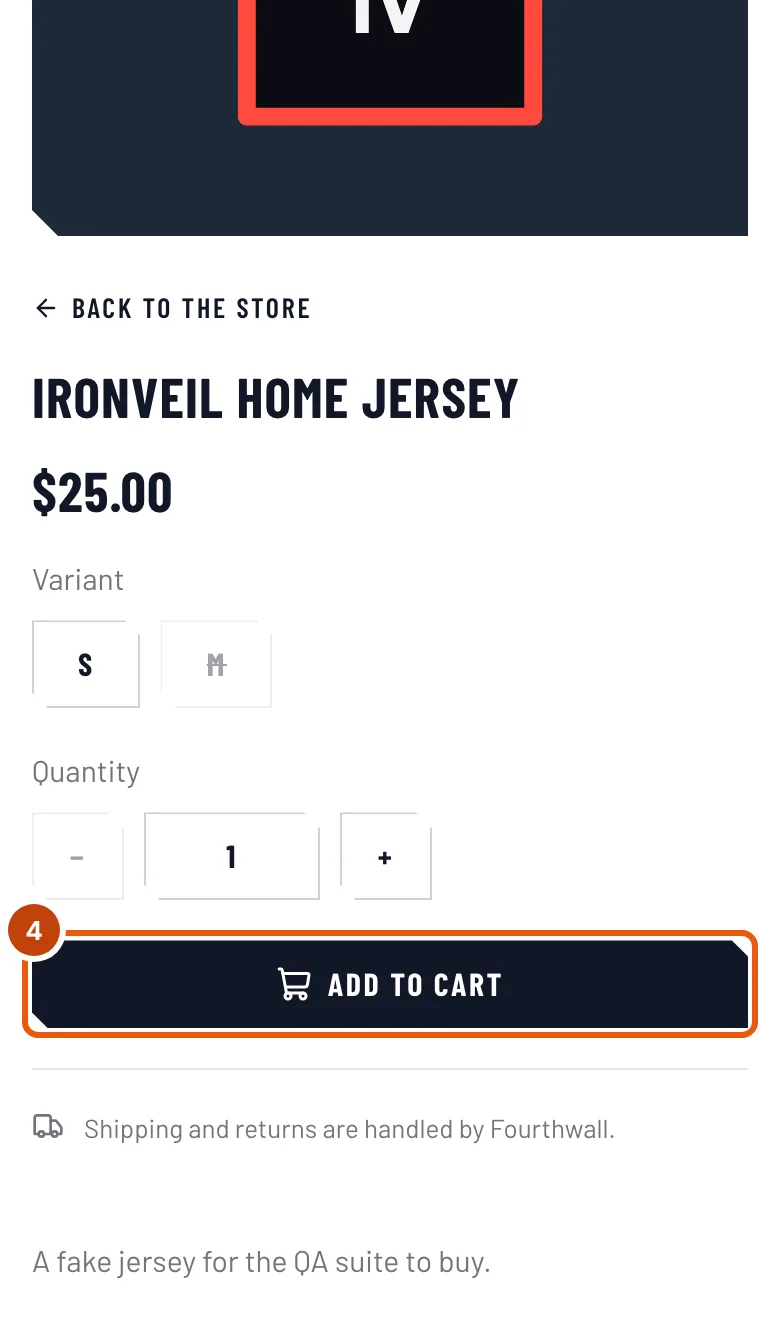
Press Add to cart.
You should see: Added to your cart, and a number beside the cart in the site's menu.
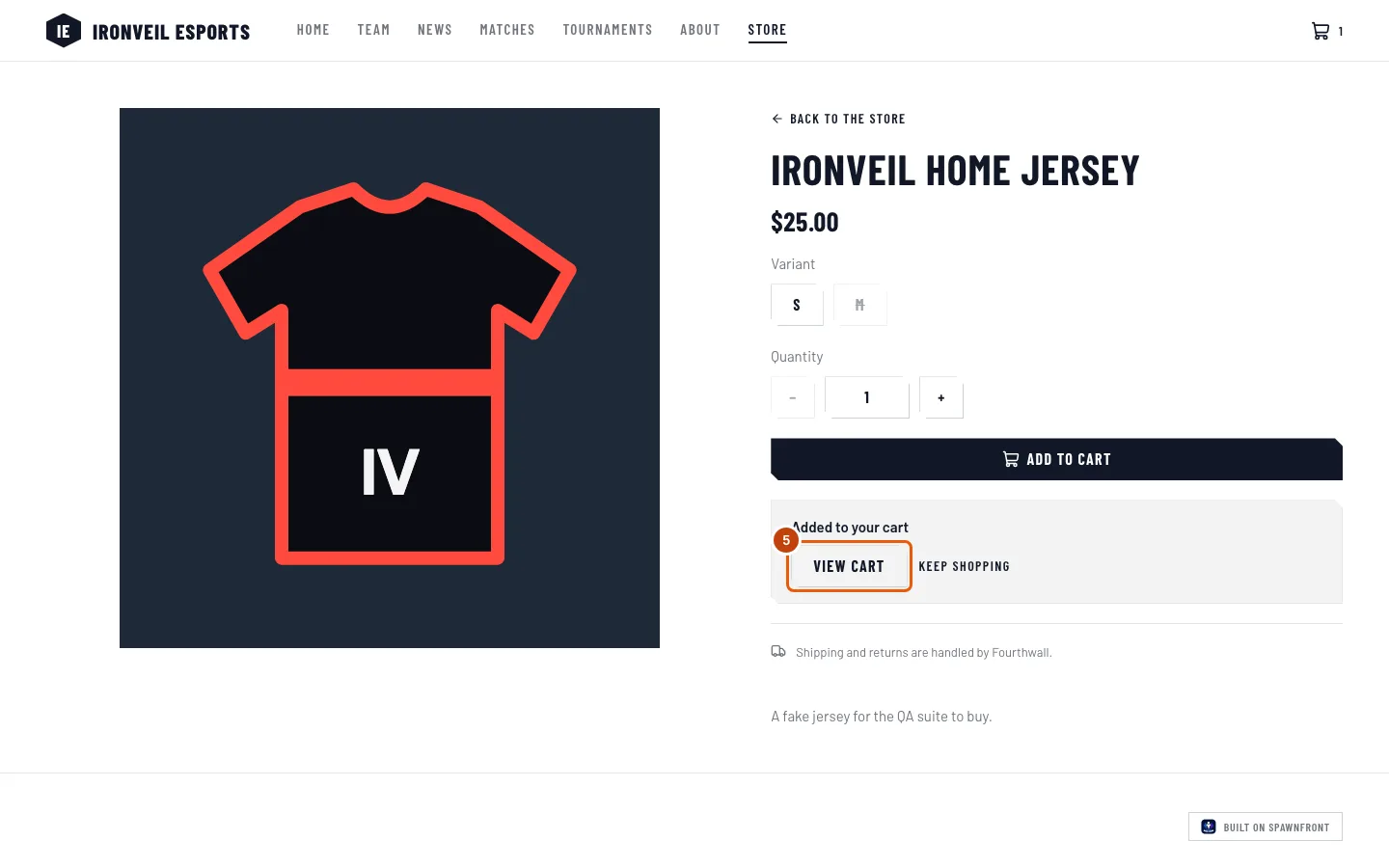
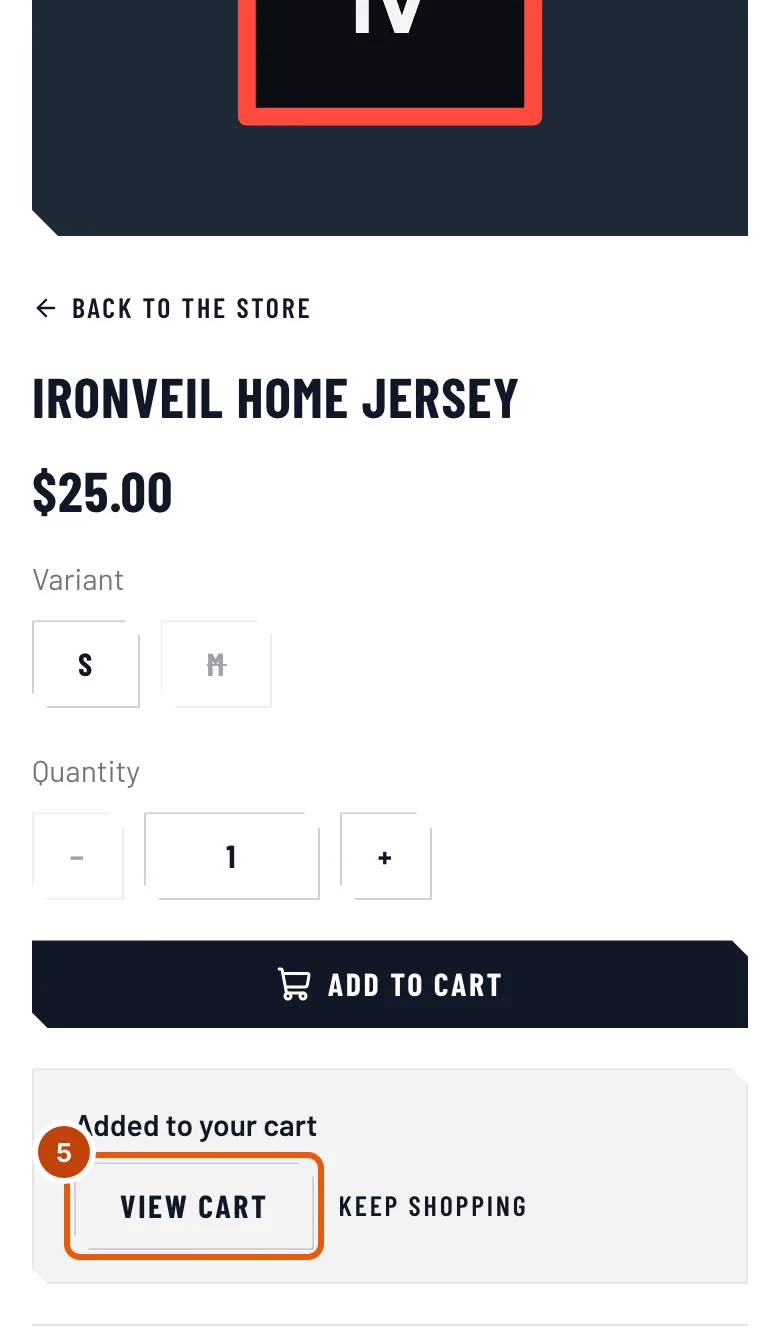
Step 5: Open your cart
Press View cart. From any other page of the site, press the cart at the top of the page instead. Keep shopping lets you add more first.
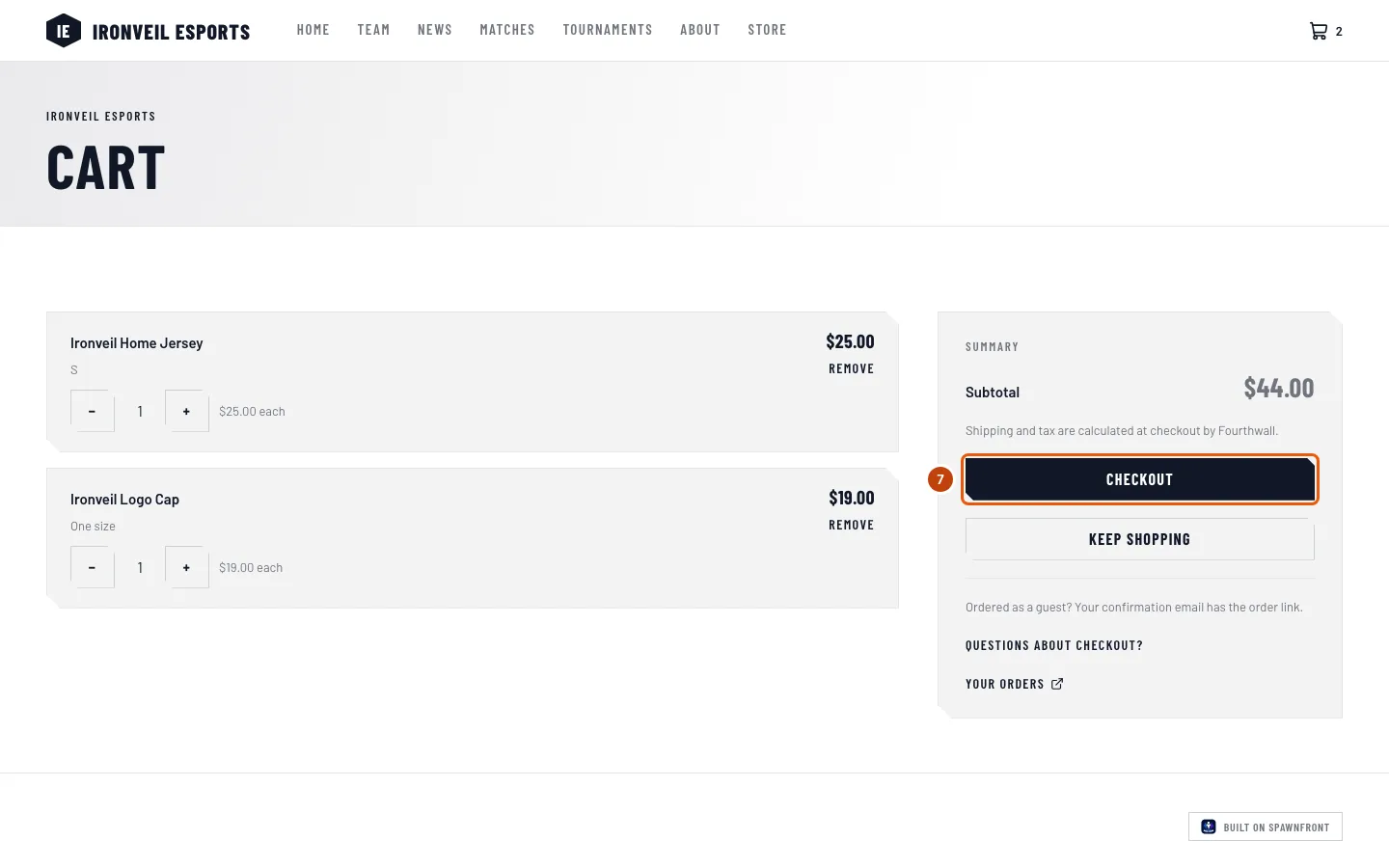
You should see: a page titled Cart, one line per item, and a Subtotal.
Step 6: Change a quantity or remove an item
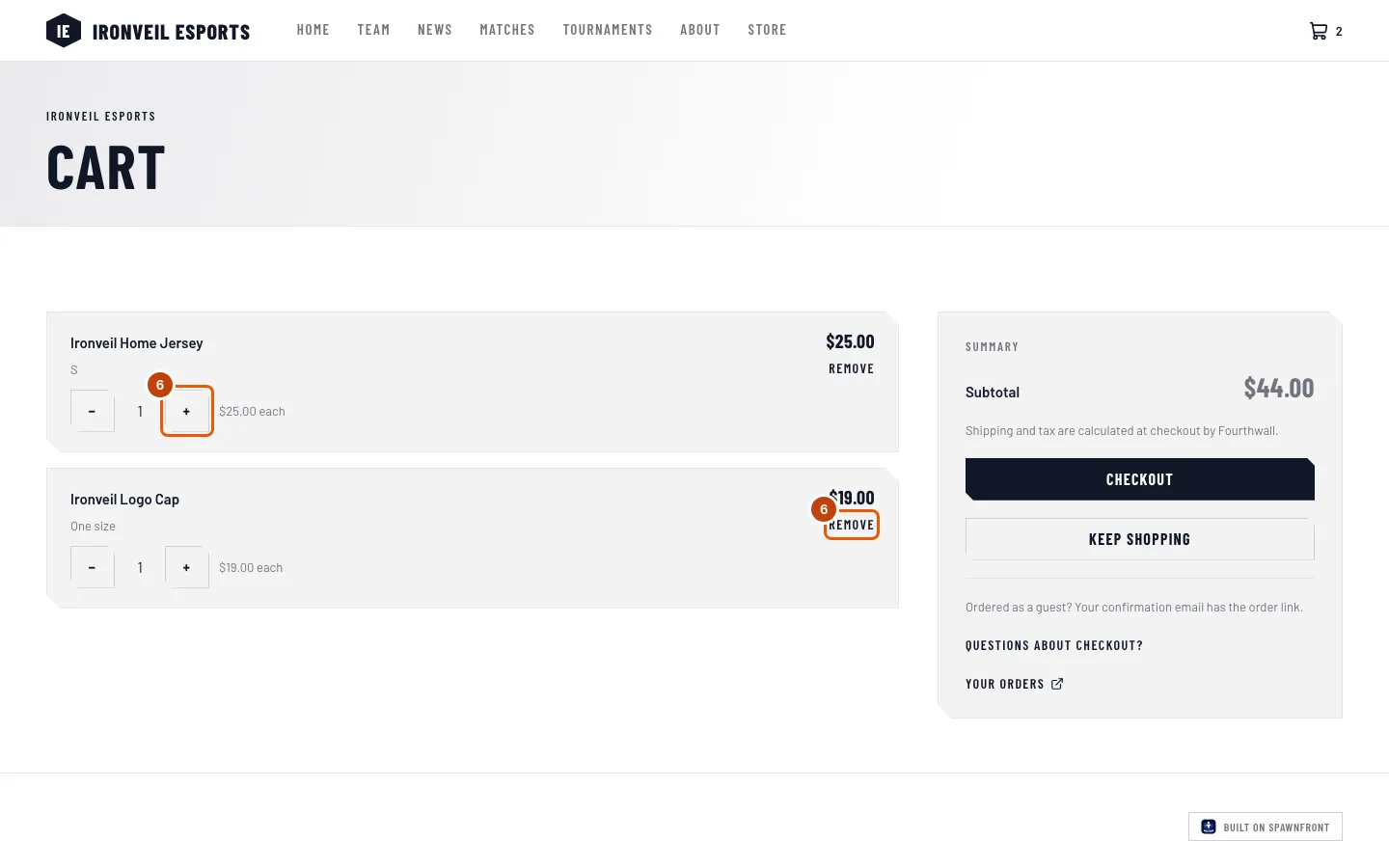
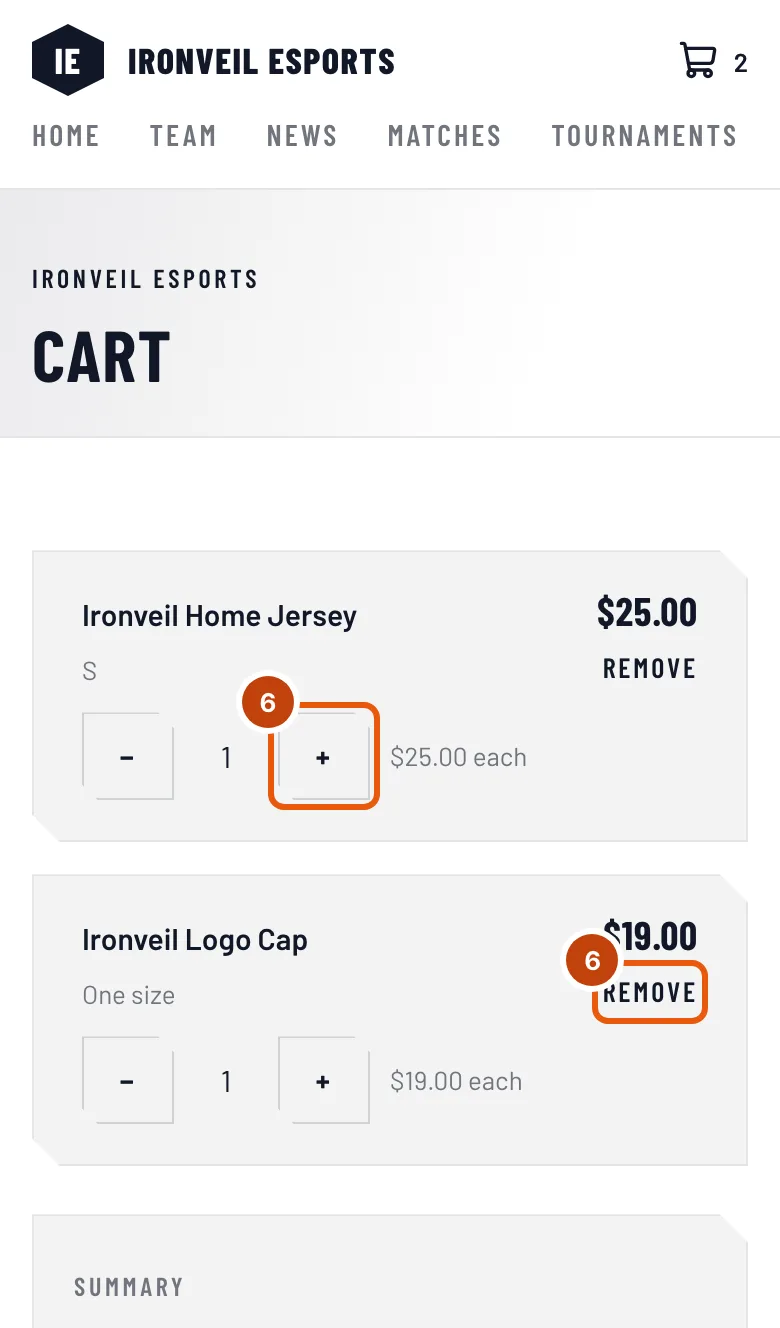
In a line, press + or − to change how many, or Remove to take it out. Pressing − when there is only one removes the line.
You should see: the line's price and the Subtotal change. While the store answers, the line says "Waiting for the shop…".
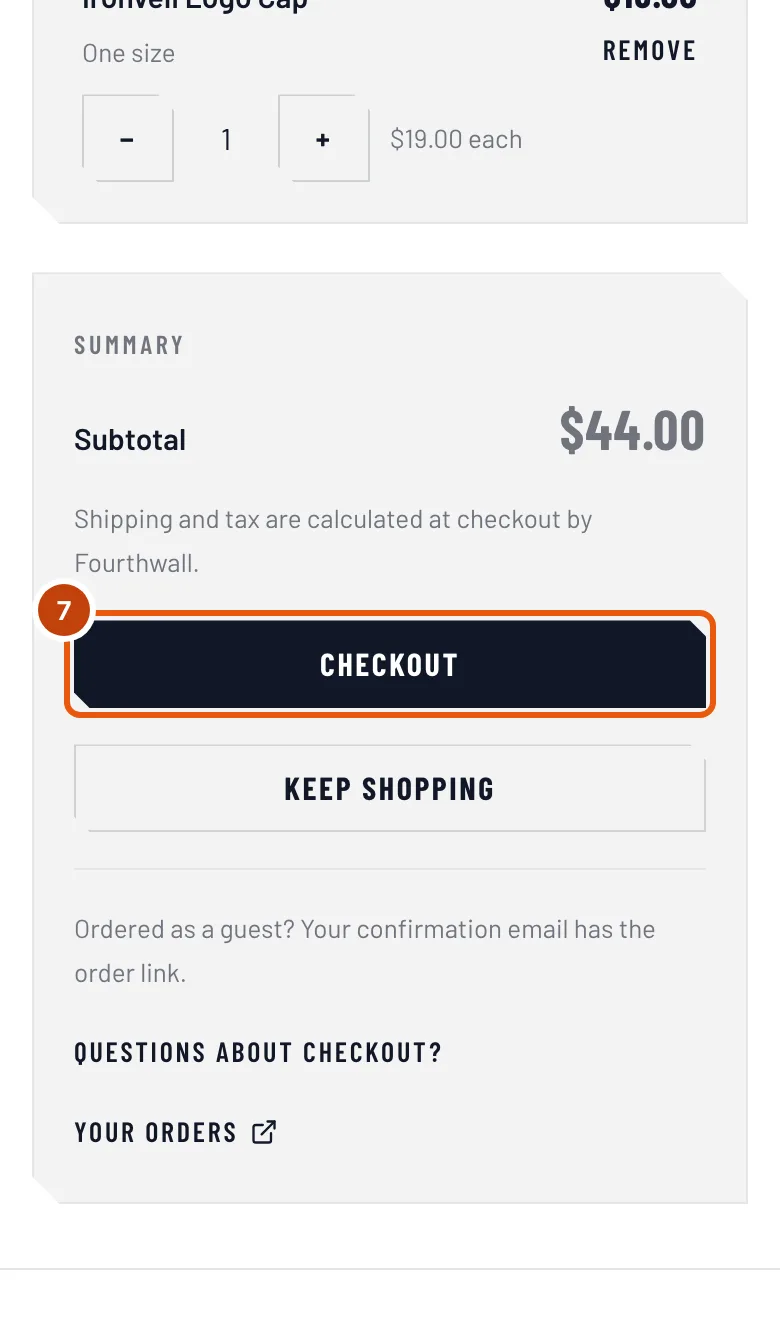
Step 7: Go to checkout
Press Checkout.
Checkout happens on Fourthwall, not on the team's site. The team's shop runs on Fourthwall: it takes your payment and your shipping address, and adds shipping and tax. See Where checkout happens.
You should see: Fourthwall's checkout page, in the same tab.
How to know it worked
- After you pay, Fourthwall emails you a confirmation. It has your order's link.
- The first time you open the team's store or cart again in the same browser, you see Thanks for supporting the team, with Your orders (it shows once).
- With a Spawnfront account under the same email, the order also shows in your order history — see See your order history.
Something doesn't look right?
The site says "Store coming soon"
The team hasn't opened its store on this site yet. There is nothing to buy until it does.
Add to cart is grayed out
Every size is sold out, or the product is: the page says "No variant is available right now". It is also grayed out for a moment while it says Adding….
It says "We could not reach the store"
Nothing was added to your cart. Press Try again. If it keeps happening, the team's store is having trouble — come back later.
Checkout is grayed out
Checkout waits while the store is still answering a change — wait until "Waiting for the shop" goes away. If a line says No longer available, the cart says "Remove … to check out": press Remove on that line (step 6). If the cart says "The store is temporarily unavailable", your cart is saved in this browser; try again later.
My cart is empty on my phone
A cart is kept in the browser you added it in. Open the site in that browser, or add the items again on this device.
The cart says "Your cart has expired"
The store no longer holds that cart. Nothing was charged — the items are still in the store. Add them again.
Related articles
Still stuck? Contact support or email support@spawnfront.com — tell us the page you're on and the step number.